> ## Documentation Index
> Fetch the complete documentation index at: https://www.outx.ai/docs/llms.txt
> Use this file to discover all available pages before exploring further.
# Authentication
> Authenticate OutX API requests using your API key. Learn about rate limits, Chrome extension requirements, and error handling for the LinkedIn API.
All OutX API endpoints require authentication using an API key. This ensures secure access to your data and protects your account.
## Getting Your API Key
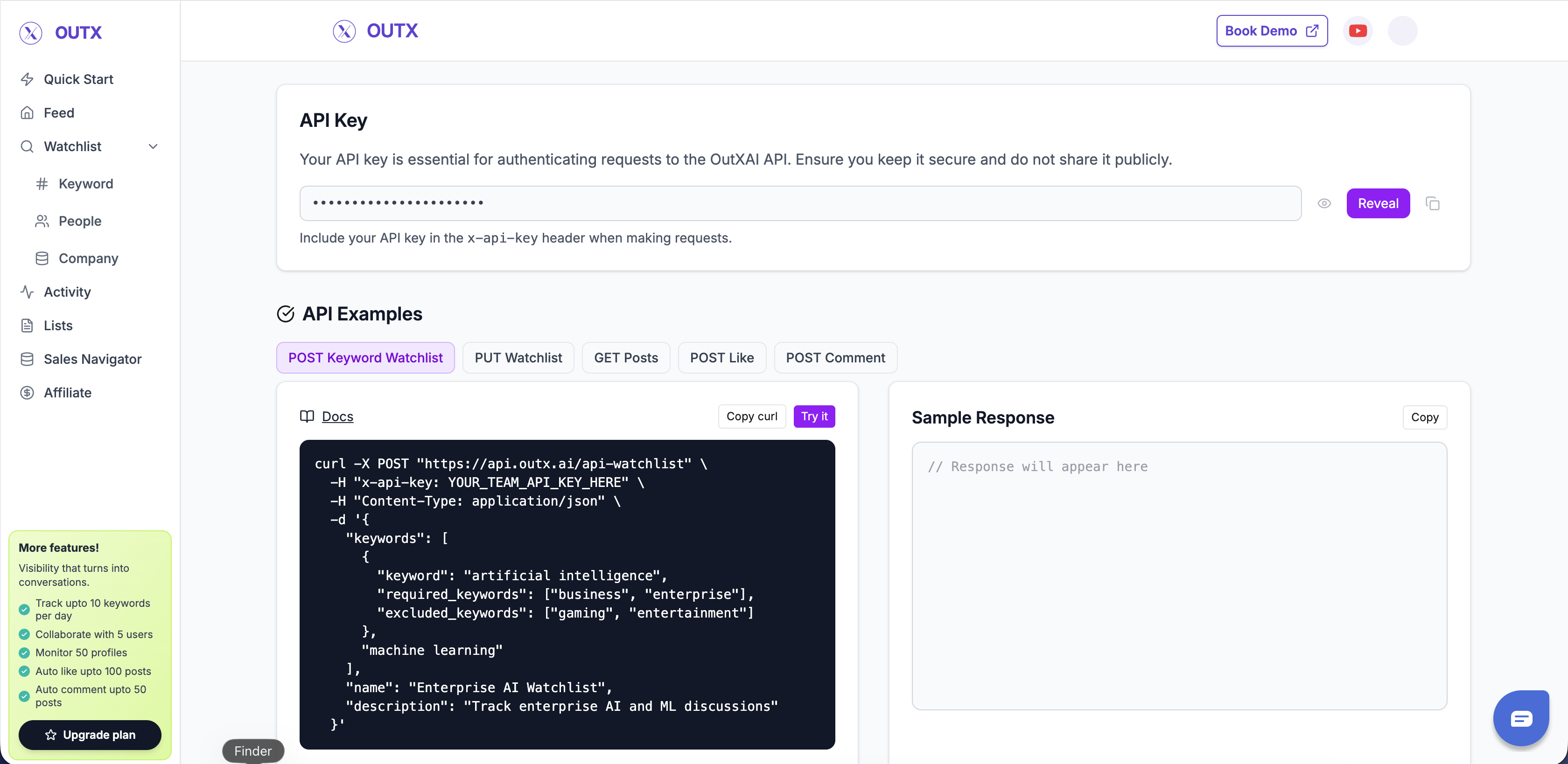
To obtain your API key:
1. Log in to your OutX account
2. Visit [mentions.outx.ai/api-doc](https://mentions.outx.ai/api-doc)
3. Click **"Reveal API Key"** to view your key
4. Copy and securely store your API key
 ### Programmatic Authentication (OTP)
For AI agents, CLI tools, and automation, you can obtain your API key programmatically without a browser:
1. **[Send OTP](/linkedin-api/auth-send-otp)**, `POST /linkedin-agent/auth-send-otp` with your email
2. **[Verify OTP](/linkedin-api/auth-verify-otp)**, `POST /linkedin-agent/auth-verify-otp` with the 6-digit code from your email
The verify response includes your `api_key` directly.
Keep your API key secure and never share it publicly. Treat it like a
password.
## Using Your API Key
Include your API key in the `x-api-key` header of every API request:
### Header Format
```bash theme={null}
x-api-key: YOUR_API_KEY
```
### Example Request
```bash cURL theme={null}
curl -X GET \
"https://api.outx.ai/api-keyword-watchlist" \
-H "x-api-key: YOUR_API_KEY"
```
```javascript JavaScript theme={null}
const response = await fetch("https://api.outx.ai/api-keyword-watchlist", {
headers: {
"x-api-key": "YOUR_API_KEY",
},
});
```
```python Python theme={null}
import requests
headers = {
'x-api-key': 'YOUR_API_KEY'
}
response = requests.get(
'https://api.outx.ai/api-keyword-watchlist',
headers=headers
)
```
```php PHP theme={null}
```
## Chrome Extension Requirement
All API calls require that at least one team member has the OutX Chrome extension installed and active within the last **48 hours**. This is because OutX retrieves LinkedIn data through the browser extension - it doesn't use unofficial scraping or LinkedIn's restricted API.
If no team member has an active extension, you'll receive:
```json theme={null}
{
"error": "Plugin installation required: Please install the OutX browser extension on at least one team member's account to use the API. The plugin must have been active within the last 48 hours."
}
```
**How to fix:** Install the [OutX Chrome Extension](https://chromewebstore.google.com/detail/outxai-track-linkedin-pos/epnimaeheelhgeelbppbfkjegklflakj), sign into LinkedIn in the same browser, and keep the browser open. The extension needs to have been active within the last 48 hours.
For more details, see [Chrome Extension Guide](/resources/chrome-extension).
***
## Authentication Errors
### 401 Unauthorized
This error occurs when:
* No API key is provided
* The API key is invalid or expired
* The API key format is incorrect
**Responses:**
```json Missing key theme={null}
{
"error": "Missing API Key"
}
```
```json Invalid key theme={null}
{
"error": "Invalid API Key"
}
```
**Solution:** Verify that you're including the correct API key in the `x-api-key` header.
### 403 Forbidden
This error occurs when:
* You're trying to access resources that don't belong to your team
* Your API key doesn't have permission for the requested operation
**Response:**
```json theme={null}
{
"error": "Access denied: You don't have permission to access this resource"
}
```
**Solution:** Ensure you're only accessing resources associated with your account.
## Best Practices
* Never commit API keys to version control
* Use environment variables or secure key management systems
* Rotate keys periodically for enhanced security
* Always use HTTPS for API requests
* Never send API keys over unencrypted connections
* Track your API usage to stay within rate limits
* Set up alerts for unusual activity
* Review API logs regularly
* Implement proper error handling in your code
* Retry failed requests with exponential backoff
* Log authentication errors for debugging
## Rate Limiting
OutX does not enforce API rate limits for the first month on paid plans. After the first month, reasonable usage limits may apply. The primary constraint is LinkedIn's own activity limits. See [Rate Limits](/api-reference/rate-limits) for full details on daily task limits, plan-based quotas, and safe usage guidelines.
For error handling and troubleshooting, see [Error Codes](/api-reference/errors).
## Team-Based Access
Your API key is associated with your team account. This means:
* All API requests are scoped to your team's data
* You can only access watchlists and posts created by your team
* Team members share the same rate limits
## Next Steps
Make your first API request
Create and manage watchlists
## Frequently Asked Questions
Yes. There is one API key per team. All team members use the same key, and all API requests are scoped to your team's data. You can find your shared key at [mentions.outx.ai/api-doc](https://mentions.outx.ai/api-doc).
API key rotation is not currently available as a self-service feature. If you need to rotate your API key for security reasons, contact [support@outx.ai](mailto:support@outx.ai) and the team will generate a new key for you.
The most common cause is the Chrome extension requirement. At least one team member must have the OutX Chrome extension installed and actively used within the last 48 hours. Without an active extension, all API calls will return a 403 error. Install the [OutX Chrome Extension](https://chromewebstore.google.com/detail/outxai-track-linkedin-pos/epnimaeheelhgeelbppbfkjegklflakj), sign into LinkedIn in the same browser, and keep the browser open.
### Programmatic Authentication (OTP)
For AI agents, CLI tools, and automation, you can obtain your API key programmatically without a browser:
1. **[Send OTP](/linkedin-api/auth-send-otp)**, `POST /linkedin-agent/auth-send-otp` with your email
2. **[Verify OTP](/linkedin-api/auth-verify-otp)**, `POST /linkedin-agent/auth-verify-otp` with the 6-digit code from your email
The verify response includes your `api_key` directly.
Keep your API key secure and never share it publicly. Treat it like a
password.
## Using Your API Key
Include your API key in the `x-api-key` header of every API request:
### Header Format
```bash theme={null}
x-api-key: YOUR_API_KEY
```
### Example Request
```bash cURL theme={null}
curl -X GET \
"https://api.outx.ai/api-keyword-watchlist" \
-H "x-api-key: YOUR_API_KEY"
```
```javascript JavaScript theme={null}
const response = await fetch("https://api.outx.ai/api-keyword-watchlist", {
headers: {
"x-api-key": "YOUR_API_KEY",
},
});
```
```python Python theme={null}
import requests
headers = {
'x-api-key': 'YOUR_API_KEY'
}
response = requests.get(
'https://api.outx.ai/api-keyword-watchlist',
headers=headers
)
```
```php PHP theme={null}
```
## Chrome Extension Requirement
All API calls require that at least one team member has the OutX Chrome extension installed and active within the last **48 hours**. This is because OutX retrieves LinkedIn data through the browser extension - it doesn't use unofficial scraping or LinkedIn's restricted API.
If no team member has an active extension, you'll receive:
```json theme={null}
{
"error": "Plugin installation required: Please install the OutX browser extension on at least one team member's account to use the API. The plugin must have been active within the last 48 hours."
}
```
**How to fix:** Install the [OutX Chrome Extension](https://chromewebstore.google.com/detail/outxai-track-linkedin-pos/epnimaeheelhgeelbppbfkjegklflakj), sign into LinkedIn in the same browser, and keep the browser open. The extension needs to have been active within the last 48 hours.
For more details, see [Chrome Extension Guide](/resources/chrome-extension).
***
## Authentication Errors
### 401 Unauthorized
This error occurs when:
* No API key is provided
* The API key is invalid or expired
* The API key format is incorrect
**Responses:**
```json Missing key theme={null}
{
"error": "Missing API Key"
}
```
```json Invalid key theme={null}
{
"error": "Invalid API Key"
}
```
**Solution:** Verify that you're including the correct API key in the `x-api-key` header.
### 403 Forbidden
This error occurs when:
* You're trying to access resources that don't belong to your team
* Your API key doesn't have permission for the requested operation
**Response:**
```json theme={null}
{
"error": "Access denied: You don't have permission to access this resource"
}
```
**Solution:** Ensure you're only accessing resources associated with your account.
## Best Practices
* Never commit API keys to version control
* Use environment variables or secure key management systems
* Rotate keys periodically for enhanced security
* Always use HTTPS for API requests
* Never send API keys over unencrypted connections
* Track your API usage to stay within rate limits
* Set up alerts for unusual activity
* Review API logs regularly
* Implement proper error handling in your code
* Retry failed requests with exponential backoff
* Log authentication errors for debugging
## Rate Limiting
OutX does not enforce API rate limits for the first month on paid plans. After the first month, reasonable usage limits may apply. The primary constraint is LinkedIn's own activity limits. See [Rate Limits](/api-reference/rate-limits) for full details on daily task limits, plan-based quotas, and safe usage guidelines.
For error handling and troubleshooting, see [Error Codes](/api-reference/errors).
## Team-Based Access
Your API key is associated with your team account. This means:
* All API requests are scoped to your team's data
* You can only access watchlists and posts created by your team
* Team members share the same rate limits
## Next Steps
Make your first API request
Create and manage watchlists
## Frequently Asked Questions
Yes. There is one API key per team. All team members use the same key, and all API requests are scoped to your team's data. You can find your shared key at [mentions.outx.ai/api-doc](https://mentions.outx.ai/api-doc).
API key rotation is not currently available as a self-service feature. If you need to rotate your API key for security reasons, contact [support@outx.ai](mailto:support@outx.ai) and the team will generate a new key for you.
The most common cause is the Chrome extension requirement. At least one team member must have the OutX Chrome extension installed and actively used within the last 48 hours. Without an active extension, all API calls will return a 403 error. Install the [OutX Chrome Extension](https://chromewebstore.google.com/detail/outxai-track-linkedin-pos/epnimaeheelhgeelbppbfkjegklflakj), sign into LinkedIn in the same browser, and keep the browser open.