> ## Documentation Index
> Fetch the complete documentation index at: https://www.outx.ai/docs/llms.txt
> Use this file to discover all available pages before exploring further.
# Auto like and Auto comment
> Auto Engagement helps you stay active on LinkedIn without spending hours scrolling or sounding robotic. It ensures you engage only with posts that are relevant to your goals, your keywords, and your target people.
### Auto Engagement via Watchlists
When Auto Engagement is enabled on a watchlist, OutX.ai monitors new posts in real time.
* Posts are picked only if they match your keywords or tracked profiles
* You can auto-like, auto-comment, or both
* Engagement happens shortly after the post goes live, not days later
* This helps you stay visible without checking LinkedIn all day
***
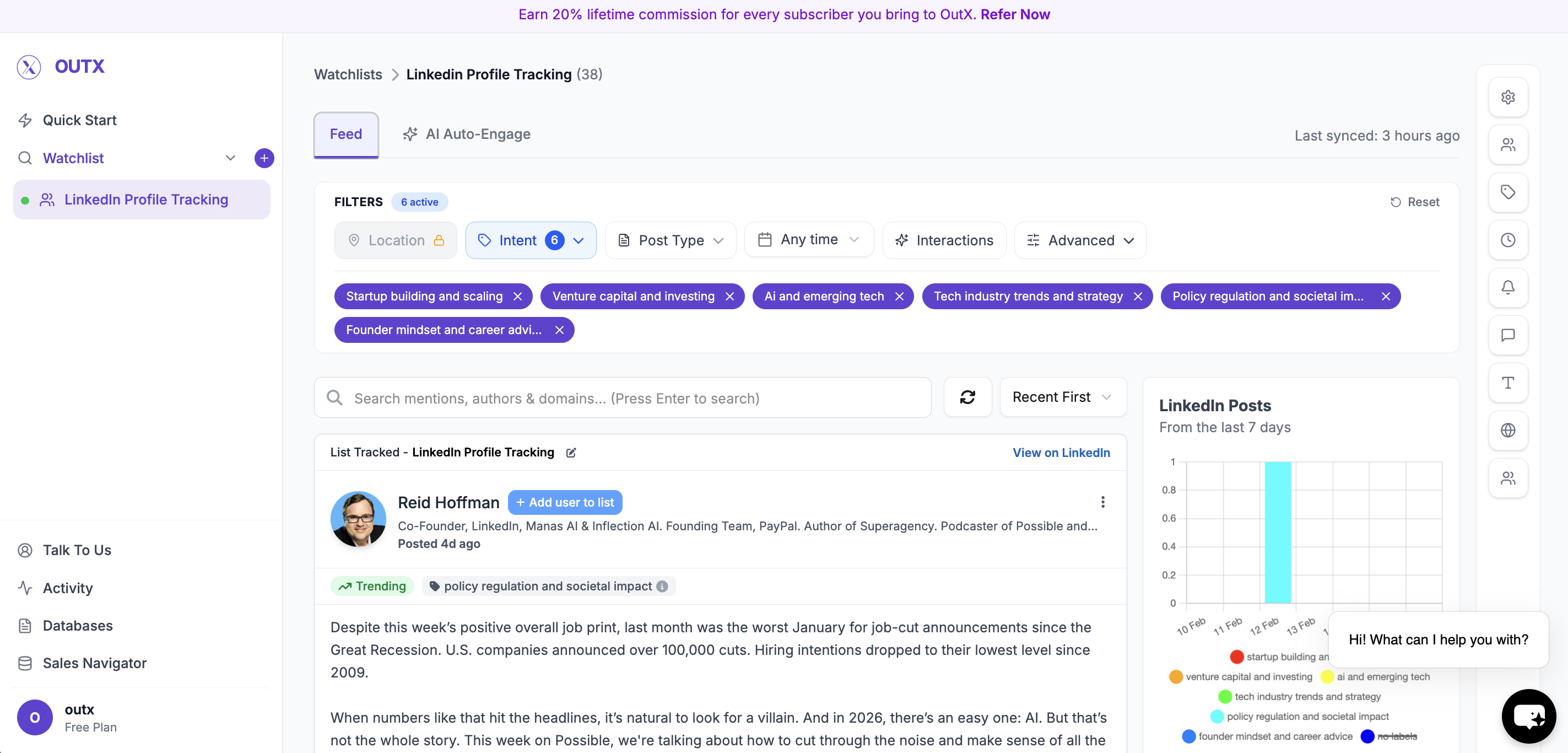
## Step 1: Open a Watchlist
Auto Engagement always runs on a **watchlist**.
1. Go to **Watchlists**
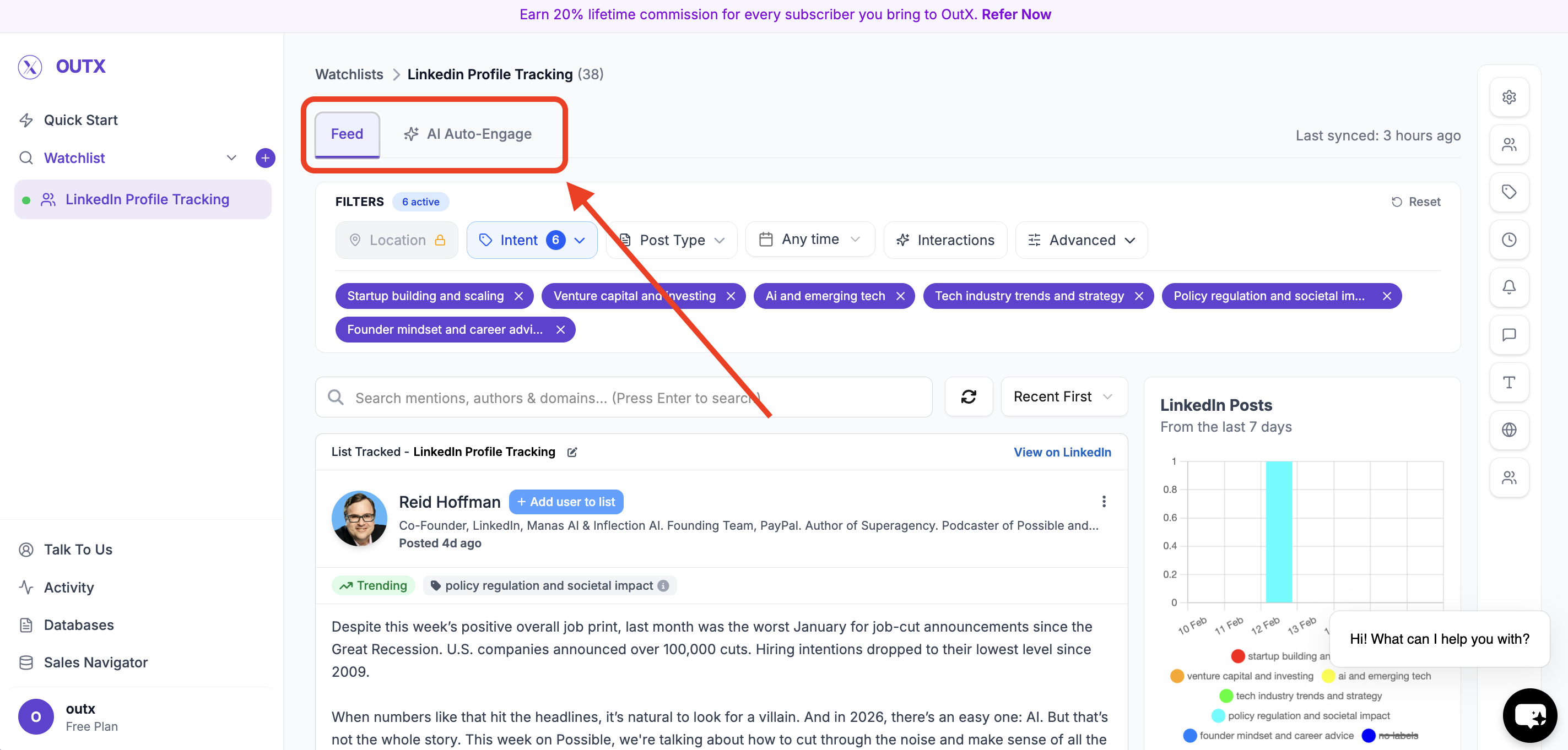
 2. Click **AI Auto-Engage**
 3. Click **Add Your First Rule**
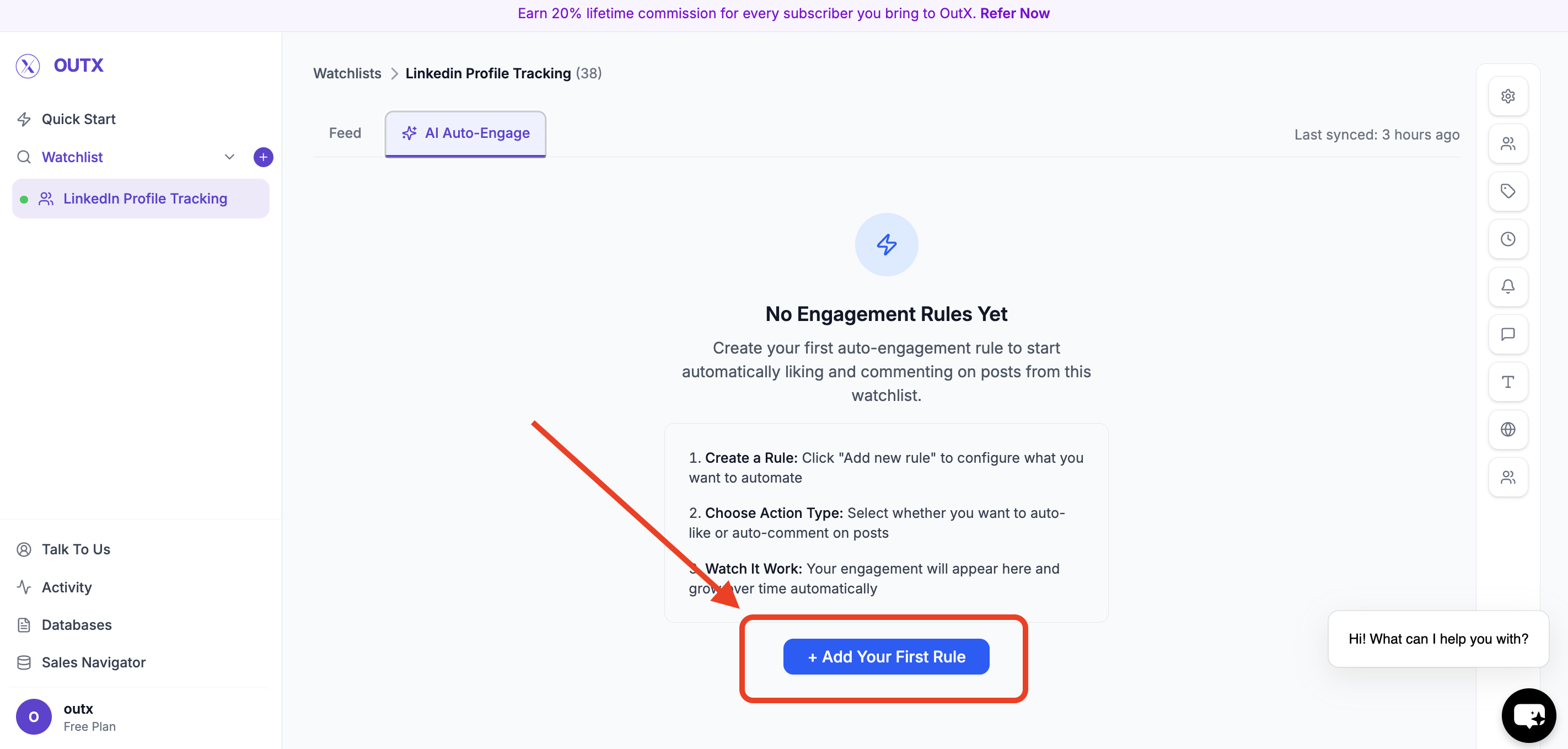 Engagement will only happen on posts that appear inside this watchlist.
***
## Step 2: Create Engagement Rule
You'll see the **Create Engagement Rule** modal.
This is where you define how OutX.ai should engage.
Engagement will only happen on posts that appear inside this watchlist.
***
## Step 2: Create Engagement Rule
You'll see the **Create Engagement Rule** modal.
This is where you define how OutX.ai should engage.
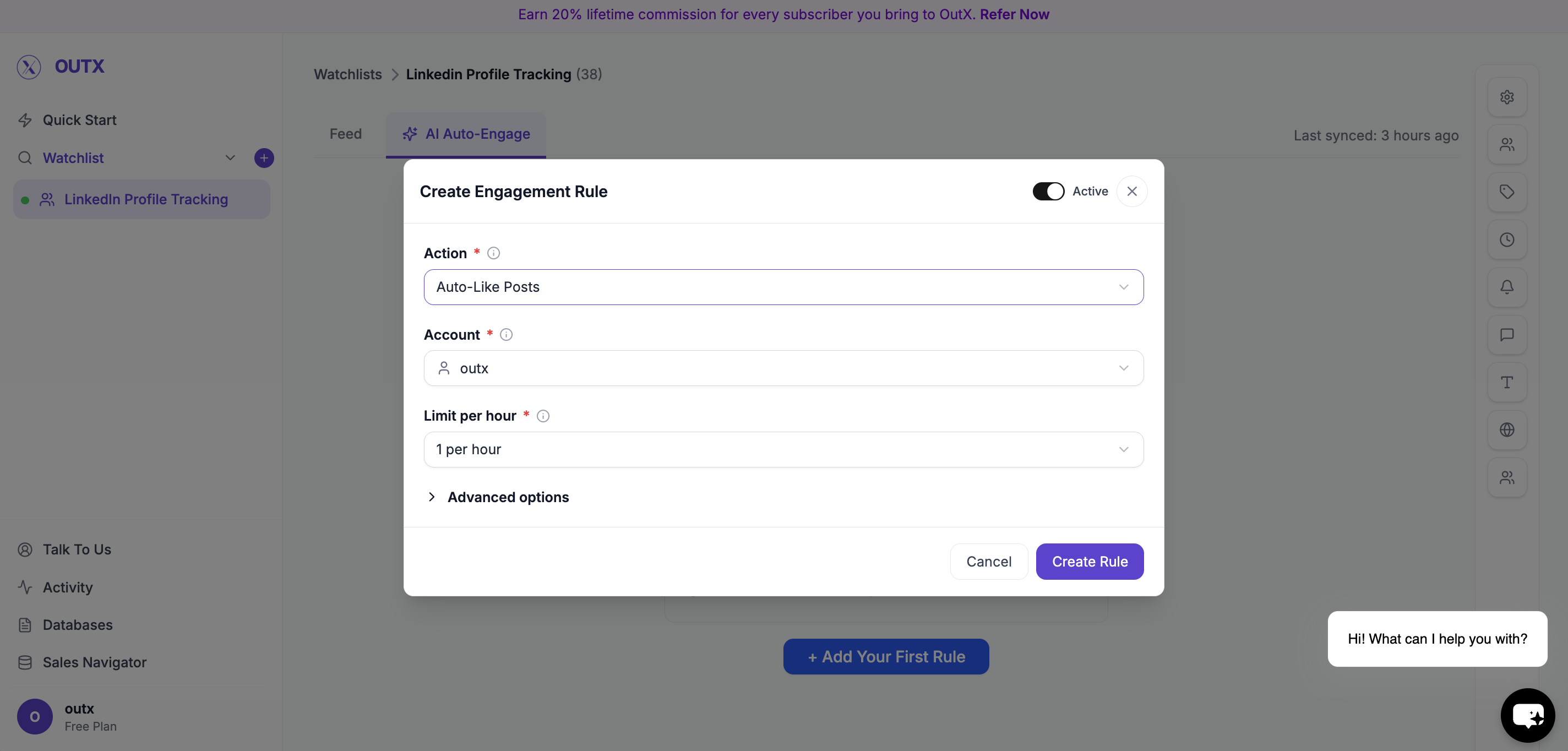 ***
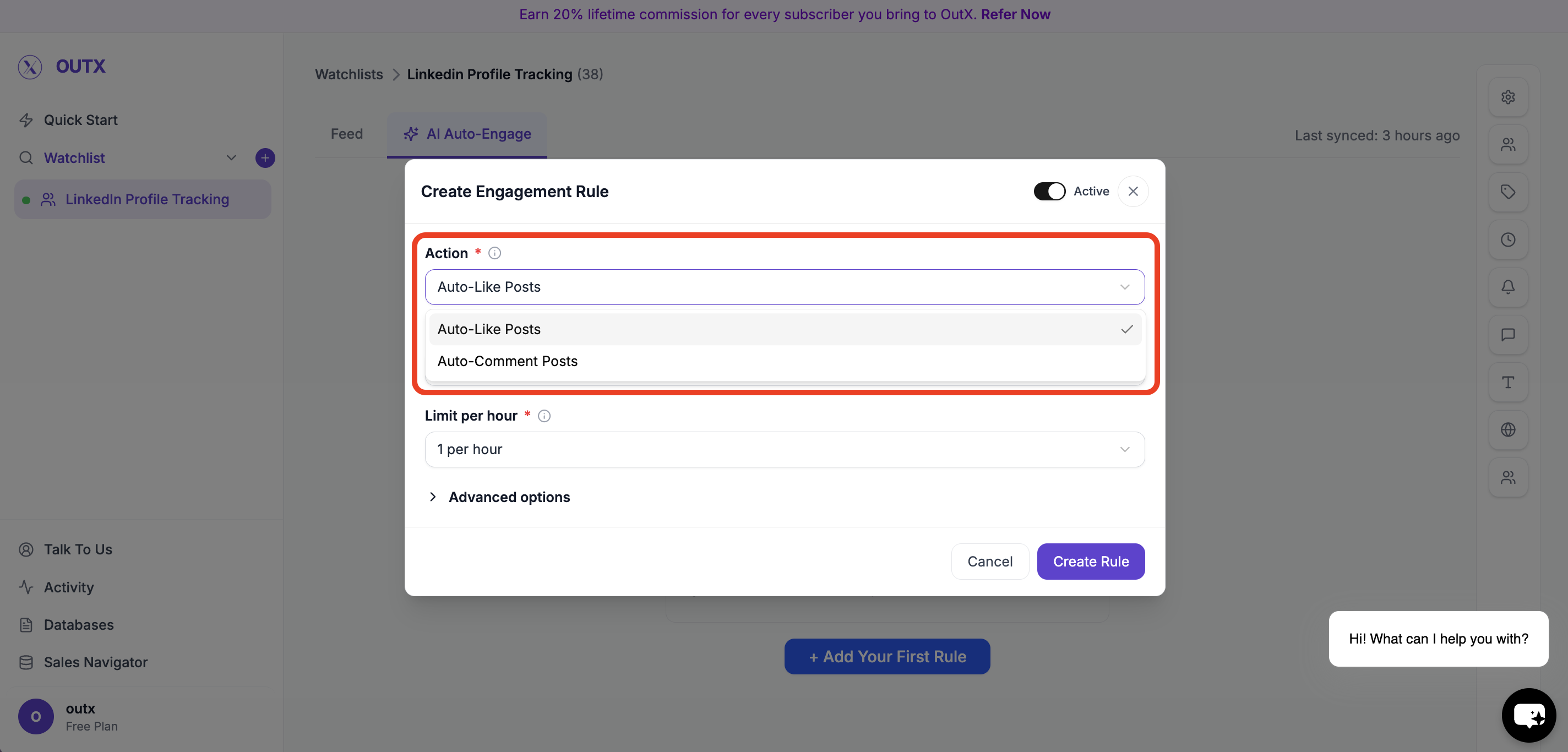
### Choose Action
Select what OutX.ai should do:
* Auto-Like Posts
* Auto-Comment on Posts
***
### Choose Action
Select what OutX.ai should do:
* Auto-Like Posts
* Auto-Comment on Posts
 ***
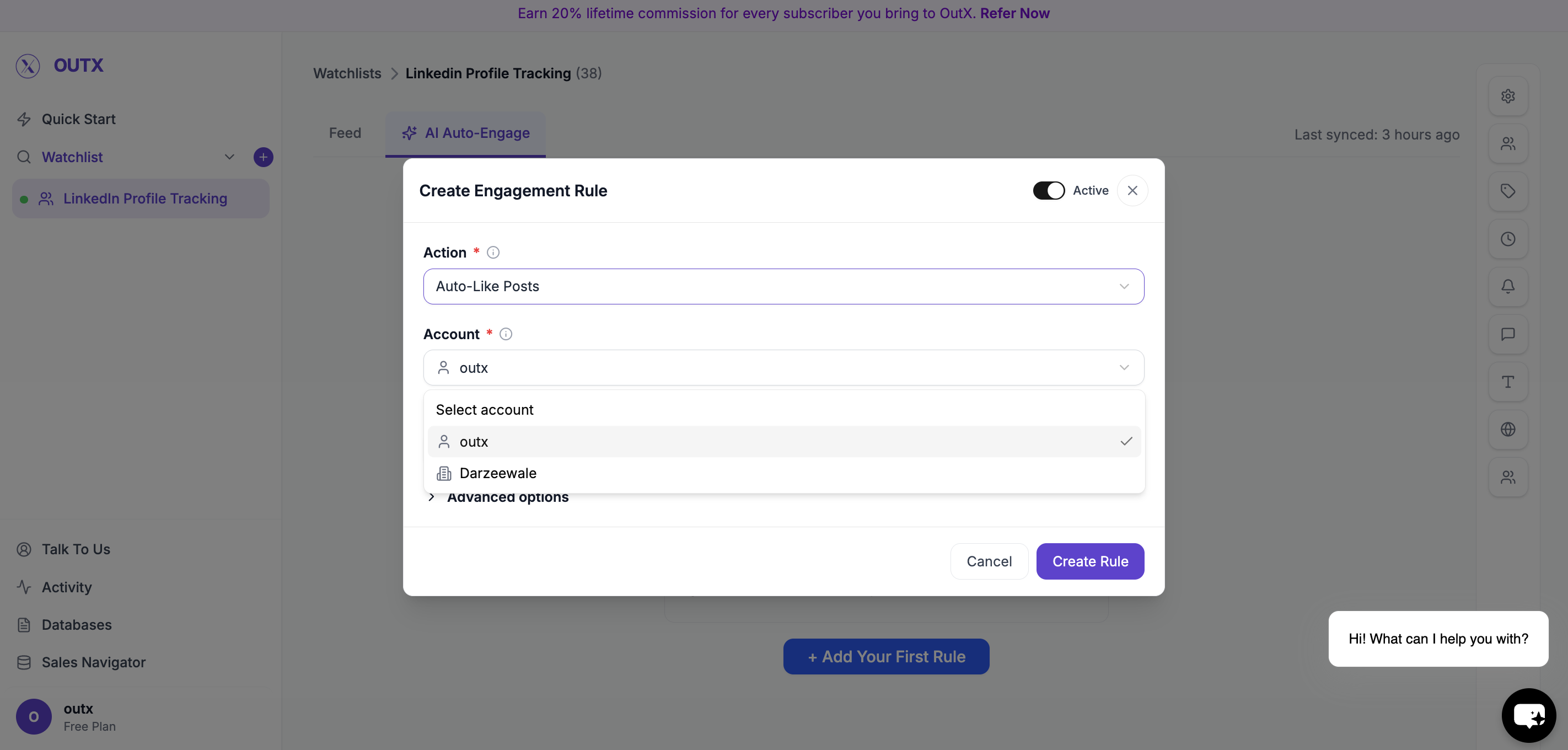
### Choose Account
Select which LinkedIn account will be used:
* Your personal LinkedIn account
* Your connected company page
***
### Choose Account
Select which LinkedIn account will be used:
* Your personal LinkedIn account
* Your connected company page
 ***
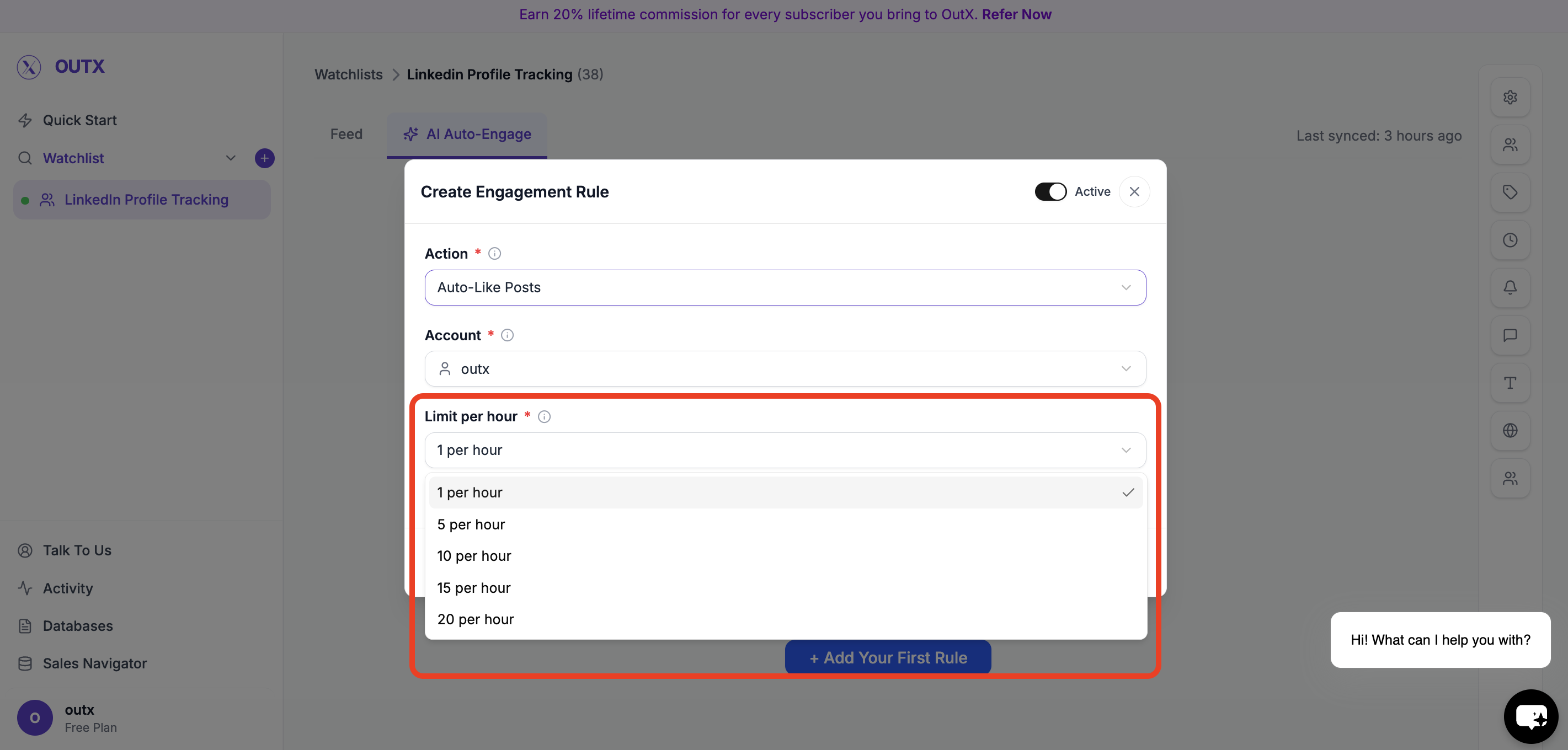
### Set Limit Per Hour
Control how many actions can happen per hour.
Examples:
* 1 per hour
* 5 per hour
* 10 per hour
***
### Set Limit Per Hour
Control how many actions can happen per hour.
Examples:
* 1 per hour
* 5 per hour
* 10 per hour
 This keeps engagement natural and safe.
***
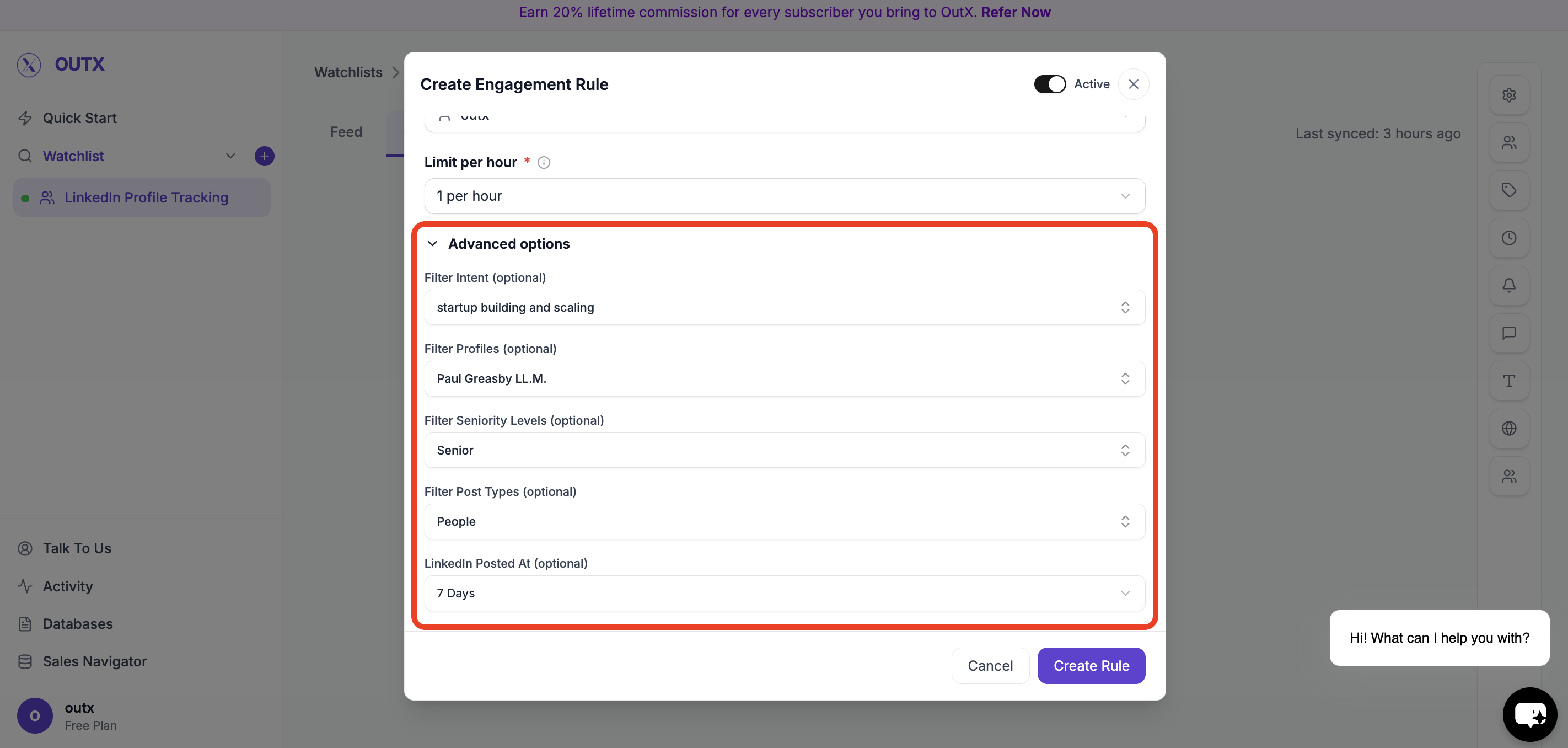
## Step 4: Advanced Options (Optional)
Use advanced filters to control **which posts qualify for engagement**.
You can refine engagement using:
* **Filter Intent** – Engage only on posts matching selected intent types (e.g., buying intent, hiring, announcements)
* **Filter Profiles** – Limit engagement to specific profiles or profile categories
* **Filter Seniority Levels** – Engage only with posts from certain seniority levels (e.g., Founder, VP, Manager)
* **Filter Post Types** – Choose which types of posts to engage with (text posts, image posts, job posts, etc.)
* **LinkedIn Posted At** – Engage only on posts published within a selected time range
These filters help ensure engagement stays **relevant, targeted, and high-quality**.
This keeps engagement natural and safe.
***
## Step 4: Advanced Options (Optional)
Use advanced filters to control **which posts qualify for engagement**.
You can refine engagement using:
* **Filter Intent** – Engage only on posts matching selected intent types (e.g., buying intent, hiring, announcements)
* **Filter Profiles** – Limit engagement to specific profiles or profile categories
* **Filter Seniority Levels** – Engage only with posts from certain seniority levels (e.g., Founder, VP, Manager)
* **Filter Post Types** – Choose which types of posts to engage with (text posts, image posts, job posts, etc.)
* **LinkedIn Posted At** – Engage only on posts published within a selected time range
These filters help ensure engagement stays **relevant, targeted, and high-quality**.
 ***
## Step 5: Activate Rule
Turn the rule **Active** and click **Create Rule**.
OutX.ai will start liking and/or commenting automatically based on your rule.
***
### Manual Engagement with AI Comments
For posts that matter more, you can engage manually with help from AI.
* View all tracked posts in one place
* Click **Generate Comment** to get a relevant, natural reply
* Edit the comment before posting
* Post only when you are confident with the message
This works well for high-value prospects, founders, or personal branding.
## **Step-by-Step: Comment Manually Using AI**
### **Step 1: Open a Tracked Post**
Go to any post inside your watchlist feed.
This includes posts captured from:
* Keywords
* Tracked people
* Tracked companies
***
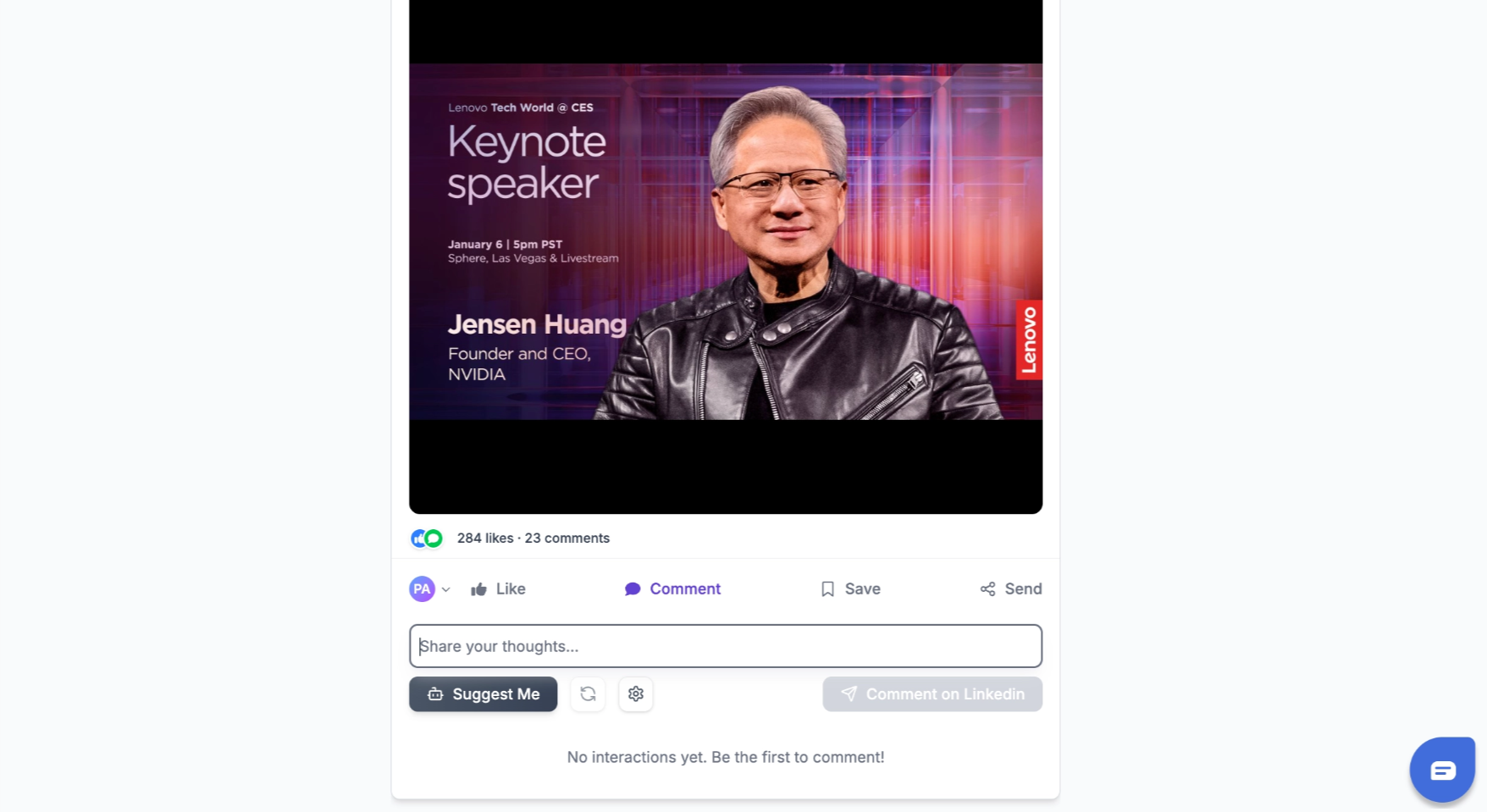
### **Step 2: Click on Comment**
Open the comment action for the post you want to respond to.
This keeps the interaction contextual and focused on that post.
***
## Step 5: Activate Rule
Turn the rule **Active** and click **Create Rule**.
OutX.ai will start liking and/or commenting automatically based on your rule.
***
### Manual Engagement with AI Comments
For posts that matter more, you can engage manually with help from AI.
* View all tracked posts in one place
* Click **Generate Comment** to get a relevant, natural reply
* Edit the comment before posting
* Post only when you are confident with the message
This works well for high-value prospects, founders, or personal branding.
## **Step-by-Step: Comment Manually Using AI**
### **Step 1: Open a Tracked Post**
Go to any post inside your watchlist feed.
This includes posts captured from:
* Keywords
* Tracked people
* Tracked companies
***
### **Step 2: Click on Comment**
Open the comment action for the post you want to respond to.
This keeps the interaction contextual and focused on that post.
 ***
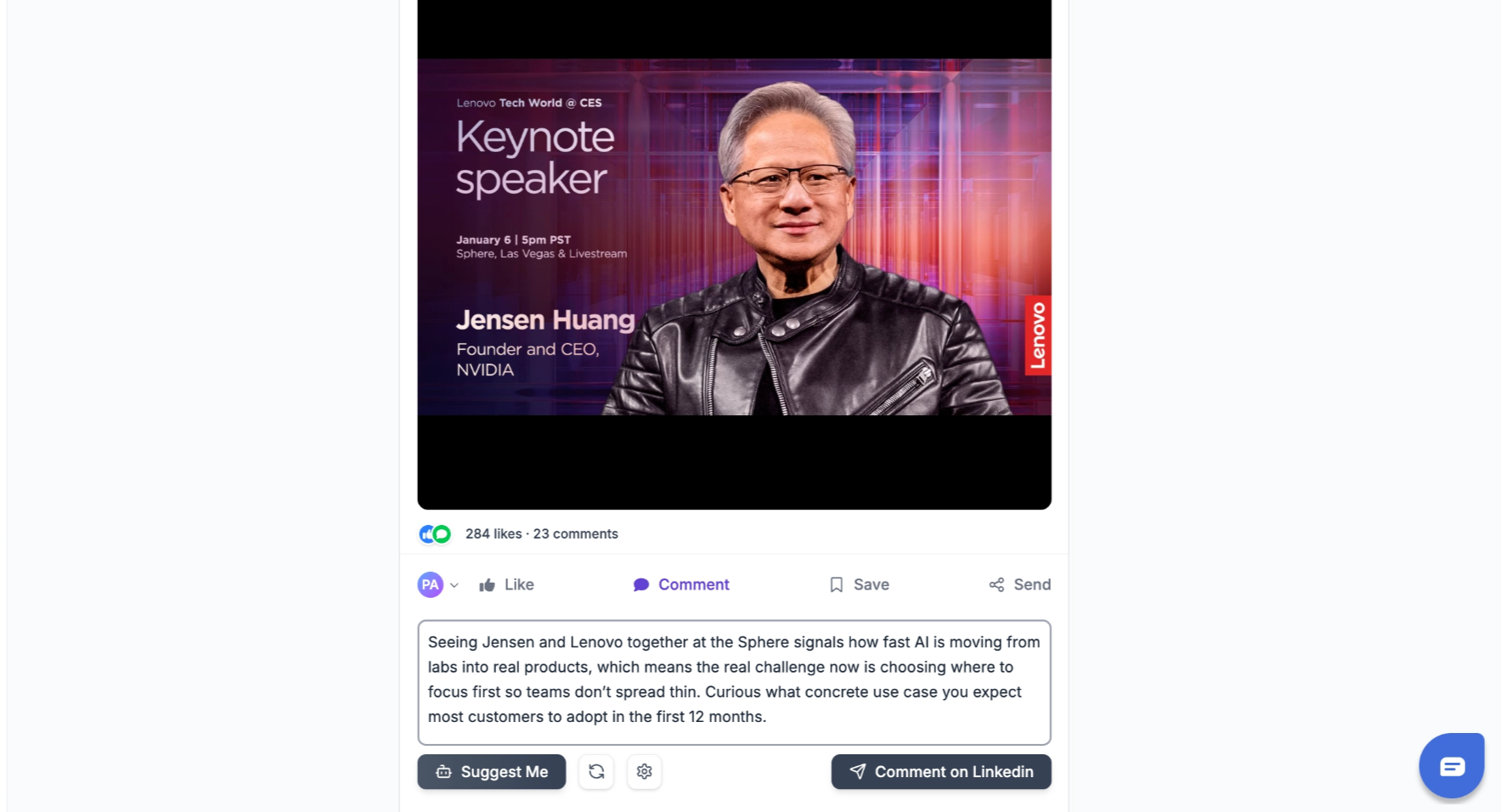
### **Step 3: Click "Suggest Me"**
Click **Suggest Me** to generate an AI-written comment.
The suggestion is based on:
* The post content
* Your tracking context
* A natural, professional tone
***
### **Step 3: Click "Suggest Me"**
Click **Suggest Me** to generate an AI-written comment.
The suggestion is based on:
* The post content
* Your tracking context
* A natural, professional tone
 ### Customizing Comment Tone and Style
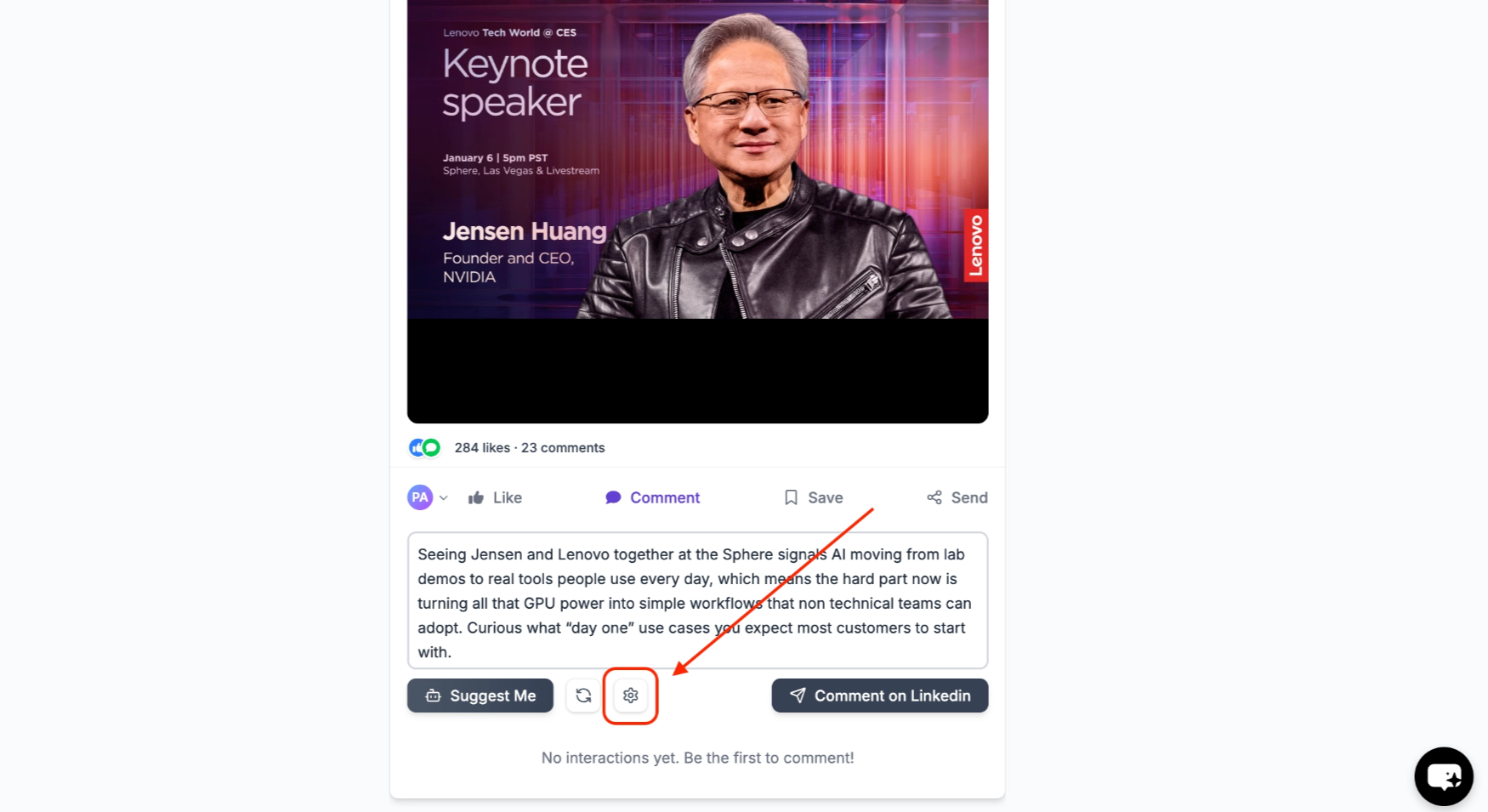
You can control how AI-generated comments sound by editing the **Comment prompt** (this is the same thing as "Custom Instructions" - they refer to the same setting).
**To find it:** Click the **Gear icon** next to the comment input area:
### Customizing Comment Tone and Style
You can control how AI-generated comments sound by editing the **Comment prompt** (this is the same thing as "Custom Instructions" - they refer to the same setting).
**To find it:** Click the **Gear icon** next to the comment input area:
 Click **Edit** to update the instruction that controls your AI comment tone and style:
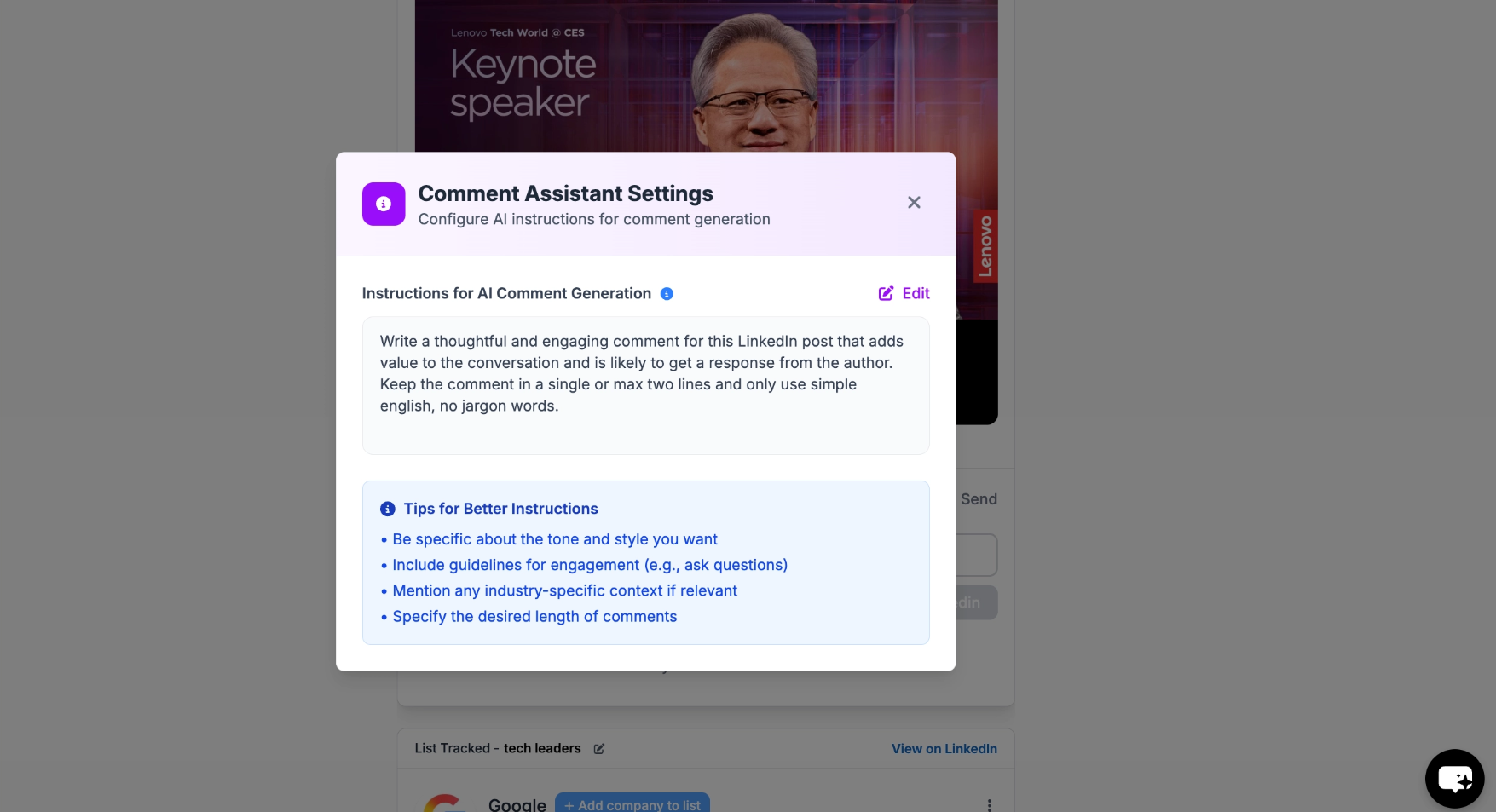 **Example comment prompts you can use:**
* "Write casual, friendly comments. Keep it to 1-2 sentences."
* "Be professional and insightful. Reference specific points from the post."
* "Write from the perspective of a SaaS founder. Be authentic, not salesy."
This setting applies to ALL AI-generated comments on your account.
***
### **Step 4: Post When Ready**
Once satisfied, post the comment directly on LinkedIn.
If it doesn't feel right, you can simply skip it.
***
### Use Both Together
Most teams use both options together:
* Auto Engagement for daily visibility
* Manual AI comments for important conversations
You stay active, relevant, and in control-without turning LinkedIn into a full-time task.
***
## Frequently Asked Questions
No. The OutX Chrome extension must be running in your browser for auto-engagement to work. If you close the browser or shut down your computer, auto-engagement pauses and resumes when you open the browser again. Keep Chrome open with the extension enabled for continuous engagement.
Click the **Gear icon** next to the comment input when viewing a post. You'll see a field called **"Comment prompt (optional)"**, this is where you write instructions for the AI. For example: "Write casual, friendly comments in 1-2 sentences" or "Be professional and reference specific points from the post." This applies to all AI-generated comments on your account.
Yes. When creating an engagement rule, you can choose between your personal LinkedIn account or a connected company page as the actor.
Start with **1-5 likes per hour** and **1-3 comments per hour**. OutX has built-in rate limiting to keep your activity natural and safe. Avoid setting very high limits to prevent LinkedIn from flagging your account.
Yes. Use the **Advanced Options** when creating a rule to filter by Intent, specific Profiles, Seniority Levels, Post Types, and time range. This ensures engagement stays targeted and relevant.
Comments are posted from the team member selected in the engagement rule. Check which account is set in the rule settings, it may be using a different team member's LinkedIn account. Admin can change this in the rule configuration.
No. OutX does not sell likes. It automates engagement from real accounts you control on posts that match your watchlists.
***
## Learn More
* [Automate LinkedIn Likes & Comments](https://www.outx.ai/blog/automate-linkedin-likes-comments)
* [How to Automate LinkedIn Likes Safely](https://www.outx.ai/blog/linkedin-auto-liker)
* [How to Automate LinkedIn Comments](https://www.outx.ai/blog/linkedin-auto-commentor)
* [LinkedIn Automation Safety Guide](https://www.outx.ai/blog/linkedin-automation-safety-guide-best-practices-2026)
**Example comment prompts you can use:**
* "Write casual, friendly comments. Keep it to 1-2 sentences."
* "Be professional and insightful. Reference specific points from the post."
* "Write from the perspective of a SaaS founder. Be authentic, not salesy."
This setting applies to ALL AI-generated comments on your account.
***
### **Step 4: Post When Ready**
Once satisfied, post the comment directly on LinkedIn.
If it doesn't feel right, you can simply skip it.
***
### Use Both Together
Most teams use both options together:
* Auto Engagement for daily visibility
* Manual AI comments for important conversations
You stay active, relevant, and in control-without turning LinkedIn into a full-time task.
***
## Frequently Asked Questions
No. The OutX Chrome extension must be running in your browser for auto-engagement to work. If you close the browser or shut down your computer, auto-engagement pauses and resumes when you open the browser again. Keep Chrome open with the extension enabled for continuous engagement.
Click the **Gear icon** next to the comment input when viewing a post. You'll see a field called **"Comment prompt (optional)"**, this is where you write instructions for the AI. For example: "Write casual, friendly comments in 1-2 sentences" or "Be professional and reference specific points from the post." This applies to all AI-generated comments on your account.
Yes. When creating an engagement rule, you can choose between your personal LinkedIn account or a connected company page as the actor.
Start with **1-5 likes per hour** and **1-3 comments per hour**. OutX has built-in rate limiting to keep your activity natural and safe. Avoid setting very high limits to prevent LinkedIn from flagging your account.
Yes. Use the **Advanced Options** when creating a rule to filter by Intent, specific Profiles, Seniority Levels, Post Types, and time range. This ensures engagement stays targeted and relevant.
Comments are posted from the team member selected in the engagement rule. Check which account is set in the rule settings, it may be using a different team member's LinkedIn account. Admin can change this in the rule configuration.
No. OutX does not sell likes. It automates engagement from real accounts you control on posts that match your watchlists.
***
## Learn More
* [Automate LinkedIn Likes & Comments](https://www.outx.ai/blog/automate-linkedin-likes-comments)
* [How to Automate LinkedIn Likes Safely](https://www.outx.ai/blog/linkedin-auto-liker)
* [How to Automate LinkedIn Comments](https://www.outx.ai/blog/linkedin-auto-commentor)
* [LinkedIn Automation Safety Guide](https://www.outx.ai/blog/linkedin-automation-safety-guide-best-practices-2026)