> ## Documentation Index
> Fetch the complete documentation index at: https://www.outx.ai/docs/llms.txt
> Use this file to discover all available pages before exploring further.
# Keyword Watchlist
> Learn how to set up and optimize OutXAI watchlists for LinkedIn tracking. Use keywords, labels, and notifications to monitor people, posts, and updates effortlessly.
[OutXAI](http://Outx.ai) uses a combination of:
* Partial keyword matching
* Exact keyword matching
* Negative keyword exclusions
Set **fetch frequency** and **notification preferences** to stay updated without overwhelm.
> Too Long? Check out this Video →
***
## **Why Keyword Tracking?**
* Buying, hiring, and research intent is often shared openly in LinkedIn posts
* Keyword tracking helps you catch these conversations as soon as they happen
* You no longer need to manually search or scroll LinkedIn
* You can respond faster with better context and timing
***
## **How OutX.ai Helps with Keyword Tracking**
OutX.ai continuously scans LinkedIn for keywords you define or describe in plain English. It groups matching posts into organized watchlists with labels for clarity.
You see all relevant conversations in a single feed, updated automatically. From there, you can engage manually or automate engagement using simple rules.
***
## Quick Setup Guide
### **1. Create a Watchlist**
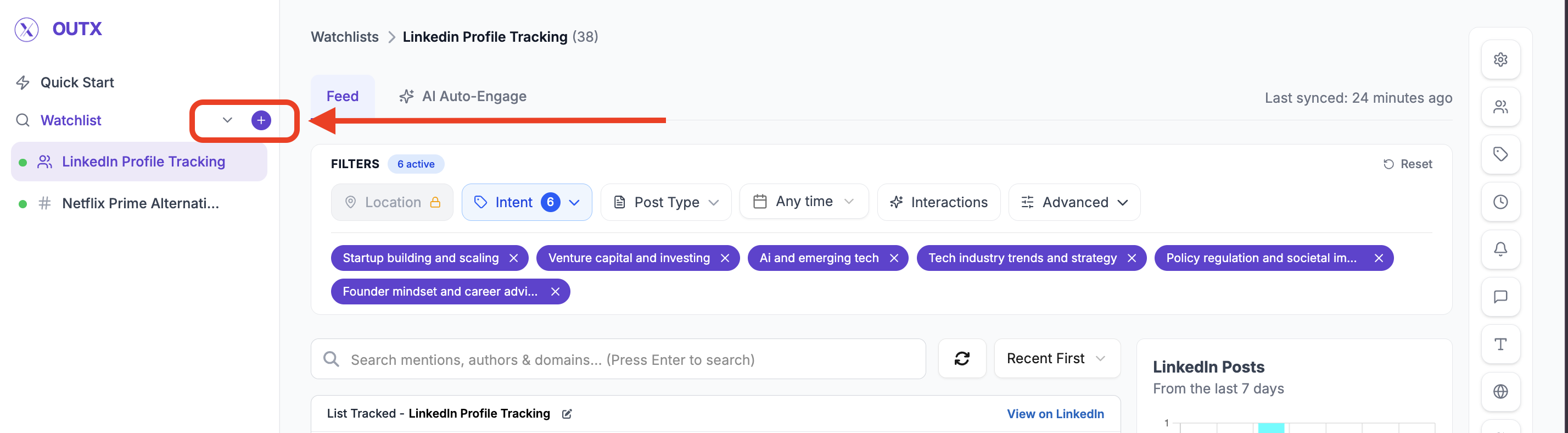
Click "**+"** along with watchlist to create a new watchlist.
A watchlist is where you tell OutX.ai *what kind of LinkedIn posts you want to monitor*.
***
### **2. Add a Prompt (What should we track?)**
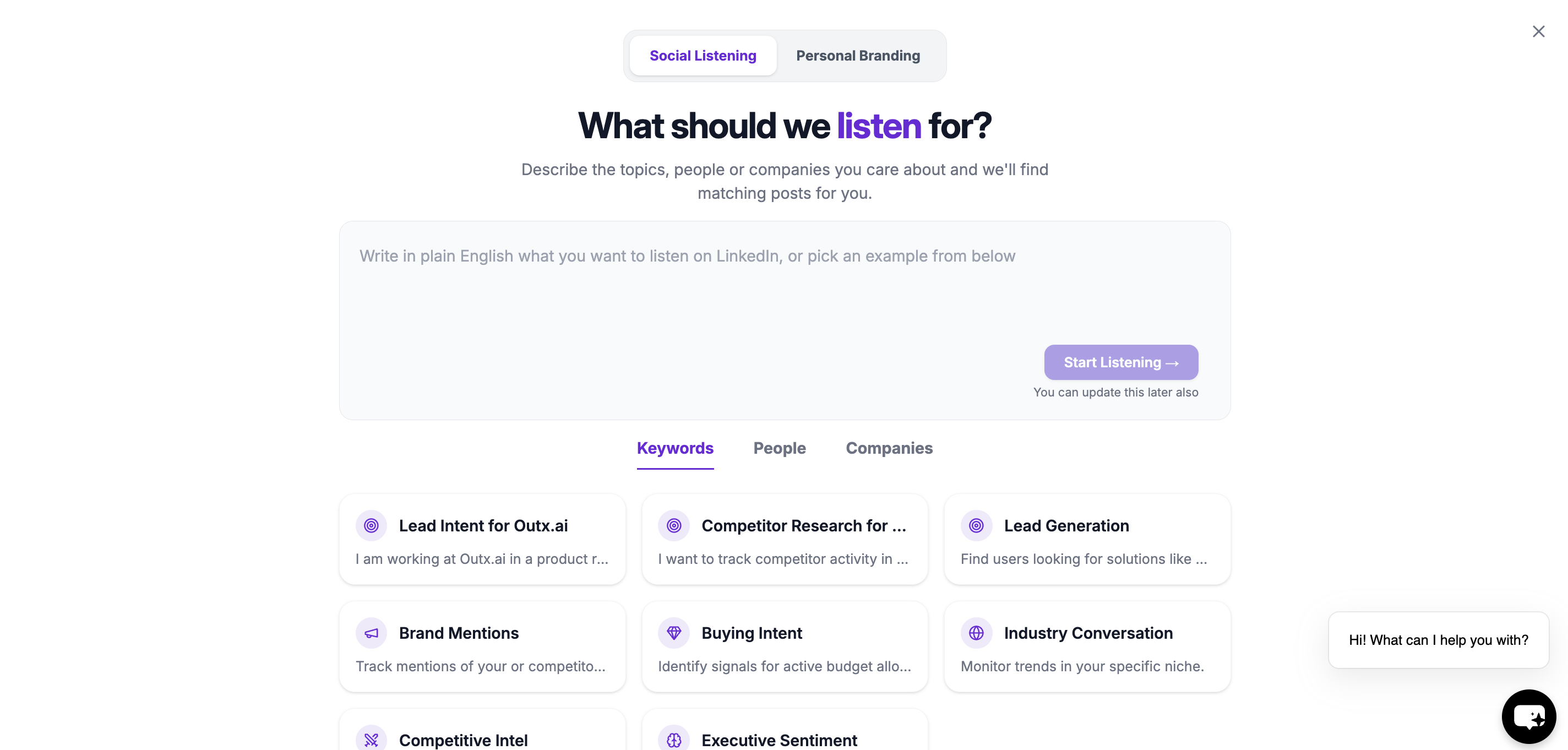
Instead of manually setting up keywords right away, you can simply **describe what you want to track in plain English**.
Think of this as telling OutX.ai *what kind of conversations you care about*.
**Example prompts (under 200 characters):**
* "People hiring remote engineers"
* "Founders talking about CRM tools"
* "Posts about outbound sales or lead generation"
OutX.ai uses this prompt to suggest relevant keywords for your watchlist.
Once done [Outx.ai](http://Outx.ai) will make your watchlist
***
### **Primary Keywords**
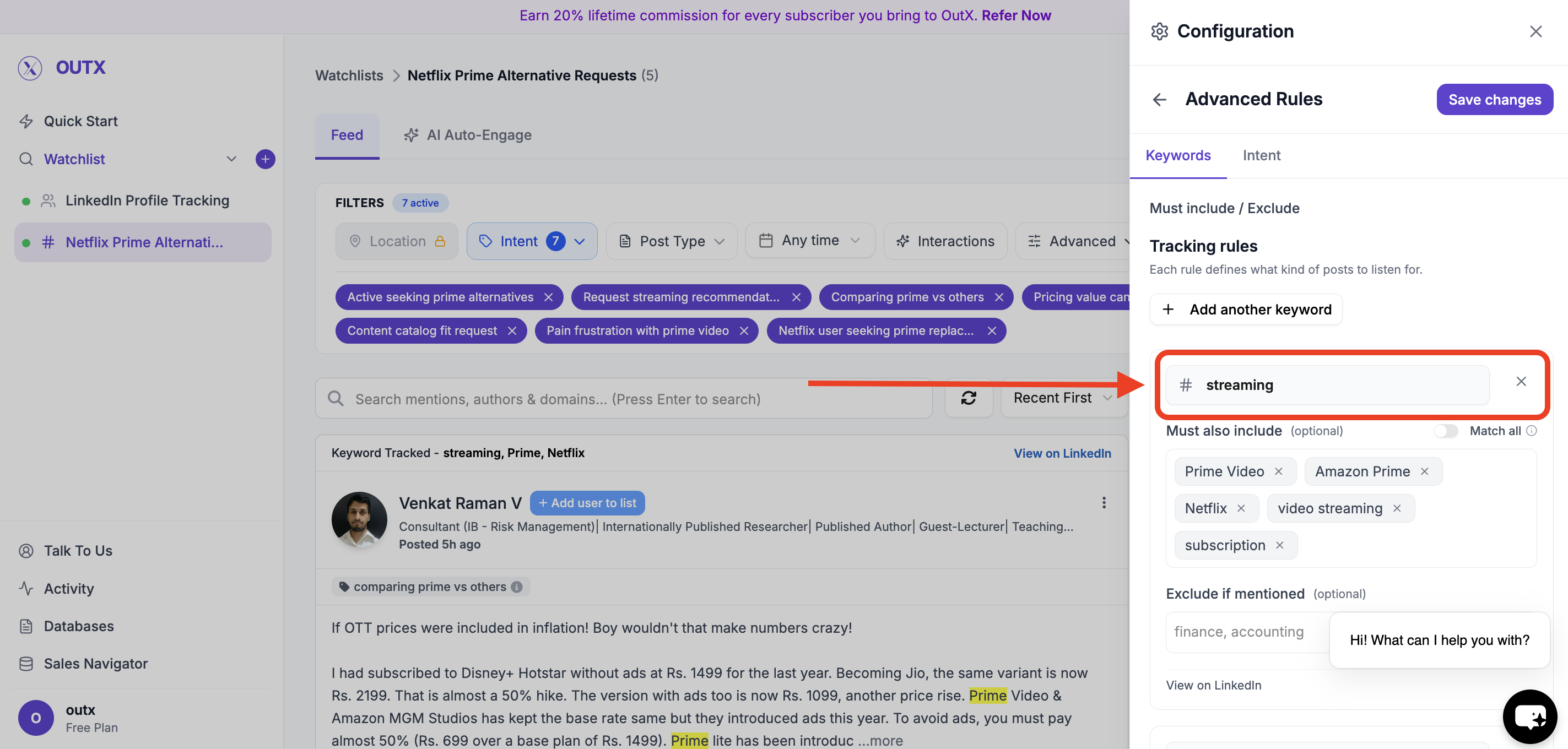
These are the **main words or phrases** OutX.ai looks for in LinkedIn posts.
Use keywords that directly relate to your intent.
Examples:
* "hiring remote"
* "looking for developers"
* "CRM recommendation"
Posts containing these keywords will be considered relevant.
***
### **Must Also Include Keywords**
Use this when a post should contain **more than one condition** to be relevant.
Example:
Track posts only if they mention:
* "hiring" **and**
* "remote"
This helps reduce noise and improves accuracy.
***
### **Excluded Keywords**
These keywords tell OutX.ai **what to ignore**.
If a post contains an excluded keyword, it will not appear-even if it matches your main keywords.
Examples:
* "internship"
* "freelance"
* "agency"
This is useful for filtering out irrelevant posts.
***
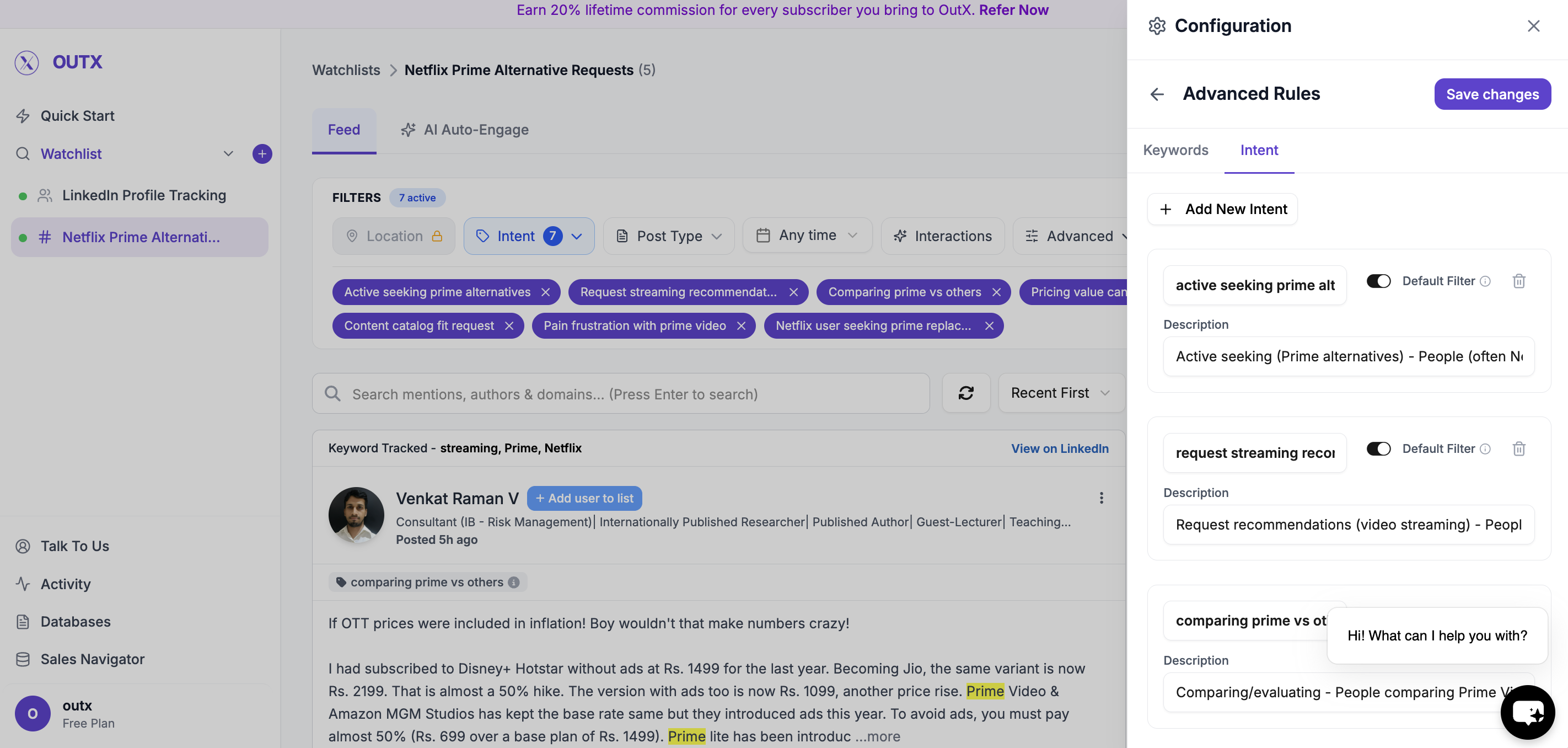
### **4. Intent**
Intents help you **categorize posts inside a watchlist**.
Instead of putting everything in one bucket, labels let you:
* Group similar posts together
* Quickly understand *why* a post was captured
* Route signals to the right people or workflows
**Intent Name**
A short category name, such as:
* *Remote Hiring*
* *Tool Comparison*
* *Buying Intent*
**Intent Description**
A short explanation of what this label represents.
This makes it easier to:
* Review posts faster
* Share context with teammates
***
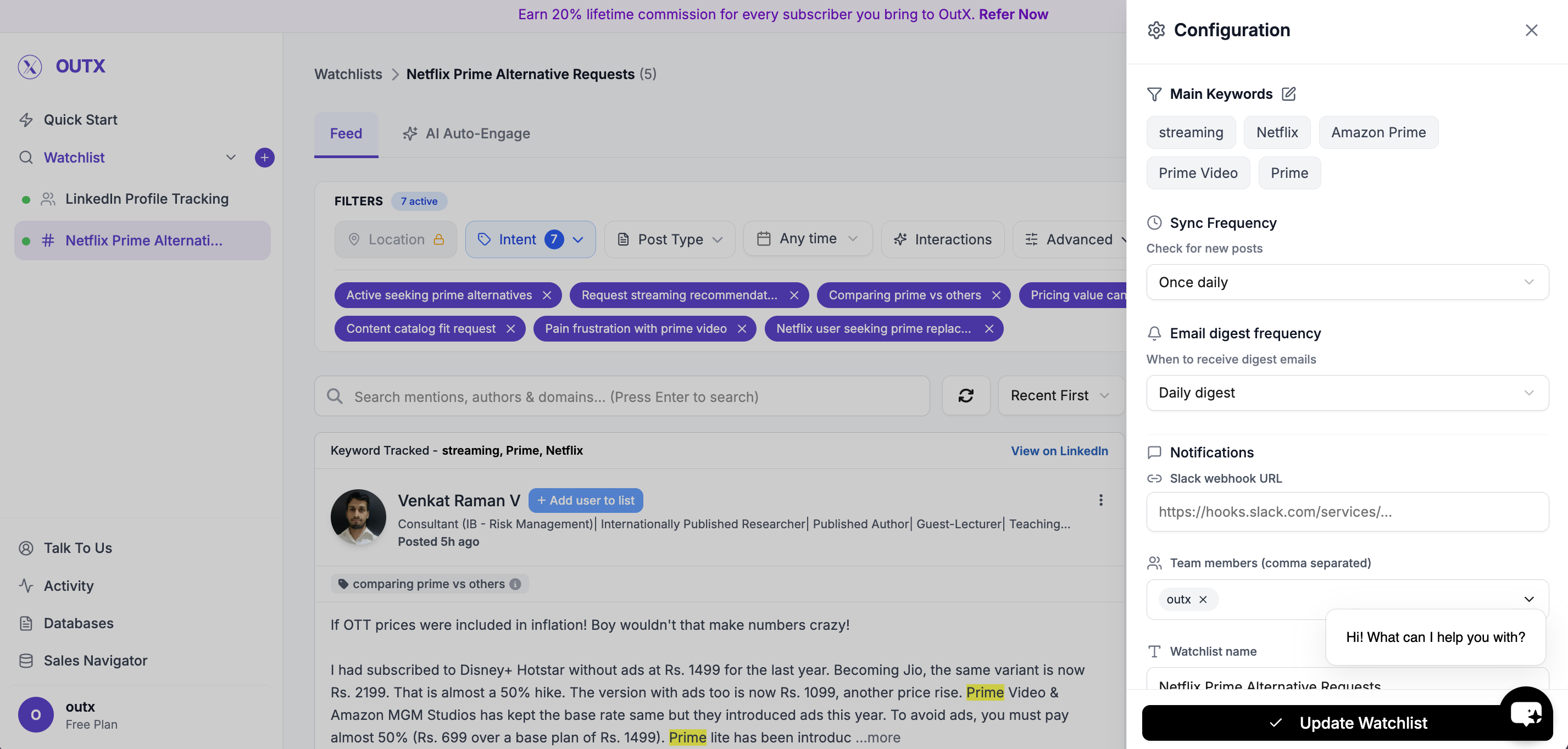
### **5. Advanced Watchlist Settings & Notifications**
Fine-tune how and when you're notified:
* **Fetch frequency**: How often OutX.ai scans LinkedIn (e.g., every 12 hours)
* **Team access**: Add teammates to the watchlist
* **Slack integration**: Drop in your webhook URL to receive real-time alerts
***
### 6. Feed
Finally you have a live feed where you can posts with your targeted keywords.
You can use filters to figure on left side to narrow down on your posts, to learn more about filters click here
***
## How to edit Keyword watchlist
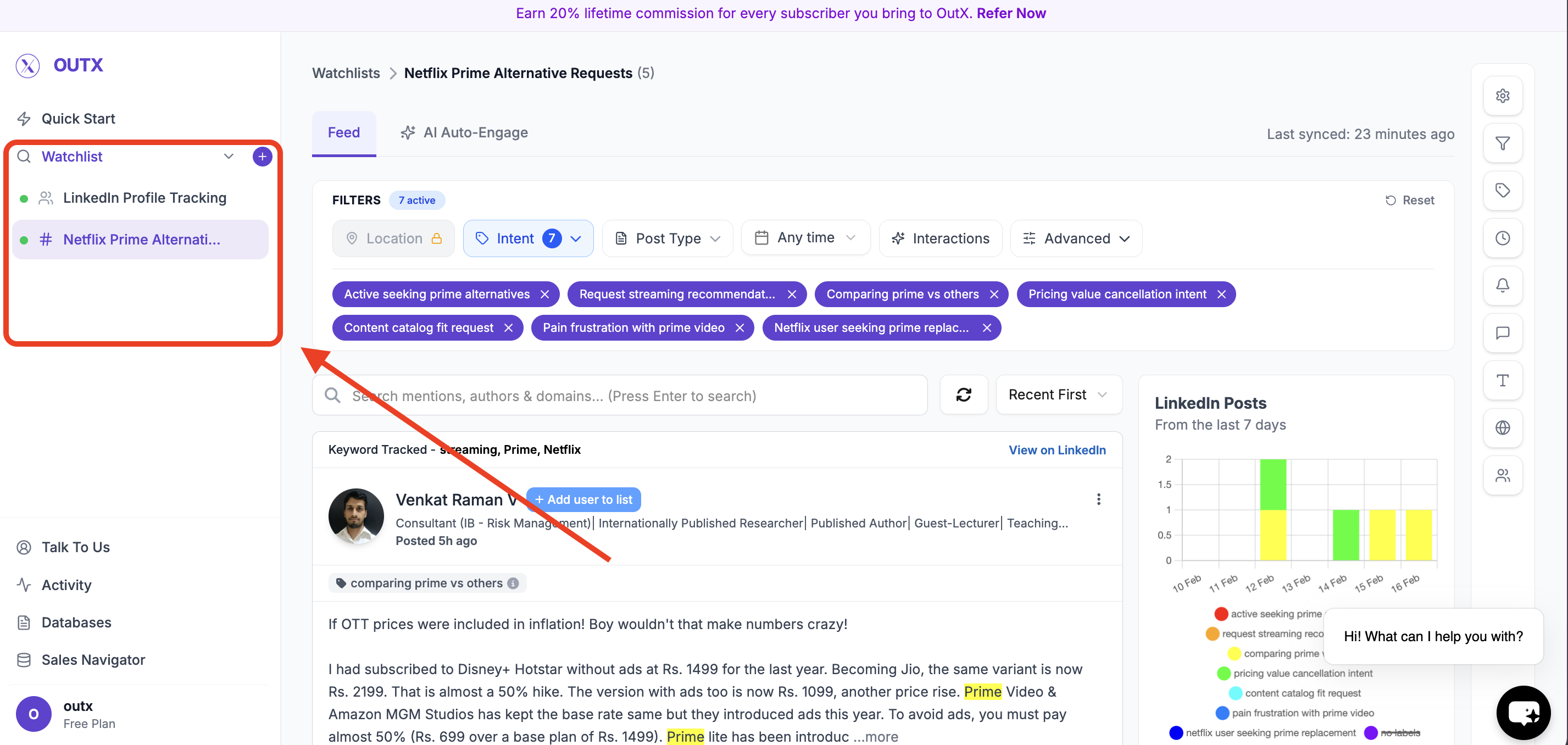
### 1. Open Watchlist
Navigate to **Watchlist you want to update** from the main dashboard. Click the **configuration(Gear icon)** on right side panel.
***
### 2. Edit Watchlist Configuration
Clicking the gear icon, you will be taken to the watchlist configuration screen.
From here, follow the **same steps used when creating a keyword watchlist**, including:
* Adding, removing, or modifying keywords
* Updating intents
* Adjusting any alert or tracking settings
***
### 4. Save Changes
Click Update watchlist to apply your updates.
The watchlist will immediately start tracking data based on the updated configuration.
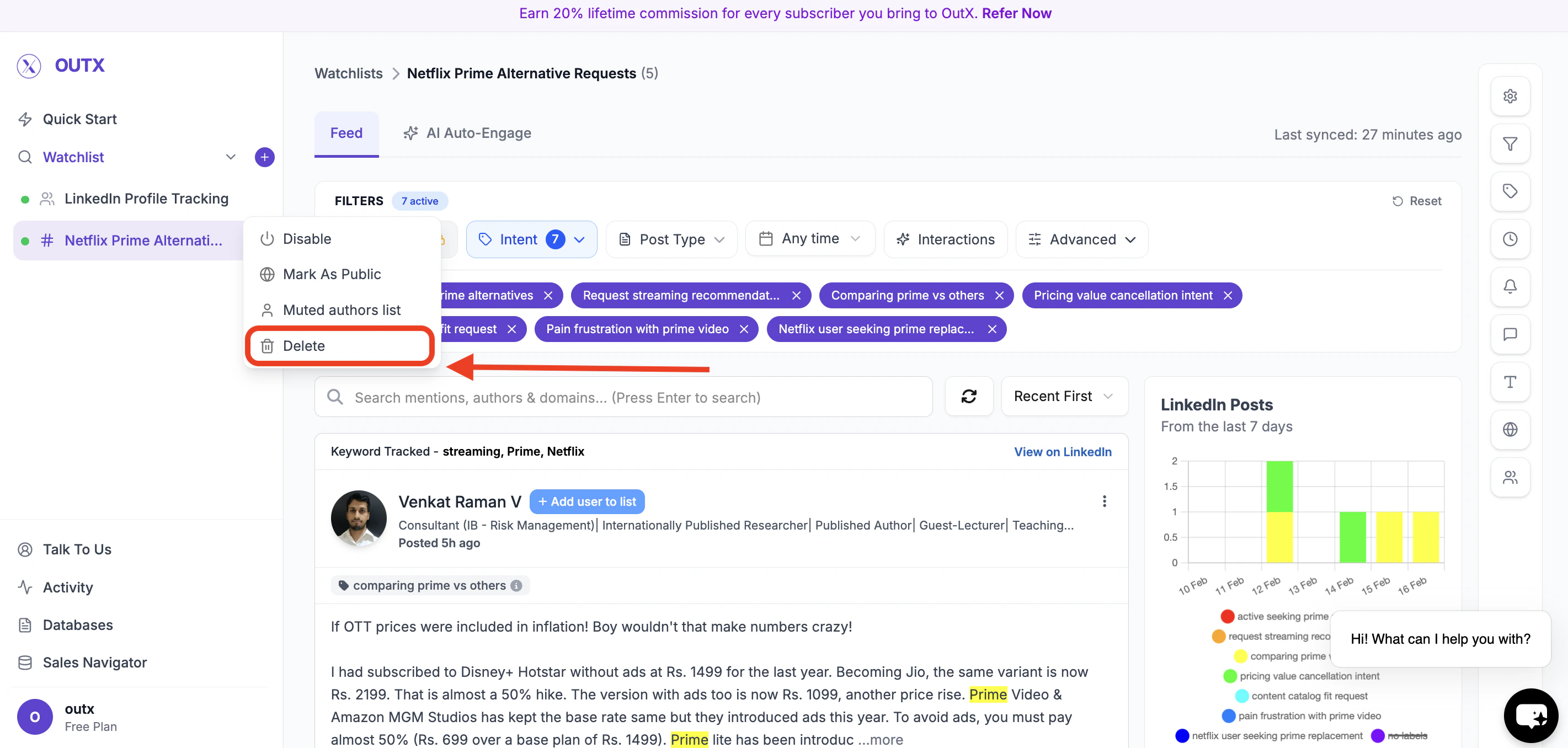
**How to delete a keyword watchlist?** Click on the three dots menu, then click the delete button.
***
## Frequently Asked Questions
Yes! OutX's keyword module supports hashtags as keywords.
OutX supports partial matching, so minor misspellings often still match.
Yes. Put the full phrase in the "must also include" category to track exact multi-word keywords.
Add keywords you don't want to track in the excluded keywords section. Posts containing those keywords won't be tracked.
Yes. You can monitor comments from a set of LinkedIn profiles. Comment tracking is available on Expert and Ultimate plans.
Edit the watchlist anytime and delete keywords or labels as needed.
Your plan may have limits, but OutX supports high-volume tracking for enterprise users.
Yes, you can filter posts based on location if the post mentions the country you are targeting.
All posts associated with that keyword will be **permanently removed** from the watchlist results.
New posts will start appearing from the moment the keyword is added. Previously published posts will not be backfilled.
No. Editing a watchlist does **not reset the entire watchlist**. Only data related to removed keywords is deleted.
Yes. You can edit a keyword watchlist at any time, and changes apply after you save.
The configuration steps are the same. The only difference is that editing starts by clicking the **pencil icon** on an existing watchlist instead of creating a new one.
Yes! You can edit the prompt at any time from the watchlist configuration screen (gear icon). Click the edit icon next to the **Prompt** section to modify it. When you update the prompt, OutX re-runs the full AI analysis and generates new keywords, categories, and a new relevance scoring objective. You get two options: **Reset existing keywords and labels** (replaces everything with freshly generated ones) or **Keep existing and add new** (merges new keywords with your current set). You can also check **Re-enrich existing posts (last 30 days)** to re-classify recent posts against the updated objective.
Yes. On **Expert** and **Ultimate** plans, the **Location Filter** is available in the feed sidebar. This filter works by detecting country names mentioned in post content. Go to your watchlist feed, open the filters panel on the left, and select the countries you want to focus on. Note: this filters by content mentions, not by the author's profile location.
Yes. OutX tracks public LinkedIn posts across the platform, not just from your connections. It scans posts based on your keywords regardless of whether you're connected to the author.
When you create a watchlist using a prompt, OutX generates an **objective** from your prompt and scores each post 1-10 on relevance to that objective. The default sort for prompt-based watchlists is **Relevance**, showing the most relevant posts first. You can switch to **Popularity** (by engagement) or **Recent** (by post date) using the sort dropdown.
If your watchlist returns too many irrelevant posts, try these fixes:
* Add **excluded keywords** to filter out noise (e.g., "hiring", "internship", "freelance")
* Add **must-also-include keywords** to require multiple conditions
* Make your primary keywords more specific
* Use the **Intent** filter in the feed sidebar to focus on specific categories
## Learn More
* [Keyword Tracking Guide](https://www.outx.ai/blog/keyword-tracking-guide)
* [LinkedIn Social Listening Guide](https://www.outx.ai/blog/guide-social-listening-linkedin)
* [LinkedIn Monitoring Guide](https://www.outx.ai/blog/linkedin-monitoring-guide-2025)
* [Track LinkedIn Mentions](https://www.outx.ai/blog/track-linkedin-mentions)
* [LinkedIn Social Listening Platform](https://www.outx.ai/social-listening-linkedin)
 ***
### **2. Add a Prompt (What should we track?)**
Instead of manually setting up keywords right away, you can simply **describe what you want to track in plain English**.
Think of this as telling OutX.ai *what kind of conversations you care about*.
**Example prompts (under 200 characters):**
* "People hiring remote engineers"
* "Founders talking about CRM tools"
* "Posts about outbound sales or lead generation"
OutX.ai uses this prompt to suggest relevant keywords for your watchlist.
***
### **2. Add a Prompt (What should we track?)**
Instead of manually setting up keywords right away, you can simply **describe what you want to track in plain English**.
Think of this as telling OutX.ai *what kind of conversations you care about*.
**Example prompts (under 200 characters):**
* "People hiring remote engineers"
* "Founders talking about CRM tools"
* "Posts about outbound sales or lead generation"
OutX.ai uses this prompt to suggest relevant keywords for your watchlist.
 Once done [Outx.ai](http://Outx.ai) will make your watchlist
***
### **Primary Keywords**
These are the **main words or phrases** OutX.ai looks for in LinkedIn posts.
Use keywords that directly relate to your intent.
Examples:
* "hiring remote"
* "looking for developers"
* "CRM recommendation"
Posts containing these keywords will be considered relevant.
Once done [Outx.ai](http://Outx.ai) will make your watchlist
***
### **Primary Keywords**
These are the **main words or phrases** OutX.ai looks for in LinkedIn posts.
Use keywords that directly relate to your intent.
Examples:
* "hiring remote"
* "looking for developers"
* "CRM recommendation"
Posts containing these keywords will be considered relevant.
 ***
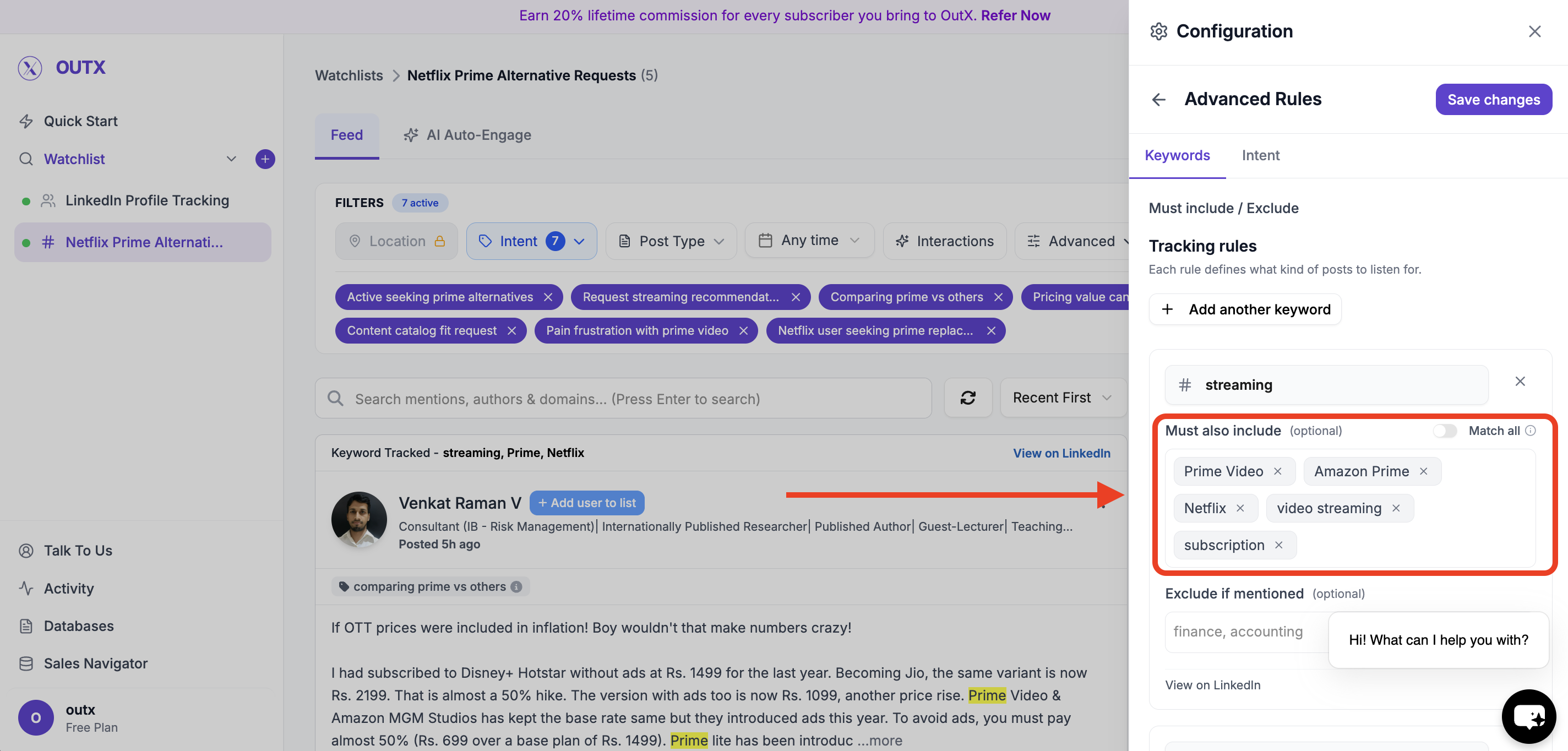
### **Must Also Include Keywords**
Use this when a post should contain **more than one condition** to be relevant.
Example:
Track posts only if they mention:
* "hiring" **and**
* "remote"
This helps reduce noise and improves accuracy.
***
### **Must Also Include Keywords**
Use this when a post should contain **more than one condition** to be relevant.
Example:
Track posts only if they mention:
* "hiring" **and**
* "remote"
This helps reduce noise and improves accuracy.
 ***
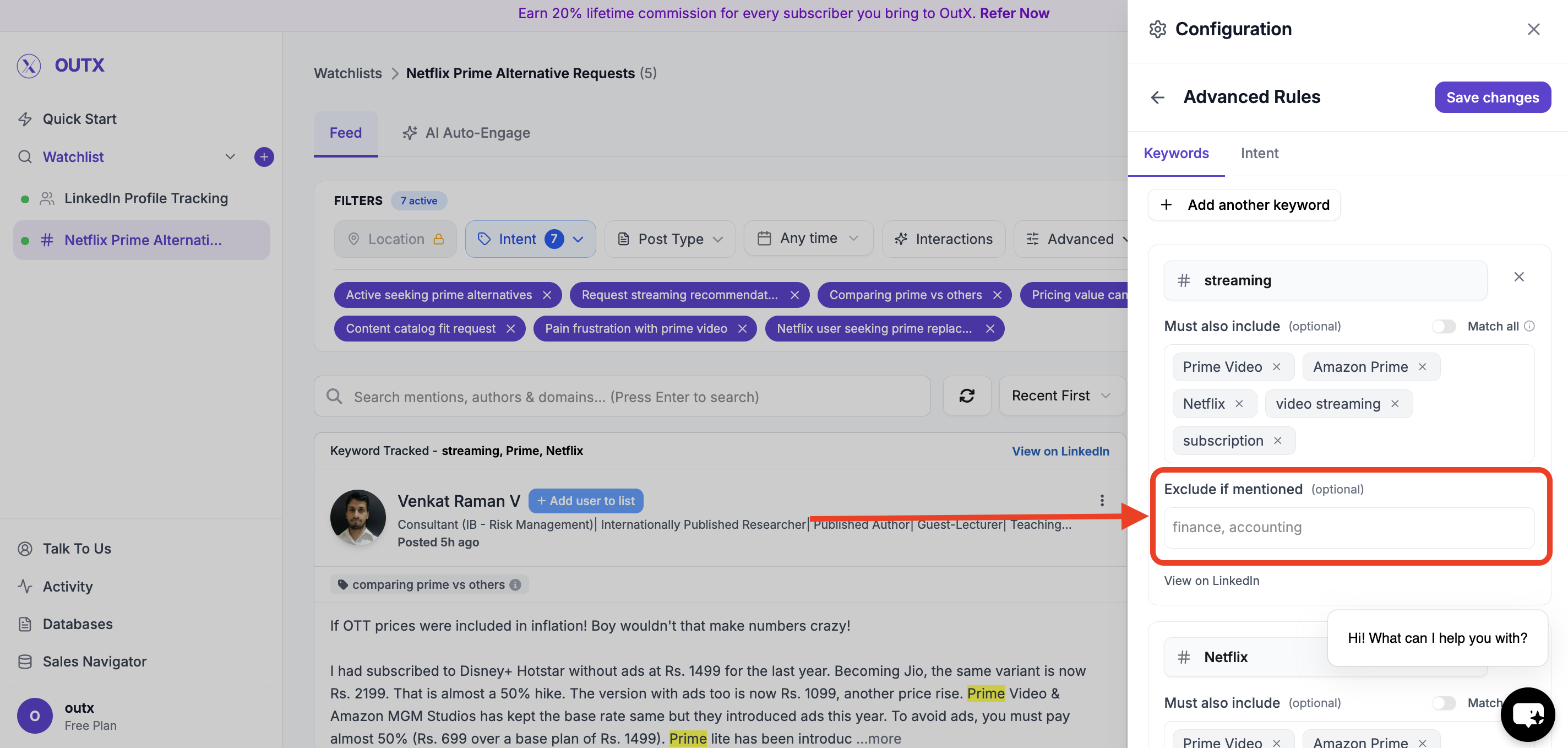
### **Excluded Keywords**
These keywords tell OutX.ai **what to ignore**.
If a post contains an excluded keyword, it will not appear-even if it matches your main keywords.
Examples:
* "internship"
* "freelance"
* "agency"
This is useful for filtering out irrelevant posts.
***
### **Excluded Keywords**
These keywords tell OutX.ai **what to ignore**.
If a post contains an excluded keyword, it will not appear-even if it matches your main keywords.
Examples:
* "internship"
* "freelance"
* "agency"
This is useful for filtering out irrelevant posts.
 ***
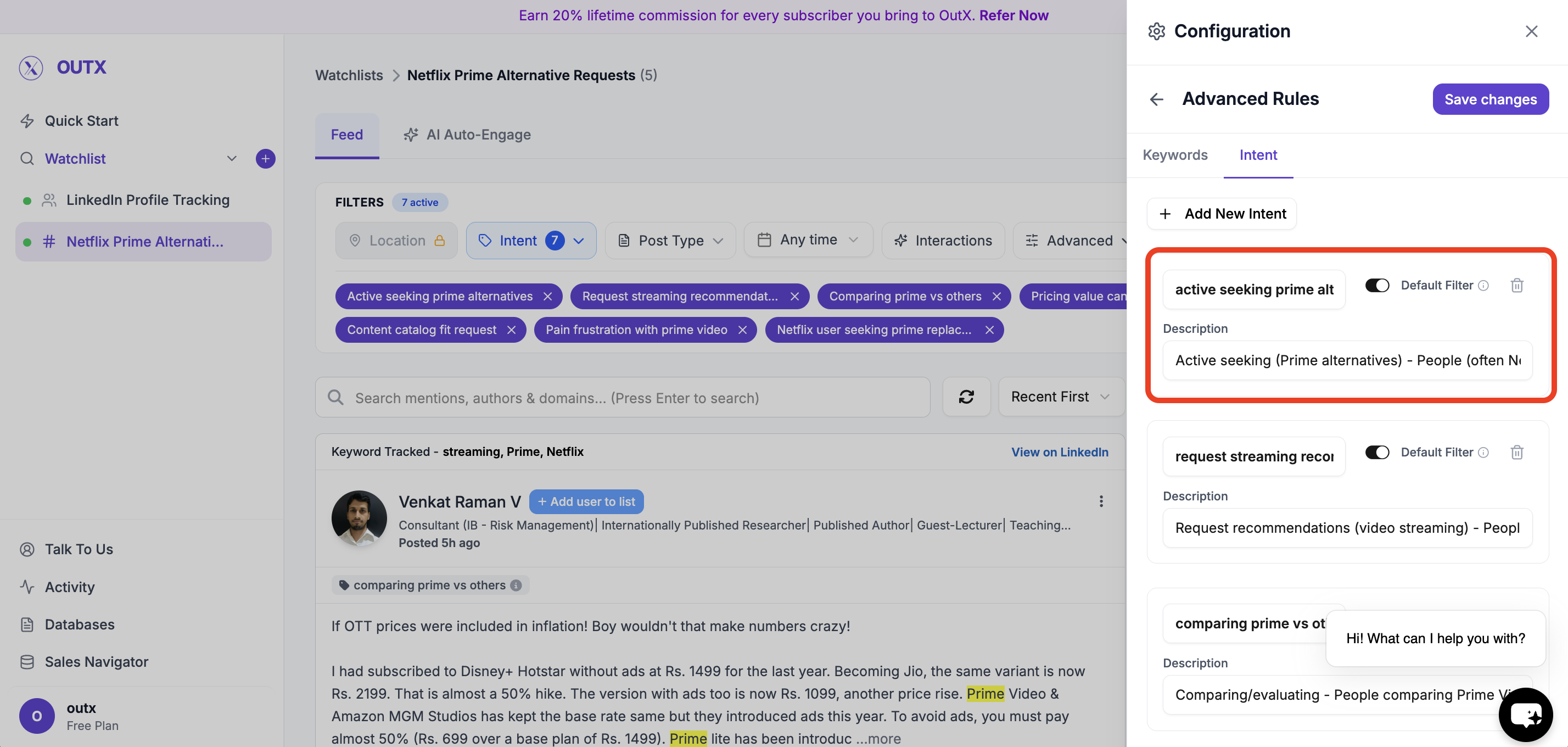
### **4. Intent**
Intents help you **categorize posts inside a watchlist**.
Instead of putting everything in one bucket, labels let you:
* Group similar posts together
* Quickly understand *why* a post was captured
* Route signals to the right people or workflows
**Intent Name**
A short category name, such as:
* *Remote Hiring*
* *Tool Comparison*
* *Buying Intent*
**Intent Description**
A short explanation of what this label represents.
This makes it easier to:
* Review posts faster
* Share context with teammates
***
### **4. Intent**
Intents help you **categorize posts inside a watchlist**.
Instead of putting everything in one bucket, labels let you:
* Group similar posts together
* Quickly understand *why* a post was captured
* Route signals to the right people or workflows
**Intent Name**
A short category name, such as:
* *Remote Hiring*
* *Tool Comparison*
* *Buying Intent*
**Intent Description**
A short explanation of what this label represents.
This makes it easier to:
* Review posts faster
* Share context with teammates
 ***
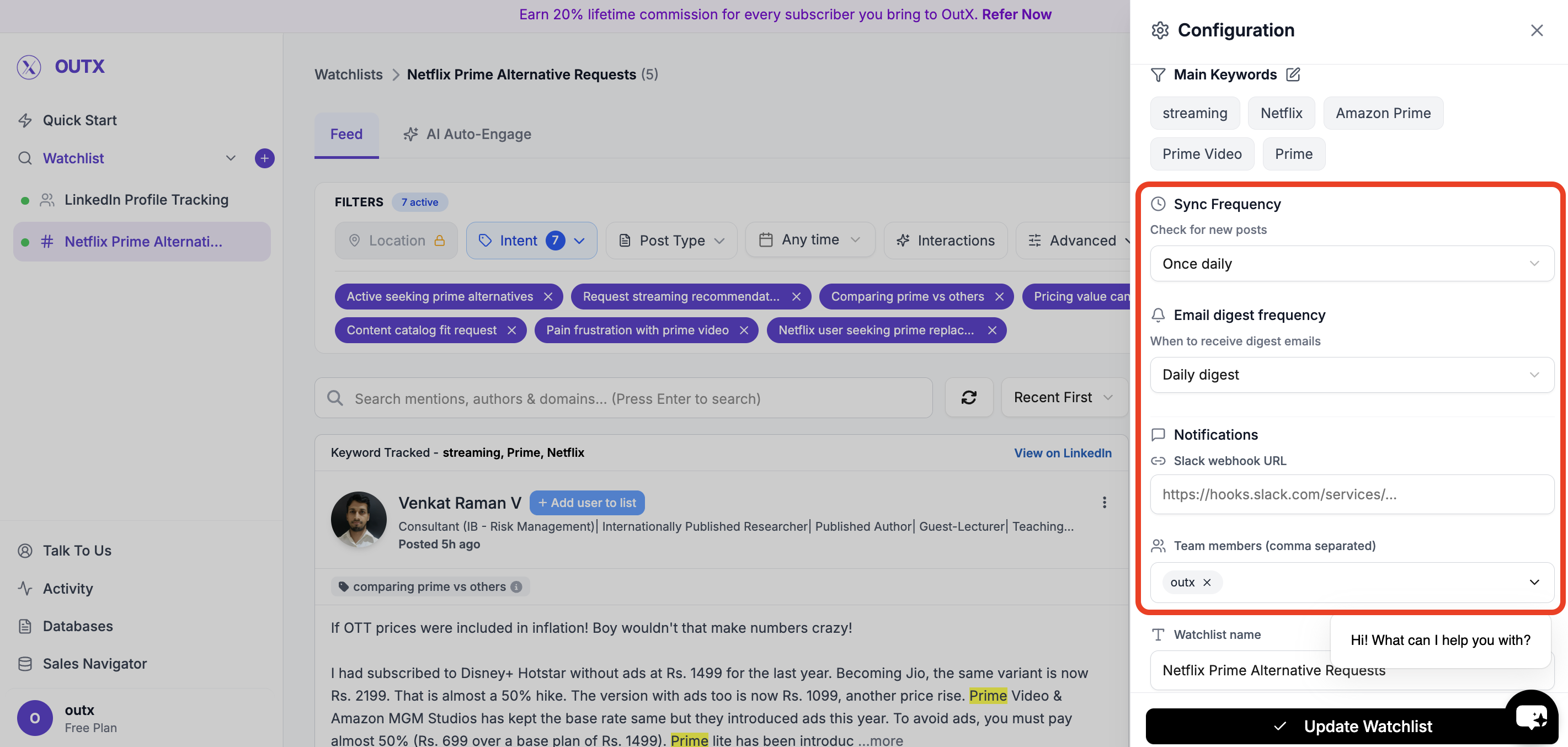
### **5. Advanced Watchlist Settings & Notifications**
Fine-tune how and when you're notified:
* **Fetch frequency**: How often OutX.ai scans LinkedIn (e.g., every 12 hours)
* **Team access**: Add teammates to the watchlist
* **Slack integration**: Drop in your webhook URL to receive real-time alerts
***
### **5. Advanced Watchlist Settings & Notifications**
Fine-tune how and when you're notified:
* **Fetch frequency**: How often OutX.ai scans LinkedIn (e.g., every 12 hours)
* **Team access**: Add teammates to the watchlist
* **Slack integration**: Drop in your webhook URL to receive real-time alerts
 ***
### 6. Feed
Finally you have a live feed where you can posts with your targeted keywords.
***
### 6. Feed
Finally you have a live feed where you can posts with your targeted keywords.
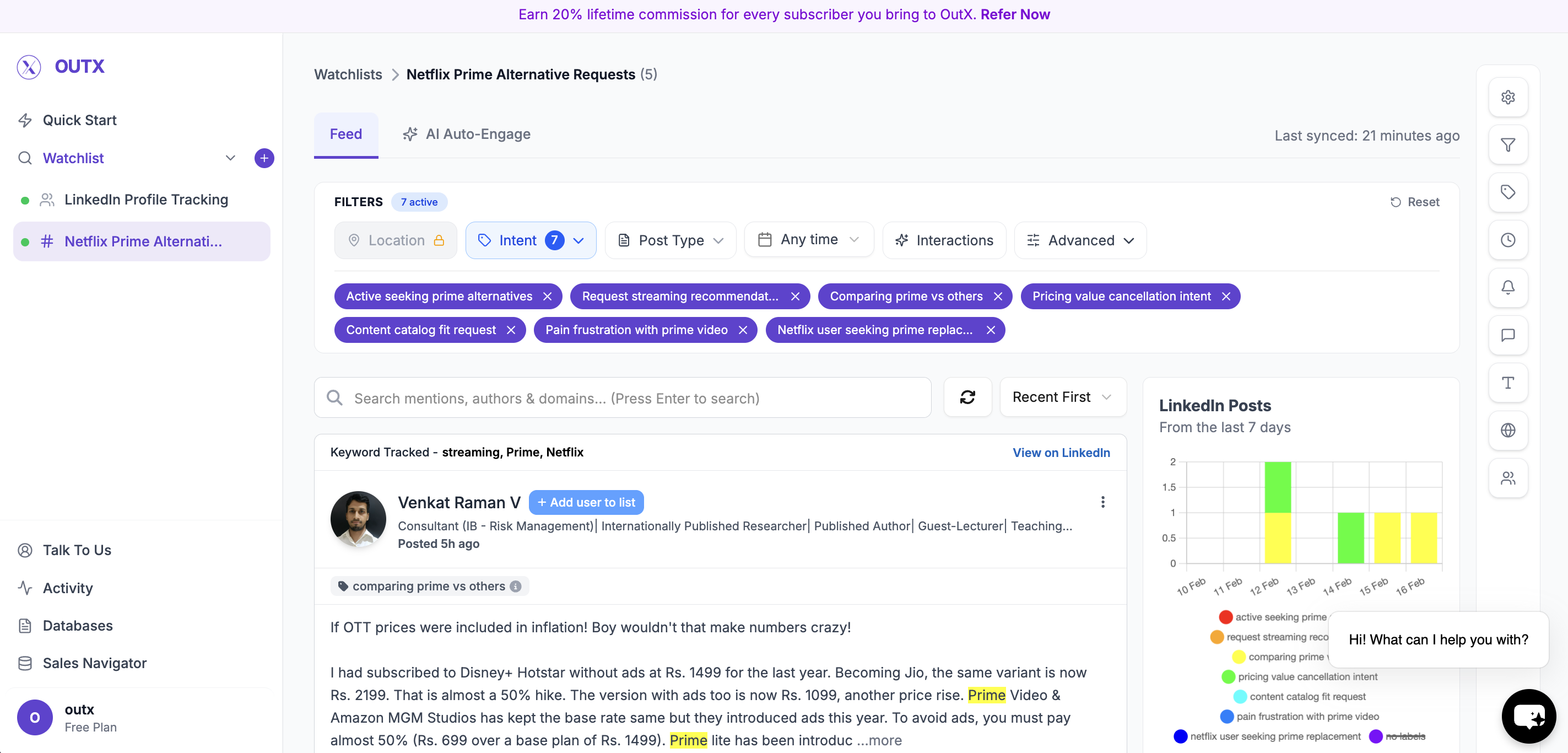 You can use filters to figure on left side to narrow down on your posts, to learn more about filters click here
***
## How to edit Keyword watchlist
### 1. Open Watchlist
Navigate to **Watchlist you want to update** from the main dashboard. Click the **configuration(Gear icon)** on right side panel.
You can use filters to figure on left side to narrow down on your posts, to learn more about filters click here
***
## How to edit Keyword watchlist
### 1. Open Watchlist
Navigate to **Watchlist you want to update** from the main dashboard. Click the **configuration(Gear icon)** on right side panel.
 ***
### 2. Edit Watchlist Configuration
Clicking the gear icon, you will be taken to the watchlist configuration screen.
***
### 2. Edit Watchlist Configuration
Clicking the gear icon, you will be taken to the watchlist configuration screen.
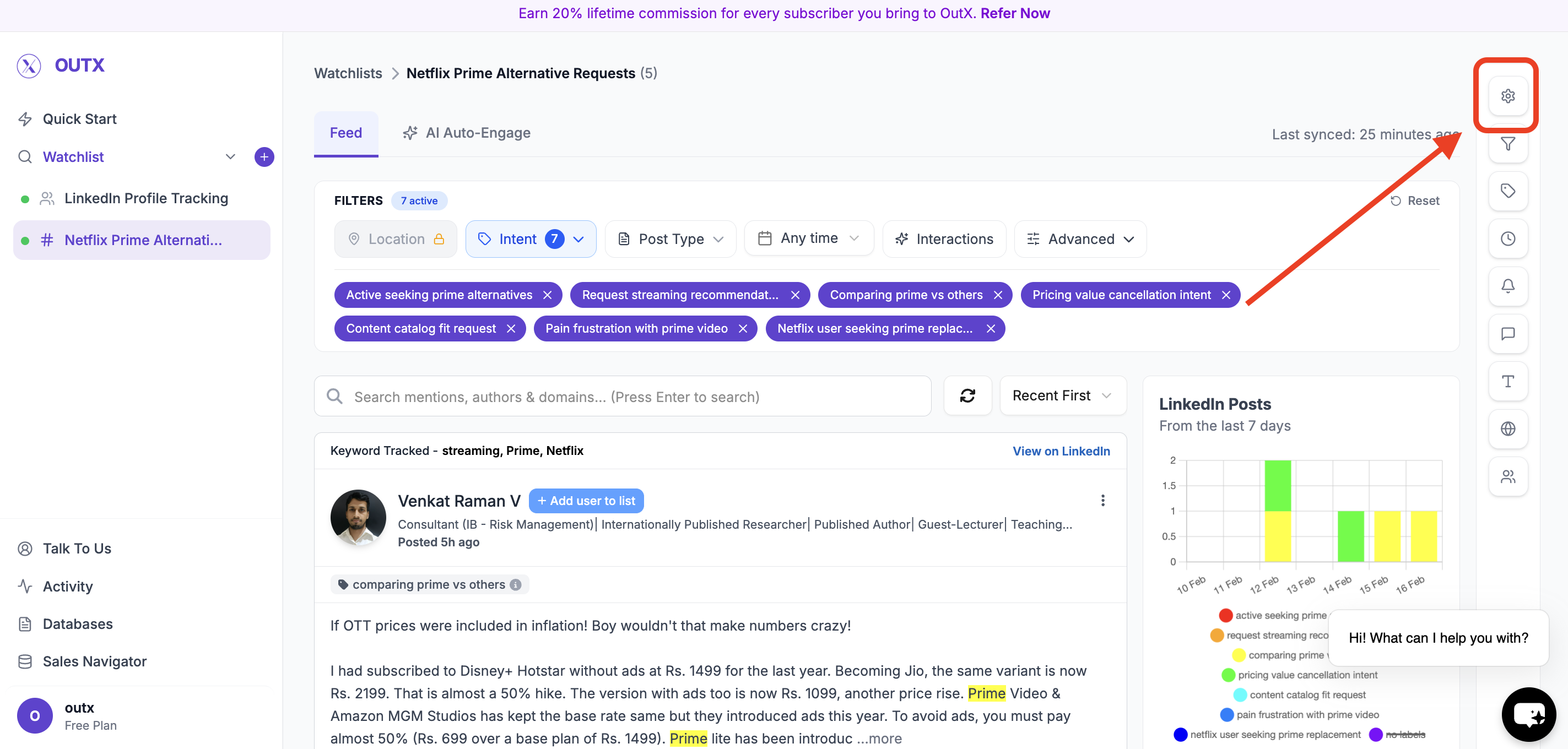 From here, follow the **same steps used when creating a keyword watchlist**, including:
* Adding, removing, or modifying keywords
From here, follow the **same steps used when creating a keyword watchlist**, including:
* Adding, removing, or modifying keywords
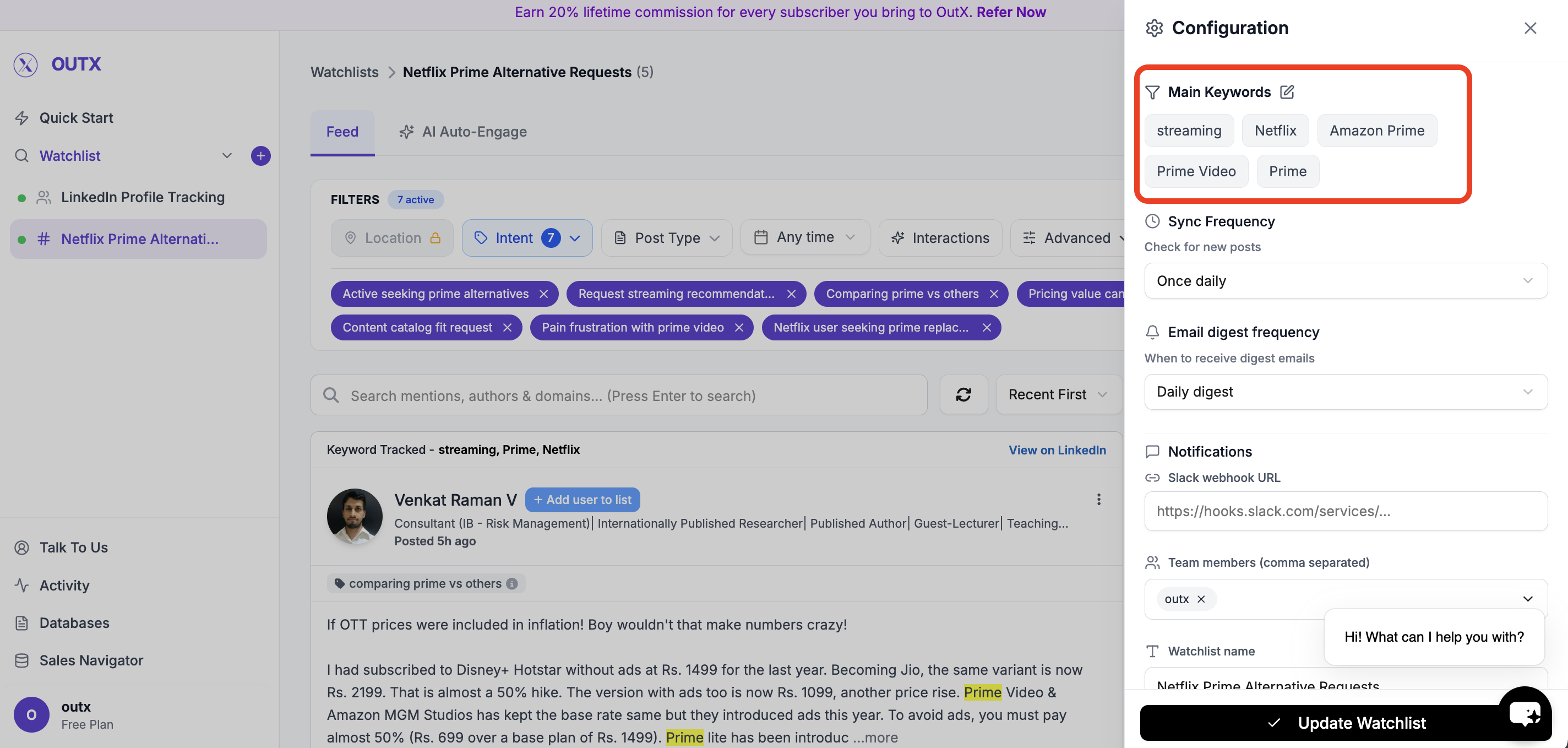 * Updating intents
 * Adjusting any alert or tracking settings
 ***
### 4. Save Changes
Click Update watchlist to apply your updates.
The watchlist will immediately start tracking data based on the updated configuration.
***
### 4. Save Changes
Click Update watchlist to apply your updates.
The watchlist will immediately start tracking data based on the updated configuration.