> ## Documentation Index
> Fetch the complete documentation index at: https://www.outx.ai/docs/llms.txt
> Use this file to discover all available pages before exploring further.
# Activity
> View your full LinkedIn engagement log in OutX.ai. Track every automated like, comment, and action taken on your behalf in one dashboard.
## **Why the Activity Section Exists**
When engagement is automated, visibility becomes important.
The Activity page helps you:
* See exactly **what actions were taken**
* Track **likes vs comments**
* Review engagement by **team member**
* Stay confident and in control of automation
Think of it as an audit trail for your LinkedIn activity.
***
## **What You'll See in the Activity Page**
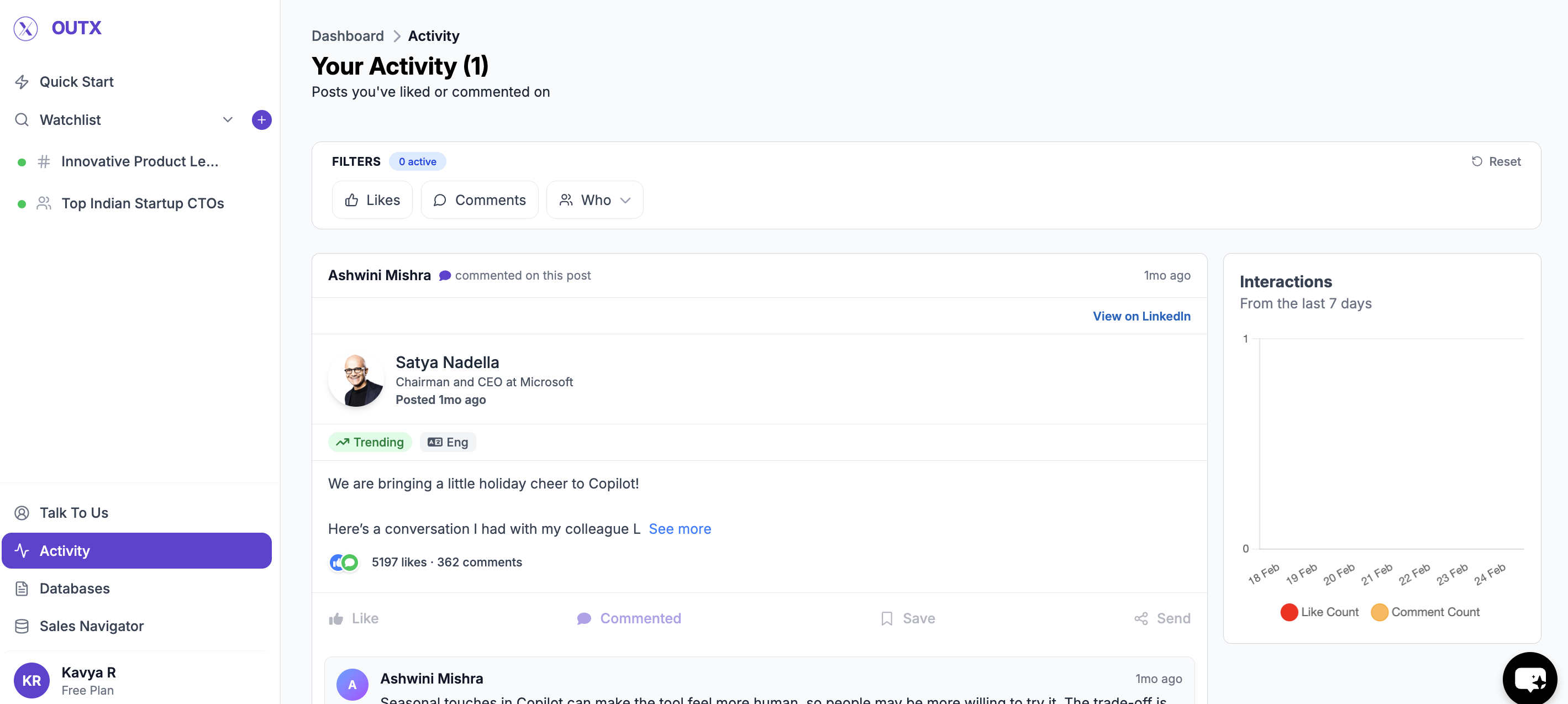
The Activity page shows:
* Posts you've **liked**
* Posts you've **commented on**
* Engagement done via:
* Auto-engagement rules
* Manual actions
* Engagement from:
* Your personal account
* Team members (if applicable)
 If no actions have been taken yet, you'll see a simple empty state indicating no activity.
***
## **Activity Feed**
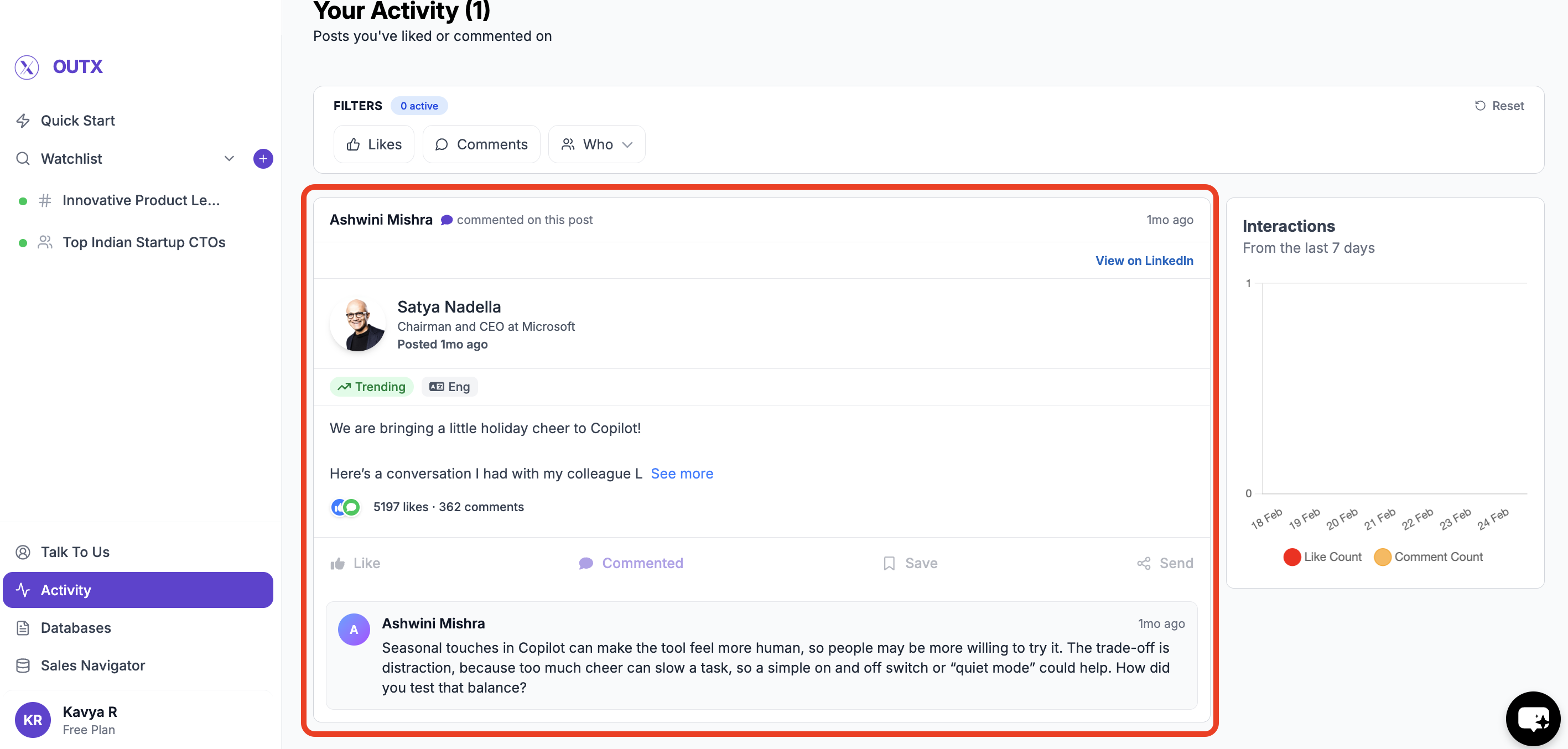
At the center of the page is the **activity feed**.
This feed lists:
* The LinkedIn post
* The type of interaction (like or comment)
* When the action happened
This makes it easy to review past engagement or confirm that rules are working as expected.
If no actions have been taken yet, you'll see a simple empty state indicating no activity.
***
## **Activity Feed**
At the center of the page is the **activity feed**.
This feed lists:
* The LinkedIn post
* The type of interaction (like or comment)
* When the action happened
This makes it easy to review past engagement or confirm that rules are working as expected.
 ***
## **Filters in the Activity Section**
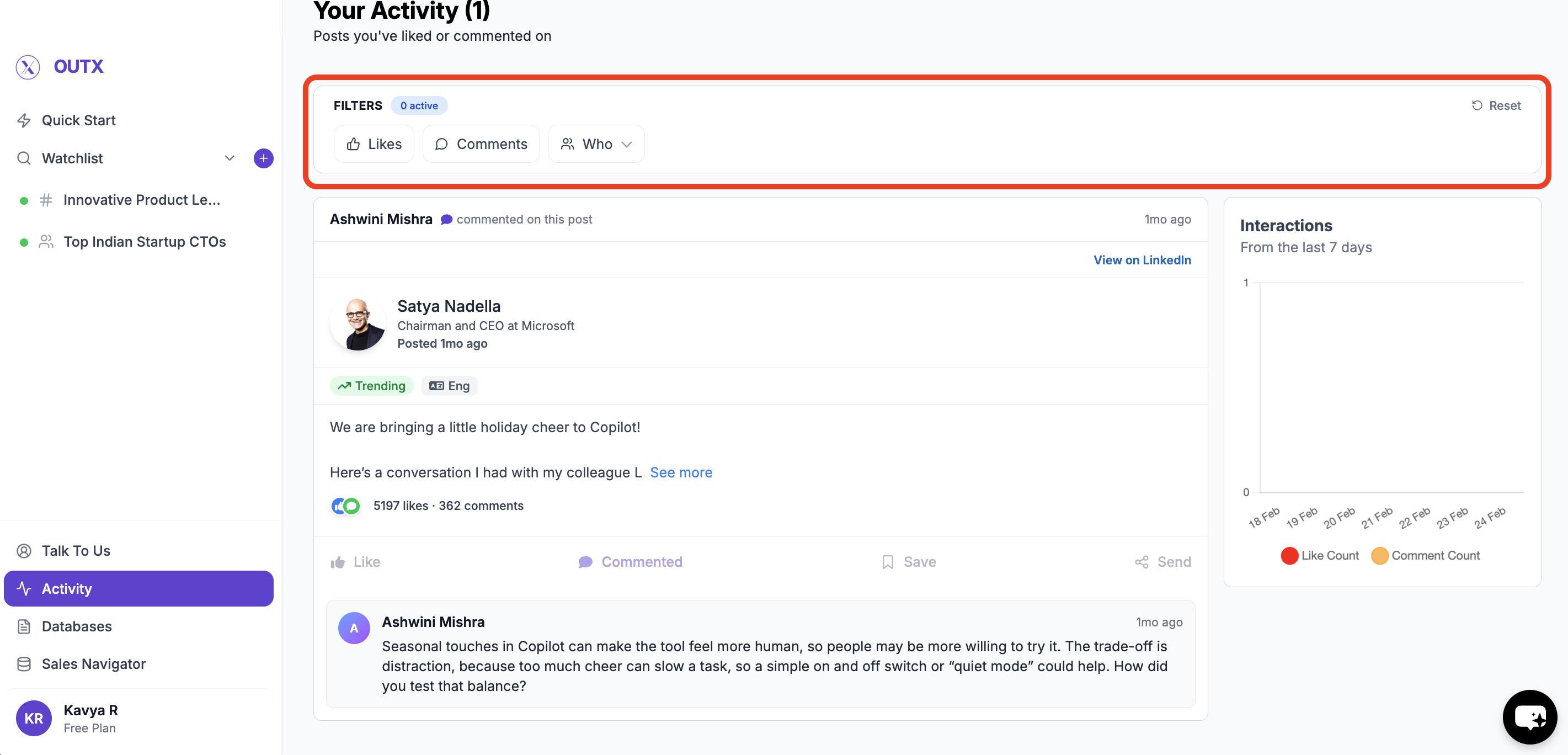
Filters help you narrow down activity quickly.
### **Interaction Type**
Use this to filter by:
* Likes
* Comments
Helpful when you want to:
* Review only comments
* Audit likes separately
***
## **Filters in the Activity Section**
Filters help you narrow down activity quickly.
### **Interaction Type**
Use this to filter by:
* Likes
* Comments
Helpful when you want to:
* Review only comments
* Audit likes separately
 ***
### **Team Member Filter**
If you're working with a team, you can filter activity by:
* A specific team member
* Your own account
This helps understand **who engaged with what**, especially in shared workflows.
***
### **Reset Filters**
Use **Reset** to clear all filters and return to the full activity view.
***
## **Engagement Insights (Right Panel)**
On the right side, you'll see a simple **activity summary**.
This shows:
* Total likes over time
* Total comments over time
* Activity from the last few days
It gives a quick snapshot of how active your LinkedIn engagement has been.
***
## **How This Helps You Day-to-Day**
The Activity section is useful when you want to:
* Verify that auto-engagement rules are running
* Review comments for quality and tone
* Track team-level engagement
* Monitor consistency over time
You don't need to guess - everything is visible.
## Frequently Asked Questions
Yes. The Activity page shows the engagement type for each action, including whether it was performed by an auto-engagement rule or manually. It also displays which account performed the action.
Yes. You can filter the activity feed by team member to see who engaged with what. This is especially useful for teams running shared engagement workflows across multiple LinkedIn accounts.
***
### **Team Member Filter**
If you're working with a team, you can filter activity by:
* A specific team member
* Your own account
This helps understand **who engaged with what**, especially in shared workflows.
***
### **Reset Filters**
Use **Reset** to clear all filters and return to the full activity view.
***
## **Engagement Insights (Right Panel)**
On the right side, you'll see a simple **activity summary**.
This shows:
* Total likes over time
* Total comments over time
* Activity from the last few days
It gives a quick snapshot of how active your LinkedIn engagement has been.
***
## **How This Helps You Day-to-Day**
The Activity section is useful when you want to:
* Verify that auto-engagement rules are running
* Review comments for quality and tone
* Track team-level engagement
* Monitor consistency over time
You don't need to guess - everything is visible.
## Frequently Asked Questions
Yes. The Activity page shows the engagement type for each action, including whether it was performed by an auto-engagement rule or manually. It also displays which account performed the action.
Yes. You can filter the activity feed by team member to see who engaged with what. This is especially useful for teams running shared engagement workflows across multiple LinkedIn accounts.