> ## Documentation Index
> Fetch the complete documentation index at: https://www.outx.ai/docs/llms.txt
> Use this file to discover all available pages before exploring further.
# Get started in 10 minutes
> OutX.ai helps you **build visibility and stay active on LinkedIn automatically** using simple, flexible engagement rules.
Instead of manually liking and commenting on posts, you tell OutX.ai:
* **Where** to engage (keywords, people, or companies)
* **What** to do (like, comment, or both)
* **How often** to engage
OutX.ai handles the rest.
***
## Why Use Auto Engagement?
Consistency and timing are critical on LinkedIn.
Auto Engagement helps you:
* Show up early on relevant posts
* Stay visible without daily effort
* Build relationships at scale
* Grow your personal brand naturally
***
## How Auto Engagement Works
Auto Engagement always runs on a **watchlist**.
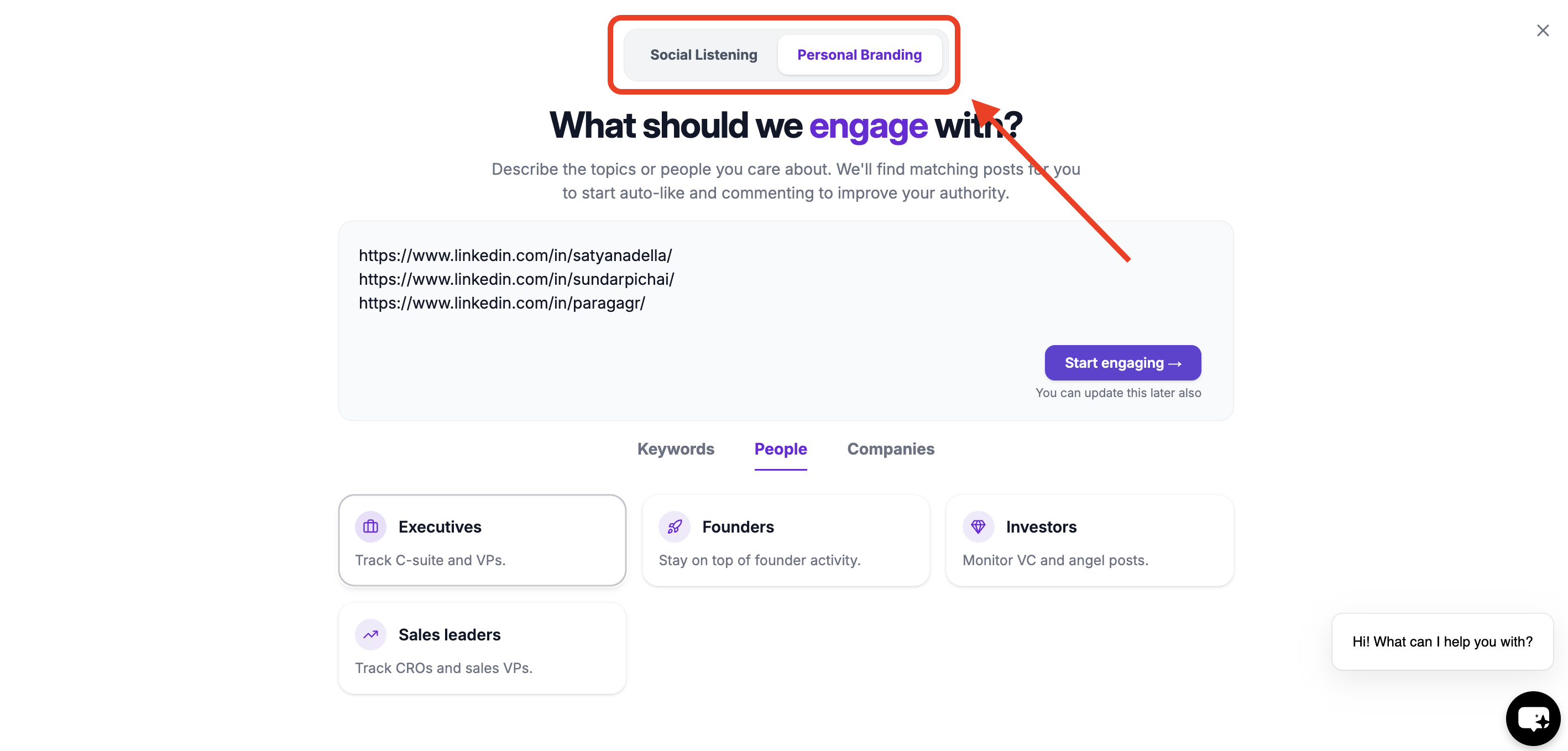 During onboarding (or later), you:
1. Select **Personal Branding**
2. Choose where you want to auto-engage:
* Keyword watchlists
* People watchlists
* Company watchlists
During onboarding (or later), you:
1. Select **Personal Branding**
2. Choose where you want to auto-engage:
* Keyword watchlists
* People watchlists
* Company watchlists
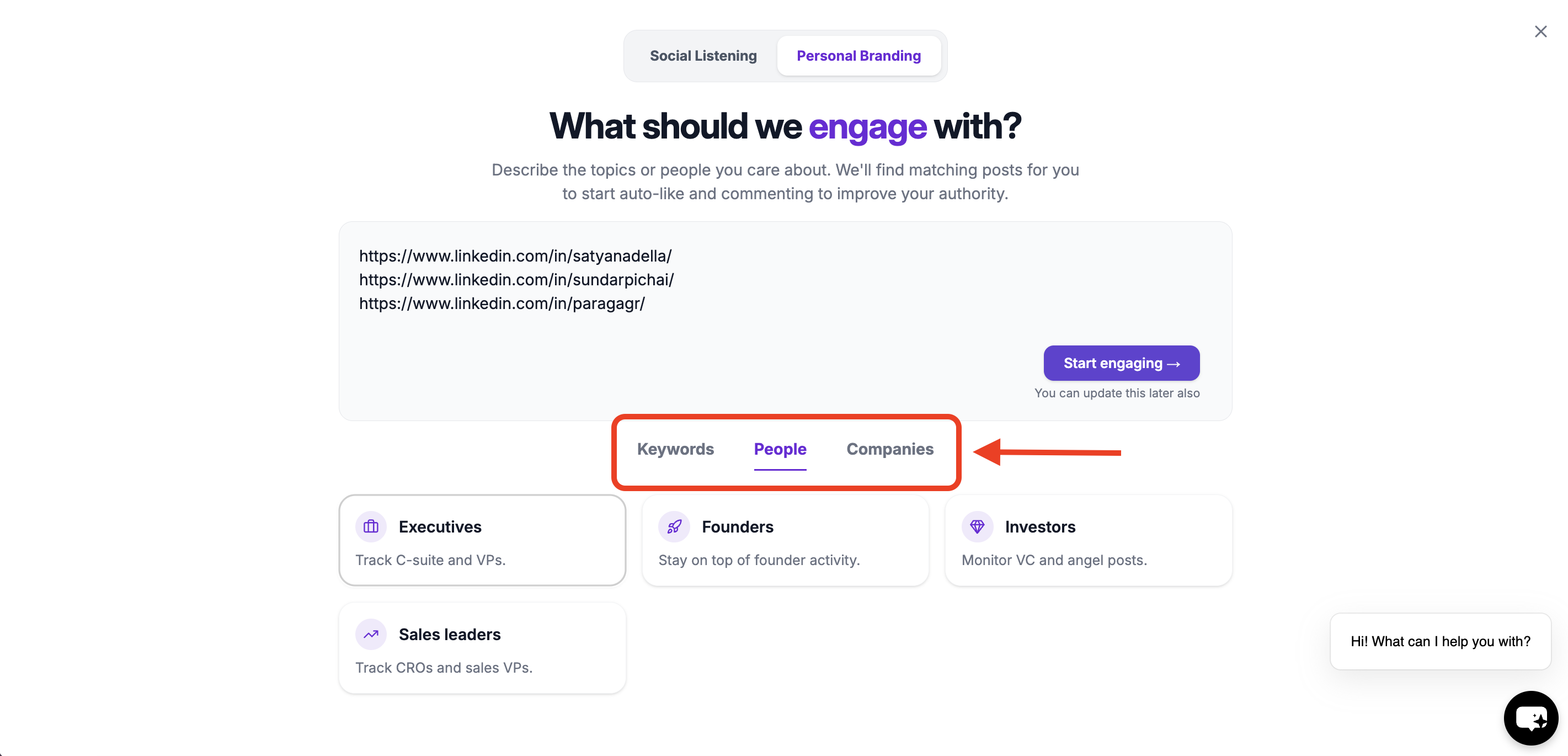 3. Create engagement rules
OutX.ai then monitors posts and applies your rules automatically.
***
# Choose Where You Want to Auto-Engage
You can enable Auto Engagement on one or more of the following:
### Keyword Watchlists
Engage with posts related to specific topics or conversations.
Best for:
* Personal branding
* Thought leadership
* Industry conversations
***
### People Watchlists
Engage as soon as specific people post.
Best for:
* Sales & outbound
* Relationship building
* Staying top-of-mind
***
### Company Watchlists
Engage with posts from specific companies.
Best for:
* Target accounts
* Competitor pages
* Partner companies
***
# Create Your Engagement Rule
Once you choose a watchlist, click **Add Your First Rule**.
You'll see the **Create Engagement Rule** screen.
***
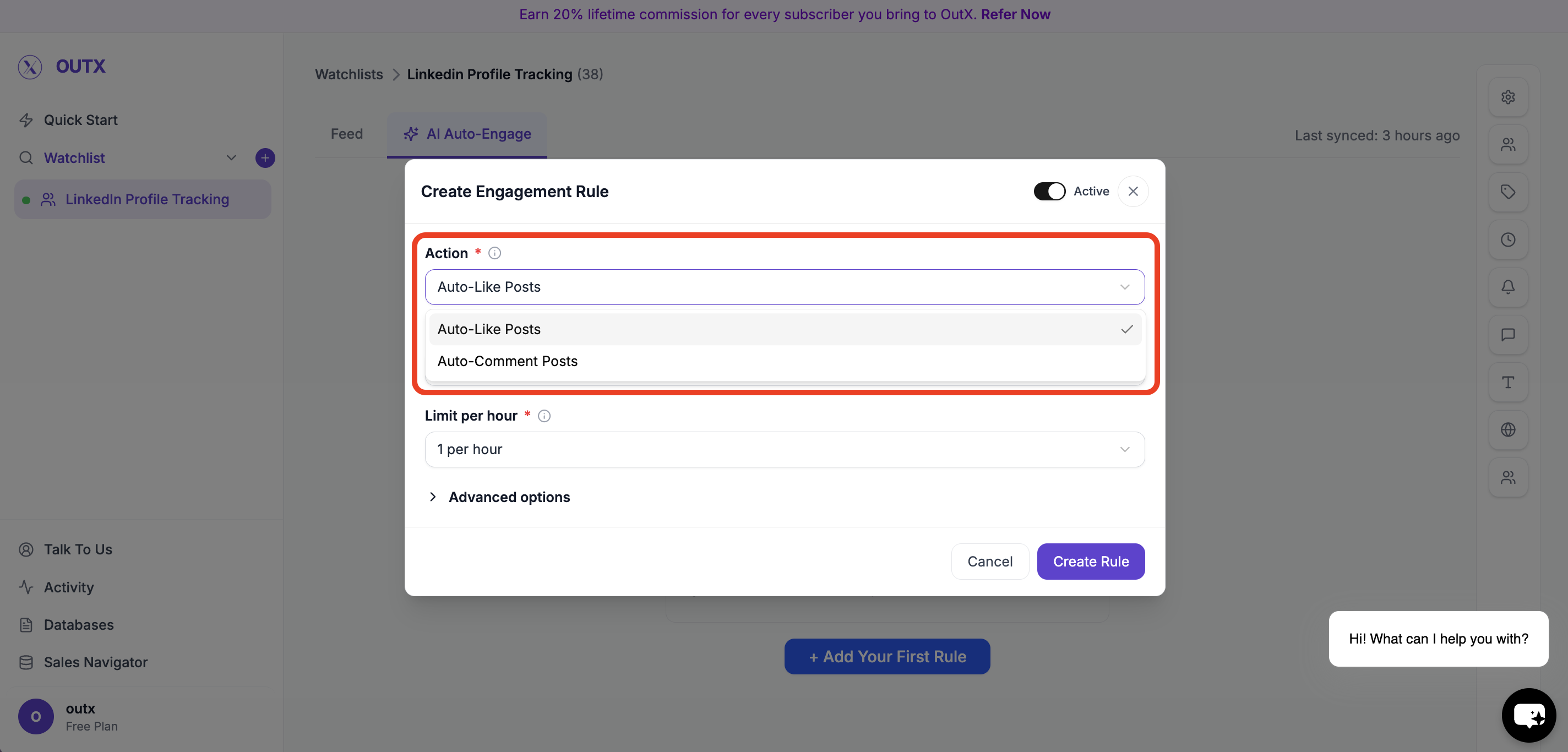
## Step 1: Choose an Action
Select what OutX.ai should do:
* Auto-Like Posts
* Auto-Comment on Posts
3. Create engagement rules
OutX.ai then monitors posts and applies your rules automatically.
***
# Choose Where You Want to Auto-Engage
You can enable Auto Engagement on one or more of the following:
### Keyword Watchlists
Engage with posts related to specific topics or conversations.
Best for:
* Personal branding
* Thought leadership
* Industry conversations
***
### People Watchlists
Engage as soon as specific people post.
Best for:
* Sales & outbound
* Relationship building
* Staying top-of-mind
***
### Company Watchlists
Engage with posts from specific companies.
Best for:
* Target accounts
* Competitor pages
* Partner companies
***
# Create Your Engagement Rule
Once you choose a watchlist, click **Add Your First Rule**.
You'll see the **Create Engagement Rule** screen.
***
## Step 1: Choose an Action
Select what OutX.ai should do:
* Auto-Like Posts
* Auto-Comment on Posts
 ***
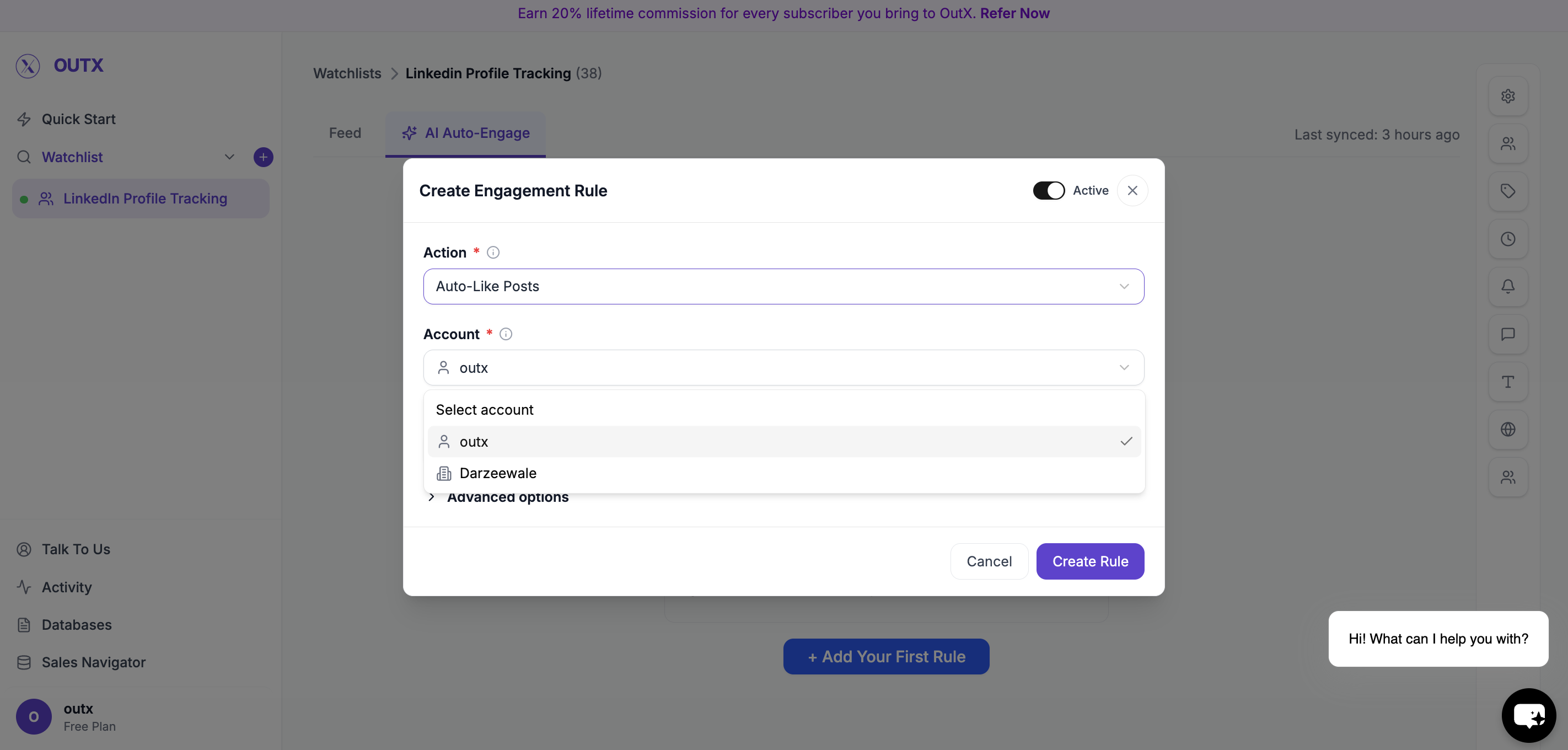
## Step 2: Choose Account
Select which LinkedIn account will be used:
* Your personal account
* Your company page (if connected)
***
## Step 2: Choose Account
Select which LinkedIn account will be used:
* Your personal account
* Your company page (if connected)
 ***
## Step 3: Set Limit Per Hour
Control how many actions happen per hour.
Examples:
* 1 per hour
* 5 per hour
* 10 per hour
***
## Step 3: Set Limit Per Hour
Control how many actions happen per hour.
Examples:
* 1 per hour
* 5 per hour
* 10 per hour
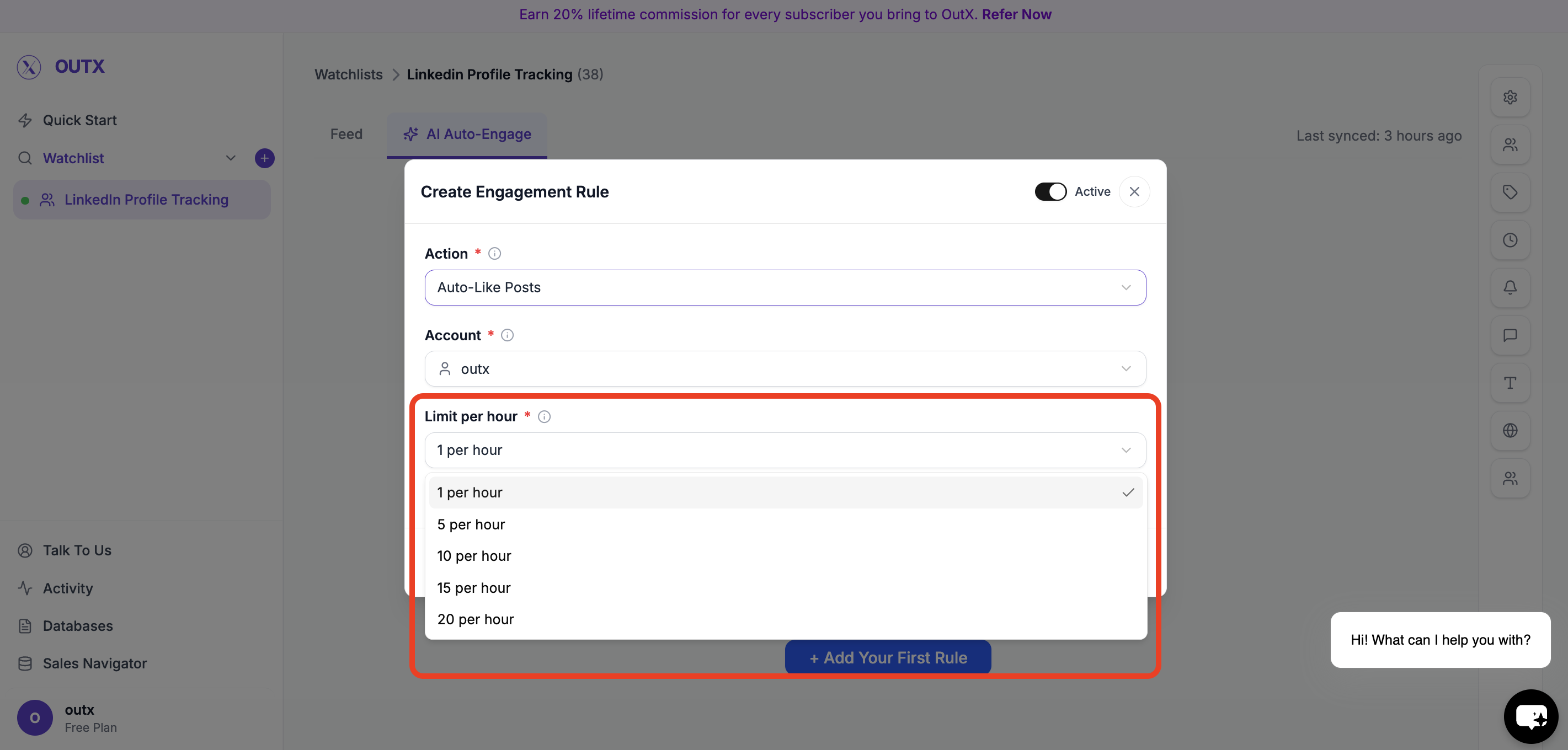 This keeps activity safe and natural.
***
## Step 4: Advanced Options (Optional)
Use advanced filters to control **which posts qualify for engagement**.
You can refine engagement using:
* **Filter Intent** – Engage only on posts matching selected intent types (e.g., buying intent, hiring, announcements)
* **Filter Profiles** – Limit engagement to specific profiles or profile categories
* **Filter Seniority Levels** – Engage only with posts from certain seniority levels (e.g., Founder, VP, Manager)
* **Filter Post Types** – Choose which types of posts to engage with (text posts, image posts, job posts, etc.)
* **LinkedIn Posted At** – Engage only on posts published within a selected time range
These filters help ensure engagement stays **relevant, targeted, and high-quality**.
***
## Step 5: Activate Rule
Turn the rule **Active** and click **Create Rule**.
OutX.ai will start liking and/or commenting automatically based on your rule.
***
# What Happens After Setup
Once enabled:
* OutX.ai monitors posts in real time
* Applies your engagement rules
* Likes or comments automatically
* Logs every action
You can pause, edit, or delete rules anytime.
***
# You're Live
In under 10 minutes, you've:
* Chosen where to auto-engage
* Created engagement rules
* Enabled automation
* Started building your LinkedIn presence
OutX.ai now grows your visibility in the background so you don't have to.
## Frequently Asked Questions
Yes. When creating an engagement rule, you can select your company page as the account to use. Comments and likes will then be posted as the company rather than your personal profile.
Start conservatively with 1-5 likes per hour and 1-3 comments per hour. These limits help keep your activity looking natural and reduce the risk of LinkedIn flagging your account. You can adjust limits over time as you monitor results.
This keeps activity safe and natural.
***
## Step 4: Advanced Options (Optional)
Use advanced filters to control **which posts qualify for engagement**.
You can refine engagement using:
* **Filter Intent** – Engage only on posts matching selected intent types (e.g., buying intent, hiring, announcements)
* **Filter Profiles** – Limit engagement to specific profiles or profile categories
* **Filter Seniority Levels** – Engage only with posts from certain seniority levels (e.g., Founder, VP, Manager)
* **Filter Post Types** – Choose which types of posts to engage with (text posts, image posts, job posts, etc.)
* **LinkedIn Posted At** – Engage only on posts published within a selected time range
These filters help ensure engagement stays **relevant, targeted, and high-quality**.
***
## Step 5: Activate Rule
Turn the rule **Active** and click **Create Rule**.
OutX.ai will start liking and/or commenting automatically based on your rule.
***
# What Happens After Setup
Once enabled:
* OutX.ai monitors posts in real time
* Applies your engagement rules
* Likes or comments automatically
* Logs every action
You can pause, edit, or delete rules anytime.
***
# You're Live
In under 10 minutes, you've:
* Chosen where to auto-engage
* Created engagement rules
* Enabled automation
* Started building your LinkedIn presence
OutX.ai now grows your visibility in the background so you don't have to.
## Frequently Asked Questions
Yes. When creating an engagement rule, you can select your company page as the account to use. Comments and likes will then be posted as the company rather than your personal profile.
Start conservatively with 1-5 likes per hour and 1-3 comments per hour. These limits help keep your activity looking natural and reduce the risk of LinkedIn flagging your account. You can adjust limits over time as you monitor results.