How to Export LinkedIn Contacts to Excel [in 2 min]
If you’ve spent time building a strong LinkedIn network, you’ll eventually need to export LinkedIn contacts to make the most of your connections.
So if you are in Sales, marketing, recruitment or a founder getting the contact info of your targeted leads help you with nurturing relationships, hook them into your CRM or for better targeting at launch.
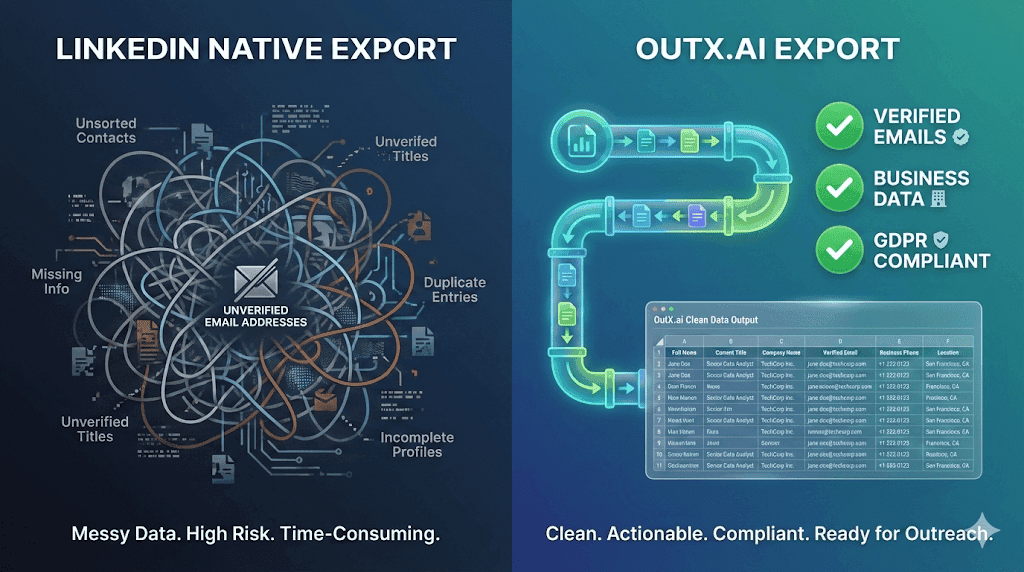
But what's wrong? LinkedIn's doesn’t allow export button anymore
But hey, the good news is: With OutX.ai you can export your LinkedIn leads straight to a CSV in 2 minutes, fill every column with accurate, up-to-date info, and even enrich your leads with real emails.
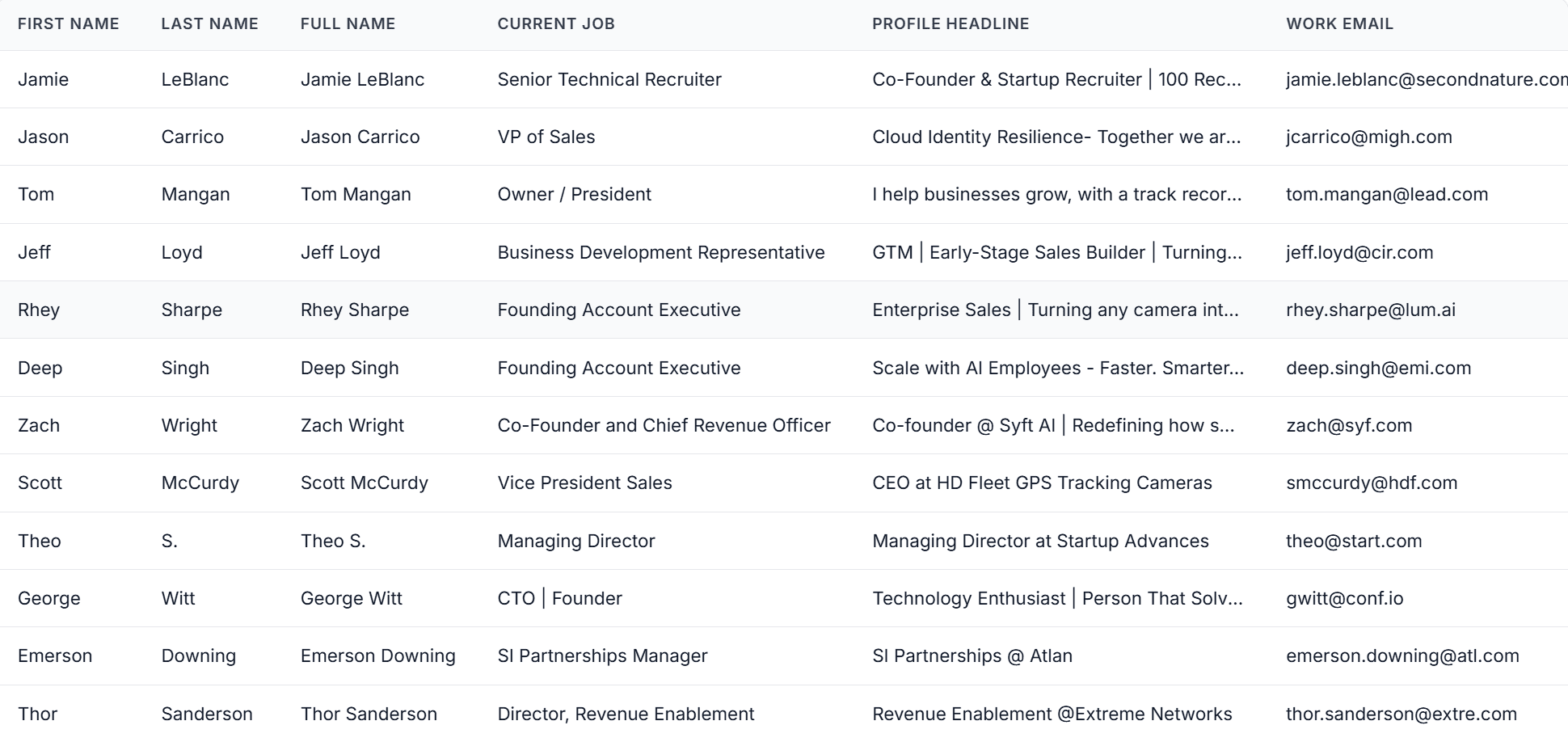
Let's unpack the playbook that turns LinkedIn's "no-email" export nightmare into a Outx.ai must-hire goldmine.
How to Export LinkedIn Contacts to Excel in LinkedIn’s way
LinkedIn does offer a native export function. It's... something. Not great, but something.
Here's how to access it:
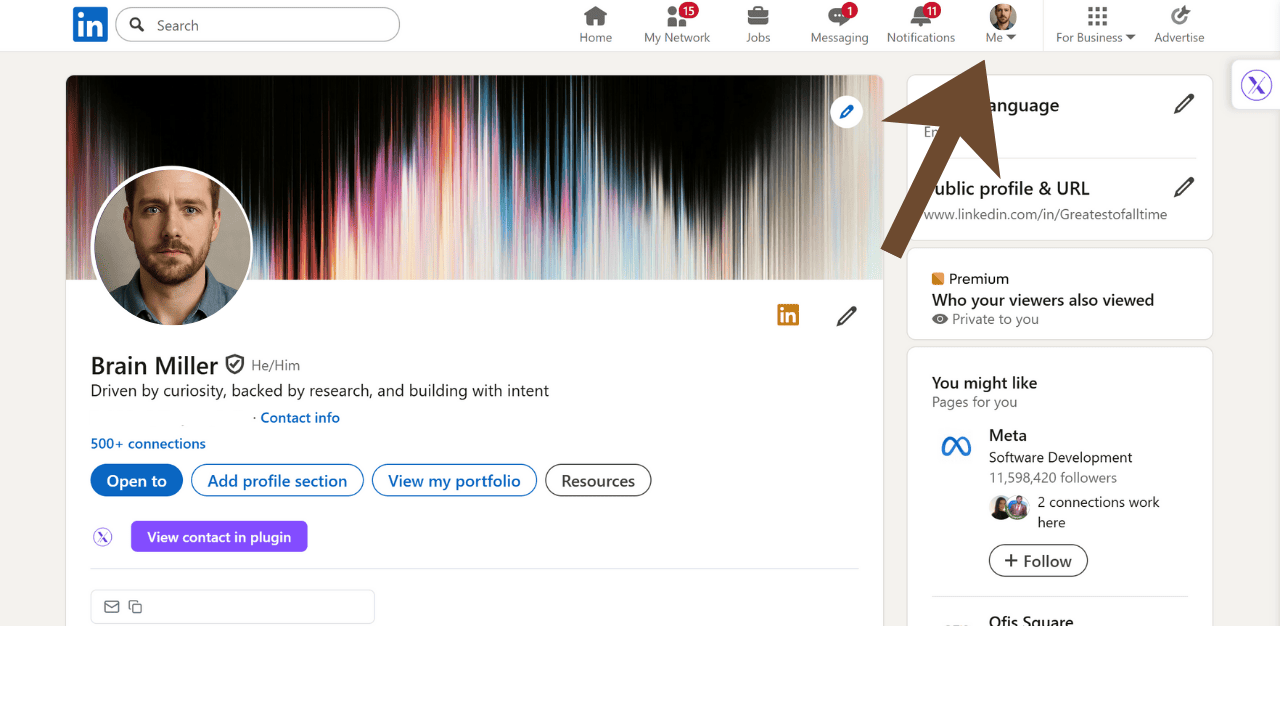
1. Click your profile icon in the top right
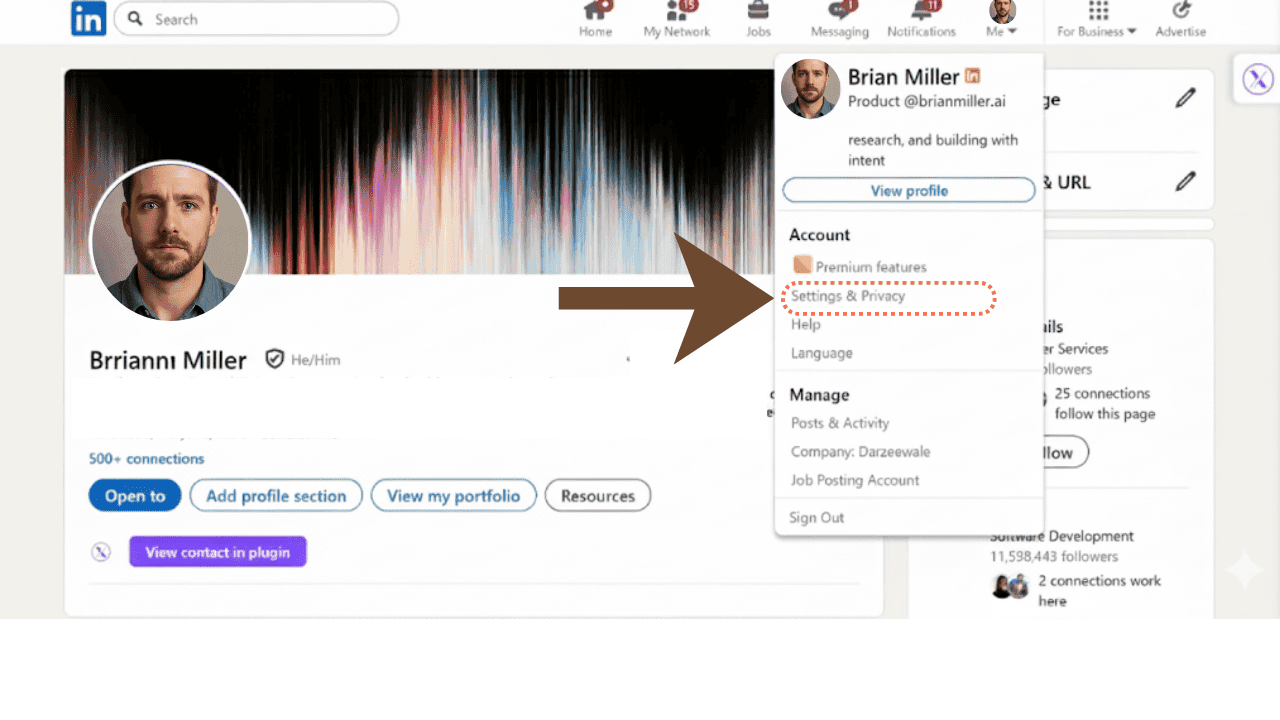
2. Click on "Settings & Privacy"
Go to “Settings and Privacy” in the dropdown and select that
3. Navigate to "Data privacy" tab
Select “Get a copy of your data” in Data and Privacy
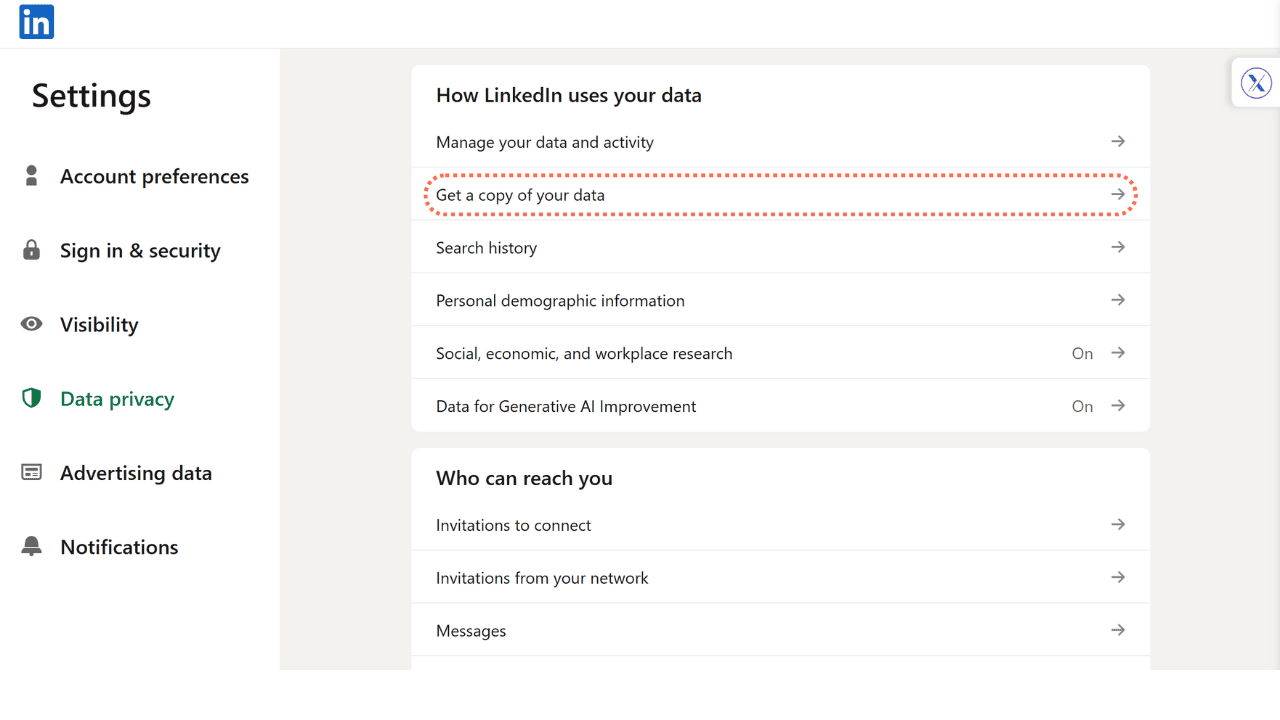
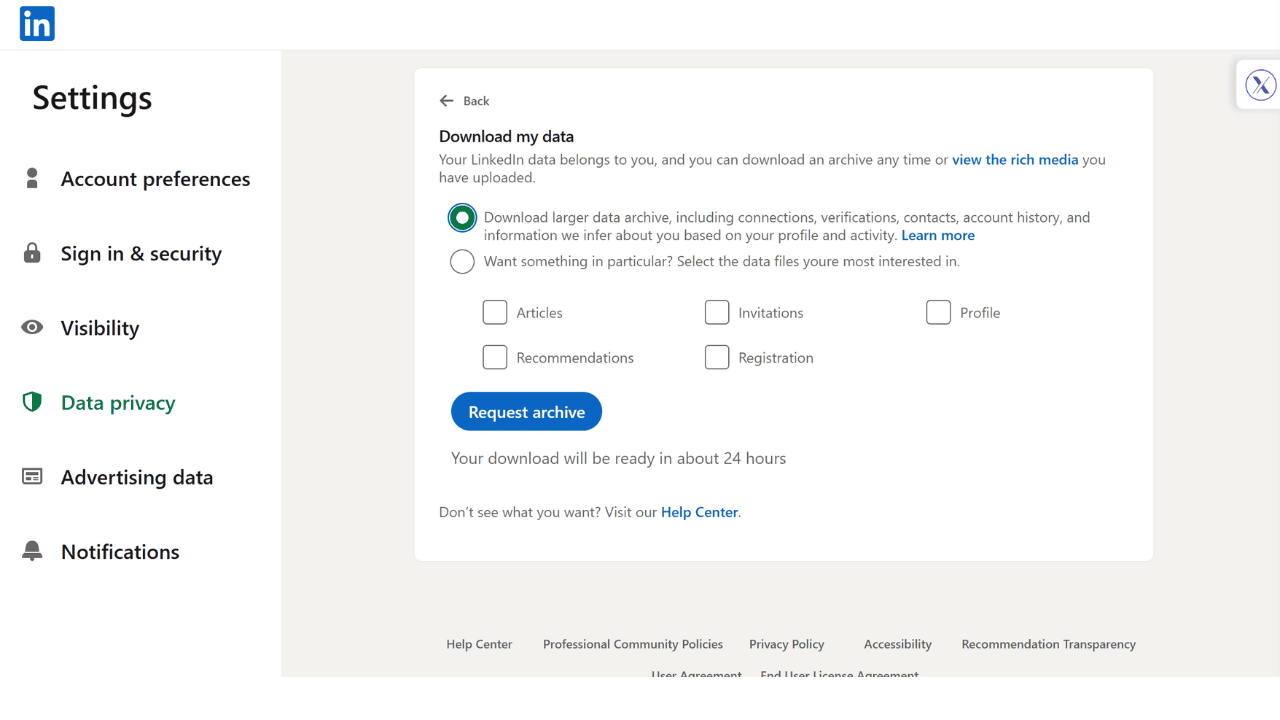
4. Select "Connections" and Request archive
Click on “Download larger data archive, including connections, verifications, contacts, account history, and information we infer about you based on your profile and activity.” then “Request Archive”.
Sounds straightforward, right? Dude, did you see that mistake everyone makes? They assume this export will give them everything they need.
The harsh reality:
- Most emails will be missing
- You'll get names and companies, but limited additional data
- The format is clunky and requires clean-up
How to export Linkedin Leads in Excel using Outx.ai
When exporting LinkedIn contacts, you'll run into four major headaches that make your data practically useless:
-
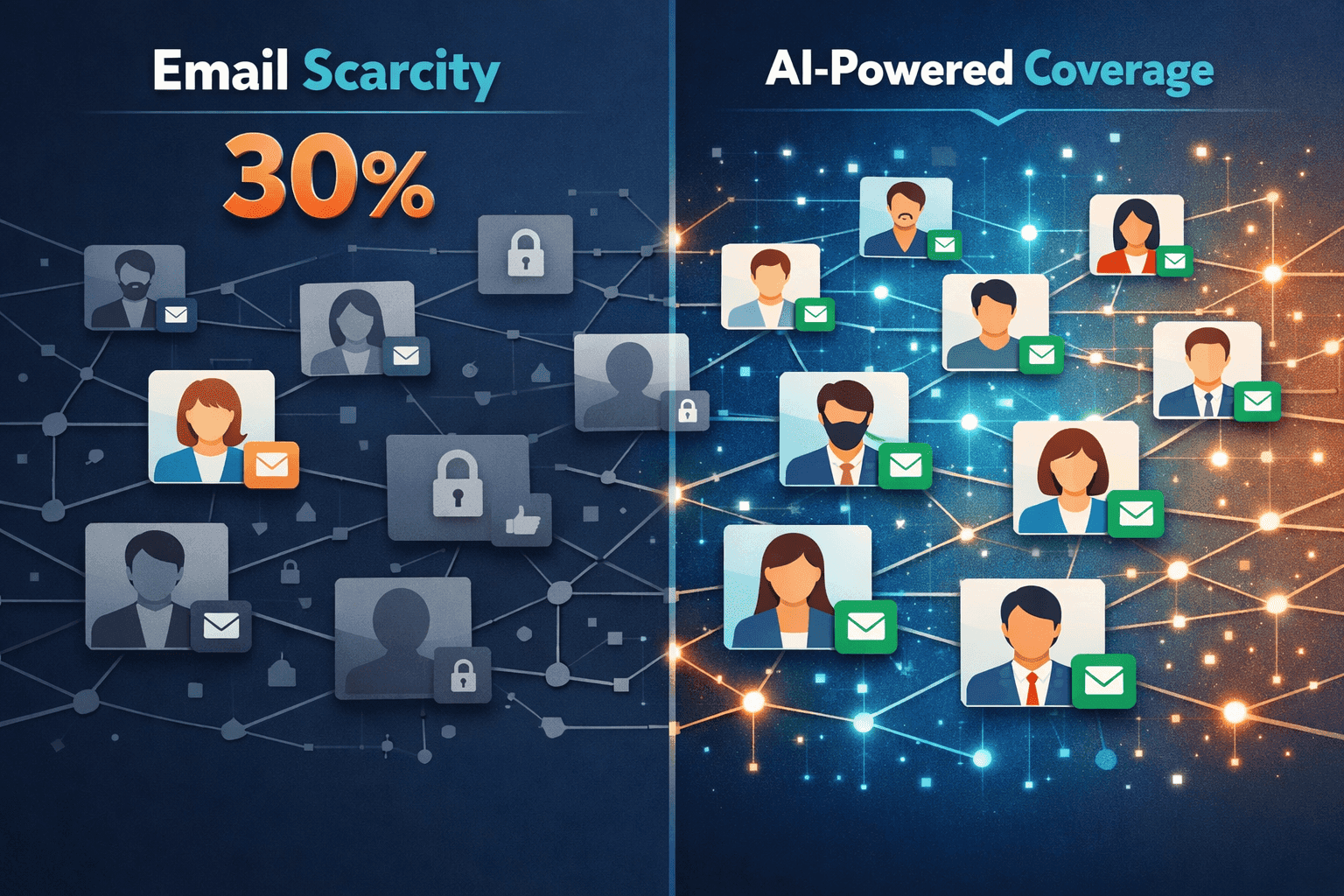
The Email Scarcity Problem
Only 30% of the users on LinkedIn have their Emails publically available only to their 1st degree connections
OutXAI's solution: AI-powered email discovery that finds professional emails for your entire contact list, not just the generous 30% who share their info publicly.
-
Personal vs. Business Email Nightmare
Even when LinkedIn does provide emails, they're often personal accounts (think: surferdude83@gmail.com). Not exactly professional gold.
OutXAI automatically identifies and prioritizes business emails, so you're reaching people at work, not interrupting their family time.

-
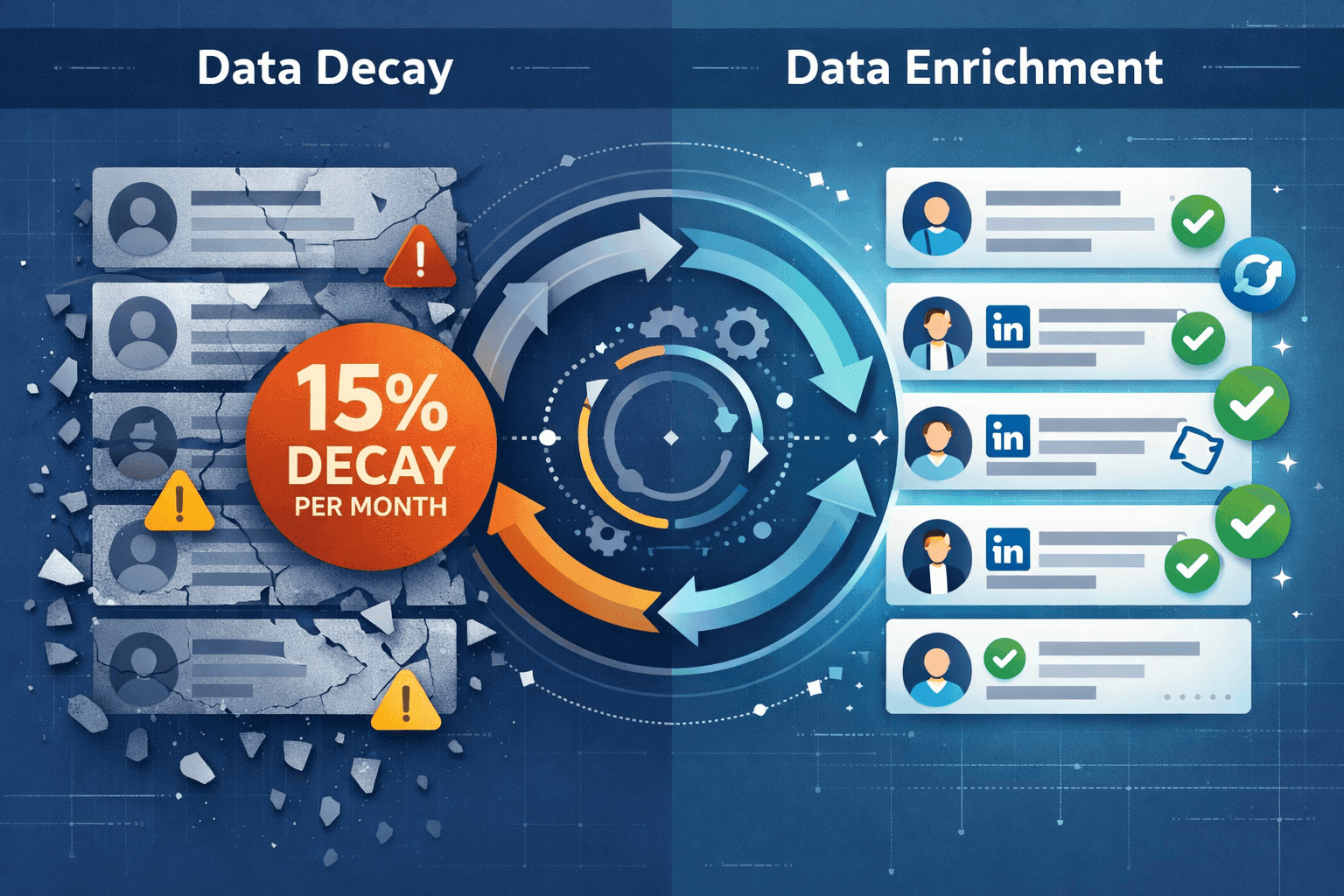
Data Decay Disaster
About 15% of your contact data becomes outdated EVERY MONTH. People change jobs, titles, locations faster than ever.
OutXAI's continuous enrichment keeps your data fresh through automatic URL verification and regular updates.
-
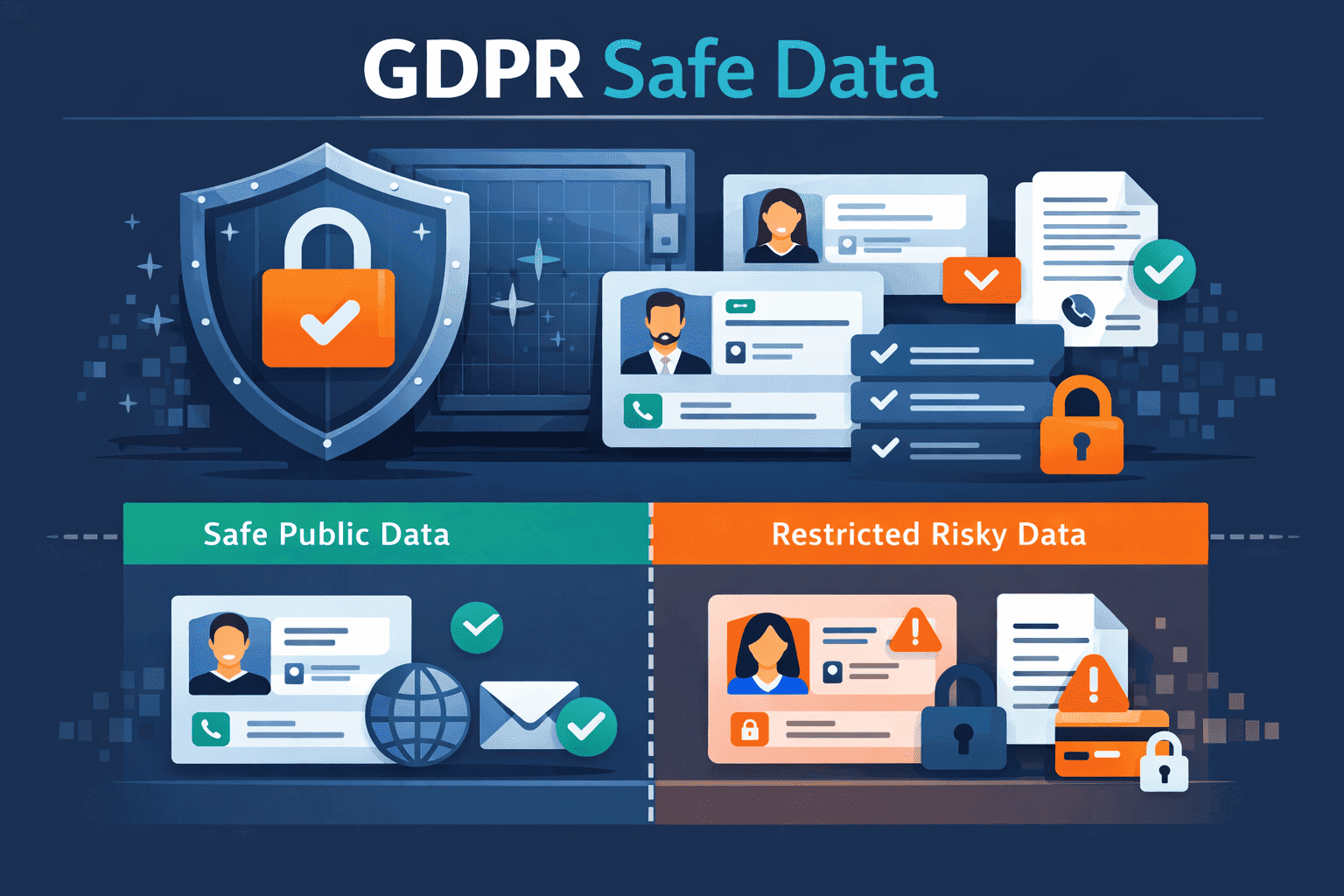
GDPR Compliance Concerns
Using the wrong kind of contact data can land you in hot regulatory water. Concerned about GDPR? You should be.
OutXAI scrapes only publicly available data and you're in full control of what you collect and how you use it. Sleep easy, compliance team!
The difference is night and day. I'm talking full contact information versus digital breadcrumbs.
Exporting with OutXAI – The Quick Guide
OutX.ai offers two types of exports and three levels of enrichment depending on how deep you want to go:
| Type | Best For |
|---|---|
| Sales navigator export | Those people who have sales navigator access and can narrow down their search |
| People Search export | Those users who dont have access to sales navigator but have their people list sorted on linkedin |

More about enrichment in the next section.
Sales navigator export
Let's get down to business. Here's exactly how to export your LinkedIn contacts to a clean, complete CSV file:
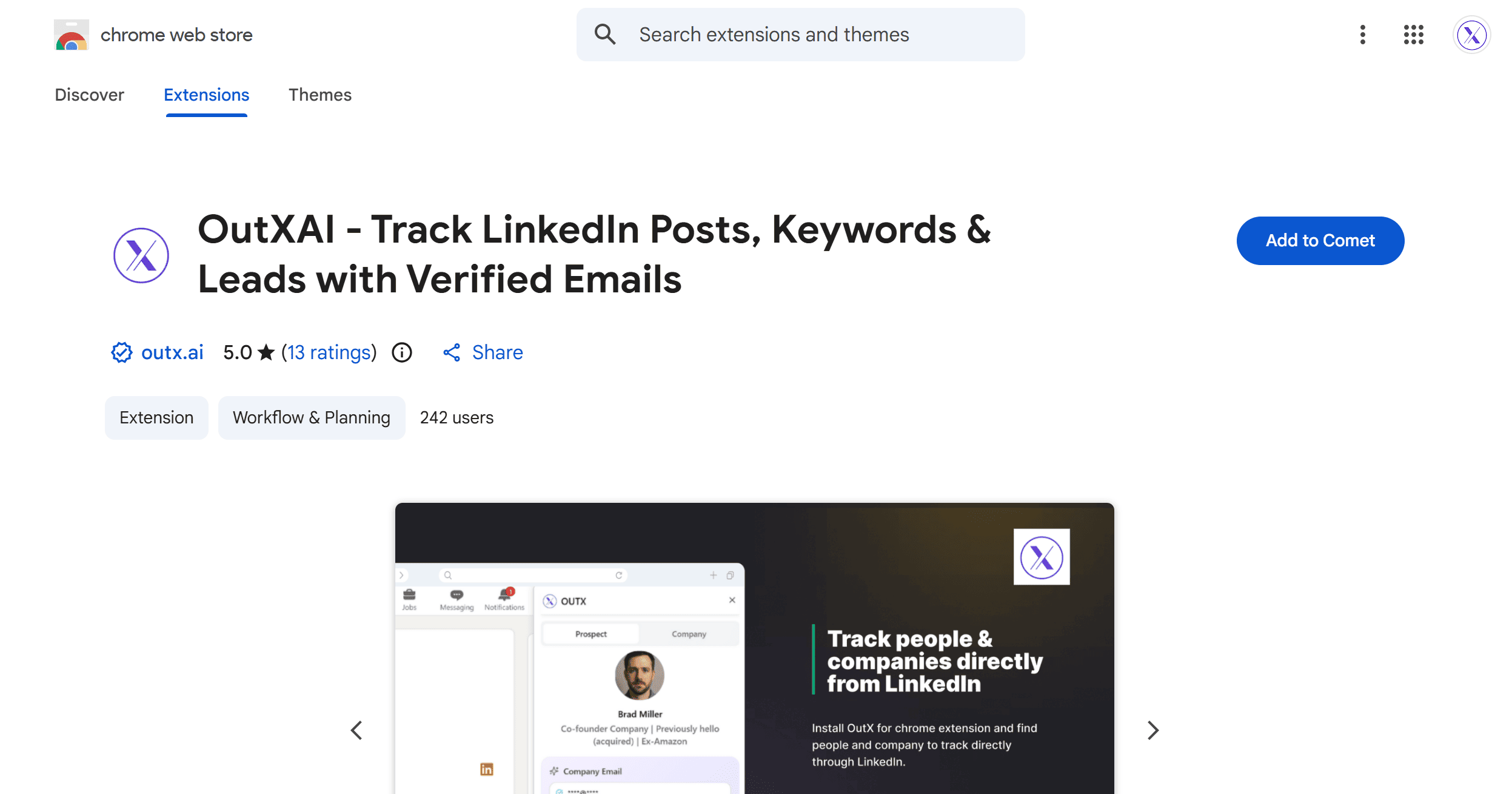
Step 1: Install the OutX.ai Chrome Extension
Head to the Chrome Web Store and search "OutXAI" or go directly to our download page. Installation takes approximately 30 seconds. No rocket science required.
Step 2: Navigate to LinkedIn Sales Navigator
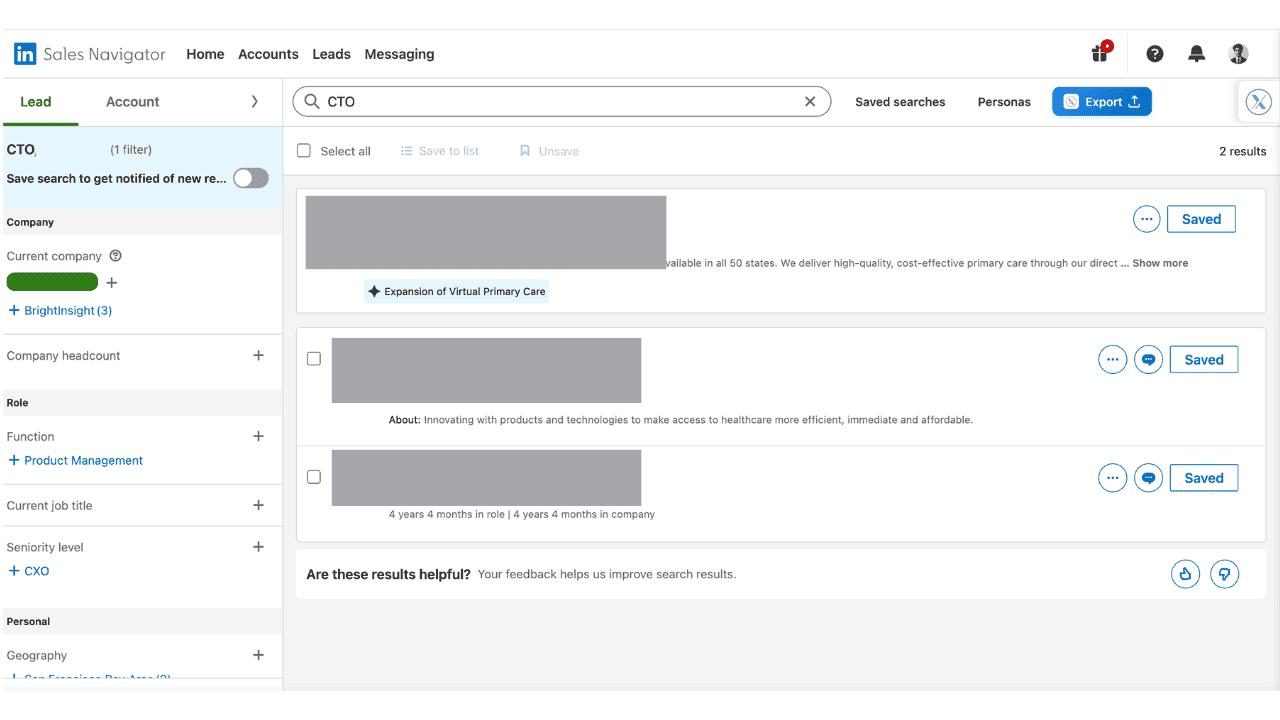
While OutXAI works with regular LinkedIn, Sales Navigator gives you the most filtering power. If you don't have it, the standard LinkedIn "My Network" section works too.
Step 3: Apply Your Filters
This is crucial. Apply the "1st-degree connections" filter first.
Then narrow down by:
- Industry
- Company size
- Location
- Job title
- Or any other relevant criteria
Be specific! The more targeted your list, the higher your conversion rates will be.
Step 4: Execute the Export
See that little OutXAI icon in your browser? Click it.
Select "Export Visible Contacts" or "Export Search Results" depending on your needs.
Choose your export format (CSV is the default and works with everything).
Hit "Export Now" and watch the magic happen.
.png&w=3840&q=75)
In about 2-3 minutes (depending on list size), you'll receive a notification that your export is ready to download.
Simple enough for your grandma to do it. I'm serious.
The result? A beautiful, organized CSV with names, titles, companies, emails, phone numbers (when available), and LinkedIn URLs. Ready for immediate use.
People search Export
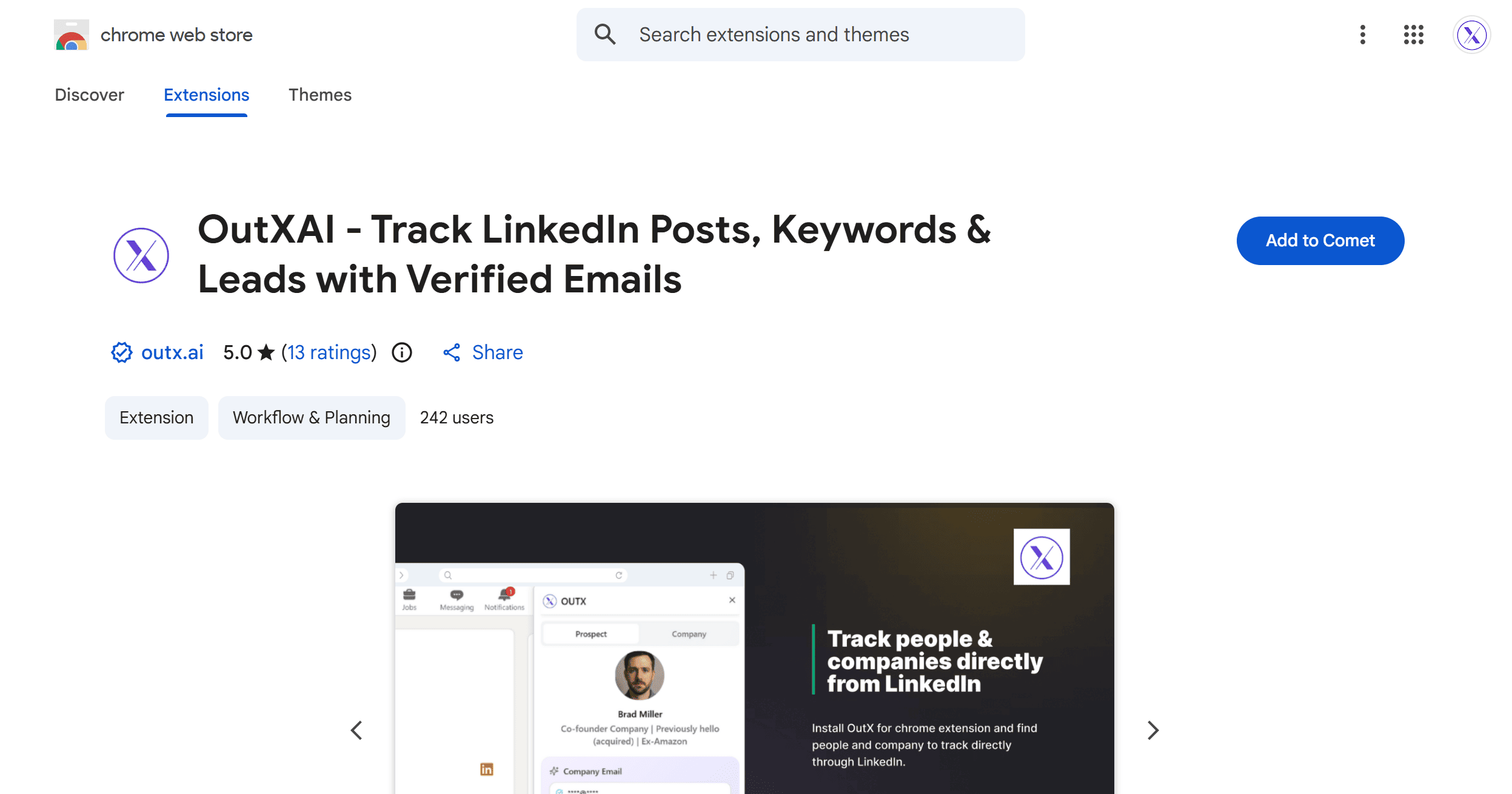
Step 1: Install the OutXAI Chrome Extension
Head to the Chrome Web Store and search "OutXAI" or go directly to our download page. Installation takes approximately 30 seconds. No rocket science required.
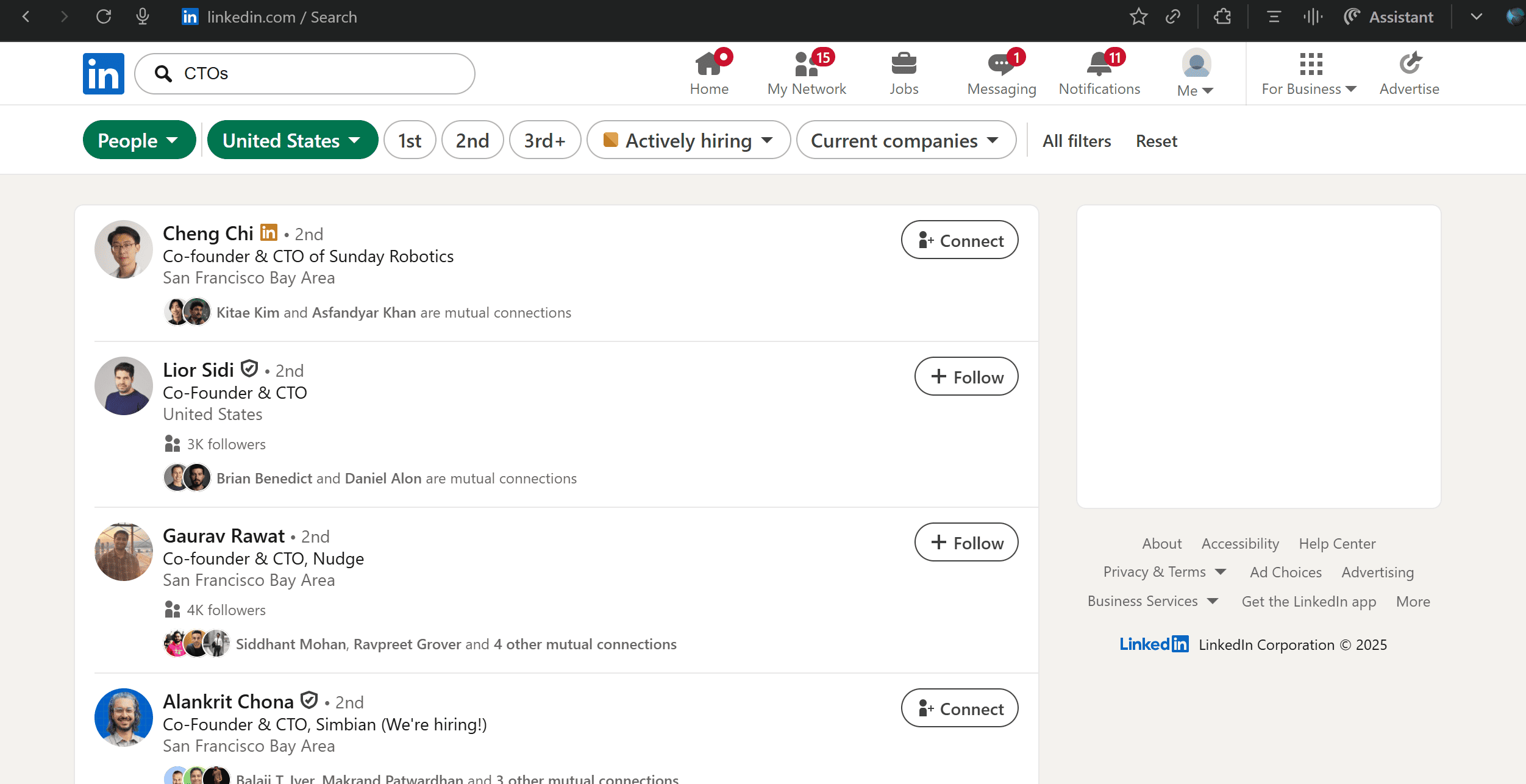
Step 2: Navigate to LinkedIn search bar
Write name of your targeted keyword and see all the people that LinkedIn suggests that are highly relevant with the keyword
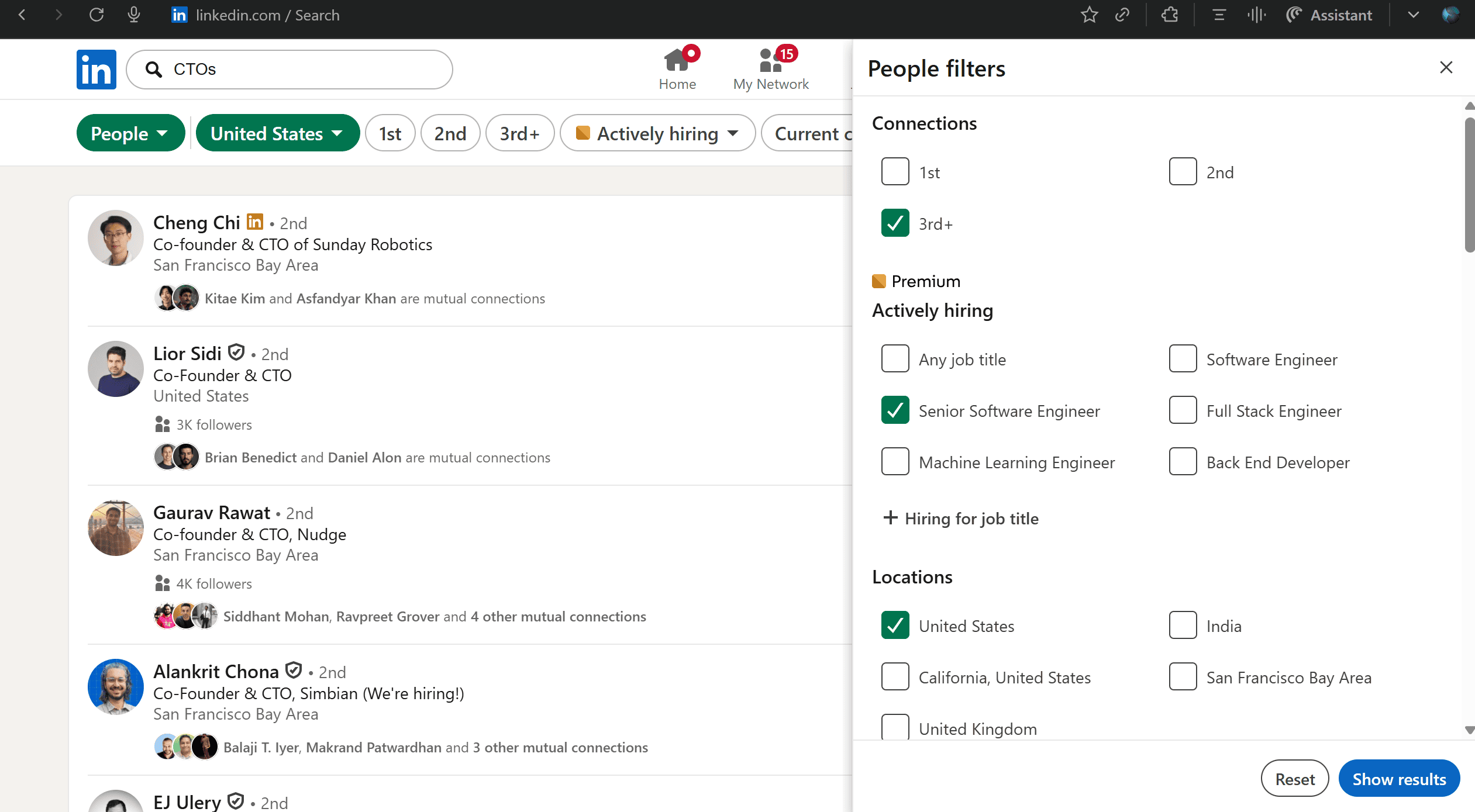
Step 3: Apply Your Filters
This is crucial. Apply the "1st-degree connections" filter first.
Then narrow down by:
- Industry
- Company size
- Location
- Job title
- Or any other relevant criteria
Be specific! The more targeted your list, the higher your conversion rates will be.
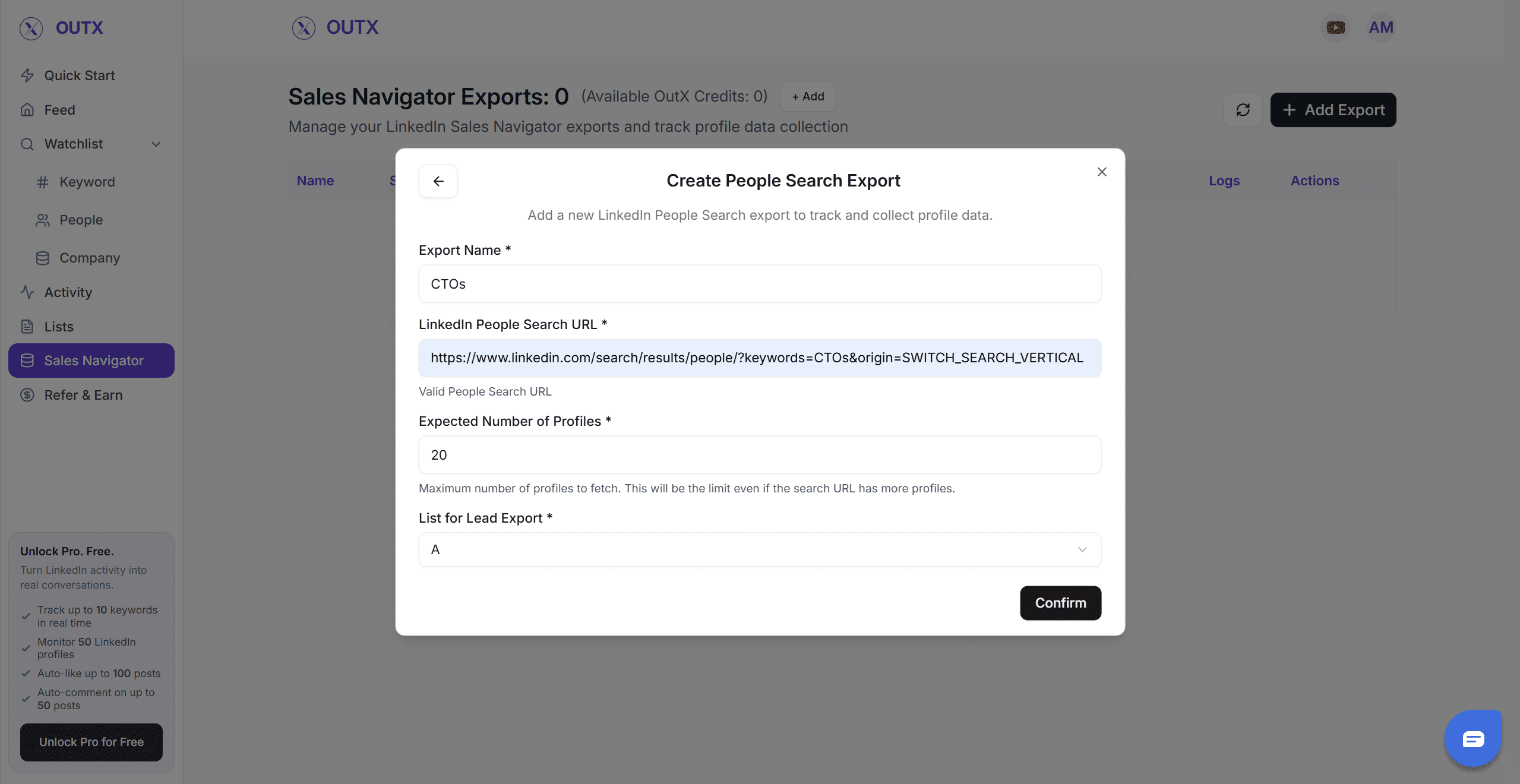
Step 4: Copy the URL and Execute the Export
Enrich Your CSV for Maximum ROI
Getting basic contact info is just the beginning the real power comes from enrichment.
Outx.ai offers three levels of enrichment catering to your needs:
| Level | What You Get | Best For |
|---|---|---|
| Basic Enrichment | Name, job title, company, location, and LinkedIn URL | Quick outreach lists / SDR targeting |
| Medium Enrichment | Everything in Basic + company size, industry, tech stack, and hiring signals | ICP filtering / segmentation / priority scoring |
| Advanced Enrichment | Everything in Medium + verified business emails & reachability score | Multi-channel outbound / cold email at scale |
.png&w=3840&q=75)
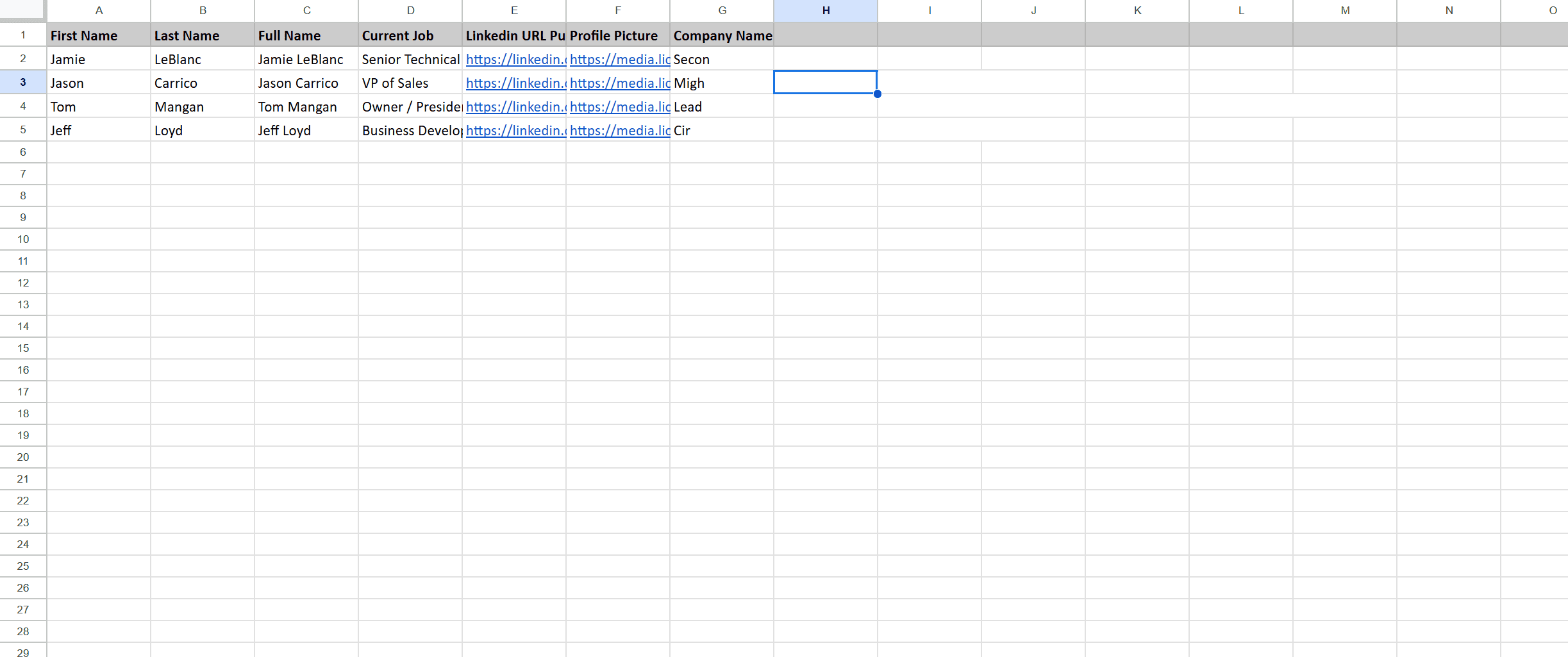
1. Basic Enrichment (Brief Download) Ideal for Fast Prospecting Lists
If your goal is to build a clean CSV quickly and start prioritizing leads, Basic Enrichment is the fastest and most cost-efficient route.
You get essential data points that matter for outbound:
- Full name
- Job title
- LinkedIn URL
- Profile image
- Company name
This is perfect when you don’t need deep context or emails yet, and you want a snapshot of high-intent profiles to begin outreach on LinkedIn. SDRs especially love this mode because it keeps lists lightweight, minimal, and export-ready without requiring credits or enrichment overhead.
Basic Enrichment works extremely well when your motion looks like:
- Connecting on LinkedIn
- Personalized commenting/liking to build familiarity first
- Running LI DMs before switching to email
- Handing qualifying profiles to an AE
If you're still validating your ICP, testing filters, or checking whether your targeting is directionally correct, this is the ideal starting point.
Once you identify buying intent, simply move the same segment to deeper enrichment no rework required making it both fast and ROI-friendly.
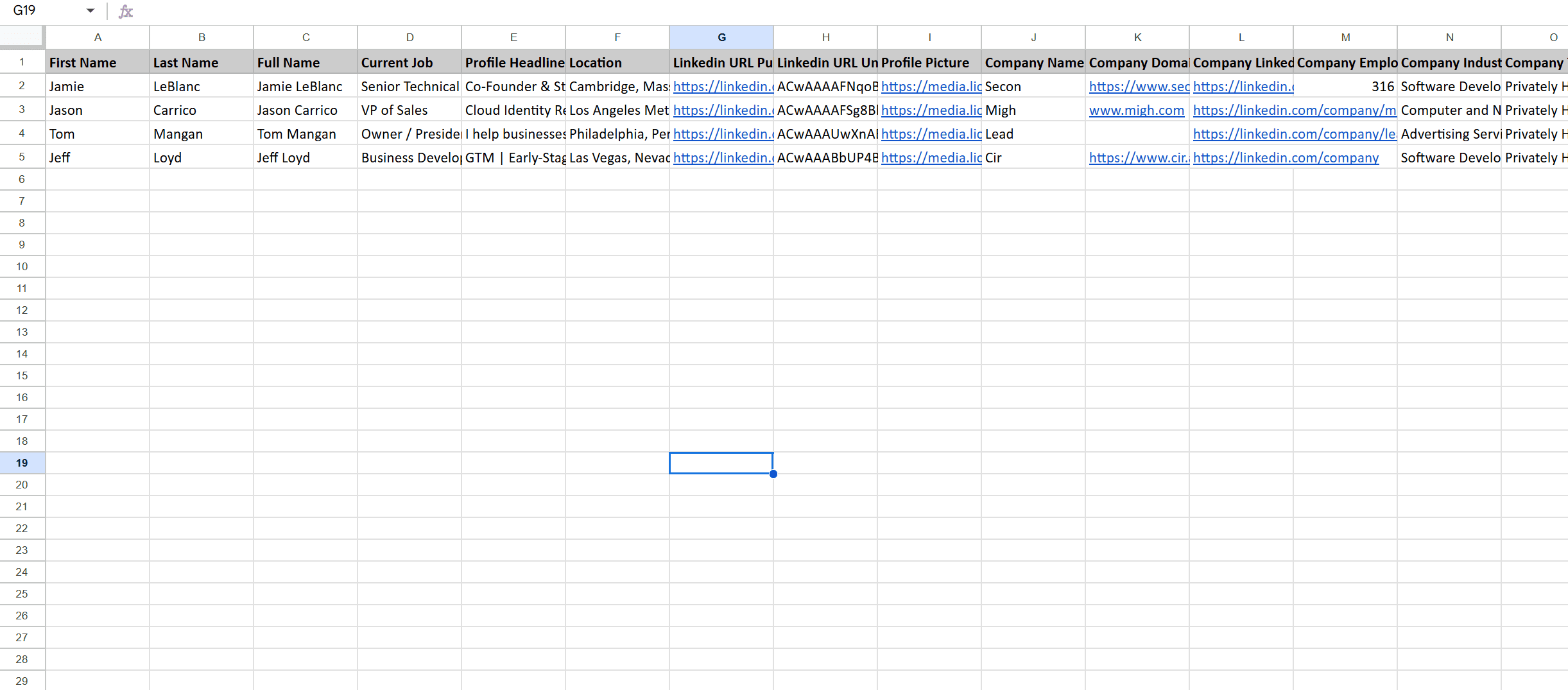
2. Detailed Enrichment (Without Emails) Best for LinkedIn-Only Prospecting & ICP Segmentation
If you're planning to run your entire playbook inside LinkedIn, then Detailed Download (No Emails) is the power-sweet-spot.
It contains everything from Basic, plus crucial buyer-context signals:
- Full name
- Job title
- LinkedIn URL
- Profile image
- Company name
- Company website
- Company size
- Company industry
- Open profiles (indicates which leads accept InMails / connect requests easily)
- +25 additional data points
- Data cleaning and smart filtering
This version gives you the information needed to prioritize the right people before sending a single message. With company size and industry included, you instantly know whether the profile fits your ICP no need to manually check each lead.
This enrichment tier is especially useful if:
- You rely heavily on LinkedIn for pipeline generation
- You want to filter leads by tech stack, industry, or growth stage
- You want your SDRs to engage only with “high-fit” accounts
- Your strategy is to warm up prospects with comments, reactions, and content engagement before pitching
No credits are wasted on email discovery when email is not required, making this ideal for teams doing high-volume LI outbound.
If you eventually need emails later, you can upgrade only the selected rows, keeping enrichment extremely cost-efficient and modular.
3. Detailed Enrichment With Emails For Multi-Channel Outbound & High-Conversion Pipelines
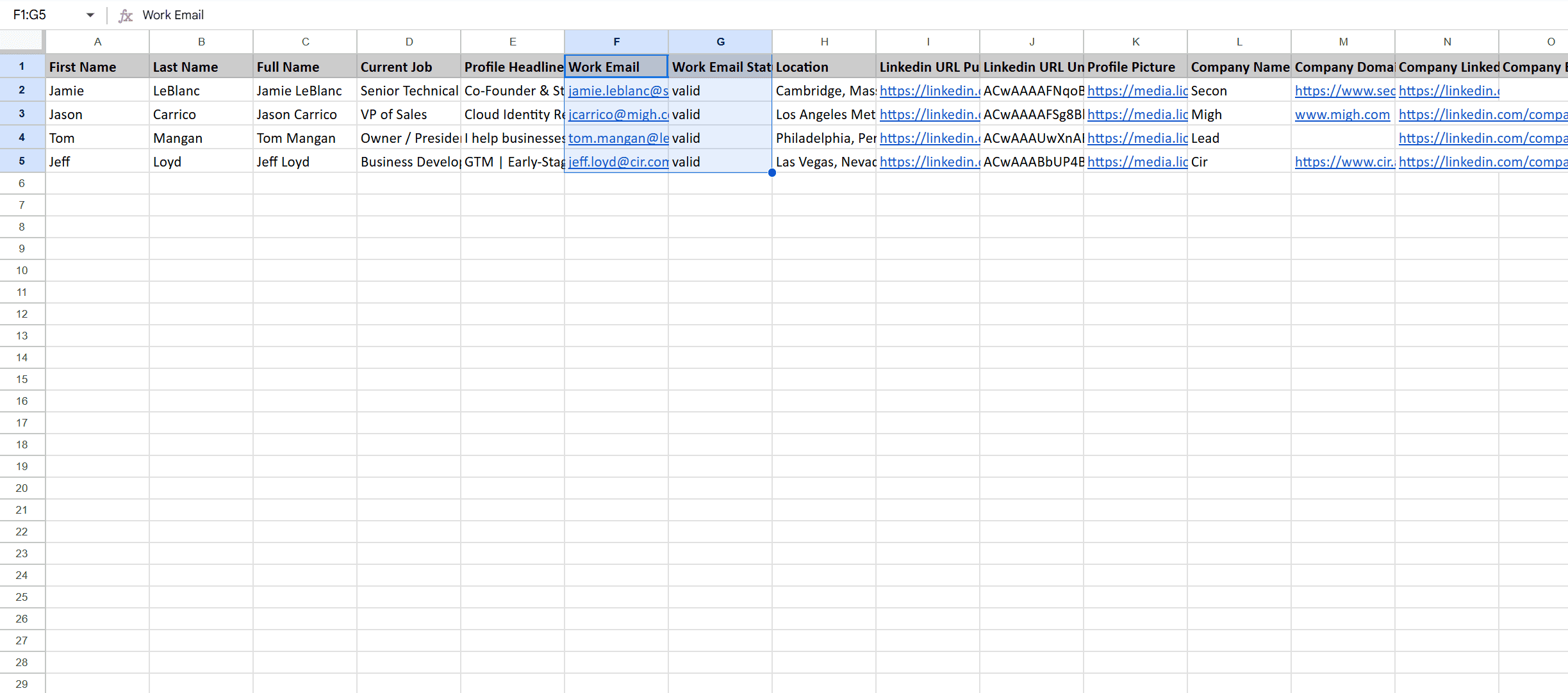
If you want to go beyond LinkedIn and power email + LinkedIn omni-channel outreach, then Detailed Download With Emails is the highest-impact route.
It includes everything from the previous two exports, plus:
- Verified business email discovery
- Reachability and deliverability scoring
- Built-in email verification
This means the CSV you export is not just enriched it's exactly ready to load into HubSpot, Apollo, SalesLoft, Smartlead, instantly.ai, SmartReach, Instantly or any email outreach platform without worrying about bounces or domain safety.
Teams rely on this enrichment level when they want:
- Speed to first meeting email + LinkedIn touchpoint combined
- The highest reply rates through warmer omnichannel cadence
- To re-activate old leads using email even if they ignore DMs
- To scale outbound using verified and bounce-protected contact data
This option becomes a complete unfair advantage for outbound teams because:
- You don’t need multiple tools (scraper + email finder + verifier)
- You don’t need to juggle credits across platforms
- You don’t risk your domain reputation with unverified emails
The enrichment is already cleaned, filtered, deduped, and verified, making it the most revenue-direct option.
If your outbound depends on pipeline targets, demos booked, and email performance this is the enrichment level that delivers fastest ROI.
How To Use Exported LinkedIn Contacts?
Why LinkedIn Export Data Is a Gold Mine for B2B Marketers
Exported LinkedIn contacts are far more than a spreadsheet they represent live buying signals. Every detail (job title, seniority, company, growth stage, role change) is a real reflection of real people in real companies, not static database entries.
- Prospects update their profiles themselves → highest data freshness
- Current roles = accurate decision-maker identification
- Growth triggers like funding & hiring = time-sensitive sales windows
This is why LinkedIn leads consistently convert higher and respond faster than cold database leads.
Why This Data Is the Most Accurate Source for Outbound
Traditional lead databases and enrichment tools recycle the same old contacts, often outdated, mismatched, or unreachable.
LinkedIn data, exported via OutX.ai, is:
- Role-verified
- Company-verified
- Current to the month (often to the week or even day)
- Synced from self-maintained sources not scraped archives
This dramatically reduces wasted outreach and boosts reply rates.
Practical Ways Teams Use These Contacts for Growth
Once exported from OutX.ai, high-intent profiles can be used to:
- Build segmented ICP lists (industry, job, company size, tech stack)
- Trigger outreach based on posts, job changes, or company news
- Run coordinated LinkedIn + email ABM campaigns
- Add warm sequences inside CRMs for retargeting and nurturing
- Auto-engage with prospects’ content before sending a pitch
Instead of chasing random leads, your outbound focuses on prospects actively signaling buying intent which is why OutX.ai exports drive faster pipeline and higher ROI.
Conclusion
If you've read this far, you already understand the pattern:
LinkedIn isn’t trying to make your life miserable… it simply wasn’t designed for modern outbound teams.
The native “connections export” option was built in 2005, back when:
- SDR was barely a job title
- ABM didn’t exist
- Email + LinkedIn cadences weren’t a thing
- People stayed in the same job for 6–8 years
Fast-forward to today and the landscape is completely different:
people switch roles faster than ever, B2B buyers conduct research silently online, and outbound teams have to detect buying intent before the competition.
That’s why exporting LinkedIn contacts and enriching them properly has become a competitive advantage.
With OutX.ai you’re no longer stuck with half-baked CSVs, personal Gmail addresses, outdated company details or manual lookups. Instead, you export:
- Verified decision-makers
- Accurate company context
- Real business emails
- Engagement signals + intent triggers
Which means outreach no longer feels like random pitches.
Every message feels timely, relevant, and personalized to a real situation happening right now job change, new role, funding, product launch, hiring spree, etc.
The result?
Instead of burning hours on LinkedIn trying to discover opportunities, opportunities come to you clean, enriched, and ready to convert.
Whether you’re a founder, recruiter, SDR, AE, or marketer the data you export today has a direct impact on the pipeline you close next month.
And in a world where your competitors use automation and enrichment to reach prospects faster… you can’t afford to rely on guesswork anymore.
Export smarter, enrich deeper, and scale outreach the way modern selling demands with OutX.ai.
FAQs
1. Will exporting contacts with OutX.ai get my LinkedIn account restricted?
No. OutX.ai follows LinkedIn’s daily safety limits, warms accounts gradually, and replicates human-like behavior which is why customers do not face bans or warnings.
2. Do I need Sales Navigator to export contacts?
No. Sales Navigator is optional. OutX.ai supports both People Search export (regular LinkedIn) and Sales Navigator export.
3. Are the emails business emails or personal emails?
OutX.ai prioritizes verified business emails and flags personal emails separately so you don’t accidentally email someone’s personal inbox.
4. Can I export and sync the CSV into my CRM?
Yes. The CSV format works with HubSpot, Salesforce, Zoho, Apollo, Smartlead, instantly.ai, SalesLoft, Outreach, and every major CRM/engagement platform.

![How To Get Emails From LinkedIn Sales Navigator? [Bonus Section]](/_next/image?url=%2Fassets%2Fblogs%2Fhtge-image.png&w=3840&q=75)