
Documentation Index
Fetch the complete documentation index at: https://www.outx.ai/docs/llms.txt
Use this file to discover all available pages before exploring further.
What the Feed Shows
Your feed displays LinkedIn activity captured from:- Keyword tracking
- Posts mentioning tracked keywords
- Conversations around competitors, features, pricing, or topics
- People tracking
- Posts from tracked profiles
- Job changes and role updates
- Company posts shared by tracked people
- Birthday updates
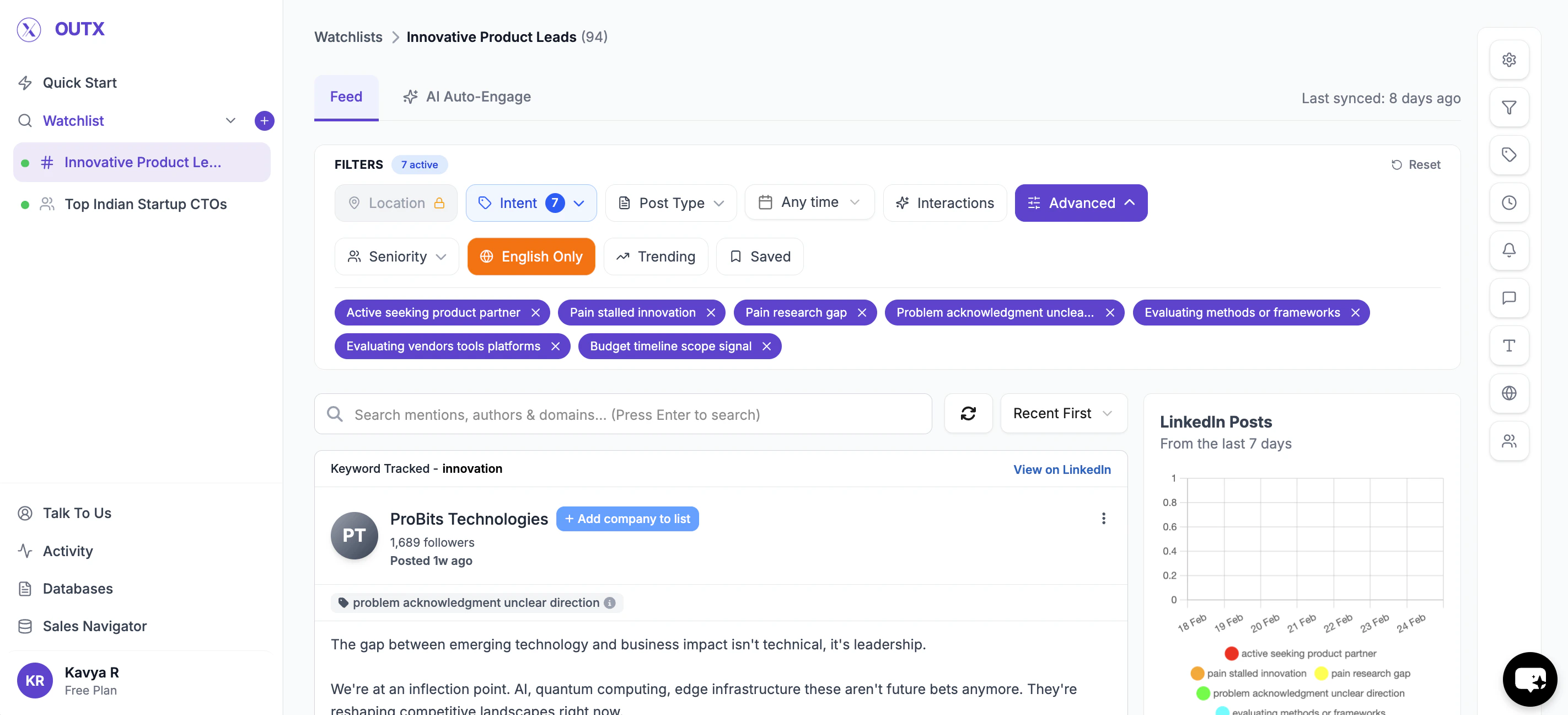
Why Filters Matter
As you track more keywords and people, the volume of updates increases. Filters help you:- Reduce noise
- Focus on high-intent conversations
- Prioritize the right people or posts
- Decide what to engage with first
Feed Filters (Explained)
These filters work across both keyword-based and people-based feeds.1. Interactions
Use this to show posts that already have engagement. Helpful when you want to:- Join active conversations
- Avoid engaging on posts with no visibility
2. People Filter (People tracking only)
Use this filter to focus on specific individuals. You can:- Search for a person by name
- Select one or more tracked profiles
- Preparing for outreach
- Focusing on a single prospect or account
3. Intents
Intents are the most powerful way to organize your feed. Intents are applied to:- Keyword posts (based on intent or topic)
- Tracked people (based on role, priority, or segment)
- Competitor Reviews
- Pricing Analysis
- CTO Prospects
- Customers
- Group posts or people by intent
- Quickly understand why something appeared
- Apply different engagement strategies
4. Seniority Level
Filter feed items based on who is posting. Available levels:- Entry Level
- Manager
- Senior
- Director
- VP
- CXO / Founder
- You want decision-maker conversations only
- You want to tailor engagement by role
5. Post Type
Control what kind of updates you see. Filter by:- People posts
- Company posts
- Job updates
- Birthday updates
- Only track hiring-related updates
- Only engage with original posts
6. Posted Date
Filter updates by recency. Use this when:- You want to engage early
- You only care about recent activity
7. Language Filter
Use Show only English posts to:- Reduce language noise
- Keep engagement consistent
8. Trending Posts
Use Show only trending posts to:- Focus on posts gaining traction
- Prioritize high-visibility conversations
9. Saved Posts
Use Show only saved posts to:- Revisit important conversations
- Follow up later without losing context
10. Location Filter (Expert & Ultimate plans only)
Use this filter to see posts based on location of the poster. You can filter by:- Country
- Track conversations in a specific market
- Focus on regional demand or hiring trends
- Engage with prospects in target geographies
- Only see posts from the US or Europe
- Track keyword conversations happening in India
- Focus on regional competitor mentions
Frequently Asked Questions
What is the Feed in OutX.ai?
What is the Feed in OutX.ai?
Does the feed show everything on LinkedIn?
Does the feed show everything on LinkedIn?
What's the difference between keyword feed and people feed?
What's the difference between keyword feed and people feed?
Why should I use filters instead of scrolling the feed?
Why should I use filters instead of scrolling the feed?
What are labels used for in the feed?
What are labels used for in the feed?
Can I filter posts by seniority or role?
Can I filter posts by seniority or role?
What does 'Show interaction posts' mean?
What does 'Show interaction posts' mean?
What does the 'Trending posts' filter do?
What does the 'Trending posts' filter do?
Can I save posts and come back later?
Can I save posts and come back later?
Does using filters change my watchlist or tracking?
Does using filters change my watchlist or tracking?
Can I use filters together?
Can I use filters together?
How often is the feed updated?
How often is the feed updated?
Can I engage directly from the feed?
Can I engage directly from the feed?
What's the best way to use the feed daily?
What's the best way to use the feed daily?
How does relevance sorting work?
How does relevance sorting work?
- Relevance (default for prompt-based watchlists), Shows the most relevant posts first, scored by AI against your watchlist objective
- Popularity, Sorts by engagement (likes + comments)
- Recent, Shows the newest posts first
Can I see the total number of posts in my watchlist?
Can I see the total number of posts in my watchlist?
GET /api-posts endpoint returns a count field in the response showing the total number of matching posts across all pages.Can I filter posts by geographic location?
Can I filter posts by geographic location?
How do I filter by a specific person's posts?
How do I filter by a specific person's posts?