OutXAI: How to Setup Keyword Tracking?
E
Ellena MOutXAI uses a combination of:
- Partial keyword matching
- Exact keyword matching
- Negative keyword exclusions
Set fetch frequency and notification preferences to stay updated without overwhelm.
Too Long? Check out this Video
Quick Setup Guide
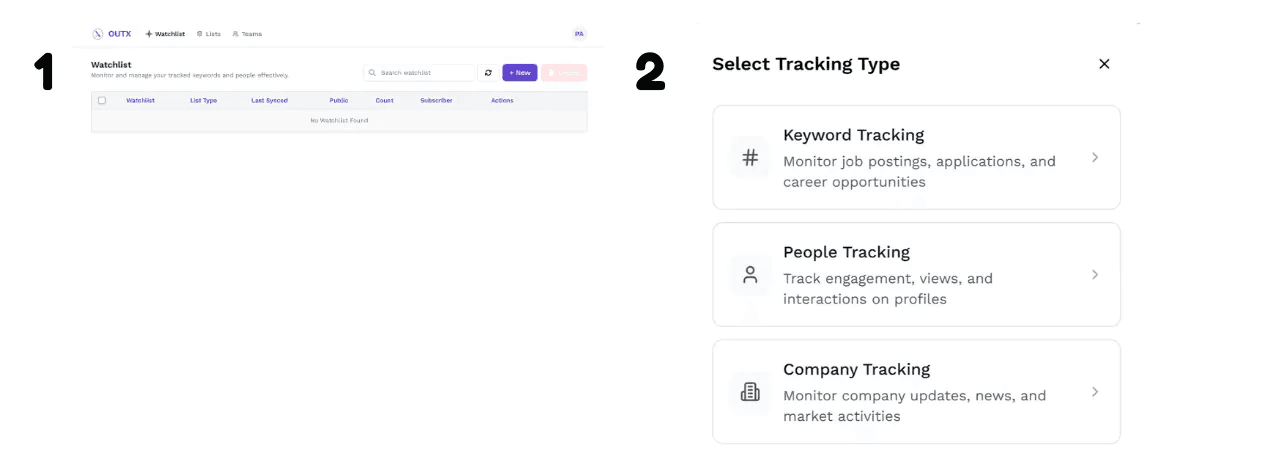
1. Create Watchlist
Click + New → Select People Tracking
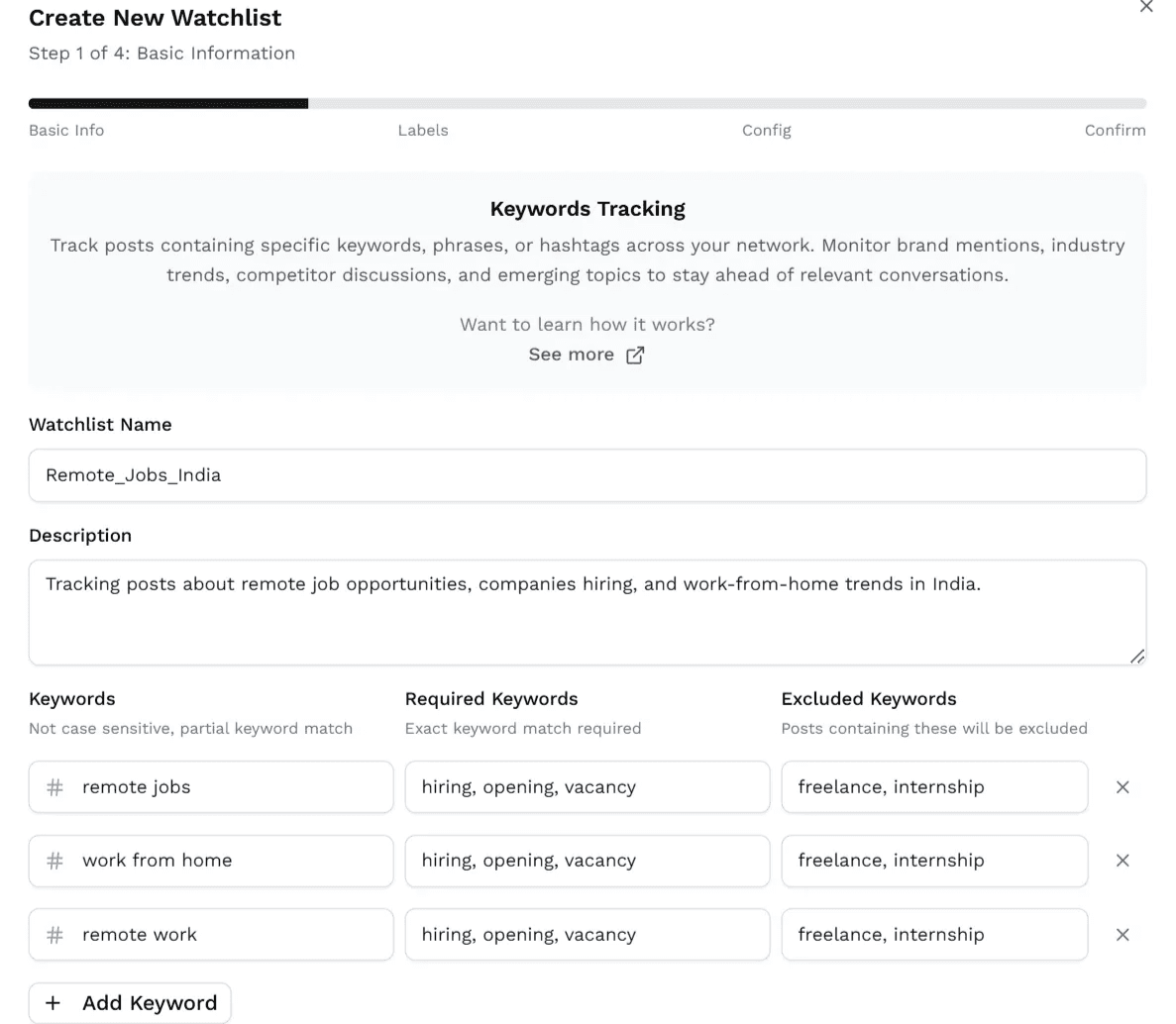
2. Basic Information
- Watchlist Name: Descriptive name (e.g., "Remote_Jobs_India")
- Keywords: General keywords to monitor
- Required Keywords: Must appear in posts
- Excluded Keywords: Filter unwanted topics
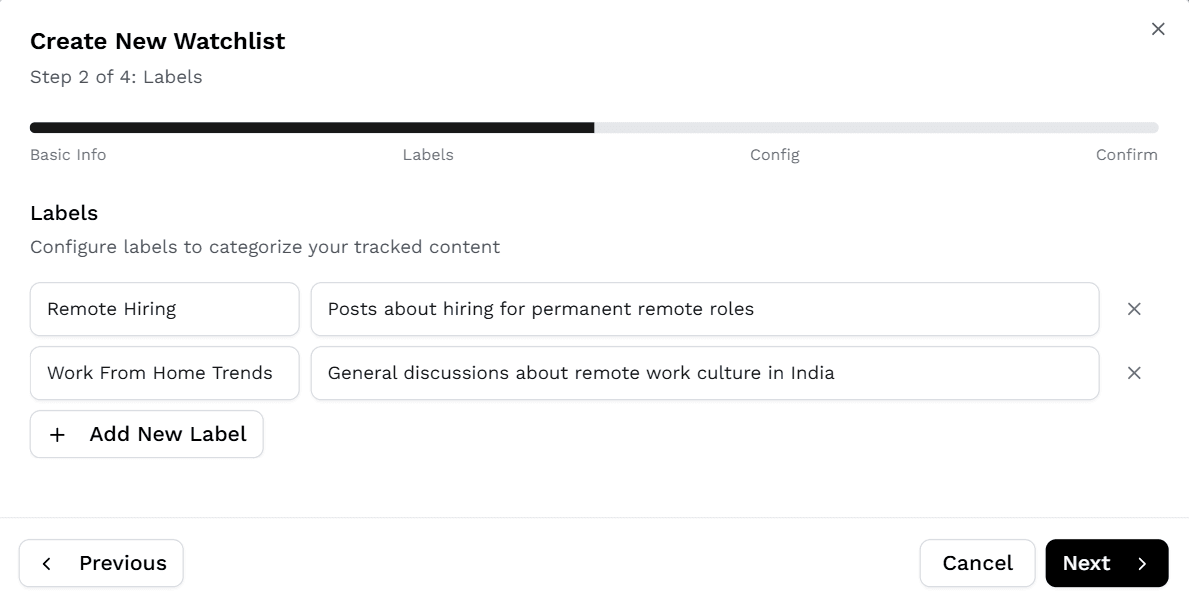
3. Labels
Create labels to categorize content:
- Label name: Category (e.g., "Remote Hiring")
- Label description: Brief explanation
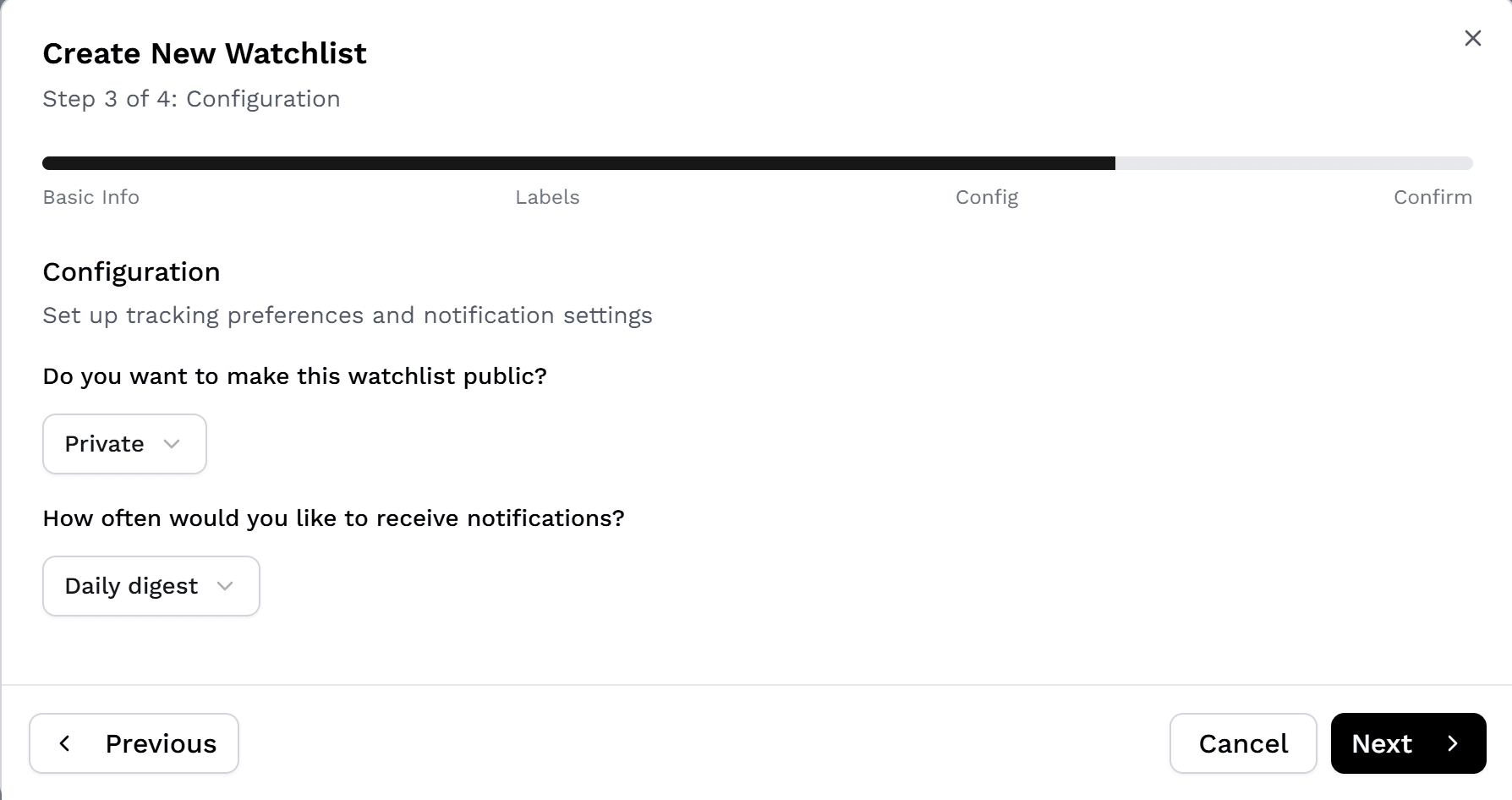
4. Configuration
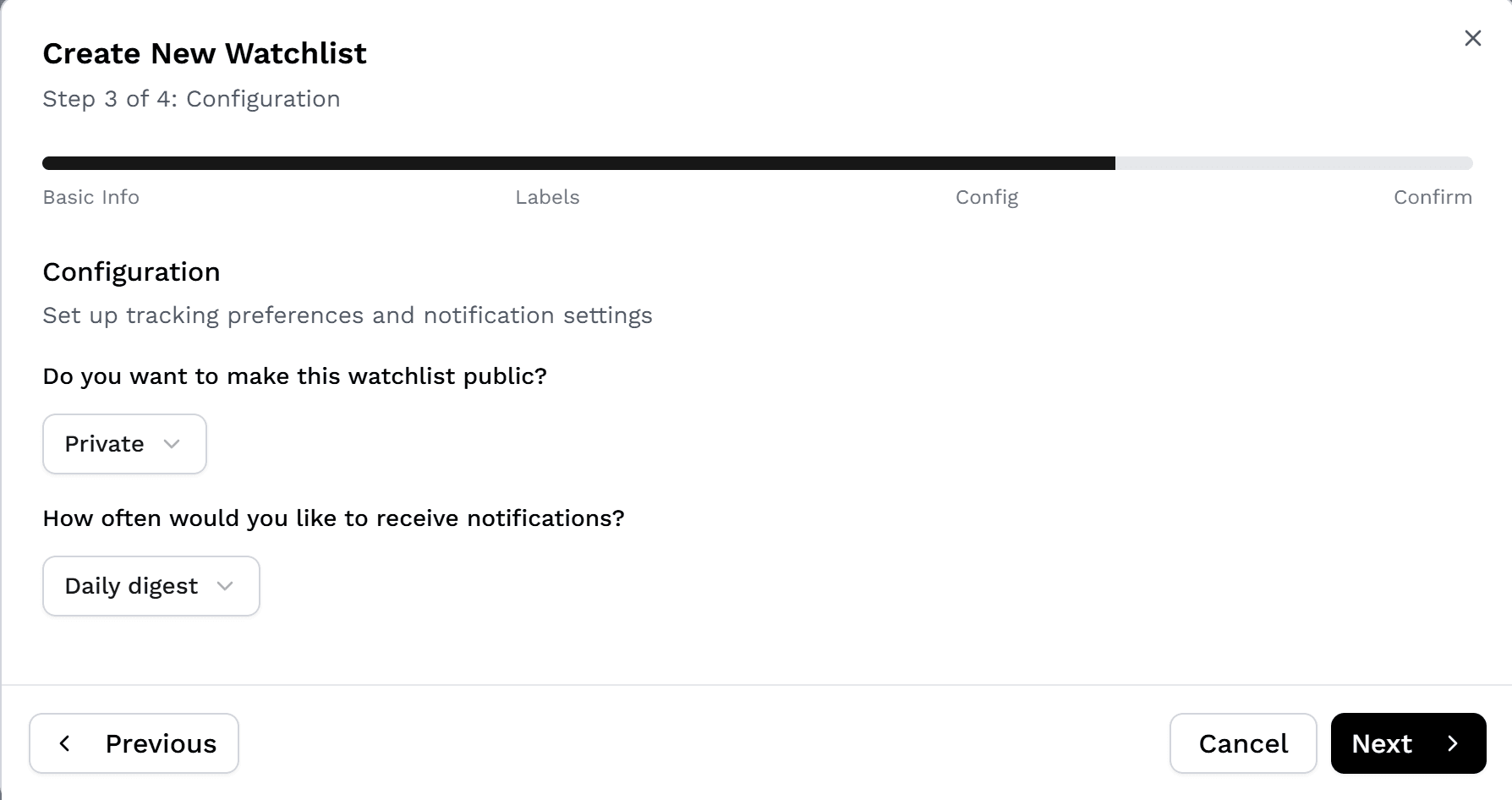
- Visibility: Private or Public
- Check frequency: How often to scan (e.g., every 12 hours)
- Notifications: Daily digest, weekly, or real-time
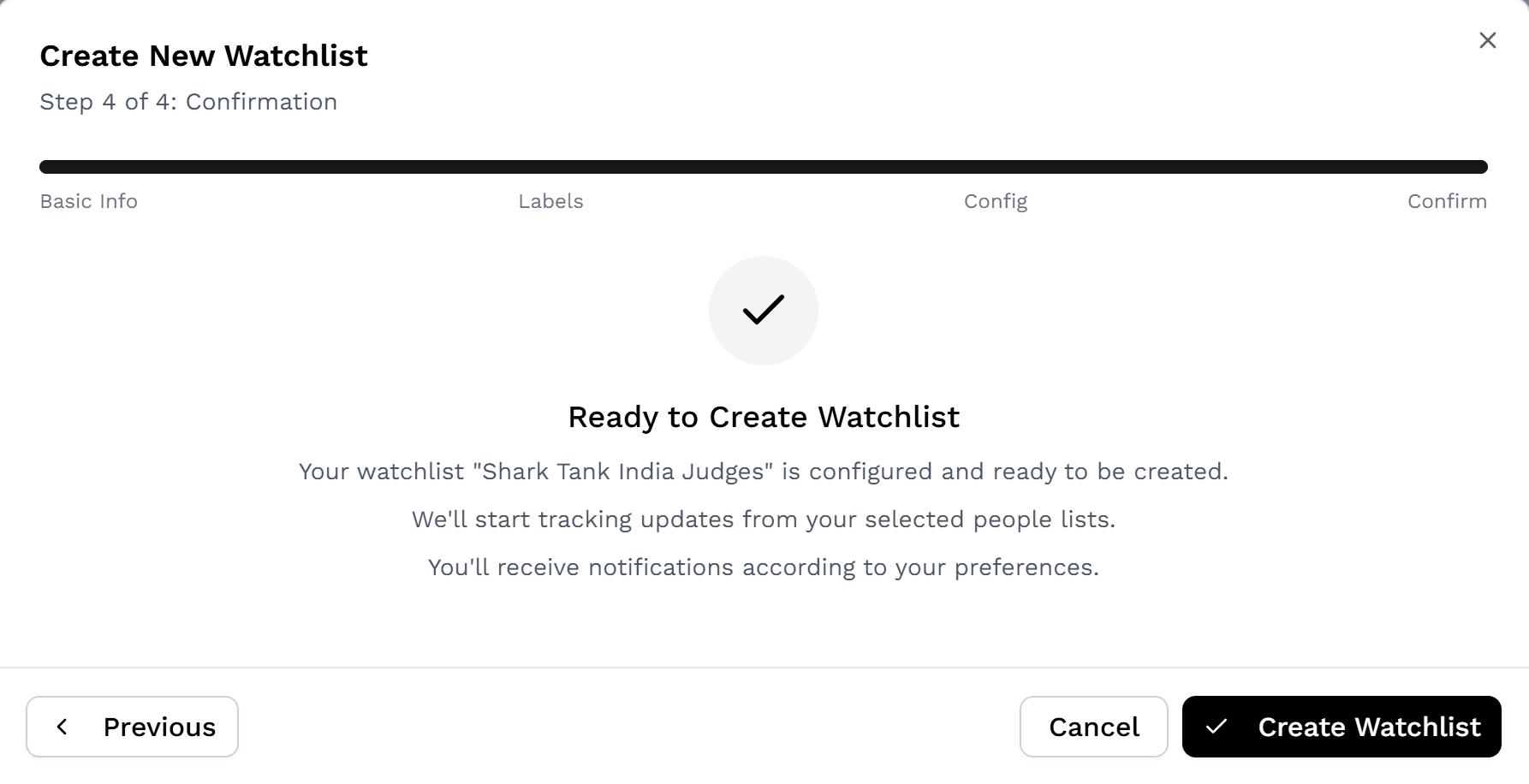
5. Create
Review settings and click Create Watchlist to start tracking.
.png&w=3840&q=75)