Erweiterte LinkedIn-Suchfilter (Ultimativer Leitfaden 2026)
Nutzen Sie die LinkedIn-Suche, finden aber immer noch nicht die richtigen Interessenten?
Mit den richtigen LinkedIn-Suchfiltern koennen Sie Millionen von Profilen auf die wenigen eingrenzen, die tatsaechlich zaehlen -- nach Rolle, Unternehmensgroesse, Branche und mehr.
In diesem Artikel gehe ich nacheinander LinkedIns erweiterte Suchfilter durch und erklaere:
- Was sind LinkedIns erweiterte Suchfilter?
- Wie nutzt man LinkedIns erweiterte Suchfilter?
- Best Practices zur Verfeinerung von Suchen auf LinkedIn
- Wie nutzt man LinkedIn-Suchfilter, um Leads 2026 schneller zu finden?
Zusammenfassung: Erweiterte LinkedIn-Suchfilter
- LinkedIns erweiterte Suchfilter helfen Ihnen, Millionen von Profilen in eine kurze, hochrelevante Liste einzugrenzen
- Nutzen Sie Personen-Filter, um Rollen, Senioritaet, Verbindungen und Einstellungssignale anzuvisieren
- Nutzen Sie Unternehmen-Filter, um in Accounts statt in einzelnen Leads zu denken
- Jobs, Events und Kurse offenbaren Absicht -- was Unternehmen und Personen gerade jetzt tun
- Gruppen und Schulen fuegen warmen Kontext fuer Networking und Outreach hinzu
- Produkte und Dienstleistungen helfen bei Wettbewerbsrecherche und kaufbereiten Signalen
- Beginnen Sie breit, grenzen Sie Schritt fuer Schritt ein und vermeiden Sie fruehzeitiges Ueberfiltern
- Priorisieren Sie Absichtssignale ueber Demografie
- Speichern Sie Suchen und besuchen Sie sie woechentlich fuer Timing-Vorteile
Was sind LinkedIns erweiterte Suchfilter?
LinkedIn hat eine der leistungsstaerksten Suchmaschinen im B2B -- die meisten Leute nutzen sie nur nicht richtig.
Im Kern helfen LinkedIns Suchfilter Ihnen, einen riesigen Pool von Personen und Unternehmen in eine kurze, relevante Liste einzugrenzen, nach der Sie tatsaechlich handeln koennen.
Anstatt endlos zu scrollen oder Profile einzeln anzuklicken, lassen Sie mit Filtern LinkedIn genau wissen, was Sie suchen.
Sie koennen breit beginnen -- Personen, Unternehmen, Jobs, Beitraege, Gruppen -- und dann mehr Details hinzufuegen. Jobbezeichnungen. Branchen. Unternehmensgroesse. Geografie. Senioritaet. Keywords. Jeder Filter reduziert Rauschen und erhoht Absicht.

Denken Sie so darueber:
Einfache Suche zeigt Ihnen jeden.
Erweiterte Suchfilter zeigen Ihnen die richtigen.
Diese Filter sind auch nicht nur fuer einen Anwendungsfall. Vertriebsteams nutzen sie, um Kaeufer zu finden, die ihrem ICP entsprechen.
Marketer nutzen sie, um Zielgruppen und Wettbewerber zu studieren. Recruiter nutzen sie, um Kandidaten zu sourcen, ohne sich auf eingehende Bewerbungen zu verlassen.
Je tiefer Sie gehen, desto mehr Unterfilter fuehrt LinkedIn ein, die weitere Verfeinerung ermoeglichen. Hier hoeren die meisten auf -- aber hier verbessern sich die Ergebnisse dramatisch.
Ein unterschaetzter Vorteil? Sie koennen nach Verbindungsgrad filtern. Das bedeutet, 2nd-Degree-Verbindungen zu finden -- Personen, die Sie noch nicht kennen, aber ueber warme Vorstellungen oder kluges Outreach erreichen koennen.
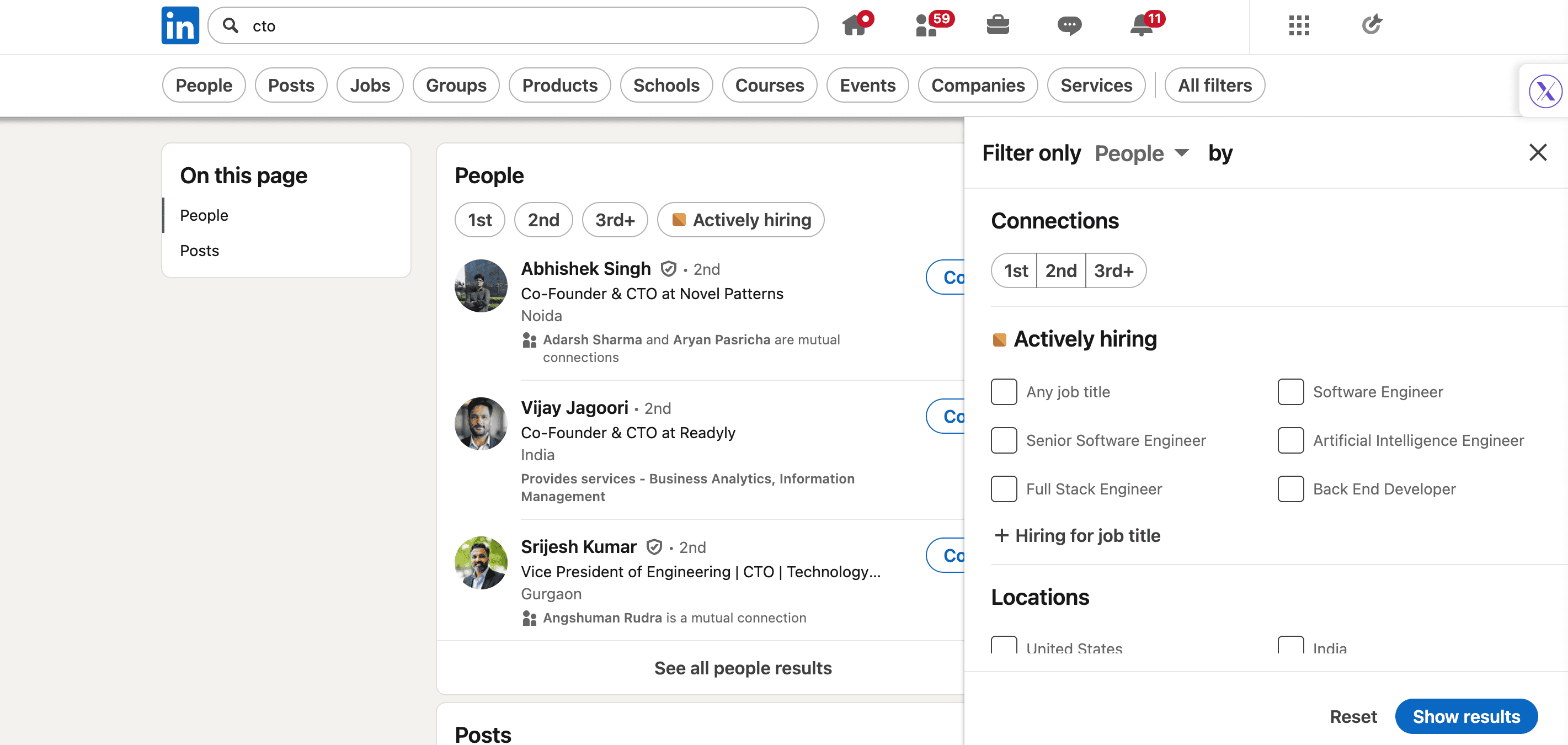
Fuer Networking und Outbound ist das Gold.
Fazit: LinkedIns erweiterte Suche ist eine Maschine zur Lead-Generierung und Chancenfindung.
Aber nur, wenn Sie wissen, wie man sie nutzt. Ohne Verstaendnis der Filter raten Sie.
Mit ihnen sind Sie zielgerichtet -- und Absicht ist das, was Suchen in Ergebnisse verwandelt.
Arten von LinkedIn-Suchfiltern
Es gibt 9 Hauptfilter in der LinkedIn-Suche plus einen Alle-Filter-Bereich.
- Personen
- Unternehmen
- Jobs
- Gruppen
- Produkte
- Schulen
- Beitraege
- Events
- Dienstleistungen
Alle Filter ermoeglichen es Ihnen, Ihre LinkedIn-Suchergebnisse anzupassen.
Personen-Filter
Der Personen-Filter ist der am haeufigsten genutzte und am meisten missverstandene LinkedIn-Suchfilter.
Auf hoher Ebene hilft Ihnen dieser Filter, Einzelpersonen zu finden, nicht Unternehmen oder Inhalte. Aber die wahre Staerke kommt von den internen Filtern, die darin geschichtet sind.
So funktioniert jeder einzelne und wann Sie ihn nutzen.
Verbindungsgrad
Filtern Sie nach 1st-, 2nd- oder 3rd-Degree-Verbindungen. 2nd-Degree ist der Sweet Spot fuer Outreach -- nah genug fuer Vertrauen, weit genug fuer Wachstum.
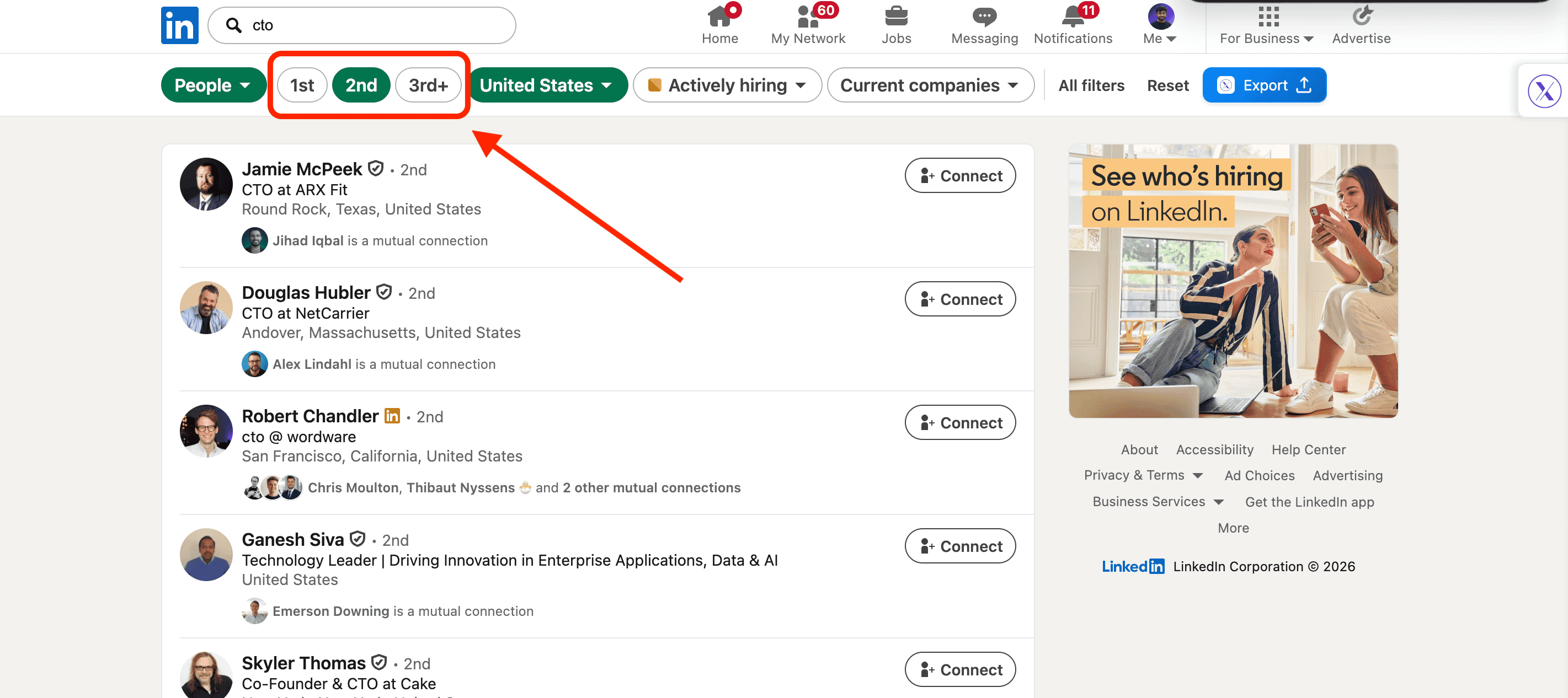
Standorte
Damit koennen Sie Ergebnisse nach Land, Region oder Stadt eingrenzen. Nuetzlich beim Verkauf in bestimmte Maerkte oder beim Aufbau lokaler Netzwerke. Stellen Sie dies frueh ein -- es entfernt eine enorme Menge Rauschen.
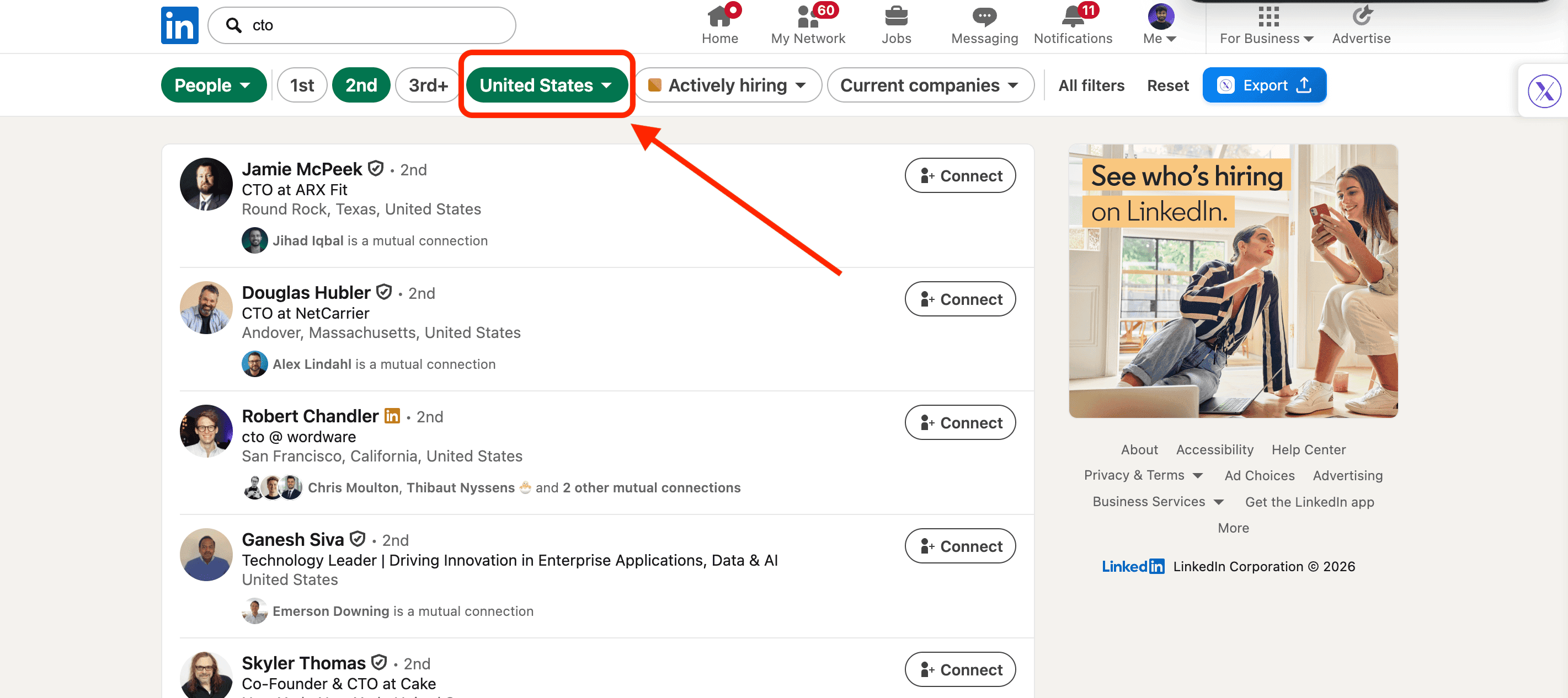
Aktuelles Unternehmen
Filtern Sie Personen, die derzeit bei bestimmten Unternehmen arbeiten. Ideal fuer Account-basierten Vertrieb oder das Anvisieren von Wettbewerbern, Partnern oder Kunden.
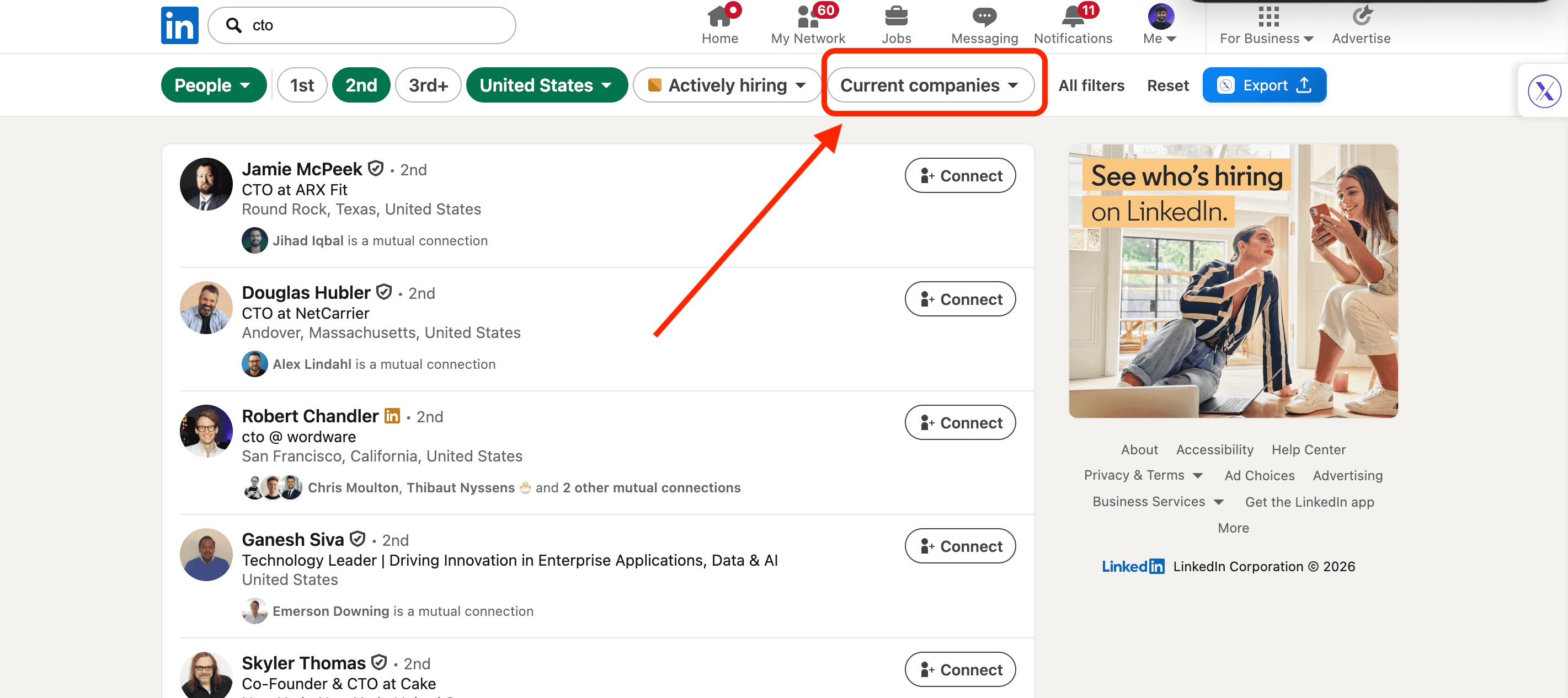
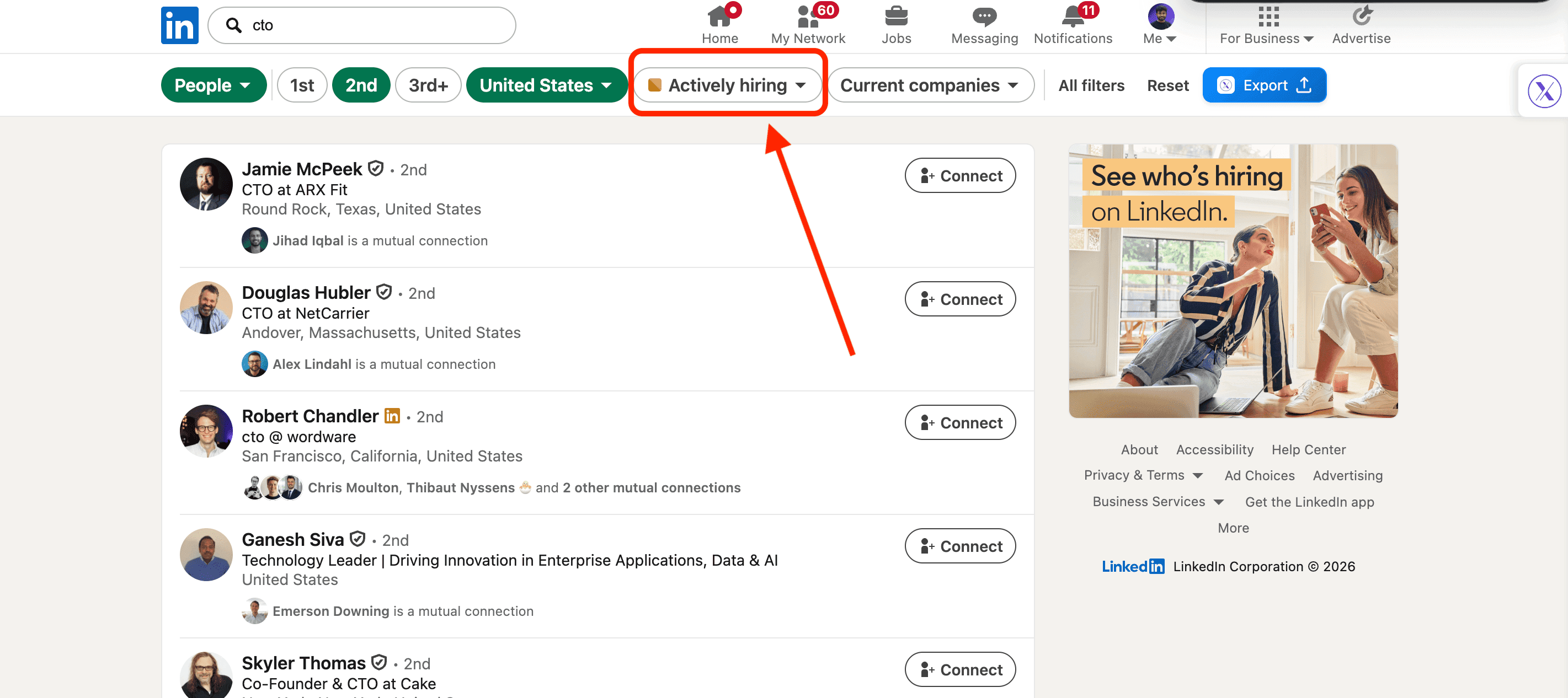
Aktiv einstellend
Dieser Filter zeigt Personen, die bei aktiv einstellenden Unternehmen arbeiten. Einstellungsaktivitaet ist ein starkes Kaufsignal -- es bedeutet normalerweise Wachstum, Budget und Dringlichkeit. Wenn Sie B2B verkaufen, ist dieser Filter unterschaetzt.
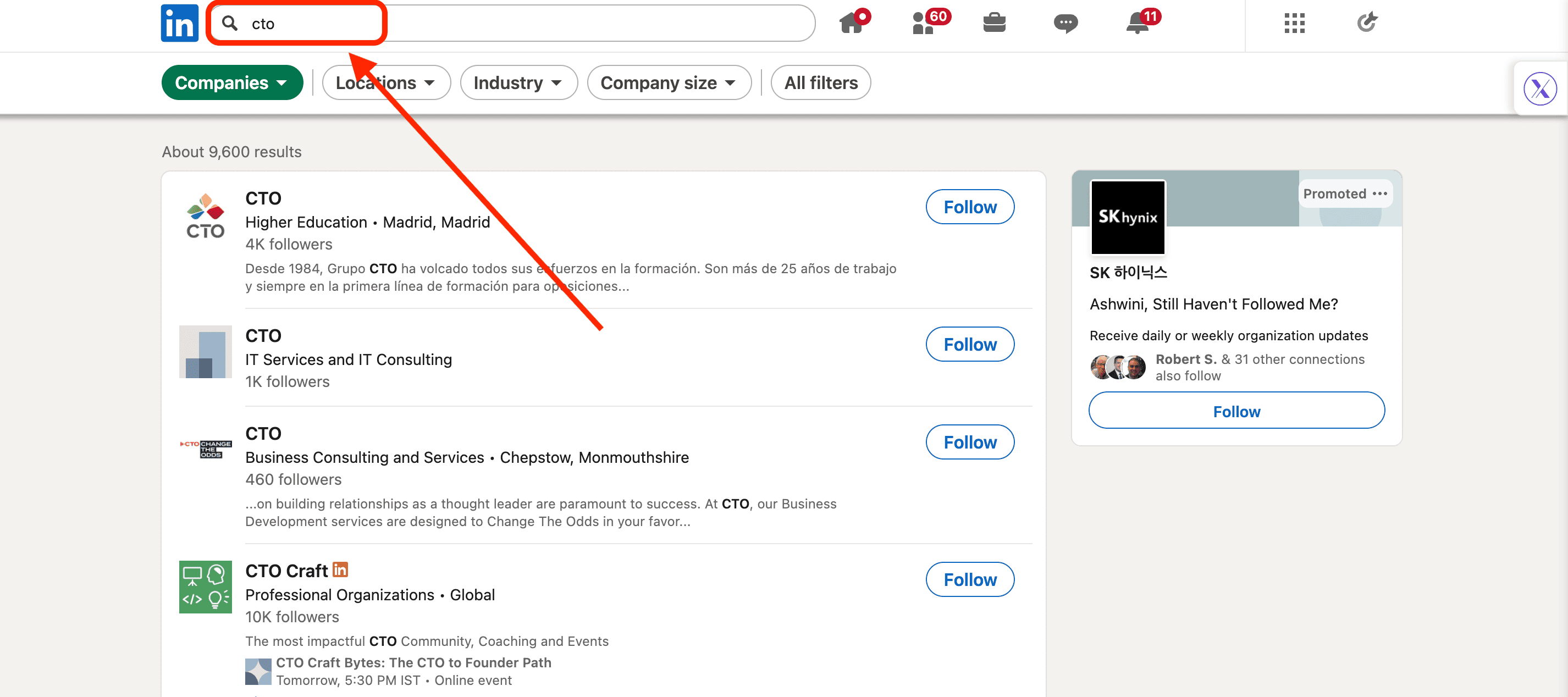
Unternehmen-Filter
Der Unternehmen-Filter ist, wie Sie aufhoeren, in Leads zu denken, und anfangen, in Accounts zu denken.
Anstatt nach einzelnen Personen zu suchen, hilft Ihnen dieser Filter, welche Unternehmen Ihre Zeit wert sind. Sobald Sie das richtig haben, wird alles Nachfolgende einfacher.
So funktionieren die wichtigsten Unternehmensfilter.
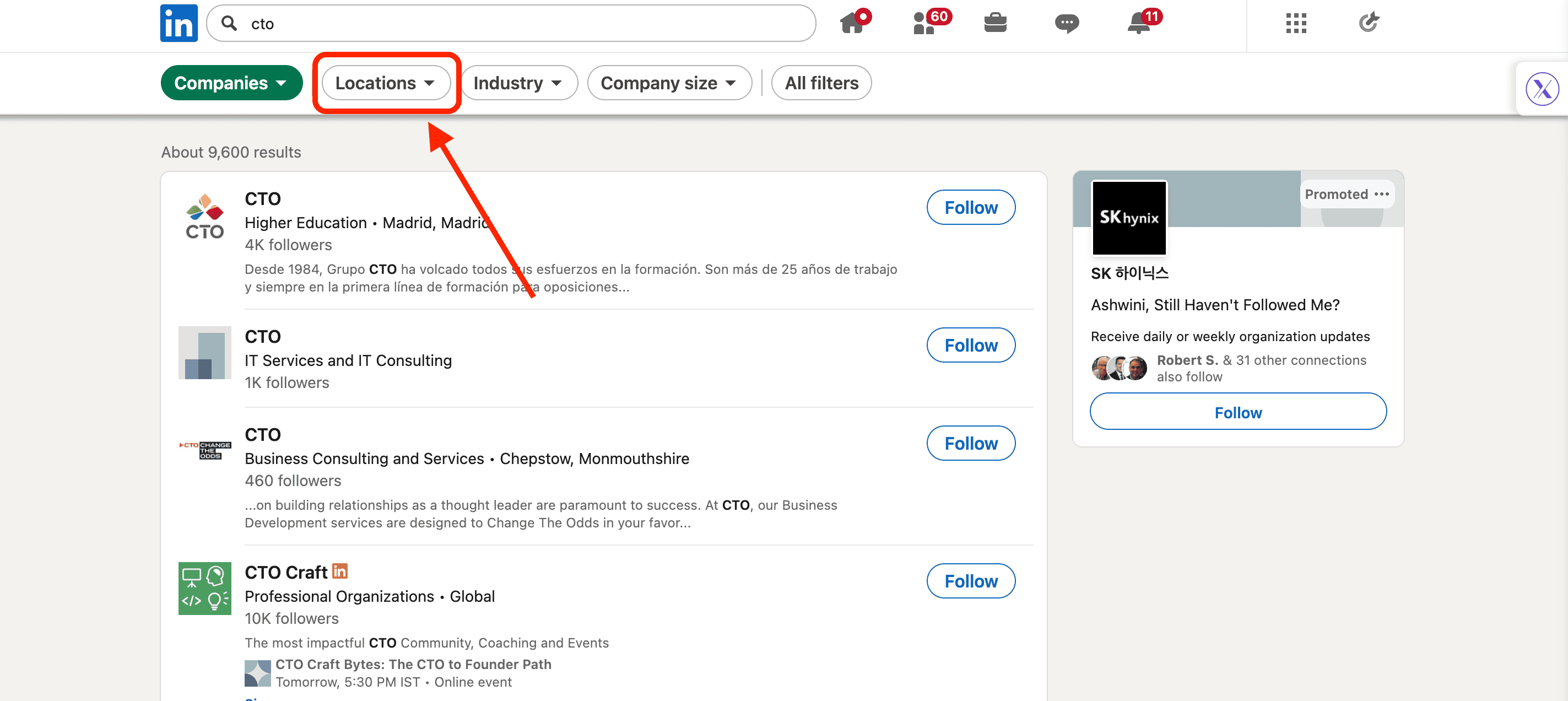
Standort
Damit koennen Sie Unternehmen nach Land, Region oder Stadt filtern. Nuetzlich, wenn Sie in bestimmte Geografien verkaufen oder innerhalb von Compliance- oder Zeitzonen-Beschraenkungen arbeiten.
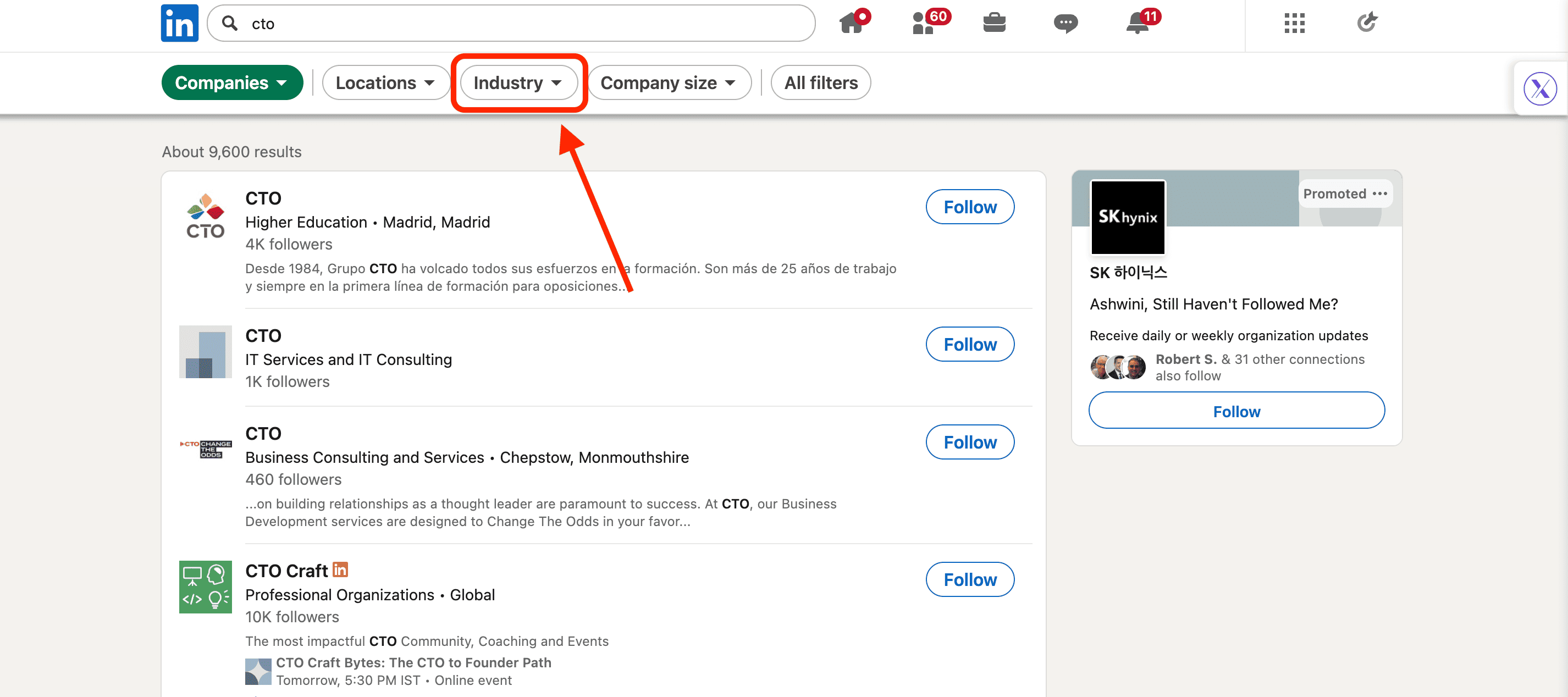
Branche
LinkedIn kategorisiert Unternehmen nach Branche. Das ist ein schneller Weg, Ihre Suche auf Unternehmen einzugrenzen, die Ihrem ICP aehneln. Wie Personen-Branchen ist es richtungsweisend -- nicht perfekt, aber dennoch effektiv.
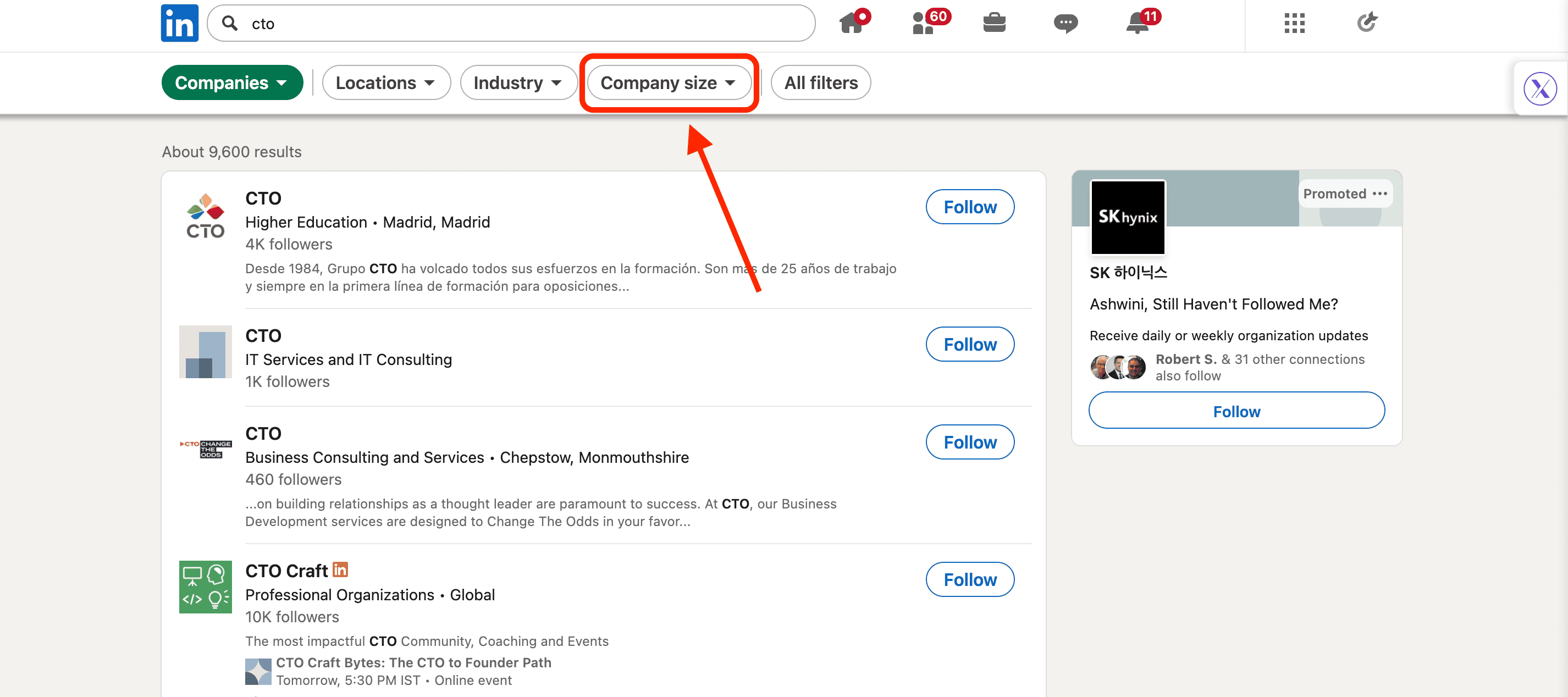
Unternehmensgroesse
Einer der wichtigsten Filter. Sie koennen Unternehmen nach Mitarbeiterzahl segmentieren (z.B. 1-10, 11-50, 51-200, 201-500 usw.). Dies korreliert direkt mit Budget, Kaufkomplexitaet und Vertriebszyklen.
Unternehmensname
Wenn Sie bereits eine Zielliste haben, koennen Sie hier nach bestimmten Unternehmen suchen. Das ist das Fundament von Account-basiertem Marketing und Vertrieb.
Jobs-Filter
Der Jobs-Filter ist fuer Jobsuchende gebaut -- aber er ist weit nuetzlicher, als die meisten erkennen.
Ja, er hilft Ihnen, offene Stellen zu finden. Aber er hilft Ihnen auch zu verstehen, welche Unternehmen einstellen, welche Rollen sie priorisieren und wie dringend sie einstellen. Diese Erkenntnis ist wichtig, ob Sie sich bewerben, rekrutieren oder verkaufen.
So funktionieren die wichtigsten Job-Filter.
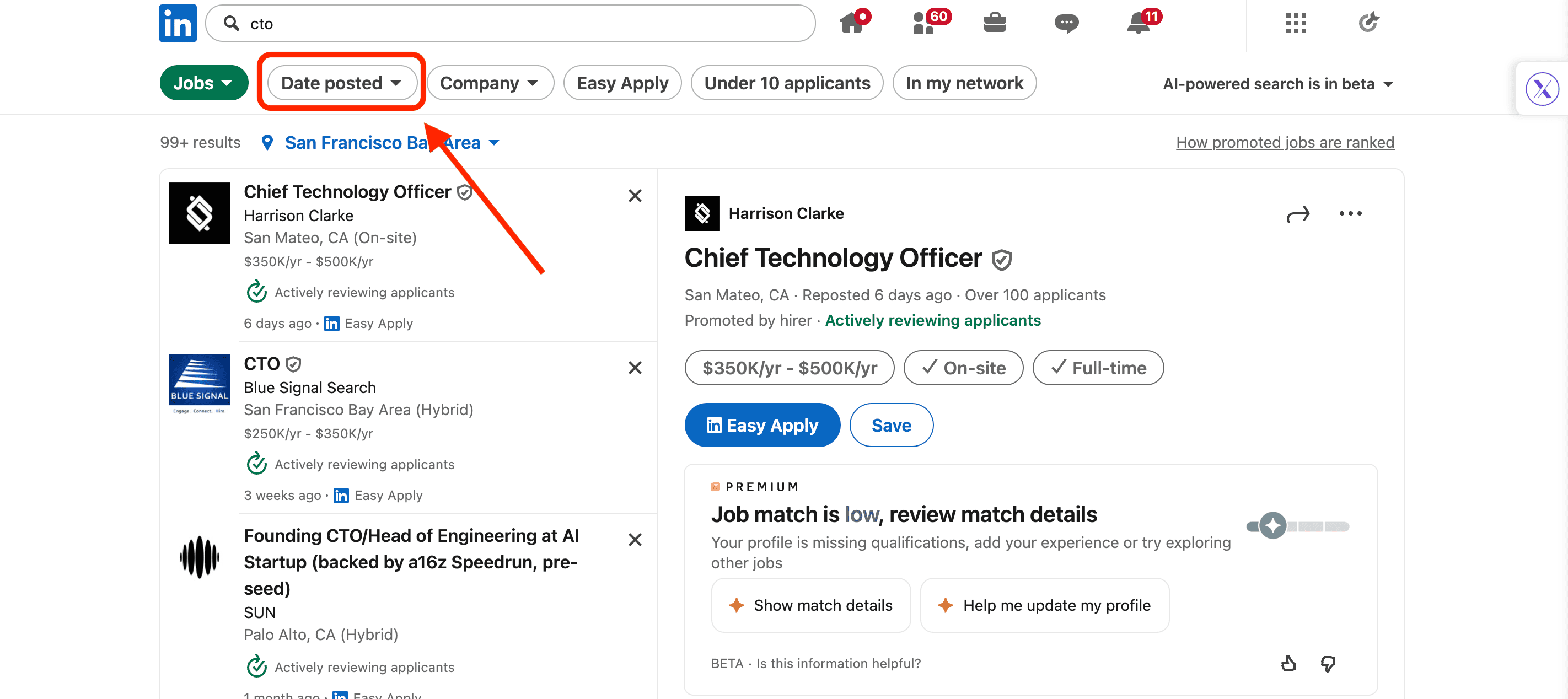
Veroeffentlichungsdatum
Dieser Filter zeigt, wie kuerzlich ein Job veroeffentlicht wurde. Neuere Angebote bedeuten normalerweise weniger Wettbewerb und hoehere Antwortquoten. Wenn Timing zaehlt, zaehlt dieser Filter.
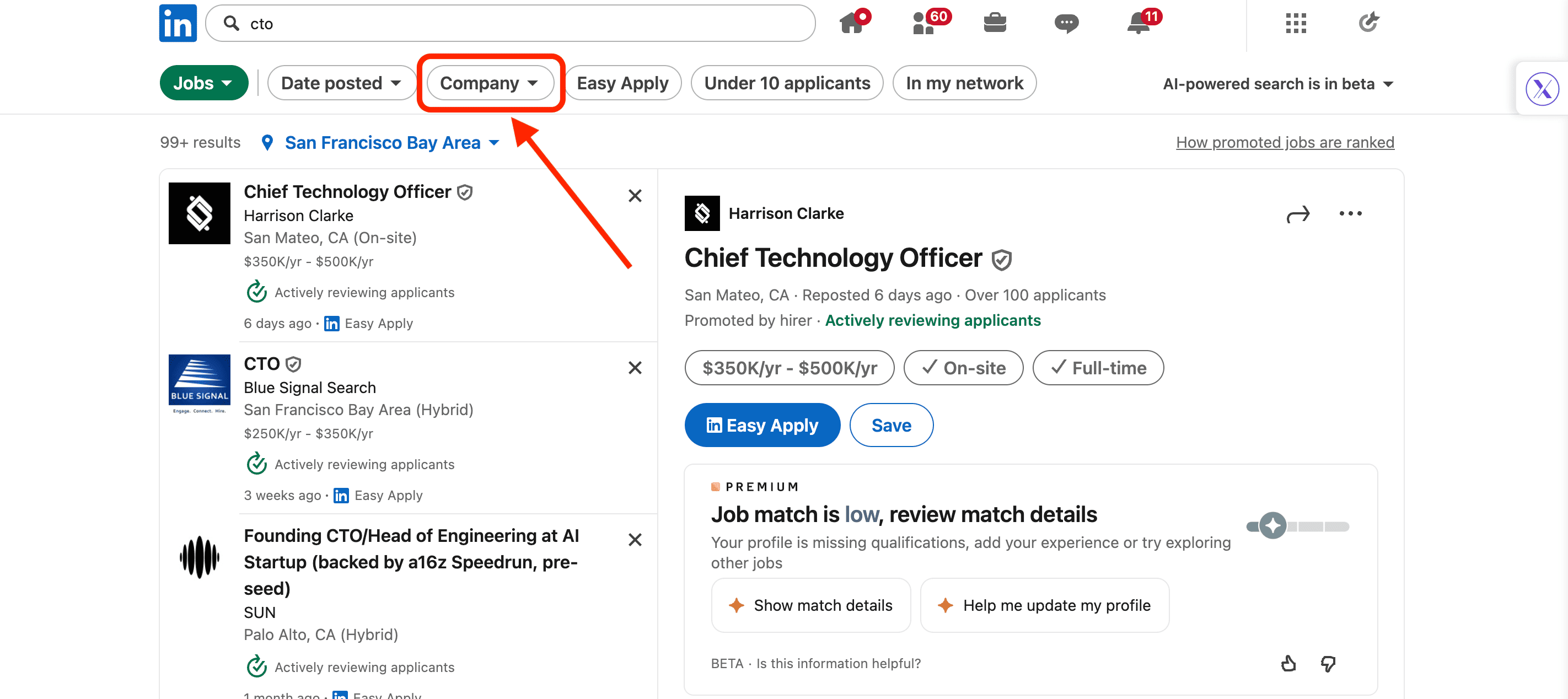
Unternehmen
Grenzen Sie Rollen auf bestimmte Unternehmen ein. Nuetzlich, wenn Sie eine Shortlist von Arbeitgebern anvisieren oder Einstellungsmuster bei relevanten Accounts untersuchen.
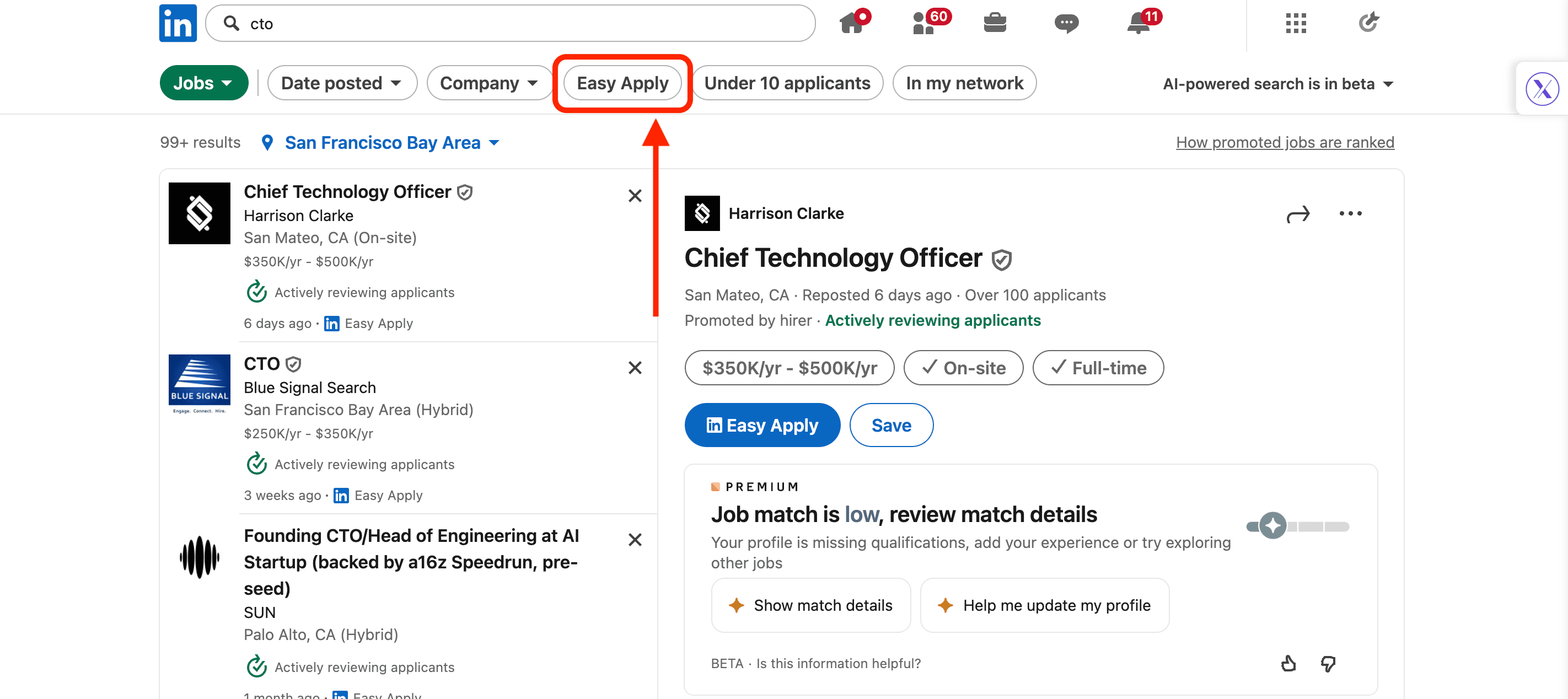
Easy Apply
Zeigt Jobs, die Bewerbungen direkt auf LinkedIn ermoeglichen. Grossartig fuer Geschwindigkeit, aber auch ein Signal fuer hohes Volumen. Diese Stellen ziehen mehr Bewerber an, schneller.
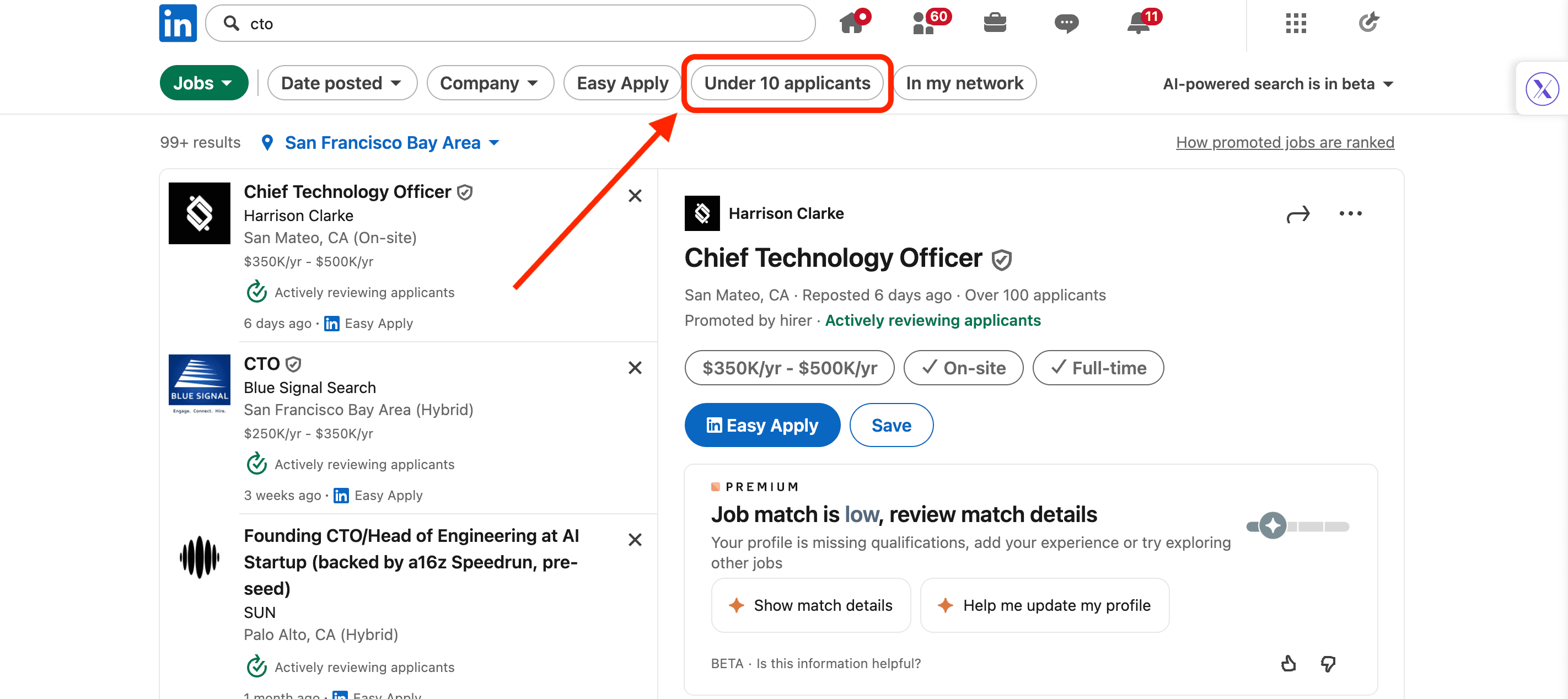
Weniger als 10 Bewerber
Einer der am meisten unterschaetzten Filter. Weniger Bewerber bedeuten normalerweise weniger Wettbewerb und eine hoehere Chance, bemerkt zu werden. Fuer Verkaeufer kann es auch fruehe Einstellungsphasen signalisieren.
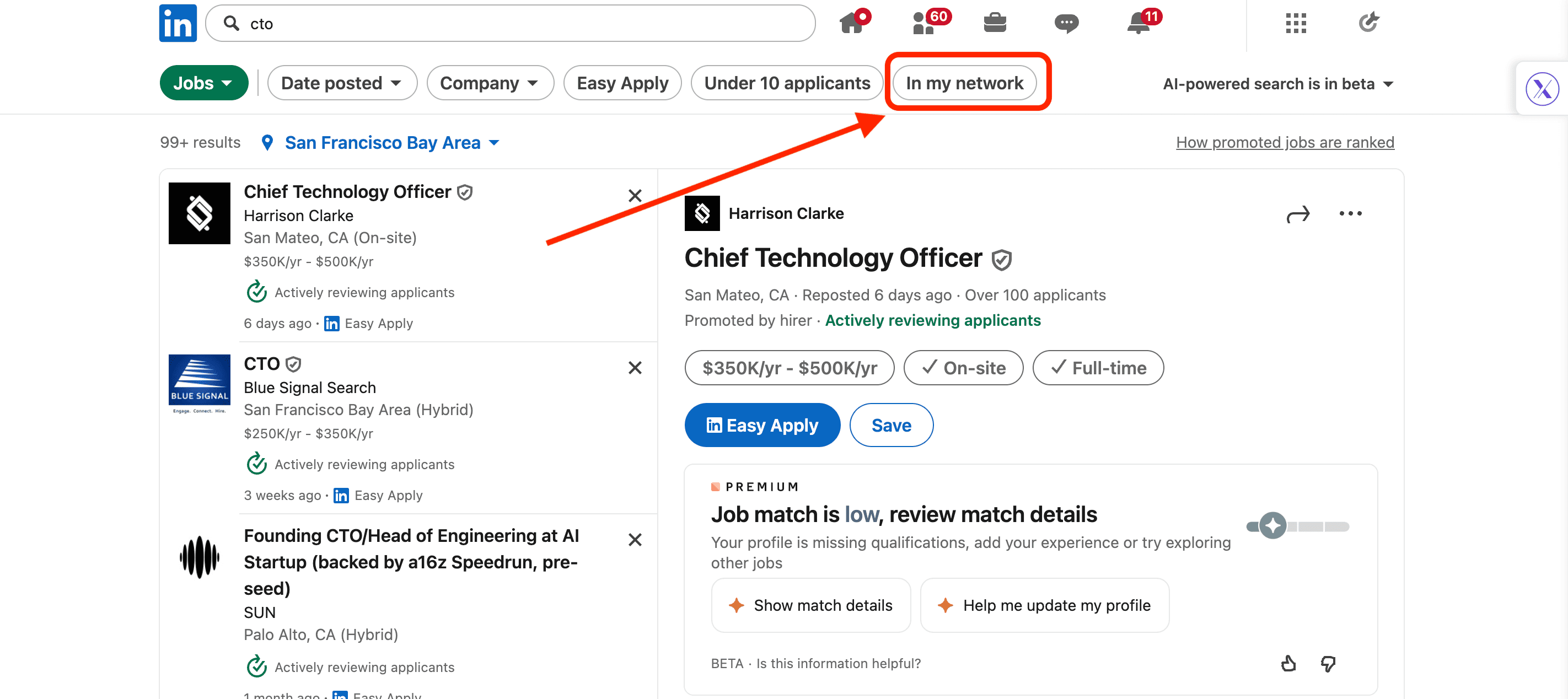
In meinem Netzwerk
Dieser zeigt Jobs, bei denen Sie Verbindungen im Unternehmen haben. Das bedeutet potenzielle Empfehlungen, warme Vorstellungen oder Insider-Kontext vor der Bewerbung.
Gruppen-Filter
Der Gruppen-Filter ist einfach, aber verwechseln Sie einfach nicht mit nutzlos.
Wenn Sie mit dem Gruppen-Filter suchen, zeigt Ihnen LinkedIn Communities, die um bestimmte Interessen, Branchen, Rollen oder Themen aufgebaut sind. Denken Sie an: Gruender, Recruiter, Marketer, SaaS-Betreiber, Jobsuchende, Nischen-Fachleute.
Gruppen sagen Ihnen, wo Gespraeche bereits stattfinden. Sie zeigen, wie Menschen ihre Probleme beschreiben, was ihnen wichtig ist und welche Themen Engagement erzeugen.
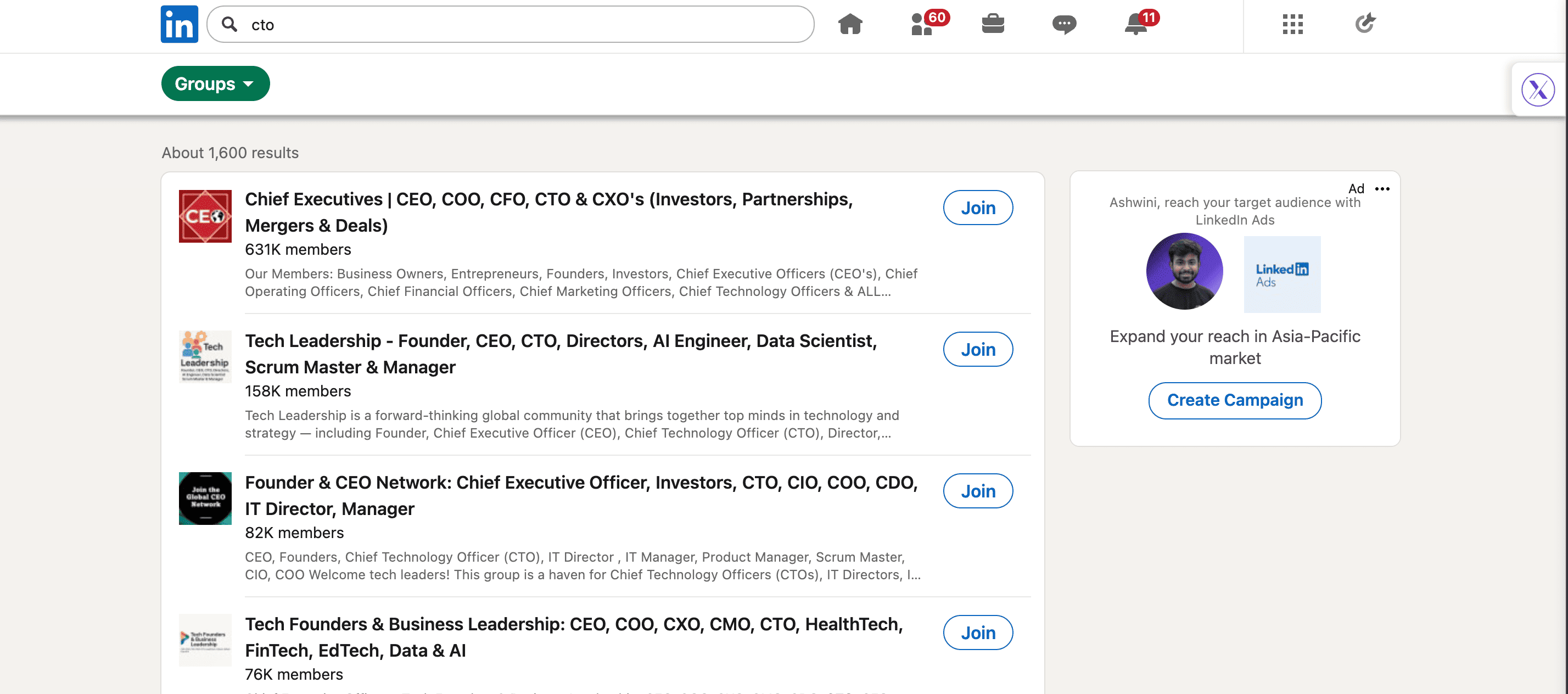
Fuer Networking helfen Gruppen Ihnen, in Gespraeche einzusteigen, ohne Kaltakquise. Fuer Jobsuchende bringen sie unveroeffentlichte Stellen und Empfehlungen ans Licht. Fuer Marketer und Vertriebsteams sind sie eine Goldgrube fuer Sprache, Einwaende und Content-Ideen.
Ein weiterer unterschaetzter Vorteil: Gruppenmitglieder fuehlen sich oft ansprechbarer als zufaellige Suchergebnisse. Sie sind kein Fremder mehr -- Sie sind Teil desselben Raums.
Schulen-Filter
Der Schulen-Filter ist eine der am meisten uebersehenen Suchoptionen auf LinkedIn.
Wenn Sie mit dem Schulen-Filter suchen, zeigt Ihnen LinkedIn Bildungseinrichtungen -- Universitaeten, Hochschulen und Weiterbildungsprogramme -- und die damit verbundenen Personen. Das macht ihn unglaublich nuetzlich fuer Alumni-basiertes Networking.
Gemeinsame Ausbildung schafft sofortigen Kontext. Menschen antworten eher, wenn es einen gemeinsamen Hintergrund gibt -- selbst wenn sie Jahre auseinander abgeschlossen haben oder verschiedene Faecher studiert haben.
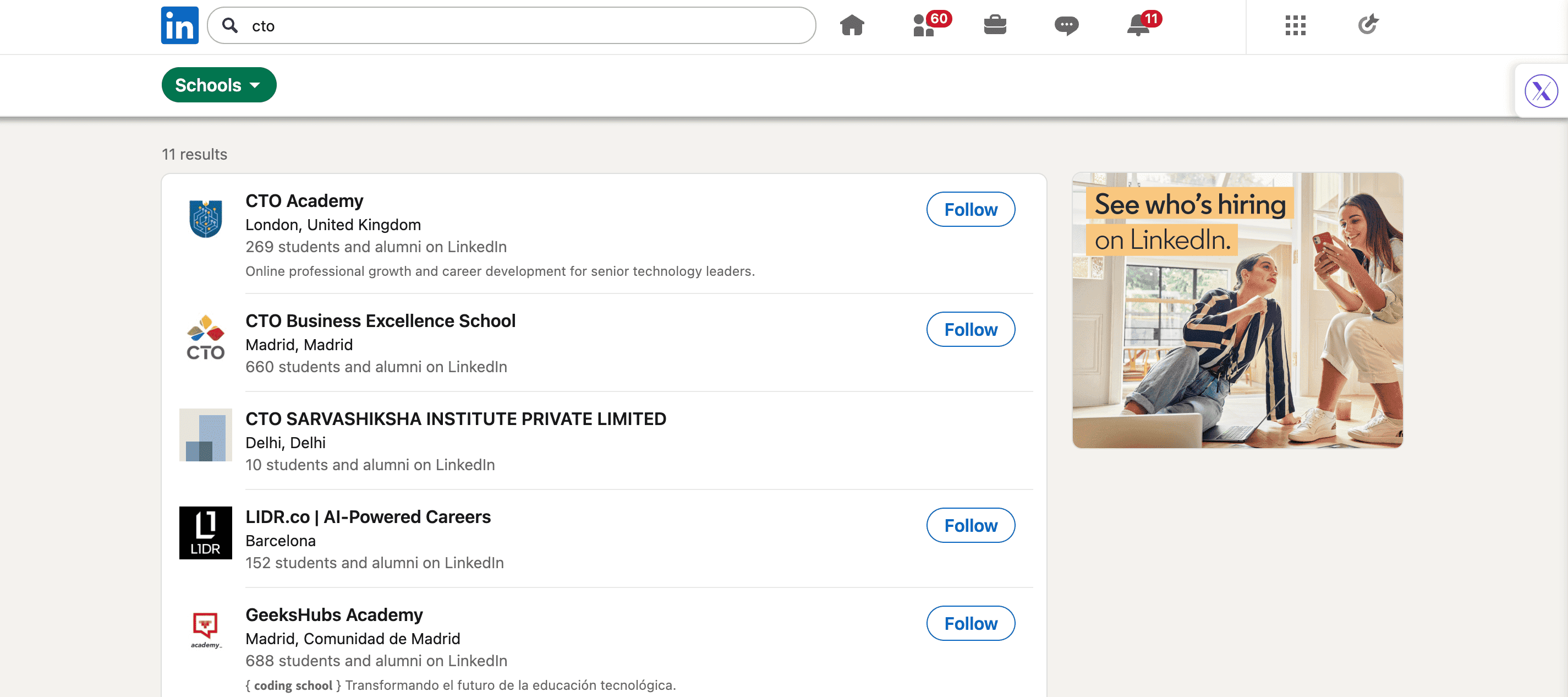
Fuer Jobsuchende hilft dieser Filter, Alumni zu finden, die bei Zielunternehmen arbeiten.
Fuer Gruender und Vertriebsteams ist es ein warmer Weg, in Organisationen einzudringen, ohne sich rein auf Kaltakquise zu verlassen. Fuer Recruiter ist es ein effizienter Weg, Talent-Pipelines zu kartieren.
Schulen geben Ihnen auch Einblicke, woher Unternehmen einstellen und welche Institutionen bestimmte Rollen oder Branchen dominieren.
Produkte-Filter
Der Produkte-Filter ist eine der neuesten und am wenigsten genutzten Suchoptionen auf LinkedIn.
Das ist genau der Grund, warum er interessant ist.
Anstatt nach Personen oder Unternehmen zu suchen, laesst Sie dieser Filter nach Produkten suchen, die Unternehmen aktiv auf LinkedIn bewerben. Denken Sie an Software-Tools, Plattformen und B2B-Loesungen.
So funktionieren die wichtigsten Produktfilter.
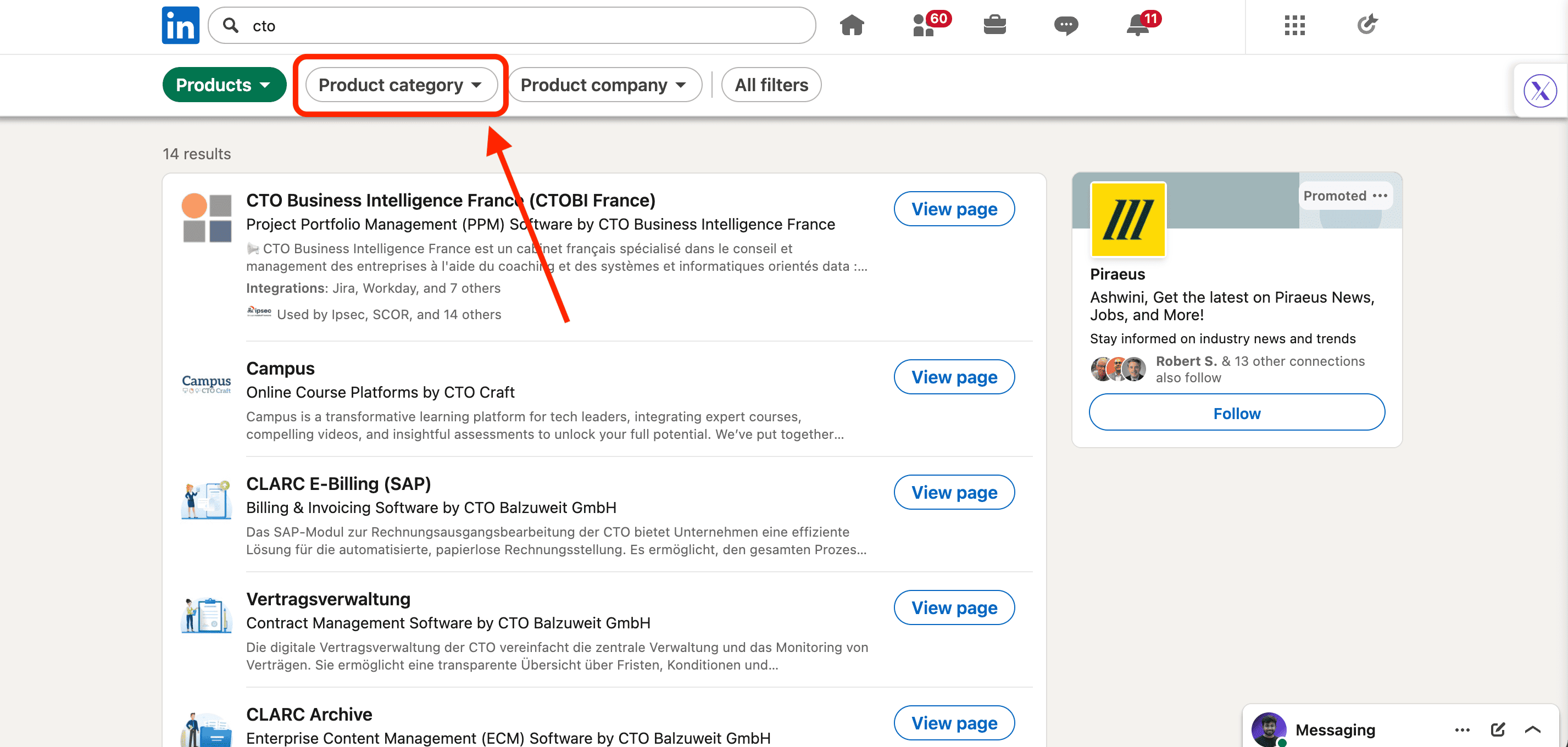
Produktkategorie
Damit koennen Sie Produkte nach Kategorie durchsuchen (z.B. CRM, Marketing-Automatisierung, Analytics, HR-Software). Nuetzlich fuer Marktforschung und Wettbewerbsanalyse -- besonders wenn Sie verstehen wollen, wie sich eine Kategorie positioniert.
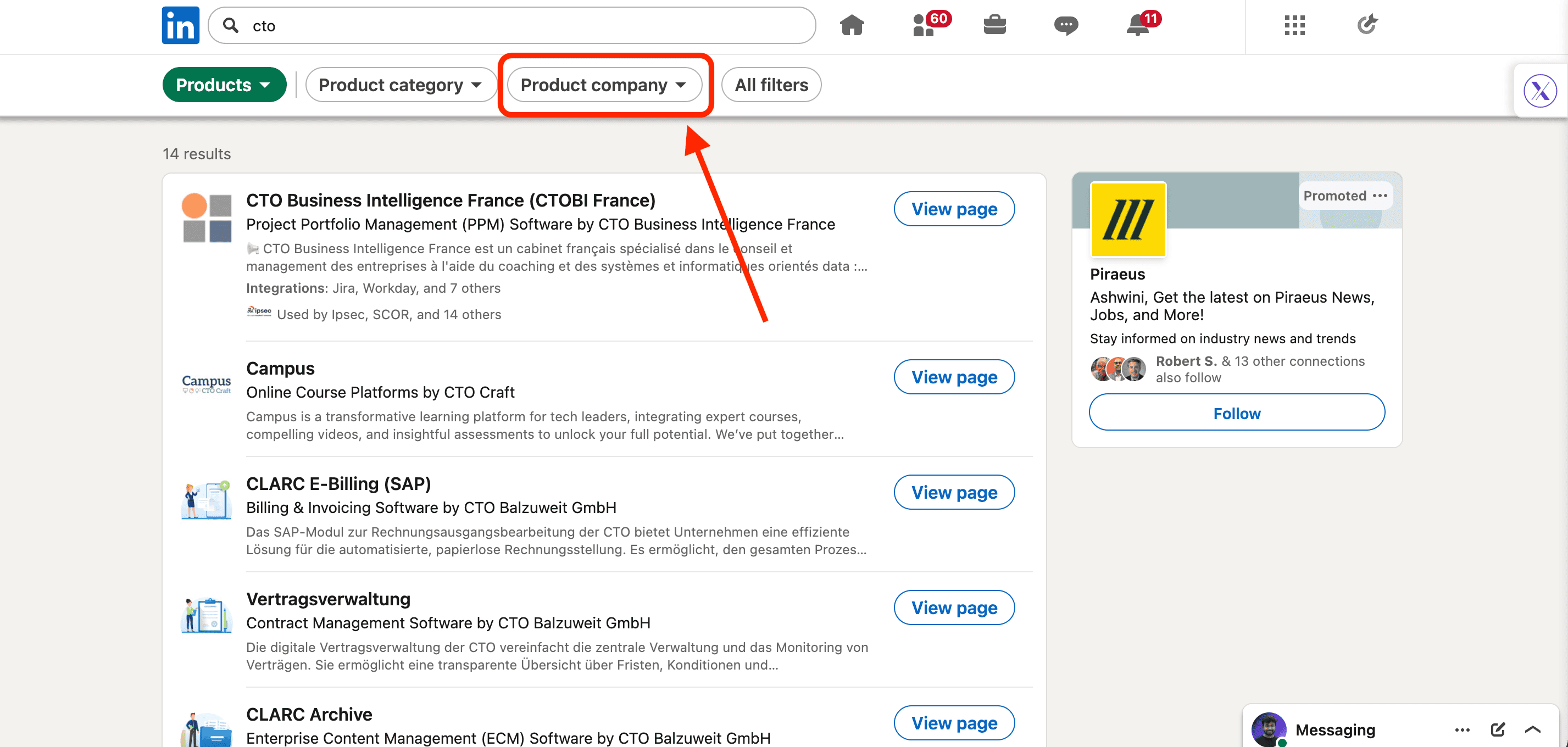
Produktunternehmen
Filtern Sie Produkte nach dem Unternehmen, das sie besitzt oder verkauft. Hilfreich, wenn Sie die Marke bereits kennen und deren Produktpalette erkunden wollen.
Kurse-Filter
Der Kurse-Filter ist fuer das Lernen konzipiert, aber er dient gleichzeitig als Signal fuer Absicht.
Dieser Filter greift auf LinkedIn Learning zu und hilft Ihnen, Kurse zu entdecken, die an bestimmte Faehigkeiten, Rollen oder Karrierewege gebunden sind. An der Oberflaeche geht es um Weiterbildung. Darunter offenbart es, was Fachleute aktiv lernen wollen.
So funktionieren die wichtigsten Kursfilter.
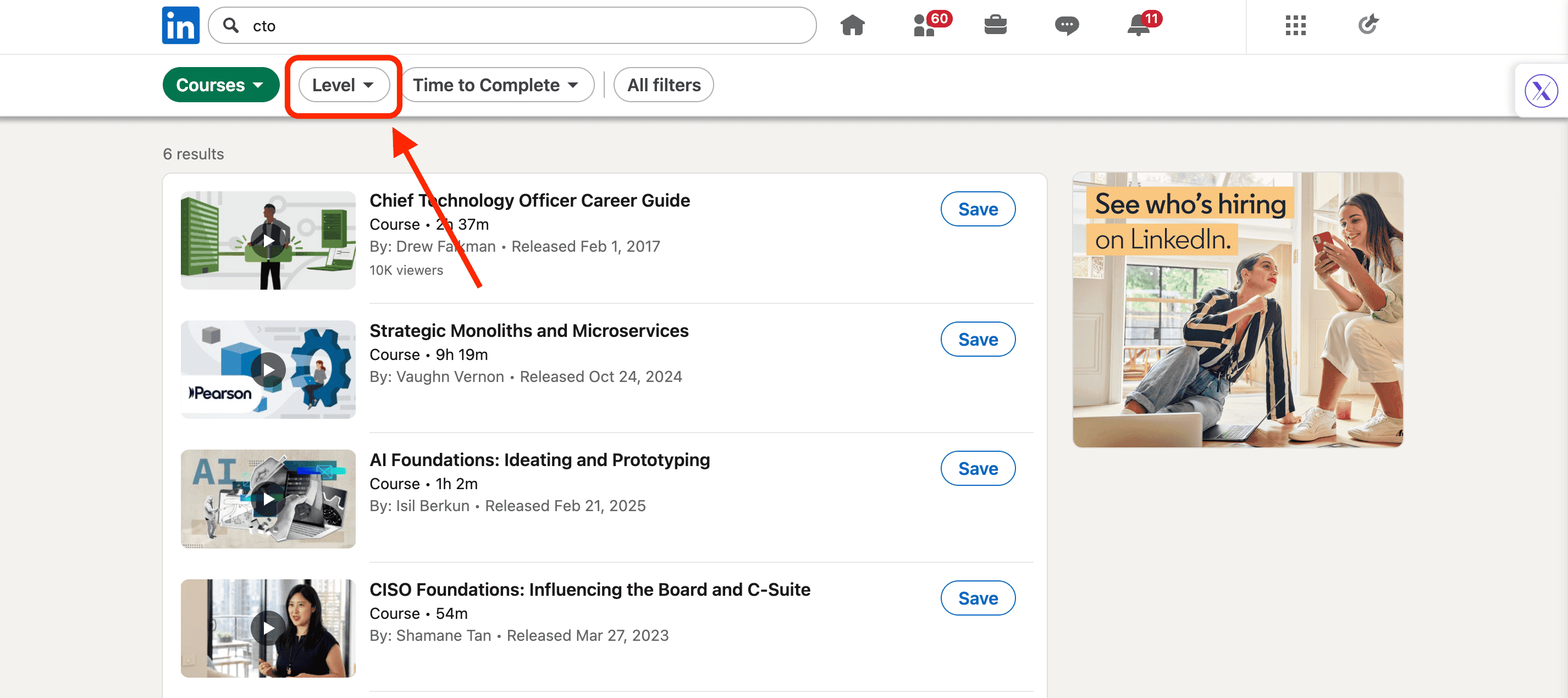
Niveau
Damit koennen Sie Kurse nach Schwierigkeitsgrad filtern -- Anfaenger, Mittelstufe oder Fortgeschritten. Nuetzlich, um Ihr aktuelles Kompetenzniveau abzugleichen oder zu verstehen, wie ausgereift ein Thema innerhalb einer Rolle oder Branche ist.
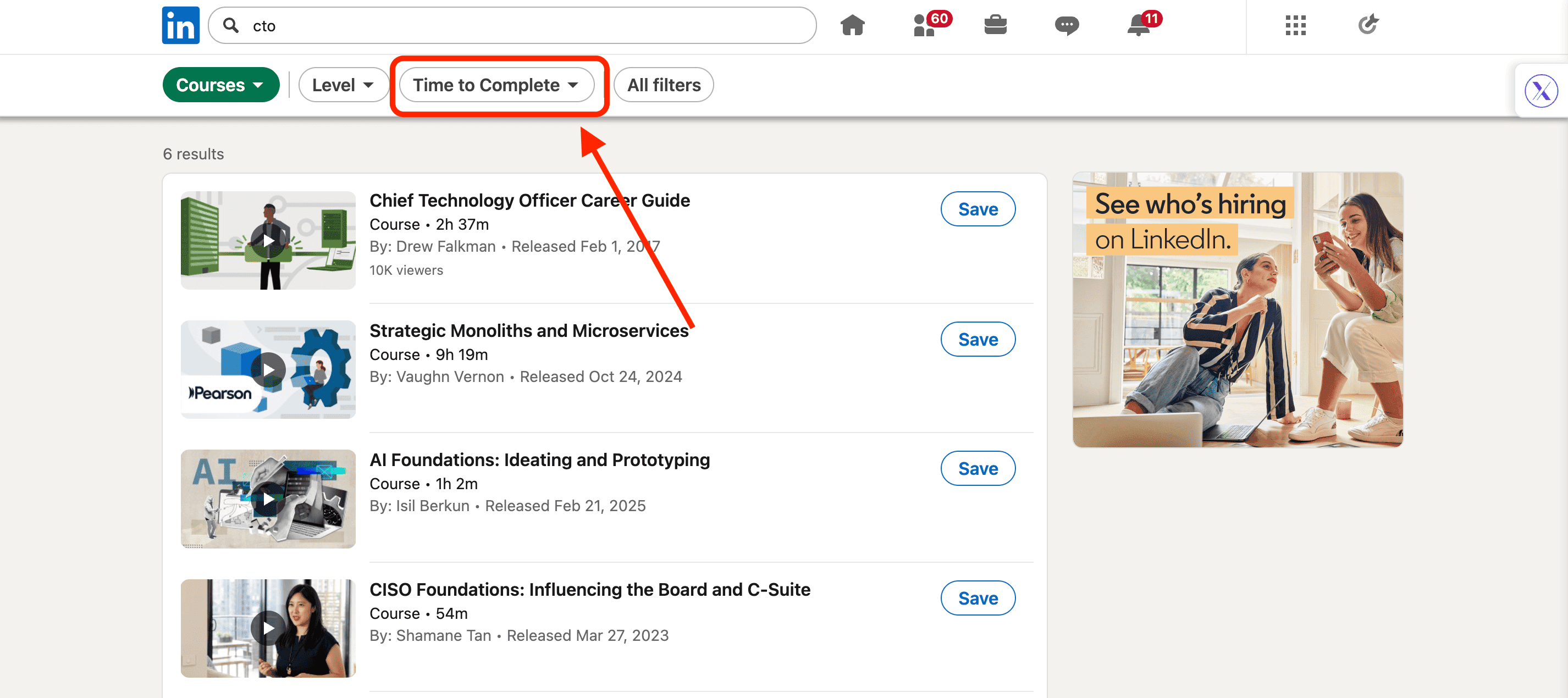
Dauer bis Abschluss
Filtern Sie Kurse nach Laenge. Kurze Kurse signalisieren schnelle Kompetenzluecken. Laengere Kurse deuten normalerweise auf tiefere, karrierebezogene Investitionen hin.
Events-Filter
Der Events-Filter ist einfach, aber hochtaktisch.
Wenn Sie den Events-Filter nutzen, zeigt Ihnen LinkedIn Live-, bevorstehende und vergangene Events zu Ihrem Suchbegriff -- Webinare, Konferenzen, virtuelle Meetups, Workshops und Panels.
Der wahre Wert dieses Filters ist nicht die Entdeckung.
Es ist die Absicht.
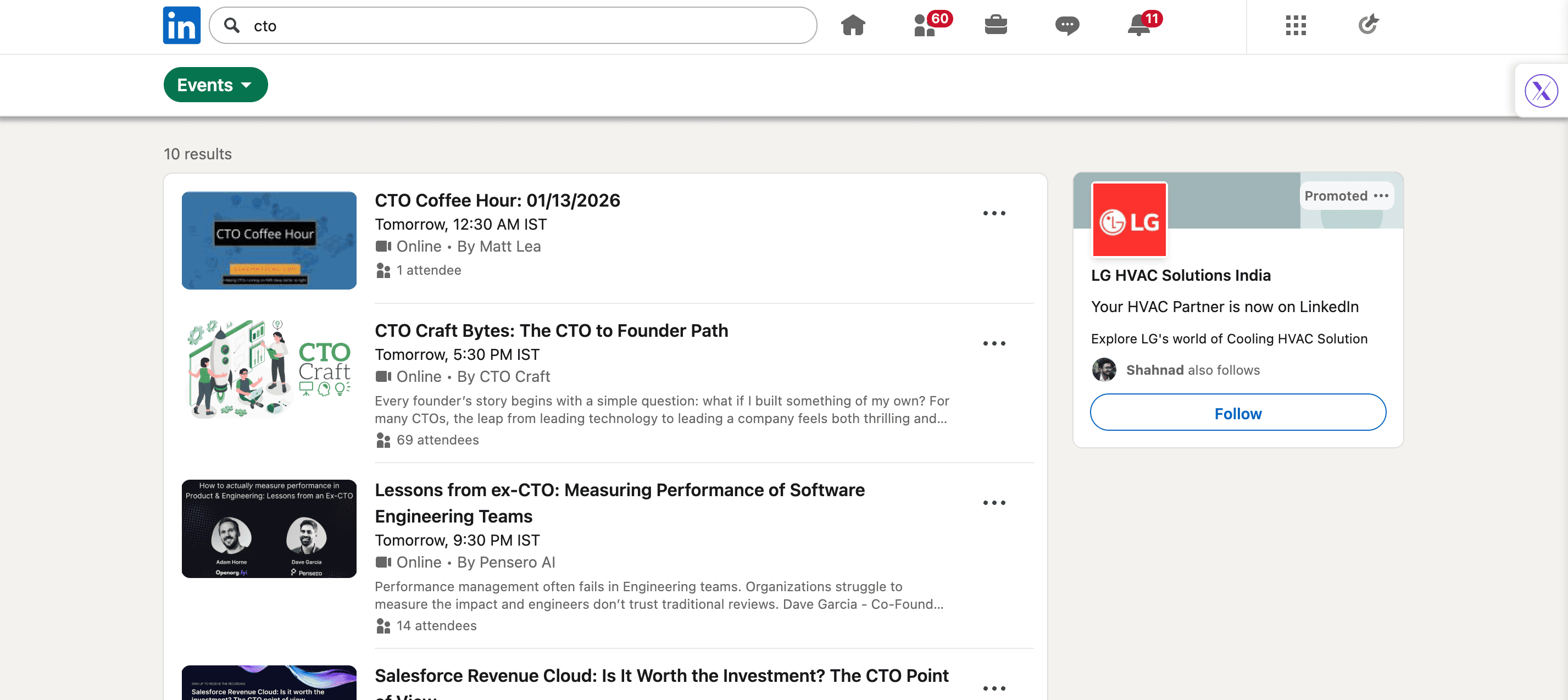
Menschen, die an Events teilnehmen, heben die Hand. Sie lernen, erkunden Loesungen oder bewerten Trends in Echtzeit.
Das macht Event-Teilnahme zu einem der staerksten Kauf- und Networking-Signale auf LinkedIn.
Fuer Vertriebsteams zeigen Events, welche Themen Interessenten gerade jetzt interessieren. Fuer Marketer offenbaren sie Botschaften, Sprecher und Ansaetze, die resonieren. Fuer Jobsuchende und Gruender sind Events reibungsarme Wege, Menschen ohne Kaltakquise zu treffen.
Ein weiterer Vorteil: Events clustern Menschen mit gemeinsamen Interessen an einem Ort. Gespraeche sind waermer, und Nachfass-Kontakte fuehlen sich natuerlich an.
Dienstleistungen-Filter
Der Dienstleistungen-Filter ist fuer eines gebaut: Personen zu finden, die aktiv Dienstleistungen auf LinkedIn anbieten.
Dazu gehoeren Freelancer, Berater, Agenturen und unabhaengige Betreiber, die LinkedIns "Dienstleistungen anbieten"-Funktion in ihrem Profil aktiviert haben.
So funktionieren die wichtigsten Dienstleistungsfilter.
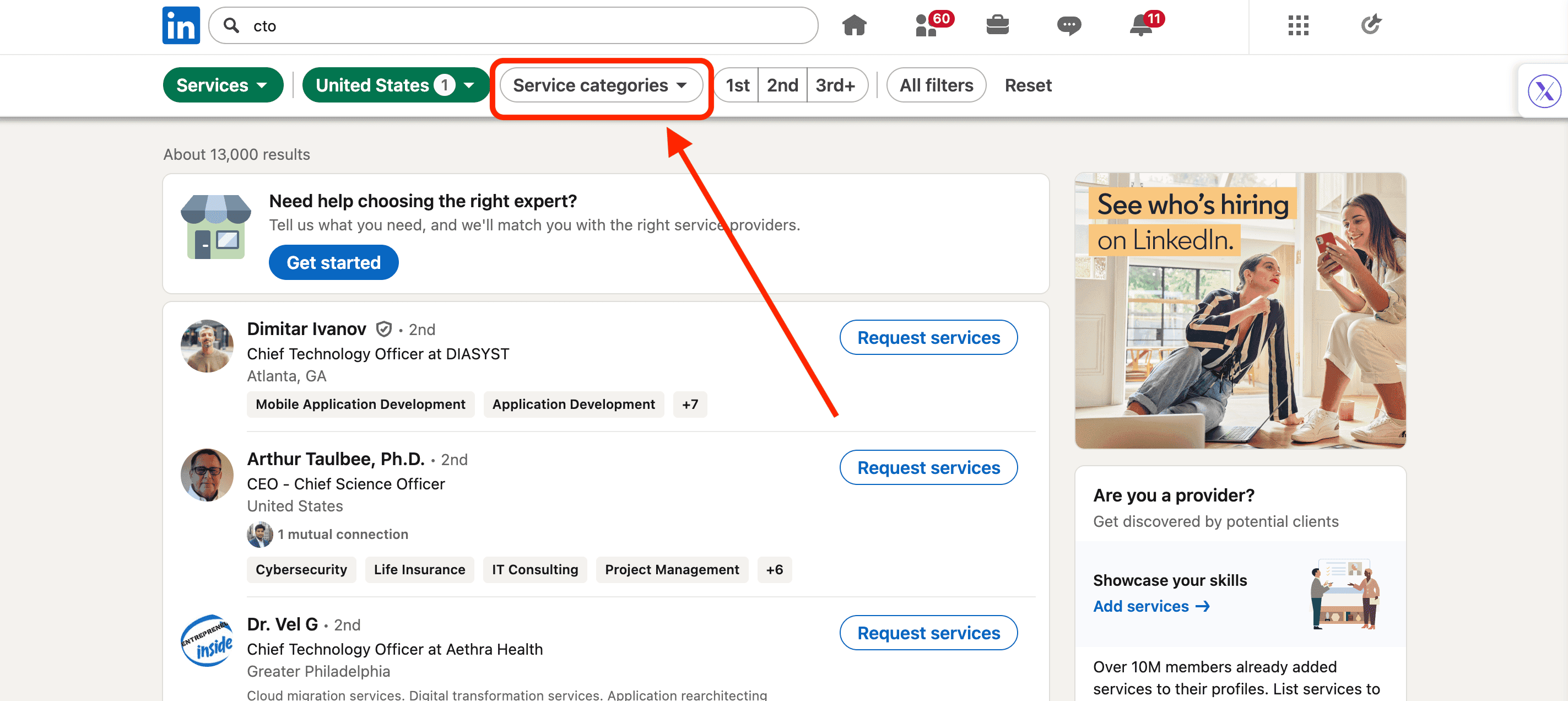
Dienstleistungskategorien
Damit koennen Sie nach Art der angebotenen Dienstleistung filtern -- Marketing, Softwareentwicklung, Design, Beratung, Recruiting und mehr. Der schnellste Weg, Ergebnisse auf relevante Anbieter einzugrenzen.
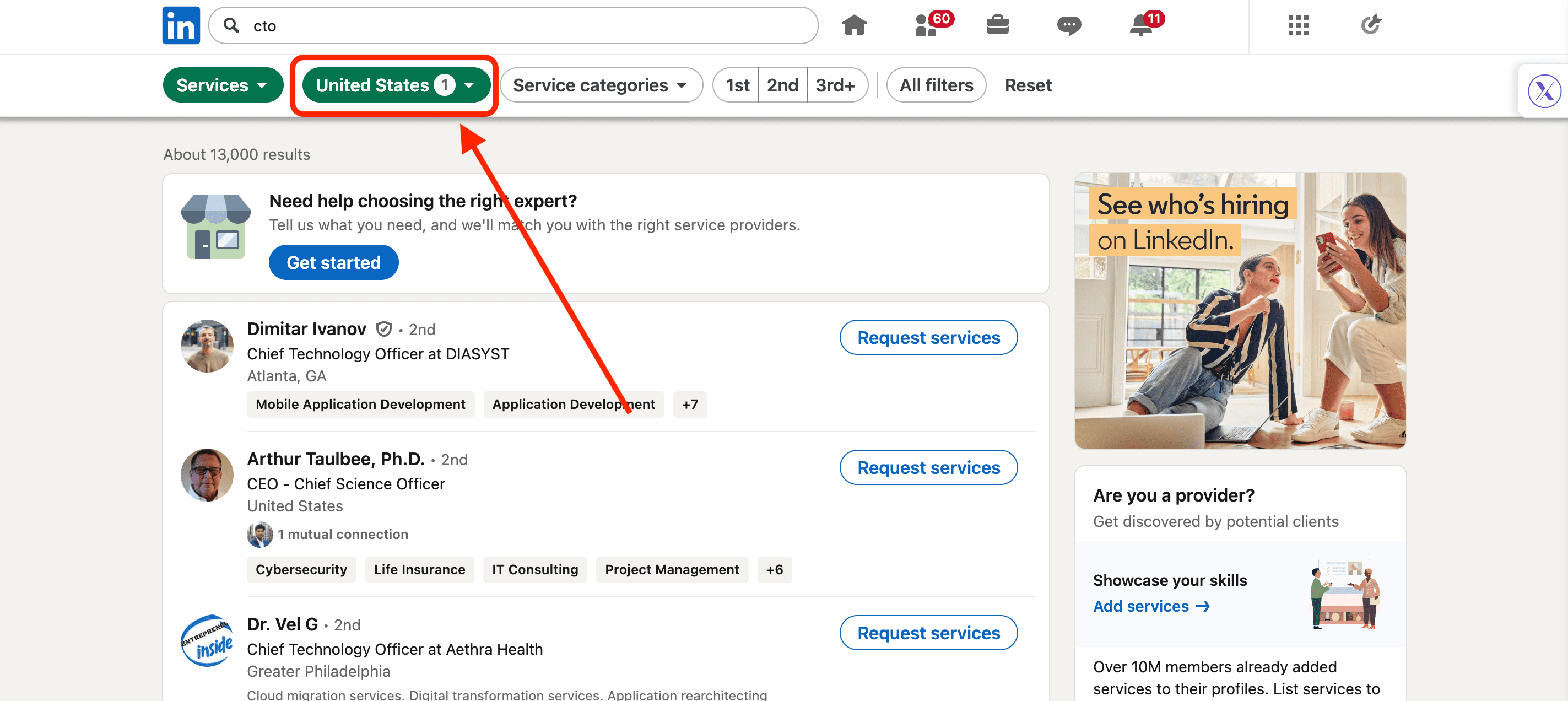
Standorte
Filtern Sie Dienstleister nach Geografie. Nuetzlich, wenn Standort, Zeitzone oder lokale Vorschriften wichtig sind -- oder wenn Sie bevorzugen, mit nahen Teams zu arbeiten.
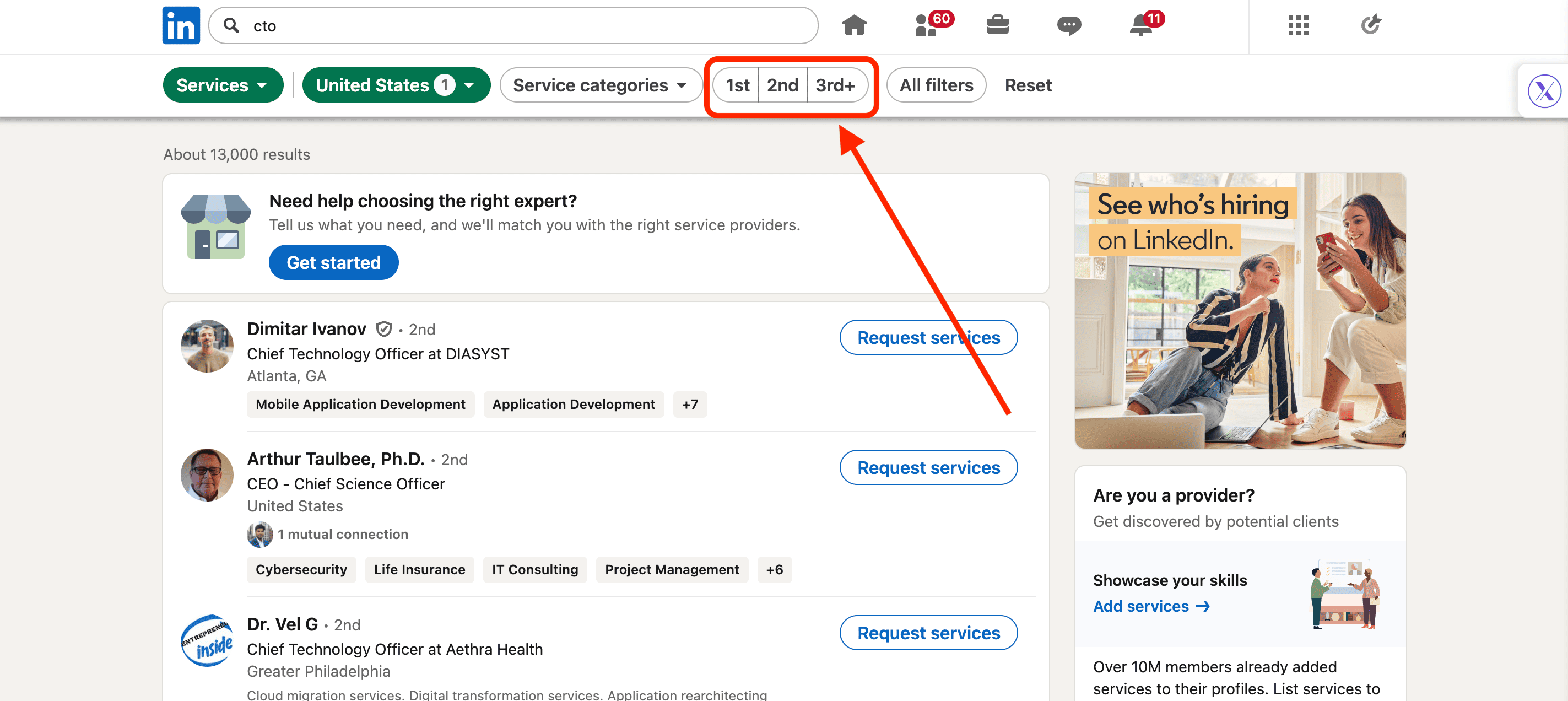
Verbindungsgrad (1st / 2nd / 3rd+)
Dieser Filter zeigt, wie eng Sie mit dem Dienstleister verbunden sind. 2nd-Degree-Verbindungen sind oft ideal: nah genug fuer warme Vorstellungen, weit genug, um Optionen zu erkunden.
Best Practices zur Verfeinerung von Suchen auf LinkedIn
LinkedIn-Suche funktioniert am besten, wenn Sie aufhoeren, sie wie Google zu behandeln, und anfangen, sie wie ein System zu behandeln.
Das Ziel ist nicht, mehr Ergebnisse zu finden.
Es ist, bessere zu finden.
Hier sind drei Best Practices, die die Suchqualitaet konsistent verbessern.
Beginnen Sie breit, dann grenzen Sie gezielt ein
Die meisten Leute ueberfiltern zu frueh.
Sie stapeln Jobbezeichnungen, Branchen, Unternehmensgroessen, Standorte -- und wundern sich dann, warum LinkedIn 17 Ergebnisse zeigt.
Beginnen Sie mit ein oder zwei Hochsignal-Filtern zuerst (wie Jobbezeichnung oder Unternehmensgroesse). Pruefen Sie die Ergebnisse. Dann fuegen Sie schrittweise Einschraenkungen hinzu.
Dieser Ansatz hilft Ihnen zu verstehen, welcher Filter tatsaechlich die Arbeit macht. Es verhindert auch, dass Sie versehentlich ideale Interessenten herausfiltern wegen unordentlicher LinkedIn-Daten.
Praezision kommt durch Sequenzierung, nicht durch Stapeln.
Nutzen Sie Absichtssignale, nicht nur Demografie
Demografie sagt Ihnen, wer jemand ist.
Signale sagen Ihnen, was sie gerade jetzt tun.
Priorisieren Sie Filter wie:
- Aktiv einstellend
- Kuerzliche Jobwechsel
- Besuchte Events
- Weniger als 10 Bewerber (Jobs)
Diese deuten auf Momentum, Budget-Bewegung oder Offenheit fuer Veraenderung hin.
Zwei Personen koennen auf dem Papier identisch aussehen, sich aber im echten Leben sehr unterschiedlich verhalten. Absichtsfilter helfen Ihnen, den Unterschied zu erkennen.
Speichern Sie Suchen und besuchen Sie sie regelmaessig
Grossartige LinkedIn-Suchen sind keine einmaligen Aufgaben.
Speichern Sie Ihre Suchen und besuchen Sie sie woechentlich. Neue Personen treten in Rollen ein. Unternehmen beginnen einzustellen. Maerkte verschieben sich.
Durch die Wiederverwendung derselben verfeinerten Suche bauen Sie Mustererkennung auf. Sie bemerken Trends. Sie erkennen Timing-Gelegenheiten, bevor andere es tun.
Praxisbeispiele: Wie verschiedene Rollen LinkedIn-Suchen verfeinern
LinkedIn-Suchfilter werden maechtig, wenn sie mit einem klaren Ziel angewendet werden. Nachfolgend drei erweiterte Praxisbeispiele, die zeigen, wie Gruender, Marketer und Vertriebsteams Suchfilter unterschiedlich -- aber effektiv -- nutzen.
Fallstudie 1: Gruender validiert einen neuen Markt vor dem Bau
Ein B2B-SaaS-Gruender erwaegt die Einfuehrung einer neuen Produktfunktion, will sich aber nicht auf Bauchgefuehl verlassen.
Er beginnt mit dem Unternehmen-Filter, um seinen ICP zu definieren:
- Unternehmensgroesse: 11-50 und 51-200
- Branche: SaaS und Technologie
Als naechstes wechselt er zum Personen-Filter:
- Jobbezeichnungen: Head of Operations, COO, Operations Manager
- Senioritaet: Manager+, Director+
- Aktiv einstellend: Aktiviert
Diese Kombination bringt Operatoren in wachsenden Unternehmen an die Oberflaeche -- genau die Personen, die Skalierungsschmerzen am staerksten spueren.
Der Gruender studiert dann:
- Stellenbeschreibungen, um zu sehen, womit Unternehmen kaempfen
- Beitraege dieser Fuehrungskraefte, um wiederkehrende Themen zu identifizieren
- Events rund um Operations und Skalierung
Ergebnis:
Anstatt blind zu bauen, bestaetigt der Gruender, dass das Problem dringend, weit verbreitet und budgetgestuetzt ist. Die Botschaft wird mit echter Sprache geformt, die direkt von LinkedIn gezogen wird -- nicht mit Annahmen.
Fallstudie 2: Marketer recherchiert Zielgruppen-Schmerzpunkte fuer Content
Ein B2B-Marketer will die LinkedIn-Content-Performance verbessern und eingehende Nachfrage generieren.
Er beginnt mit dem Beitraege-Filter:
- Keywords: "Pipeline-Qualitaet", "Lead-Scoring", "Demand Generation"
Dann fuegt er Kontext mit dem Personen-Filter hinzu:
- Funktion: Marketing
- Senioritaet: Manager, Director, VP
Er erkundet auch den Events-Filter, um zu sehen, welche Webinare und Panels Marketer aktiv besuchen.
Anstatt Content-Ideen zu raten, analysiert der Marketer:
- Welche Beitraege Kommentare vs. Likes bekommen
- Die exakte Formulierung in Beschwerden und Fragen
- Themen, die durchgehend in Event-Titeln auftauchen
Ergebnis:
Content wird schaerfer, spezifischer und nachvollziehbarer. Engagement steigt, und eingehende Leads verweisen direkt auf Beitraege -- weil der Content echten Schmerz widerspiegelt, nicht generische Ratschlaege.
Fallstudie 3: Vertriebsmitarbeiter verbessert Outbound-Relevanz und Timing
Ein SDR, der Mid-Market-CTOs anvisiert, will die Antwortquoten erhoehen, ohne mehr Nachrichten zu senden.
Er verfeinert seine Suche mit:
- Personen-Filter → Jobbezeichnung: CTO
- Unternehmensgroesse → 51-200
- Aktiv einstellend → Aktiviert
- Verbindungsgrad → 2nd-Degree
Das grenzt die Liste auf technische Fuehrungskraefte in aktiv wachsenden Unternehmen ein.
Vor der Kontaktaufnahme prueft der SDR:
- Einstellungsaktivitaet, um Dringlichkeit abzuleiten
- Kuerzliche Jobwechsel oder Beitraege
- Gemeinsame Verbindungen fuer weiche Personalisierung
Ergebnis:
Outreach bezieht sich auf das, was gerade passiert, nicht auf generische Wertversprechen. Antworten verbessern sich, weil Nachrichten zeitgemaess, relevant und informiert wirken.
Wichtige Erkenntnis:
LinkedIn-Suchfilter ersetzen nicht das Denken.
Sie verstaerken es.
Wenn sie mit Absicht genutzt werden, verwandeln sie Rollen in Erkenntnisse und Erkenntnisse in Ergebnisse.
Fazit
LinkedIn-Suchfilter sind kein Funktions-Problem. Sie sind ein Nutzungs-Problem.
Die meisten Leute behandeln LinkedIn wie ein Verzeichnis -- tippen einen Titel ein, scrollen ein wenig, senden ein paar Nachrichten und hoffen auf das Beste. Deshalb fuehlen sich Ergebnisse zufaellig und inkonsistent an.
Aber wenn Sie verstehen, wie LinkedIns erweiterte Suchfilter tatsaechlich funktionieren, veraendert sich die Plattform komplett.
Filter helfen Ihnen, von Raten zu Targeting zu gelangen. Von Volumen zu Relevanz. Von "Giesskannen-Prinzip" zu zielgerichtetem Outreach.
Ob Sie ein Gruender sind, der Nachfrage validiert, ein Marketer, der echte Schmerzpunkte recherchiert, oder ein Vertriebsmitarbeiter, der Antwortquoten verbessern will -- das Prinzip ist dasselbe:
Kontext schlaegt Skalierung.
Personen, Unternehmen, Jobs, Produkte, Events und Dienstleistungen erzaehlen alle verschiedene Teile derselben Geschichte. Wenn Sie diese Signale verbinden -- Einstellungsaktivitaet, Rollenwechsel, Event-Teilnahme, Lernabsicht -- hoeren Sie auf, Leads zu jagen, und beginnen, Chancen zu identifizieren.
Der groesste Fehler ist, zu versuchen, jeden Filter gleichzeitig zu nutzen. Der groesste Vorteil kommt vom durchdachten Sequenzieren, dem erneuten Besuchen gespeicherter Suchen und dem Beobachten, wie sich Verhalten ueber die Zeit aendert.
LinkedIn aktualisiert staendig seine Sucherfahrung. Neue Filter tauchen auf. Alte entwickeln sich weiter. Aber die Grundlagen bleiben gleich: die richtige Zielgruppe finden, zum richtigen Zeitpunkt, mit dem richtigen Signal.
Wenn Sie eine Sache aus diesem Leitfaden mitnehmen, dann diese:
LinkedIn-Suche geht nicht darum, mehr Menschen zu finden.
Es geht darum, das Warum jetzt zu finden.
Und sobald Sie das sehen, hoert LinkedIn auf, ein soziales Netzwerk zu sein -- und wird zu einem berechenbaren Wachstumsmotor.
FAQs zu LinkedIn-Suchfiltern
Was sind LinkedIns erweiterte Suchfilter?
LinkedIns erweiterte Suchfilter sind Werkzeuge, die Ihnen helfen, Suchergebnisse nach bestimmten Kriterien wie Jobbezeichnung, Unternehmensgroesse, Branche, Standort, Senioritaet, Einstellungsaktivitaet und mehr einzugrenzen. Anstatt Profile manuell zu durchsuchen, lassen Filter Sie schnell Personen, Unternehmen und Chancen anzeigen, die Ihren genauen Anforderungen entsprechen.
Sind LinkedIn-Suchfilter kostenlos?
Ja -- grundlegende LinkedIn-Suchfilter sind bei kostenlosen Konten verfuegbar. Bezahlplaene wie LinkedIn Premium und Sales Navigator schalten jedoch zusaetzliche Filter, tiefere Einblicke und groessere Ergebnislimits frei. Selbst mit einem kostenlosen Plan kann die korrekte Nutzung von Filtern die Ergebnisse deutlich verbessern.
Welcher LinkedIn-Suchfilter ist der wichtigste?
Es gibt keinen einzelnen "besten" Filter -- es haengt von Ihrem Ziel ab. Fuer Vertrieb und Outbound sind Jobbezeichnung, Unternehmensgroesse und aktiv einstellend Hochsignal-Filter. Fuer Marketing-Recherche offenbaren Beitraege und Events Echtzeit-Interessen. Fuer Jobsuchende sind kuerzlich veroeffentlichte Jobs und Netzwerk-interne Stellen oft am effektivsten.
Wie vermeide ich Ueberfiltern auf LinkedIn?
Beginnen Sie breit und wenden Sie Filter schrittweise an. Beginnen Sie mit ein oder zwei wirkungsvollen Filtern, pruefen Sie die Ergebnisse, und fuegen Sie dann nur bei Bedarf weitere Einschraenkungen hinzu. Zu fruehes Ueberfiltern kann ideale Interessenten verbergen, weil LinkedIn-Profildaten unvollstaendig oder ungenau sein koennen.
Koennen LinkedIn-Suchfilter bei der Lead-Generierung helfen?
Absolut. LinkedIn-Suchfilter sind eines der effektivsten Werkzeuge fuer B2B-Lead-Generierung. Durch die Kombination von rollenbasierten Filtern mit Absichtssignalen wie Einstellungsaktivitaet, Events oder kuerzlichen Jobwechseln koennen Sie Interessenten identifizieren, die eher bereit sind zu interagieren und zu kaufen.
Wie oft sollte ich gespeicherte LinkedIn-Suchen erneut besuchen?
Woechentlich ist ideal. LinkedIn-Daten aendern sich staendig -- Menschen wechseln Rollen, Unternehmen beginnen einzustellen und neue Events erscheinen. Das erneute Besuchen gespeicherter Suchen hilft Ihnen, Timing-Gelegenheiten zu erkennen, bevor andere es tun.
Sind LinkedIn-Suchergebnisse immer genau?
Nicht immer. LinkedIn verlasst sich auf selbstgemeldete Profildaten, die veraltet oder unvollstaendig sein koennen. Deshalb ist es wichtig, mehrere Filter zusammen zu nutzen und Ergebnisse zu plausibilisieren, anstatt sich auf einen einzelnen Datenpunkt zu verlassen.
Wer profitiert am meisten von LinkedIn-Suchfiltern?
Gruender, Marketer, Vertriebsteams, Recruiter, Jobsuchende und Berater profitieren alle -- aber nur, wenn sie Filter mit Absicht nutzen. Je klarer Sie Ihr Ziel definieren, desto maechtigere wird die LinkedIn-Suche.