LinkedIn Sales Navigator Filter
You finally figured out your ICP.
Now you're stuck clicking through LinkedIn profiles one by one, trying to find people who actually fit. While tools like OutX.ai's Sales Navigator scraper can automate this process, you still need to master the filtering first.
So you open LinkedIn Sales Navigator.
In theory, it should make prospecting easy. In reality, the filters and Boolean logic feel overwhelming and most people don't know how to use them properly.
This blog fixes that.
By the end, you'll know exactly how to narrow down high-intent prospects using Sales Navigator, without guessing or wasting time.
6 Most Useful Sales Navigator Filters (Quick Reference)
- Job Title + Seniority Level: Find decision-makers. Use title clusters (VP, Head of, Director) not single titles.
- Posted on LinkedIn in Past 30 Days: Only target active users who actually see and reply to messages.
- Company Headcount: Match company size to your ICP and deal size (1-50, 51-200, 200+).
- Geography: Segment by region since buying behavior, speed, and compliance vary dramatically.
- Years in Current Role (0-1 years): People new in roles are actively evaluating tools and looking for quick wins.
- Profile Keywords: Search "RevOps," "Demand Gen," "PLG" in profiles to find people who think about the problem you solve.
Full guide to all lead filters, account filters, and Boolean search techniques below.
We'll cover:
- LinkedIn Sales Navigator Lead Search Filters
- LinkedIn Sales Navigator Account Search Filters
- Advanced techniques to refine and scale your searches
LinkedIn Sales Navigator Search Filters
Before you touch a single keyword or Boolean string in Sales Navigator, you need to understand one thing:
Everything starts with filters and there are two completely different types from the very first screen.
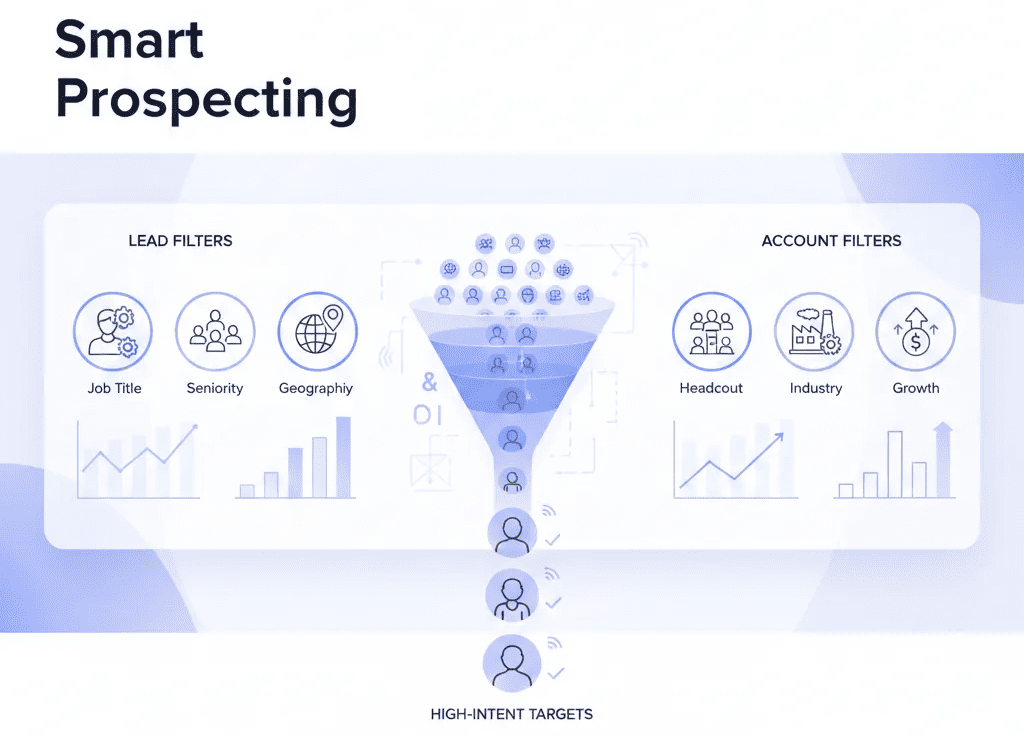
- Lead filters help you find people.
- Account filters help you find companies.
Most people mess this up by mixing intent. They search for leads using company logic, or companies using people logic and then wonder why results feel noisy.
Sales Navigator is powerful only when you pick the right lane first.
If you want to sell to buyers, start with Lead filters.
If you want to build a target list of accounts, start with Account filters.
Here's a high-level view of how the filters are divided:
| Lead Filters | Account Filters |
|---|---|
| Job Title | Company Headcount |
| Job Function | Industry |
| Seniority Level | Company Revenue |
| Geography | Company Location |
| Years in Current Role | Company Growth |
| Posted on LinkedIn | Technologies Used |
| Profile Language | Account Lists |
| Keywords |
Understanding this split upfront saves time, avoids messy searches, and helps you build repeatable prospecting systems instead of one-off searches.
LinkedIn Sales Navigator Lead Filters
Lead filters are where most good outbound starts and where most bad outbound quietly dies.
These filters help you narrow down who you're actually trying to talk to. Not "everyone in SaaS." Not "anyone with Manager in the title."

Real people, in real roles, with real buying context.
Below are the core Lead Filters you should understand and how to use each one properly.
Job Title
Job Title is the first filter most people use in LinkedIn Sales Navigator and the one most people misuse.
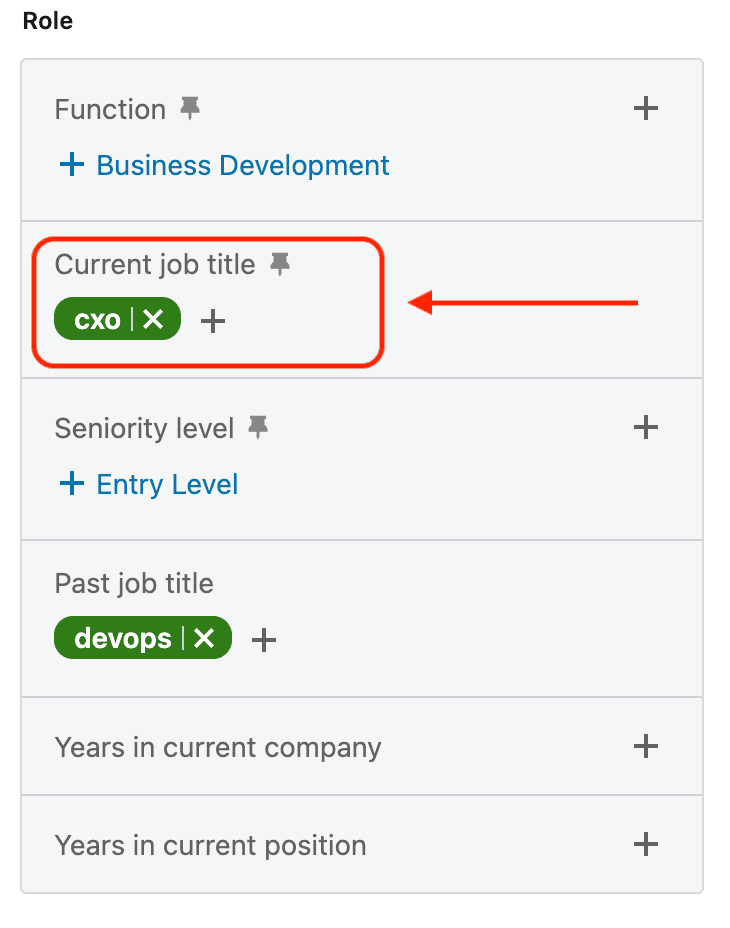
The core mistake is assuming job titles are standardized across companies.
They're not.
A "Head of Growth" at a 10-person startup might be executing day-to-day tasks.
A "Marketing Manager" at a 1,000-person company might own a large budget and manage multiple teams.
Titles describe labels.
They rarely describe scope, authority, or buying power.
That's why searching for one exact title almost always narrows your ICP too early.
Strong outbound teams think in title clusters, not single titles.
Instead of targeting:
- VP Marketing
They expand to:
- VP Marketing
- Head of Marketing
- Director of Marketing
- Growth Lead
- Demand Generation Lead
This accounts for differences in:
- Company size
- Org maturity
- Title inflation
- Industry norms
How to use Job Title effectively:
- Start broader than feels comfortable
- Include adjacent roles that influence decisions
- Let other filters create precision later
Common mistakes to avoid:
- Filtering to one "perfect" title
- Excluding Manager-level roles by default
- Treating title as proof of authority
Job Title should help you enter the right conversation, not prematurely decide who the buyer is. Precision comes from layering, not restriction.
Seniority
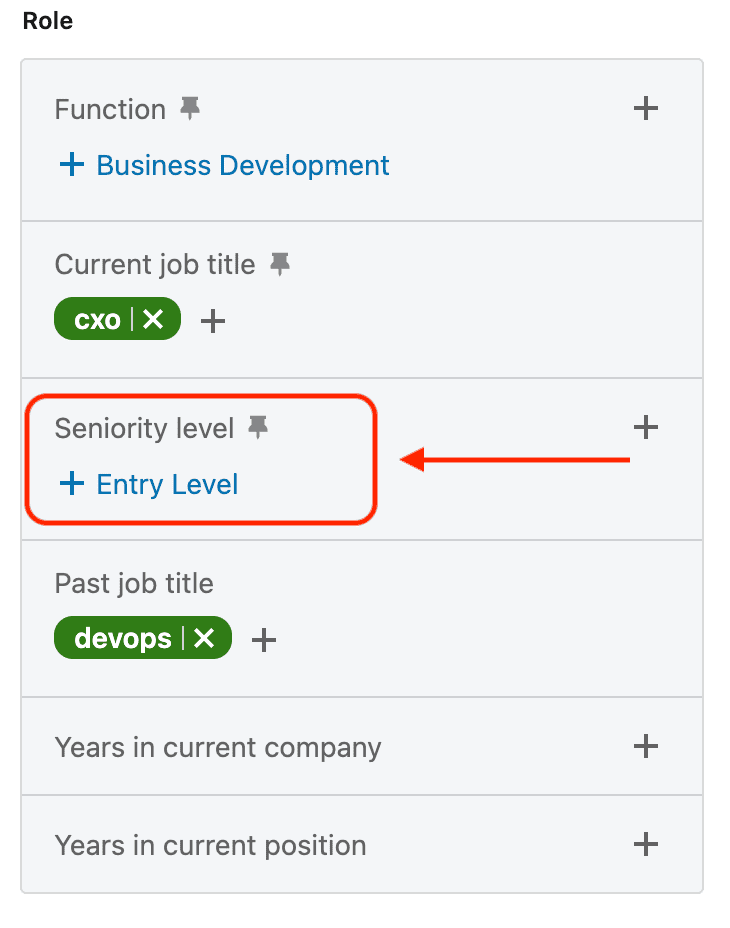
Seniority answers a different question than job title:
How close is this person to an actual buying decision?
B2B deals are rarely decided by a single role.
They move through people with different levels of influence.
Typically:
- Managers feel the pain
- Directors evaluate options
- VPs and CXOs approve budgets
Sales Navigator's seniority filter helps you choose where in that chain you want to engage.
Common seniority levels include:
- Entry
- Senior
- Manager
- Director
- VP
- CXO
Most people default to CXOs because it feels logical.
In practice, that often leads to lower reply rates and longer sales cycles.
CXOs:
- Delegate research
- Engage later
- Respond less frequently
Managers and Directors:
- Experience the problem daily
- Actively look for solutions
- Become internal champions
How to use seniority well:
- Match it to your deal size
- Include both influencers and approvers
- Run separate searches for different seniority bands
Examples:
- SMB / Mid-market → Manager + Director
- Enterprise → Director + VP
- Founder-led sales → Founder + CXO
Seniority isn't about hierarchy.
It's about who has enough urgency, context, and incentive to move a deal forward.
Function
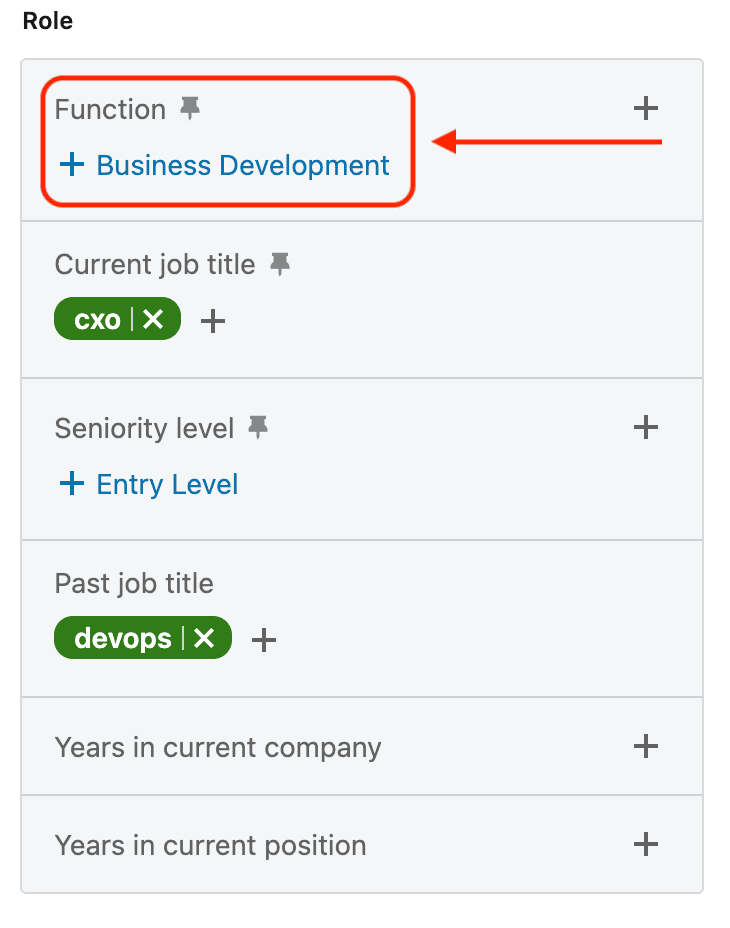
Function tells Sales Navigator which department someone belongs to.
This filter exists because job titles repeat everywhere.
"Manager" exists in:
- Marketing
- Sales
- Operations
- Finance
- HR
Without function, your search quietly fills with irrelevant leads.
Function is how you make sure you're talking to the right Manager not just any Manager.
Common functions include:
- Marketing
- Sales
- Engineering
- Operations
- Finance
- Human Resources
If your product solves a marketing problem, function should never be optional.
How strong teams use Function:
- Always pair it with Job Title
- Exclude unrelated departments early
- Maintain relevance as lists scale
Function becomes especially important when:
- Your product is horizontal
- Multiple teams could use it
- Messaging differs by department
A Director of Engineering and a Director of Marketing may share a title, but their priorities, language, and buying triggers are completely different.
Function ensures your message lands in the right mental context.
And relevance is what drives replies.
Geography
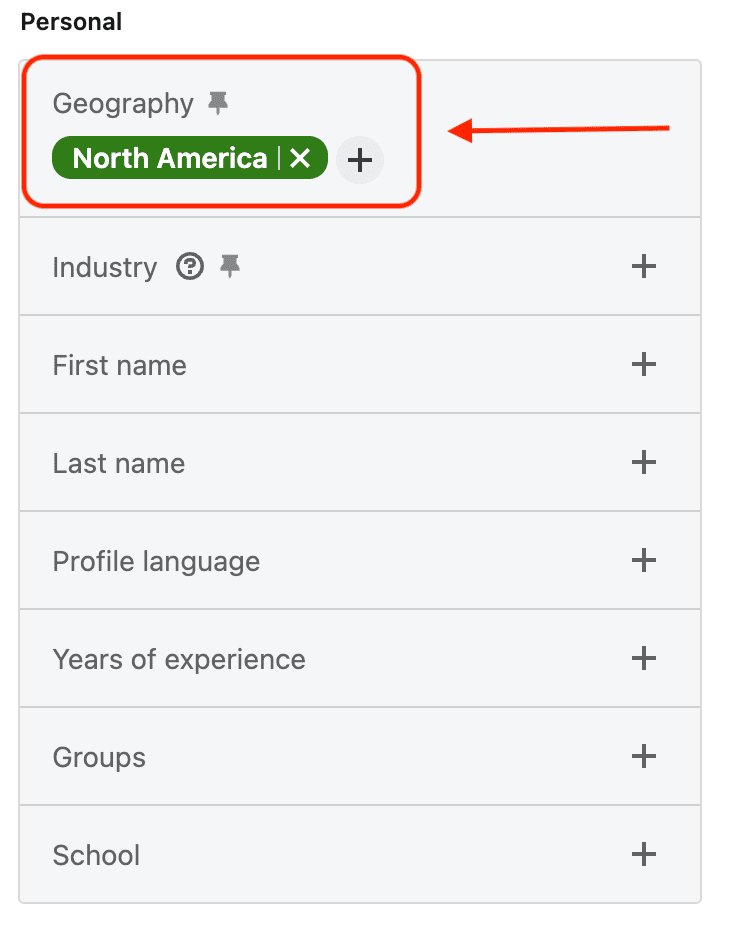
Geography is one of the most misunderstood filters in LinkedIn Sales Navigator, and it's usually because people think it's just a location selector.
Choose a country. Move on.
That's the wrong mental model.
Geography isn't about where someone sits. It's about how they buy, how fast they move, and how much friction exists in their decision-making process.
Buying behavior changes dramatically by region, even when the job title stays the same.
A Director of Marketing in the US is often comfortable making fast decisions, taking demos quickly, and pushing tools through with minimal internal process. Speed is rewarded. Momentum matters. "Let's test it" is a common default.
That exact same Director title in Europe may require legal review, compliance checks, security validation, and multiple internal approvals before anything moves forward. The buyer isn't slower because they're uninterested. They're slower because the system demands it.
Same role.
Different reality.
Geography influences far more than most teams account for, including:
- Budget size and flexibility
- Buying speed and urgency
- Compliance and legal friction
- Risk tolerance
- Tone and framing that resonate in outreach
This is why strong teams don't run one global Sales Navigator search and call it a day.
Instead, they segment deliberately.
How strong teams use Geography:
- They create separate searches by region
- They localize messaging, not just time zones
- They adjust expectations around ACV and deal velocity
For example:
- US → direct language, outcome-focused positioning, faster cadences
- Europe → trust-building, compliance-aware framing, longer evaluation cycles
- Emerging markets → value-driven positioning, pricing sensitivity, volume-based plays
Advanced teams often duplicate the exact same lead search and change only the geography. The ICP stays the same. The context changes.
Geography isn't a checkbox.
It's a relevance multiplier.
Years in Current Role
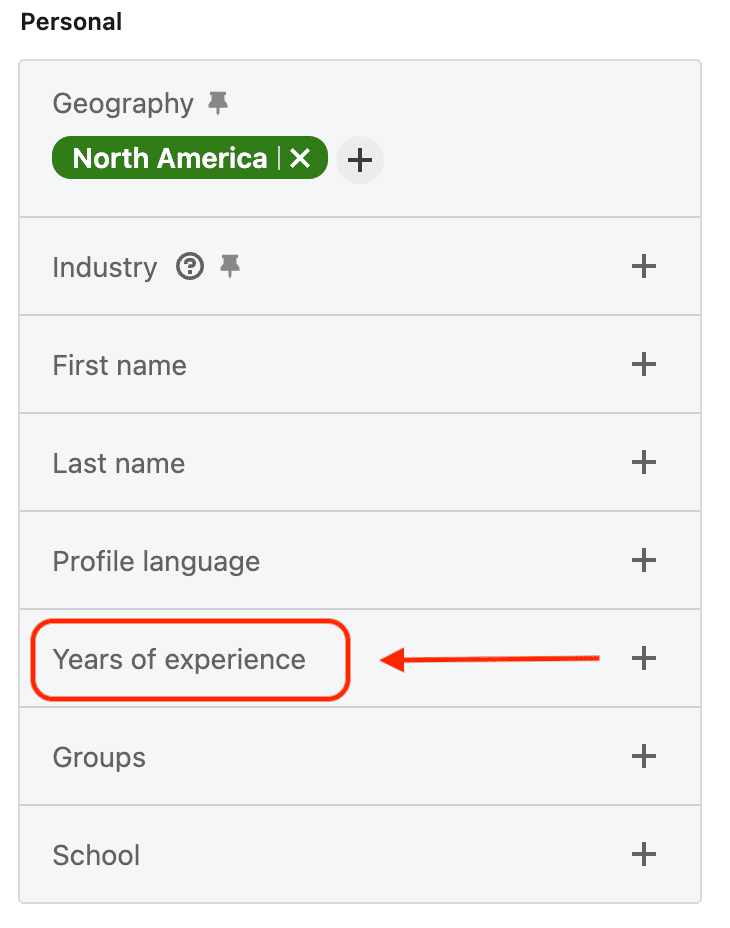
Years in Current Role is a timing signal hiding in plain sight.
This filter doesn't tell you who someone is.
It tells you how likely they are to question the status quo.
People don't evaluate new tools randomly. They evaluate tools when their environment changes. And nothing changes someone's environment faster than stepping into a new role.
Someone who joined recently is usually in audit mode.
They're reviewing what already exists, asking why decisions were made, and looking for opportunities to make visible improvements. Early wins matter because credibility is still being built.
Someone who joined recently is often:
- Reviewing existing tools
- Questioning why things were set up a certain way
- Looking for quick wins they can point to
- Motivated to show impact early
On the other hand, someone who has been in the same role for five or more years is usually operating from a different place.
They've likely:
- Championed current systems
- Defended past decisions internally
- Built processes around existing tools
That makes change feel riskier, not exciting.
Someone long-tenured is often:
- Emotionally invested in current systems
- Defensive about past decisions
- Less willing to introduce disruption
Typical behavior by tenure looks like this:
- 0-1 years → highest openness to change
- 1-3 years → optimization and refinement
- 5+ years → stability and inertia
This filter becomes extremely powerful when layered with signals like:
- New leadership
- Company growth
- Funding announcements
- Org restructures
If you sell transformation, efficiency, enablement, or cost reduction, Years in Current Role should be a default filter, not an afterthought.
Best practice: adjust your messaging to acknowledge the new role. People early in a role don't want long roadmaps. They want momentum and proof they made the right move.
Timing doesn't replace relevance.
But it amplifies it.
Posted on LinkedIn
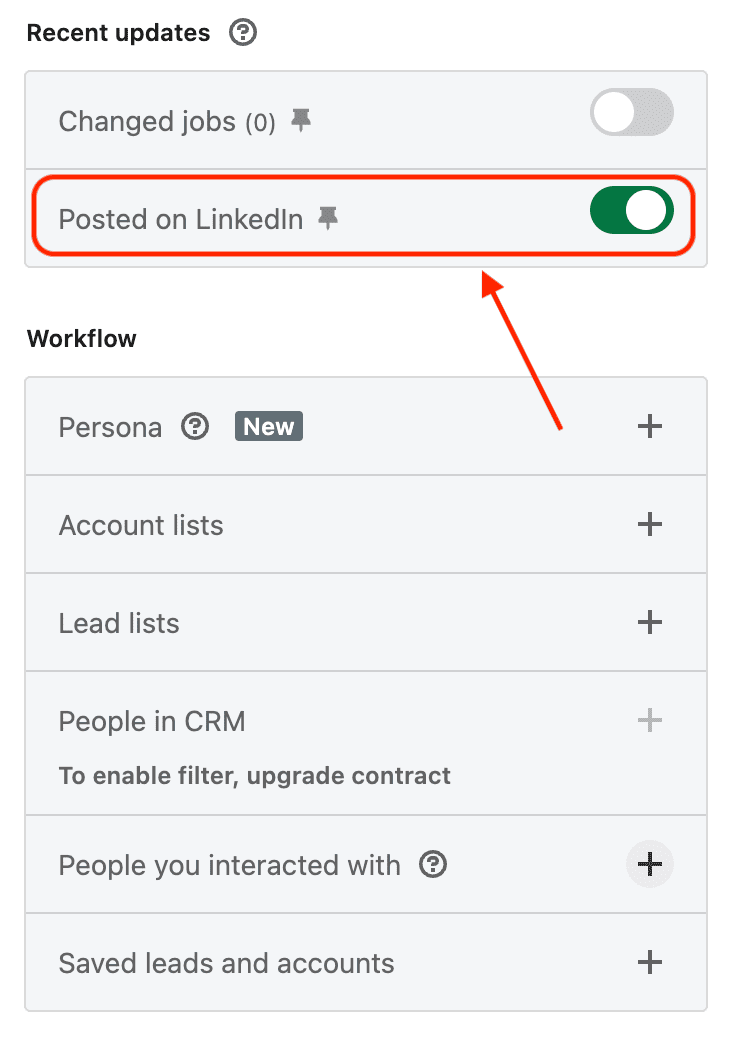
This filter answers one brutally practical question:
Is this person actually active on LinkedIn?
Sales Navigator includes millions of profiles. Many of them look perfect on paper. Great titles. Strong companies. Clean profiles.
But the person hasn't posted, engaged, or even meaningfully logged in for months.
This filter removes those leads.
You can target people who have posted within the last:
- 30 days
- 90 days
That single constraint can dramatically change outreach performance.
Active users behave differently.
They:
- See messages faster
- Reply more often
- Are comfortable engaging socially
Someone who posts regularly is already in conversation mode. They're sharing opinions, reacting to ideas, and participating in public discussions. That makes outreach feel contextual instead of intrusive.
How strong teams use this filter:
- They prioritize these leads for manual outreach
- They reference recent posts in the first message
- They lead with relevance, not a pitch
This filter works especially well when combined with:
- Job title clusters
- Profile keywords
- Geography
If someone hasn't posted in a year, it's not a copy problem.
They may not check LinkedIn often.
Notifications won't save you.
Automation won't fix inactivity.
Activity is leverage.
When reply rates matter, this filter should always be on.
Profile Keywords
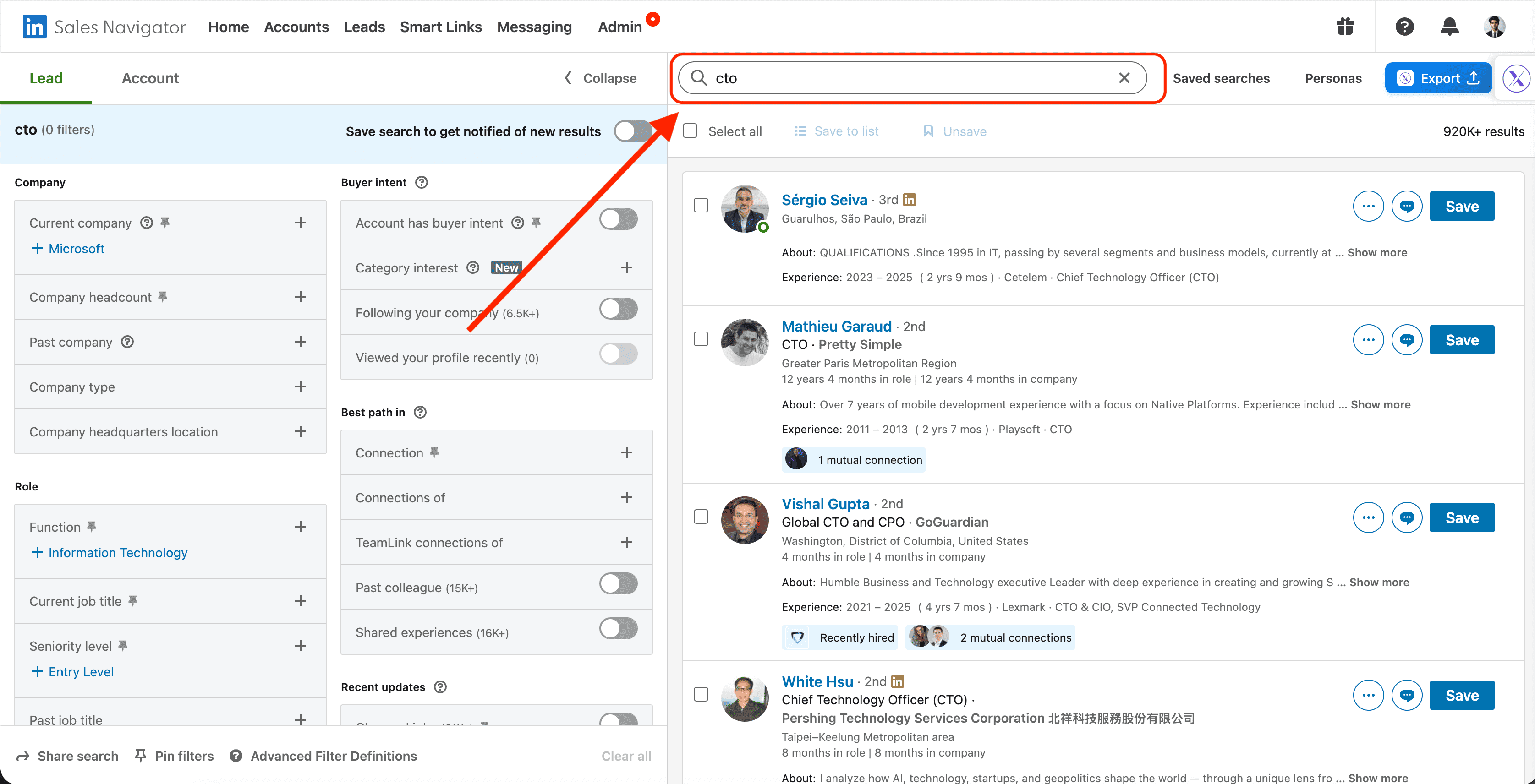
Profile Keywords is one of the most powerful lead filters in Sales Navigator and one of the most underused.
This filter searches inside how people describe their work, not how LinkedIn categorizes them.
It scans:
- Headlines
- About sections
- Role descriptions
That's where intent lives.
Titles lag reality.
Profiles reveal focus.
Someone may be a "Marketing Manager" by title, but their profile might talk extensively about PLG, demand generation, RevOps, or AI experimentation. That tells you far more than a title ever will.
Why Profile Keywords matter:
- They surface mindset, not hierarchy
- They reveal current initiatives
- They expose problems people care about
Examples of high-signal keywords:
- "PLG"
- "RevOps"
- "Outbound"
- "Demand Gen"
- "Automation"
- "AI"
How strong teams use this filter:
- Focus on problems, not tools
- Avoid generic buzzwords in isolation
- Combine keywords with function or seniority
For example, searching for "CRM" alone is noisy.
Searching for "RevOps" + Marketing Function is focused.
This filter is especially effective when:
- Titles are vague or inflated
- Roles are evolving quickly
- You're selling a newer category
Profile Keywords help you target people who already think about the problem you solve.
And that's where relevance starts.
LinkedIn Sales Navigator Account Filters
Account filters help you decide which companies are worth your time before you ever look at individual people.
Instead of asking "Who should I message?", account filters force a better question first:
"Which companies actually make sense for us to sell to?"

When used correctly, these filters eliminate bad-fit accounts early and make every downstream lead search sharper.
Company Headcount
Company Headcount is one of the most important account filters because it directly reflects complexity, budget, and buying behavior.
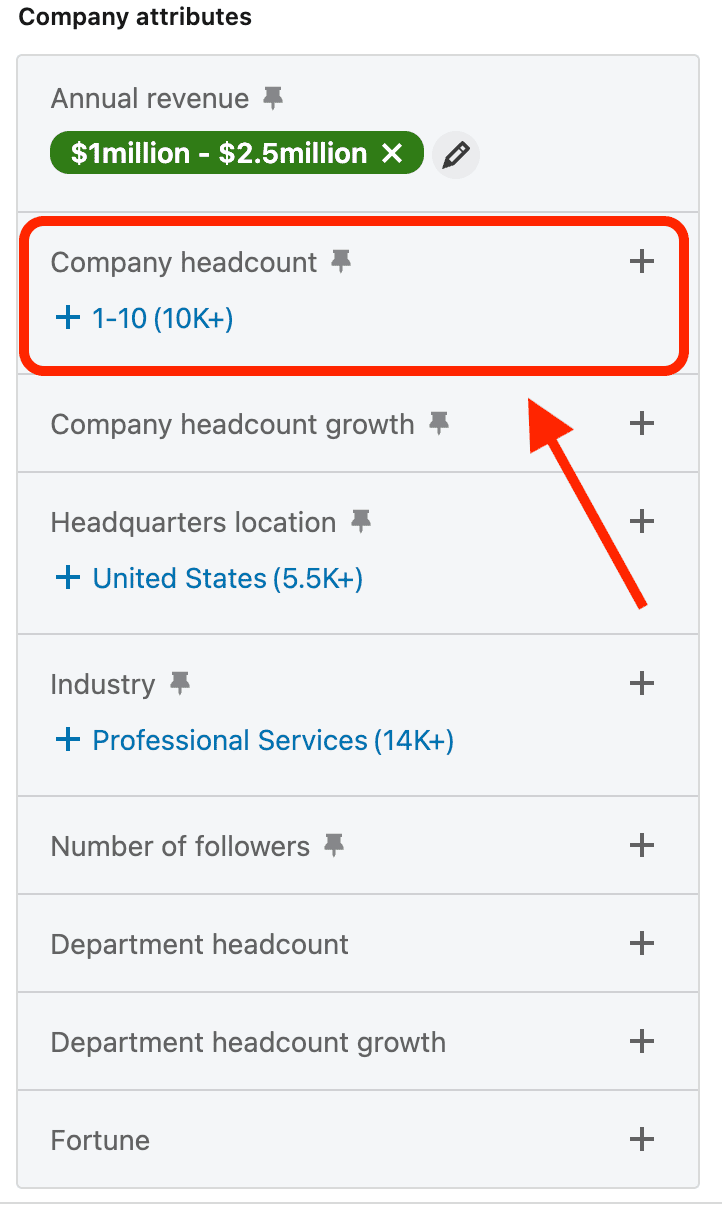
A 10-person company does not buy like a 500-person company.
And a 500-person company does not buy like a 5,000-person one.
Headcount influences:
- How decisions are made
- How many stakeholders are involved
- How formal the buying process is
- How painful the problem needs to be to justify change
How to think about headcount segments:
- 1-10 → founder-led, fast decisions, limited budgets
- 11-50 → early structure, growing pains, tool experimentation
- 51-200 → defined teams, real processes, stronger buying signals
- 200+ → complex orgs, longer cycles, multiple stakeholders
Strong teams don't treat headcount as a vanity metric. They use it to align:
- Pricing
- Sales motion
- Messaging complexity
- Deal expectations
Best practices:
- Match headcount to your ideal deal size
- Run separate searches for different segments
- Adjust messaging depth as headcount increases
Company Headcount isn't about size for the sake of size.
It's about selling into the right level of organizational pain.
Industry
Industry filtering helps you control context.
The same product can land very differently depending on the industry you're selling into.
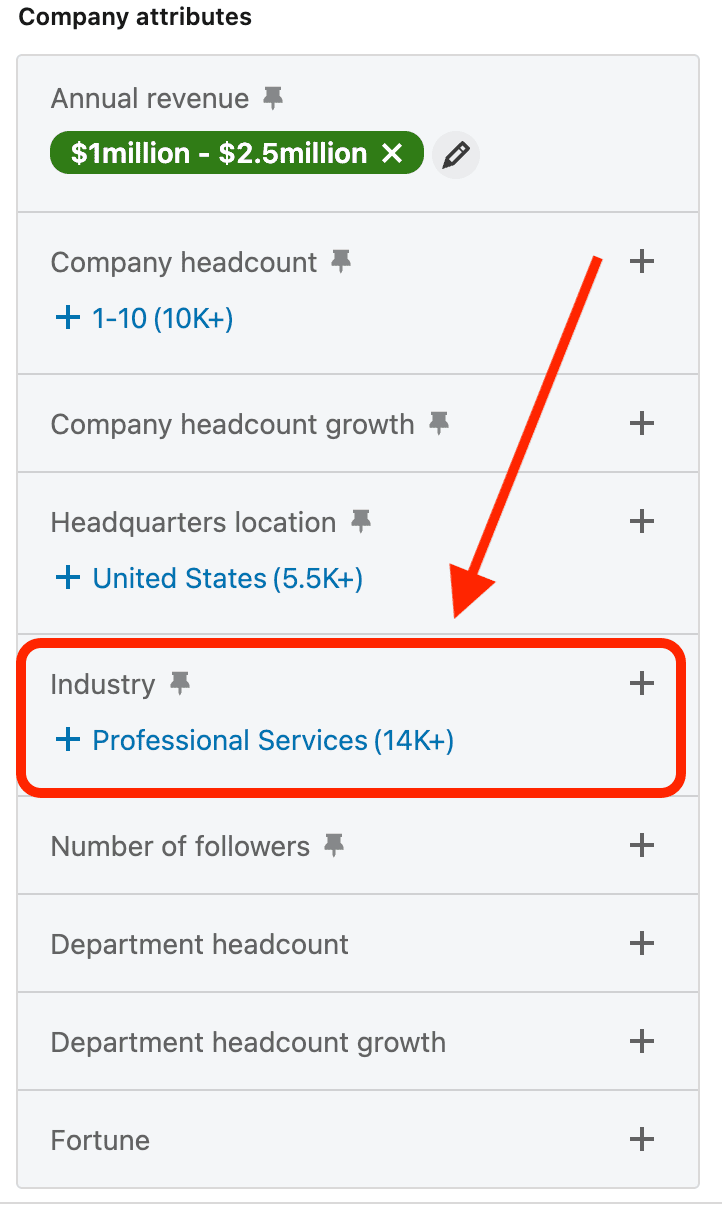
A SaaS company, an eCommerce brand, and a healthcare organization may all share the same job titles but their priorities, language, and buying triggers are completely different.
Industry affects:
- How problems are framed
- How urgent solutions feel
- How risk is evaluated
- How budget approval works
Why Industry matters:
- It keeps messaging relevant
- It prevents bad-fit conversations
- It improves reply quality, not just reply rate
Many teams make the mistake of going too broad early.
They target "All industries" and wonder why messaging feels generic.
Strong teams do the opposite.
How to use Industry effectively:
- Start with industries where your product already wins
- Create separate searches per industry
- Use industry-specific language in outreach
For example:
- SaaS → speed, efficiency, growth metrics
- eCommerce → revenue impact, conversion, scale
- Regulated industries → compliance, reliability, risk reduction
Industry filtering isn't about limiting opportunity.
It's about earning relevance faster.
Company Revenue
Company Revenue helps you estimate buying power and deal expectations before outreach ever begins.
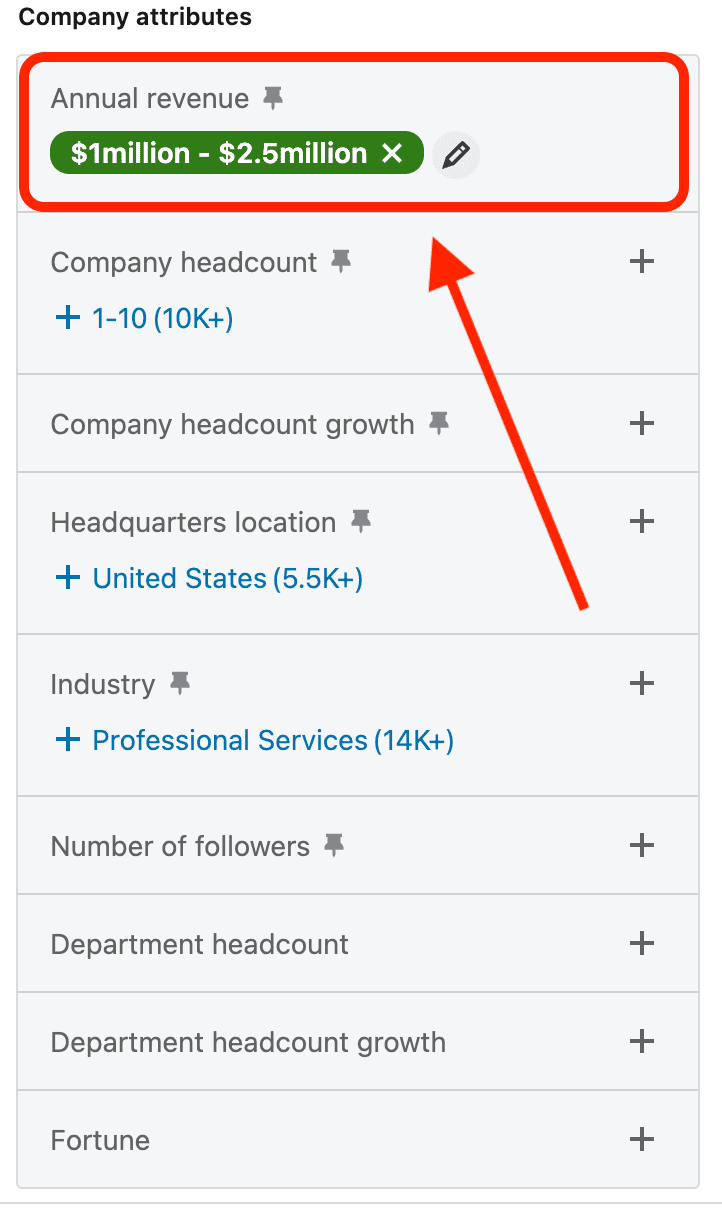
Revenue isn't perfect data but it's directionally useful.
A $2M ARR company and a $200M revenue company don't evaluate tools the same way, even if they have the same headcount.
Revenue influences:
- Budget availability
- Procurement scrutiny
- Deal size tolerance
- Price sensitivity
Typical revenue-based patterns:
- <$5M → price-conscious, fast decisions, founder influence
- $5M-$50M → structured buying, ROI-focused
- $50M+ → formal procurement, longer cycles
Strong teams use revenue to:
- Align pricing expectations
- Set realistic ACV targets
- Avoid wasting time on misaligned accounts
Best practices:
- Use revenue ranges, not exact numbers
- Pair revenue with headcount for accuracy
- Adjust sales motion as revenue increases
Revenue filtering helps you avoid two common mistakes:
- Selling something too expensive to small companies
- Oversimplifying value for large organizations
Company Revenue isn't about exclusivity.
It's about selling at the right altitude.
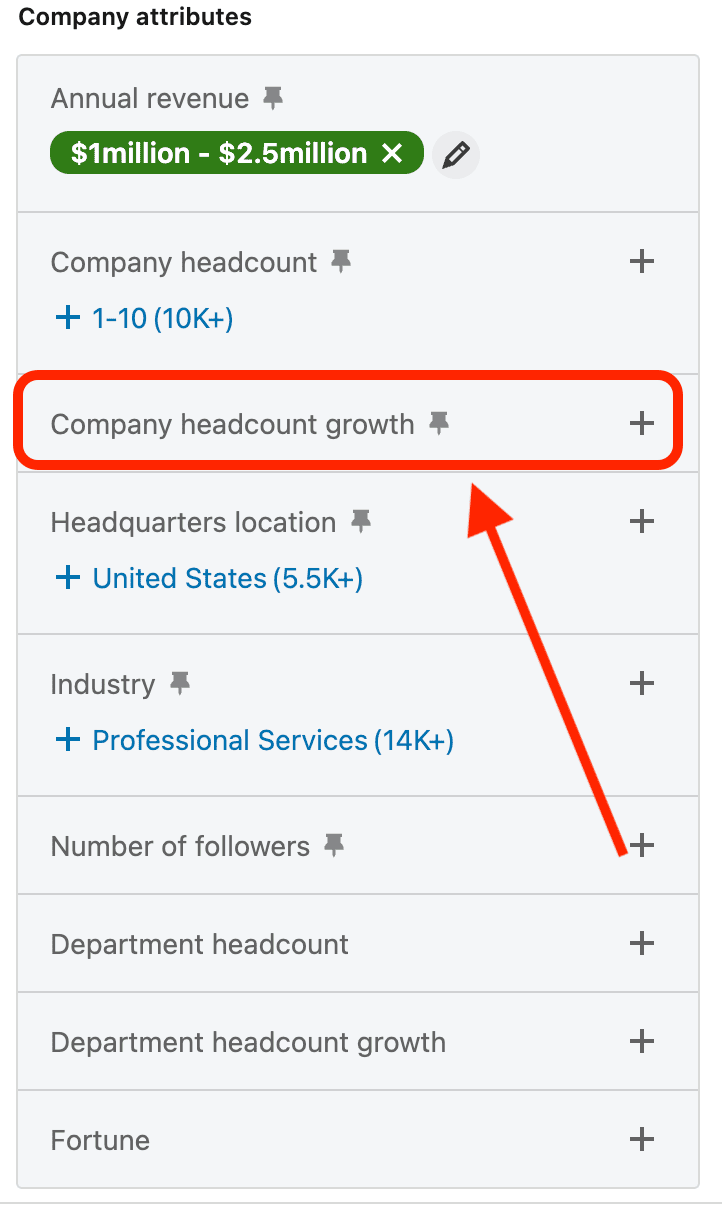
Company Growth
Company Growth is one of the strongest context filters inside Sales Navigator.
It helps you identify when a company is most likely to buy not just if they could buy.
Growth creates pressure.
When a company is hiring fast, expanding teams, or scaling operations, existing tools and processes start to break. What worked at 20 employees feels painful at 60. What worked at 100 feels brittle at 300.
That pressure creates buying intent.
Why Company Growth matters:
- Growing teams expose operational gaps
- New hires introduce new workflows and tools
- Leadership becomes more open to change
Sales Navigator typically shows growth based on employee count trends over time. While it's not perfect, it's directionally useful.
How strong teams use Company Growth:
- Prioritize growing accounts over stagnant ones
- Pair growth with headcount to spot scale-stage companies
- Adjust messaging around "keeping up with growth"
For example:
- High growth → positioning around scale, efficiency, and alignment
- Flat growth → positioning around cost control or optimization
Company Growth doesn't guarantee urgency but it increases the probability that something feels broken internally.
And broken systems get fixed.
Account Lists
Account Lists are where Sales Navigator shifts from searching to strategy.
Instead of running one-off searches, Account Lists let you group, track, and prioritize companies intentionally.
Think of them as your working shortlists not static databases.
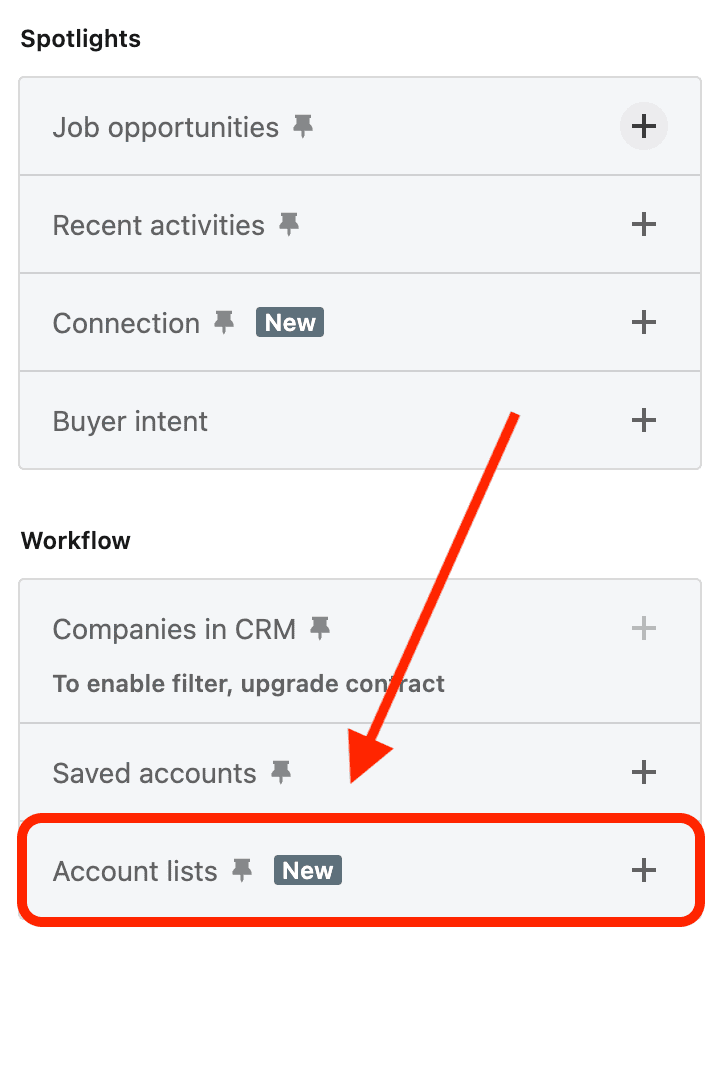
Why Account Lists matter:
- They support account-based selling
- They keep teams aligned on target accounts
- They reduce random, unstructured outreach
Strong teams don't build one giant list and forget it.
They create multiple lists based on:
- ICP segments
- Industries
- Regions
- Sales motions
How high-performing teams use Account Lists:
- Build lists first, then find leads inside them
- Review lists weekly as accounts change
- Track job changes, growth, and activity
Account Lists are especially powerful when paired with alerts:
- Hiring spikes
- Leadership changes
- Company growth signals
This turns Sales Navigator from a search tool into a living system.
Account Lists aren't about organization for its own sake.
They're about staying focused on the accounts that actually matter while everyone else chases noise.
Advanced Techniques to Refine and Scale Your Searches
Once you understand Sales Navigator filters, the next level is learning how to combine them intelligently using Boolean logic.
Boolean search lets you control precision at scale. Instead of relying on single filters, you define the exact logic Sales Navigator should follow when including or excluding results.
At its core, Boolean uses three operators:
- AND - narrows results by requiring multiple conditions
- OR - expands results by allowing variations
- NOT - excludes unwanted terms
Most people underuse OR and overuse AND.
That's how searches become too narrow.
How strong teams use Boolean:
- OR to capture title variations
- AND to layer intent or context
- NOT to remove noisy or irrelevant roles
For example, instead of searching one title:
- VP Marketing
You build logic like:
- VP Marketing OR Head of Marketing OR Director of Marketing
Then layer intent:
- (VP Marketing OR Head of Marketing OR Director of Marketing) AND Demand Gen
Best practices for Boolean in Sales Navigator:
- Group related terms using parentheses
- Keep keyword lists short and intentional
- Test and refine searches weekly
Boolean is especially useful when:
- Titles vary across companies
- Roles are evolving
- You're targeting mindset, not hierarchy
The goal isn't complexity.
It's clarity.
When used correctly, Boolean turns Sales Navigator from a static filter tool into a scalable targeting engine one that grows with your outbound motion instead of breaking as volume increases.
Frequently asked questions (FAQs)
1. What is LinkedIn Sales Navigator used for?
LinkedIn Sales Navigator is a prospecting and account discovery tool designed to help sales and growth teams find, filter, and track potential buyers on LinkedIn. It goes beyond basic LinkedIn search by offering advanced lead and account filters, saved searches, alerts, and account tracking so you can target the right people at the right companies more efficiently.
2. What is the difference between Lead filters and Account filters?
Lead filters are used to find individual people based on role, seniority, activity, and intent signals.
Account filters are used to find companies based on size, industry, revenue, growth, and technology stack.
The key rule is simple: find the right companies first with account filters, then find the right people inside them with lead filters.
3. Which Sales Navigator lead filters are the most important?
The most impactful lead filters are:
- Job Title
- Seniority
- Function
- Geography
- Years in Current Role
- Posted on LinkedIn
- Profile Keywords
When combined correctly, these filters help you target people with both role relevance and buying context, instead of spraying messages to anyone with a matching title.
4. How do I use Boolean search in LinkedIn Sales Navigator?
Boolean search allows you to combine keywords using AND, OR, and NOT operators. It's most commonly used for job titles and profile keywords.
For example, you can search multiple title variations at once or exclude irrelevant roles. Boolean works best when kept simple and layered on top of filters, not used as a replacement for them.
5. What is the best way to find high-intent prospects in Sales Navigator?
High-intent prospects usually appear at the intersection of:
- Recent activity (Posted on LinkedIn)
- Timing (Years in Current Role)
- Context (Company Growth or Hiring)
- Relevance (Job Title + Function + Keywords)
Stacking these signals helps you prioritize people who are more likely to reply and take meetings, not just fit your ICP on paper.
6. How accurate are company revenue and growth filters?
Company revenue and growth data in Sales Navigator are estimates, not exact numbers. However, they are directionally useful. When paired with headcount and industry, they provide enough signal to identify whether a company is likely under- or over-qualified for your product and pricing.
7. Should I create one search or multiple searches in Sales Navigator?
You should create multiple focused searches, not one massive search.
Strong teams segment searches by:
- Geography
- Company size
- Industry
- Seniority level
This keeps results clean, messaging relevant, and outreach scalable instead of noisy.
8. How often should I update or refine my Sales Navigator searches?
Sales Navigator searches should be reviewed and refined at least once every 2-4 weeks.
Titles change, companies grow, people switch roles, and intent signals evolve. Regular refinement ensures you're not prospecting stale leads or missing new opportunities.