How to Search LinkedIn Without Login: 7 Methods That Work (2026)
You can search LinkedIn without logging in by using Google X-ray search (site:linkedin.com/in plus your keywords), LinkedIn's public guest directory at linkedin.com/pub/dir, the public jobs portal at linkedin.com/jobs, alternative engines like Bing and DuckDuckGo, and direct company URLs at linkedin.com/company. Profile data is limited compared to logged-in views, but names, headlines, and job listings are accessible.
You need to find someone on LinkedIn. Maybe it's a prospect, a hiring manager, or a long-lost colleague. But you don't have an account. Or you don't want to log in and leave digital footprints everywhere.
Good news: you can absolutely search LinkedIn without logging in. Tools like a LinkedIn profile viewer make it simple. And there are several other methods that go way beyond just viewing a single profile. You can search for people, companies, job listings, and even posts, all without creating an account or signing in.
I've tested every method out there. Some are outdated garbage. Others still work perfectly in 2026. Here are the seven that actually deliver results. If you're looking for a full guide on viewing specific profiles anonymously, check out our detailed walkthrough on how to view LinkedIn without an account. This guide focuses specifically on searching, which is a different problem entirely.
TLDR
- For a LinkedIn search without login, Google X-ray search is the most powerful method to find profiles, jobs, and companies without any account.
- LinkedIn's own guest search at linkedin.com/pub/dir lets you search by name directly.
- Boolean operators like AND, OR, and quotation marks make your searches dramatically more precise.
- You can search LinkedIn jobs at linkedin.com/jobs without logging in.
- Each method has limits on what you can see. For full profile data and monitoring, you'll eventually want a proper LinkedIn tool.
In This Article
- What Can You Actually Search on LinkedIn Without Logging In?
- 7 Ways to Search LinkedIn Without Login
- What You Can and Cannot See Without Logging In
- How to Browse LinkedIn Anonymously (If You Have an Account)
- Pro Tips: Boolean Operators for Better Search Results
- FAQ
- Bottom Line: When to Just Create an Account
What Can You Actually Search on LinkedIn Without Logging In?
LinkedIn wants you to sign up. That's their business model. But they also want to be indexed by search engines. This tension creates a loophole.
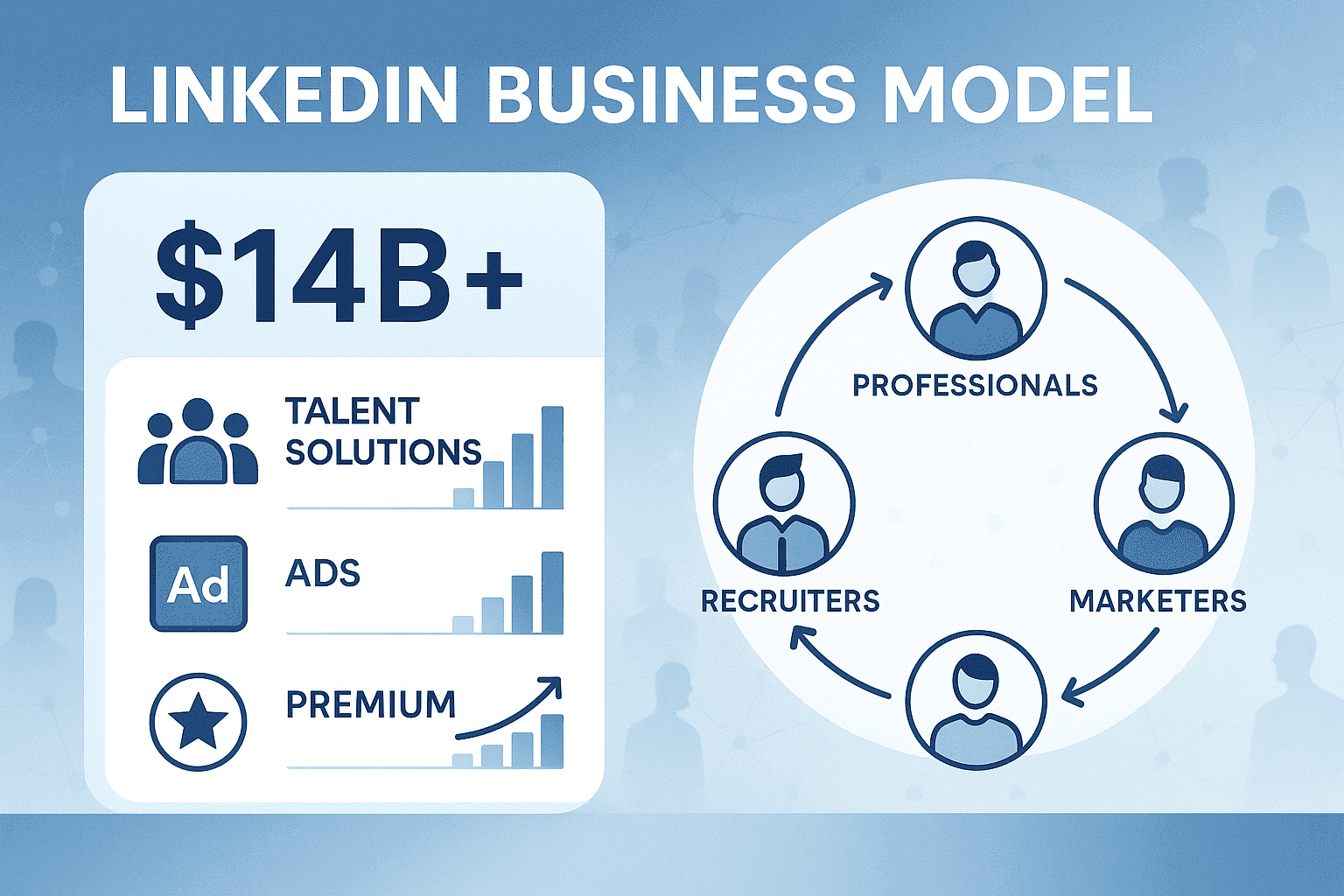
With over 1.2 billion registered members worldwide and 310 million monthly active users (99firms, 2026), LinkedIn has every reason to keep public profile data crawlable: SEO traffic is how it converts non-members into signups. That's the structural reason the methods below keep working.
Without logging in, you can search for:
- People by name, job title, company, or location
- Companies by name and industry
- Job listings through LinkedIn's public jobs portal
- Posts and articles that are publicly indexed
What you can't do without an account: use LinkedIn's internal search bar with filters, view full profiles (most are truncated), or see who's connected to whom.
The trick is knowing which door to use. Each method below opens a different one.
7 Ways to Search LinkedIn Without Login [2026 Guide]
Method 1: Google X-Ray Search (The Power Move)
This is the single most effective way to search LinkedIn without an account. X-ray searching means using Google's site: operator to search only within LinkedIn.
Here's the basic template:
site:linkedin.com/in "job title" "company name" "location"
Copy-paste templates you can use right now:
Find a marketing director at Salesforce in San Francisco:
site:linkedin.com/in "marketing director" "Salesforce" "San Francisco"
Find software engineers at any FAANG company:
site:linkedin.com/in "software engineer" ("Google" OR "Meta" OR "Apple" OR "Amazon" OR "Netflix")
Search for people by name:
site:linkedin.com/in "Jane Smith" "product manager"
Search for company pages:
site:linkedin.com/company "startup name"
The beauty of X-ray search is precision. You're not limited to LinkedIn's own search filters. You can combine any keywords, use quotes for exact matches, and mix in Google's full range of operators.
This works because Google indexes millions of LinkedIn public profiles. Your results show up as regular Google links. Click through, and you'll see whatever LinkedIn shows to logged-out visitors.
Method 2: Use Bing, DuckDuckGo, or Brave Search
Google isn't the only option. In fact, Bing sometimes surfaces LinkedIn profiles that Google doesn't. That's because Microsoft owns both LinkedIn and Bing.
Try the same X-ray approach on Bing:
site:linkedin.com/in "data scientist" "New York"
DuckDuckGo and Brave Search also index LinkedIn profiles. They're useful alternatives if you want extra privacy while searching.
Pro tip: Run the same search across two or three search engines. You'll often find different profiles in each result set. Google and Bing have different crawl schedules, so their LinkedIn indexes don't perfectly overlap.
Method 3: LinkedIn Guest Search (Direct URL Access)
This is the simplest approach for a LinkedIn search by name without login. Most people don't know this exists. LinkedIn has a public directory at:
https://www.linkedin.com/pub/dir
Visit this URL without logging in. You'll get a simple search form where you can enter a first name, last name, and location. It returns a list of matching profiles with limited information: name, headline, location, and a link to their public profile.
It's basic. No filters for job title, company, or industry. But when you know someone's name and approximate location, it works fast.
You can also try direct profile URLs if you know (or can guess) someone's LinkedIn URL slug:
https://www.linkedin.com/in/firstname-lastname
Many profiles are publicly visible to logged-out visitors. You won't see the full profile, but you'll get the headline, summary, current role, and sometimes recent activity.
Method 4: Search LinkedIn Jobs Without Logging In
LinkedIn's job board is surprisingly accessible without an account. Go to:
https://www.linkedin.com/jobs
You can search by job title, keyword, and location. Filter by date posted, experience level, and job type. Browse results, read full job descriptions, and see which companies are hiring.
This is legitimately one of the most useful features LinkedIn offers without login. You can research companies, understand what roles they're filling, and get a feel for salary ranges and required qualifications.
The public jobs portal is also the busiest one: 11,000 job applications are submitted on LinkedIn every minute and 7 people are hired every minute (LinkedIn data, via 99firms 2026), with over 22 million open roles listed at any given time (SQ Magazine, 2025). You don't need an account to browse any of it.
Want to find companies hiring for a specific role? This is faster than any X-ray search for job-related queries.
Method 5: Google Translate Proxy Method
This one's clever. Google Translate can act as a proxy to load LinkedIn pages.
Here's how:
- Go to translate.google.com
- Paste a LinkedIn profile URL in the left text box
- Set the translation from any language to English
- Click the translated link on the right side
Google Translate fetches the page on its behalf, which sometimes bypasses LinkedIn's login wall. The page loads through Google's servers, so LinkedIn sees Google's IP, not yours.
Important caveat: This method is inconsistent. It works sometimes, fails other times. LinkedIn has tightened this loophole over the years. Consider it a backup option, not your primary approach.
Method 6: Use People-Search Tools and Aggregators
Several tools aggregate public LinkedIn data and make it searchable without requiring a LinkedIn account.
People-search engines like Pipl, BeenVerified, and Spokeo pull data from multiple sources including LinkedIn public profiles. You search by name, email, or phone number and get a compiled profile.
For a more LinkedIn-focused approach, OutX offers a free LinkedIn profile viewer that lets you look up profiles. If you need to download profile data for research, there's also a LinkedIn profile downloader tool.
These tools work best when you have at least a name or email address to start with. They're less useful for broad searches like "all marketing managers in Austin."
Method 7: Search LinkedIn Company Pages Without an Account
Company pages on LinkedIn are more publicly accessible than individual profiles. You can find them through:
Google X-ray for companies:
site:linkedin.com/company "company name"
Direct URL:
https://www.linkedin.com/company/company-name
Company pages typically show: overview, employee count, recent posts, job listings, and sometimes a partial employee list. This is valuable for sales research, competitive intelligence, or job hunting.
You can see who works there (partial list), what they're posting about, and how fast they're growing based on employee count changes.
What You Can and Cannot See Without Logging In
Here's a clear breakdown:
| What You CAN See | What You CAN'T See |
|---|---|
| Name and headline | Full work history (often truncated) |
| Current job title and company | Connections list |
| Profile photo (if public) | Who viewed your profile |
| Summary/About (if public) | Mutual connections |
| Public posts and articles | Private messages |
| Company pages and job listings | LinkedIn Groups content |
| LinkedIn Learning course listings | Advanced search filters |
The visibility depends on each person's privacy settings. Some users have fully public profiles. Others restrict everything to connections only. Users with LinkedIn open profiles tend to show more information to non-logged-in visitors.
Key insight: The more senior someone is, the more likely their profile is public. Executives and thought leaders typically want maximum visibility.
That visibility bias is amplified by the U.S. user base, which sits at 252 million members (DemandSage, 2026), the largest of any country. American executives in particular treat their public LinkedIn page like a personal homepage, which is why X-ray searches for senior roles surface so much more than searches for early-career profiles.
How to Browse LinkedIn Anonymously (If You Have an Account)
Maybe you do have a LinkedIn account but you want to search without people knowing. That's a different situation, and it's easier to solve.
LinkedIn shows profile owners who visited their profile. If you've ever wondered what "found you through LinkedIn search" means, that's the feature in action.
To browse anonymously:
- Go to Settings & Privacy > Visibility > Profile viewing options
- Switch to Private mode
In private mode, you appear as "LinkedIn Member" or "Someone in [Industry]" to anyone whose profile you view. You lose the ability to see who's viewed your profile in return, but that's the trade-off.
For advanced users who need to track LinkedIn mentions and monitor prospect activity without manual browsing, automated tools handle this more efficiently.
Pro Tips: Boolean Operators for Better Search Results
If you're using X-ray search (Method 1 or 2), Boolean operators transform your results from mediocre to surgical.
Here's your cheat sheet:
Quotes for exact phrases:
site:linkedin.com/in "vice president of sales"
OR for alternatives:
site:linkedin.com/in "VP sales" OR "vice president sales" OR "head of sales"
AND for combining criteria:
site:linkedin.com/in "product manager" AND "SaaS" AND "Series B"
Minus sign to exclude:
site:linkedin.com/in "data scientist" -recruiter -hiring
Parentheses for grouping:
site:linkedin.com/in ("CTO" OR "VP Engineering") AND ("fintech" OR "payments") AND "New York"
These operators work across Google, Bing, and most search engines. Master them once, use them everywhere.
Want to go even deeper? Our guide on advanced LinkedIn search filters covers more sophisticated techniques for when you do have an account, including Sales Navigator filters for sales prospecting.
FAQ
Can you search LinkedIn without an account?
Yes. Google X-ray search (using site:linkedin.com/in followed by your keywords) is the most effective method. You can also use LinkedIn's public directory at linkedin.com/pub/dir, browse the jobs portal at linkedin.com/jobs, or use alternative search engines like Bing. Each method has different strengths depending on what you're searching for.
Will someone know I searched for them on LinkedIn if I'm not logged in?
No. If you're not logged into LinkedIn, there's no way for the profile owner to know you viewed their page. LinkedIn's "Who Viewed Your Profile" feature only tracks logged-in members. Searching through Google, Bing, or other external methods leaves zero trace on LinkedIn.
How do I find someone on LinkedIn without signing up?
The fastest way is a Google X-ray search: type site:linkedin.com/in "First Last" into Google. If you know their company, add it: site:linkedin.com/in "First Last" "Company Name". You can also try LinkedIn's public directory at linkedin.com/pub/dir where you enter their name directly.
Can you use LinkedIn search filters without logging in?
Not LinkedIn's built-in filters, no. Those require an account. But Google's search operators give you equivalent power. Use quotes for exact matches, OR for alternatives, minus signs for exclusions, and the site: operator to restrict results to LinkedIn. It's actually more flexible than LinkedIn's own basic search.
What can you see on LinkedIn without an account?
You can see names, headlines, current job titles, profile photos (if set to public), company pages, job listings, and public posts. You typically can't see full work history, education details, connections, or any content the user has restricted to logged-in members only.
Is there a way to search LinkedIn jobs without logging in?
Yes. Go directly to linkedin.com/jobs. The jobs portal is one of LinkedIn's most accessible features for non-logged-in visitors. You can search by title, keyword, and location. Filter by experience level, date posted, and job type. You can read full descriptions and see company information.
Can I search LinkedIn companies without an account?
Yes. Use site:linkedin.com/company "company name" in Google, or go directly to linkedin.com/company/company-name. Company pages are generally more publicly accessible than individual profiles. You can typically see the company overview, employee count, recent posts, and open positions.
Bottom Line: When to Just Create an Account
Searching LinkedIn without logging in works. The seven methods above cover most use cases. But let's be honest about the limitations.
Without an account, you're working with one hand tied behind your back. Truncated profiles, no search filters, no ability to save searches or set alerts. For occasional lookups, the methods above are enough. For serious prospecting, sales research, or ongoing monitoring, you'll hit walls fast.
If you're in sales, marketing, or recruiting, the real question isn't whether to have a LinkedIn account. It's whether to use it manually or with smart tools. LinkedIn social listening can track keywords, monitor prospects, and surface buying signals automatically, all while keeping your activity safe and rate-limited.
Create the account. Then work smarter, not harder.